Role Permissions
The Role Permissions system provides admin-configurable control over which user roles can perform specific actions in the application.
Unlike Module Permissions (which control item creation within modules), Role Permissions control broader application actions like creating bids, accessing admin panel, and managing users.
Permission Types
Bid Management Permissions
Control who can perform bid-level operations:
| Permission | Description | Default Roles |
|---|---|---|
create_bid | Create new bids | ADMIN, ESTIMATOR |
edit_bid | Edit existing bids and scopes | ADMIN, ESTIMATOR |
delete_bid | Delete bids permanently | ADMIN |
view_all_bids | View bids created by other users | All roles |
duplicate_bid | Create copies of existing bids | ADMIN, ESTIMATOR |
share_bid | Generate share codes for bids | ADMIN, ESTIMATOR |
change_bid_status | Change bid status (submit, award, mark lost) | ADMIN, ESTIMATOR |
Administration Permissions
Control admin panel access:
| Permission | Description | Default Roles |
|---|---|---|
access_admin_panel | Access the admin panel | ADMIN |
manage_users | Create, edit, and disable users | ADMIN |
view_audit_log | View system audit logs | ADMIN |
Pricing & Rates Permissions
Control pricing database access:
| Permission | Description | Default Roles |
|---|---|---|
manage_pricing | Edit pricing database and rates | ADMIN |
view_pricing | View pricing database (read-only) | ADMIN, ESTIMATOR, PM, OPS, ACCOUNTING |
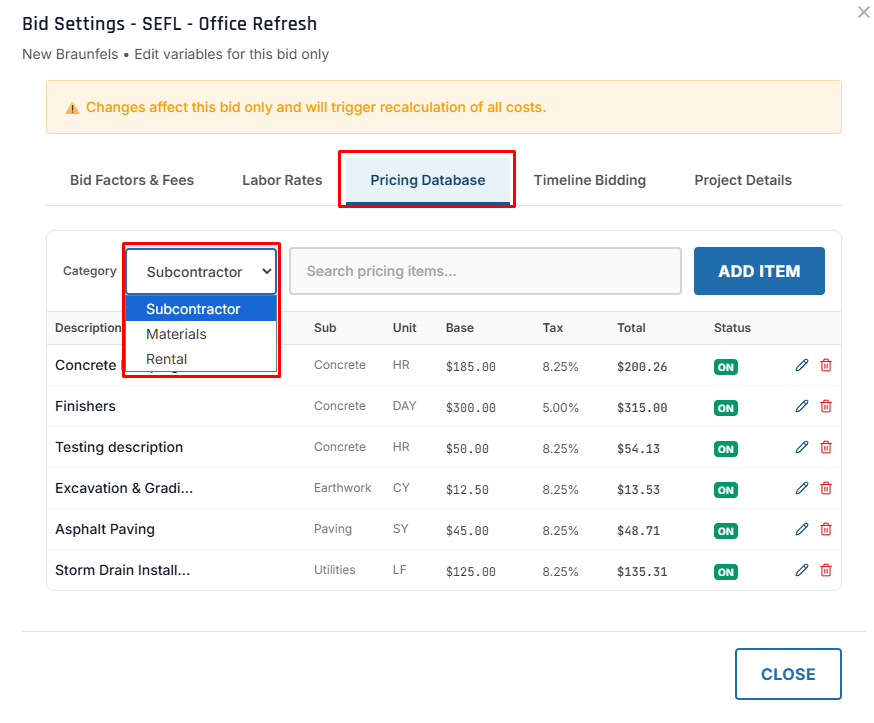
Pricing tab visibility
The Pricing Database and the pricing tabs in Bid Settings now honor these permissions directly, rather than showing pricing only to base admin accounts: view_pricing grants read-only access (so non-admin roles such as OPS and ACCOUNTING can browse pricing without permission errors), while edit and delete controls require manage_pricing. Per-user BIDS service-role overrides are respected too, and permission changes apply on the next session load — no re-login required.
Admin Configuration
Go to Admin Panel → Settings → Role Permissions
The matrix interface shows:
- Rows: Permission names with descriptions
- Columns: User roles (ADMIN, ESTIMATOR, PM, etc.)
- Cells: Checkboxes for enabled/disabled state
Click checkboxes to grant or revoke permissions for specific roles.
Changes take effect immediately (no save button required).
Click "Reset to Defaults" to restore all permissions to their default configuration.
This will overwrite all custom permission changes.
Permission Matrix UI
The admin interface organizes permissions by category:
┌─────────────────────────────────────────────────────┐
│ Bid Management                                      │
├─────────────────┬──────┬──────────┬────┬─────┬─────┤
│ Permission      │ADMIN │ESTIMATOR │ PM │ OPS │ACCT │
├─────────────────┼──────┼──────────┼────┼─────┼─────┤
│ Create Bid      │  ✓   │    ✓     │    │     │     │
│ Edit Bid        │  ✓   │    ✓     │    │     │     │
│ Delete Bid      │  ✓   │          │    │     │     │
└─────────────────┴──────┴──────────┴────┴─────┴─────┘
Color-Coded Actions: Permission names use badges to show status (active/inactive).
Using Permissions in Code
Frontend Components
Check permissions before rendering UI elements:
import { useCanPerform } from '../context/RolePermissionsContext';

function BidActions({ bid }) {
  const canEdit = useCanPerform('edit_bid');
  const canDelete = useCanPerform('delete_bid');
  const canShare = useCanPerform('share_bid');

  return (
    <div>
      {canEdit && <Button onClick={handleEdit}>Edit</Button>}
      {canShare && <Button onClick={handleShare}>Share</Button>}
      {canDelete && <Button onClick={handleDelete}>Delete</Button>}
    </div>
  );
}
Multiple Permission Checks
Use the context for complex authorization logic:
import { useRolePermissions } from '../context/RolePermissionsContext';

function AdminDashboard() {
  const { canPerform, loading } = useRolePermissions();

  if (loading) return <Spinner />;

  const canAccessAdmin = canPerform('access_admin_panel');
  const canManageUsers = canPerform('manage_users');
  const canViewAudit = canPerform('view_audit_log');

  if (!canAccessAdmin) {
    return <AccessDenied />;
  }

  return (
    <Dashboard>
      {canManageUsers && <UsersSection />}
      {canViewAudit && <AuditLogSection />}
    </Dashboard>
  );
}
API Endpoints
| Method | Endpoint | Description | Auth |
|---|---|---|---|
| GET | /api/role-permissions | Get all permissions | Authenticated |
| GET | /api/role-permissions/:key | Get single permission | Authenticated |
| GET | /api/role-permissions/check/:key | Check if user can perform action | Authenticated |
| PUT | /api/role-permissions/:key | Update permission roles | Admin only |
| POST | /api/role-permissions/reset | Reset all to defaults | Admin only |
Default Behavior
Auto-Seeding
If permissions haven't been configured, default permissions are automatically created on first access.
API Failure Fallback
If the API fails, the frontend falls back to hardcoded defaults to ensure the application remains usable.
ADMIN Always Has Access
The ADMIN role cannot be removed from any permission via the UI. ADMIN always has full access.
Permission Categories
Permissions are grouped into logical categories for easier management:
| Category | Permissions |
|---|---|
| Bids | create_bid, edit_bid, delete_bid, duplicate_bid, share_bid, change_bid_status, view_all_bids |
| Admin | access_admin_panel, manage_users, view_audit_log |
| Pricing | manage_pricing, view_pricing |
Future versions may support custom categories and permission groups.
Migration from Hardcoded Permissions
Before (Hardcoded)
const { role } = useRole();
const canEdit = role === 'admin' || role === 'estimator';
After (Configurable)
const canEdit = useCanPerform('edit_bid');
Backward Compatibility
The canEditBids property in RoleContext is preserved for backward compatibility but marked as deprecated. New code should use useCanPerform('edit_bid') instead.
Audit Logging
All permission changes are logged to the audit system:
| Action | Logged Data |
|---|---|
| Permission Update | Role additions/removals, permission key, modified by user |
| Reset to Defaults | All permissions reset, timestamp, admin user |
| Auto-Seeding | Default permissions created on first access |
View audit logs at Admin Panel → Audit Log tab.
Use Cases
- Lock Down Deletions
- PM Read-Only Access
- Shared Bid Access
Scenario: Only senior estimators should delete bids.
Solution:
- Go to Role Permissions
- Find
delete_bidpermission - Uncheck all roles except ADMIN
- Only admins can now delete bids
Scenario: Project Managers should view bids but not edit.
Default: PM role has view_all_bids but not edit_bid
Verification:
- PM users see bids but edit buttons are hidden
- API enforces read-only access
Scenario: Allow estimators to share bids with external stakeholders.
Solution:
- Enable
share_bidfor ESTIMATOR role - Estimators can generate shareable links
- External users can view (but not edit) shared bids
Database Schema
model RolePermission {
  id             String   @id @default(uuid())
  permissionKey  String   @unique
  permissionName String
  description    String?
  category       String   @default("bids")
  allowedRoles   String[] @default(["ADMIN"])
  isActive       Boolean  @default(true)
  createdAt      DateTime @default(now())
  updatedAt      DateTime @updatedAt
  updatedBy      String?
}
Troubleshooting
Changes not taking effect
Permissions are cached on the frontend. Have users refresh the page to see permission changes.
Cannot remove ADMIN from permission
This is by design. ADMIN role always has all permissions and cannot be restricted.
User sees 'Access Denied' error
Check:
- User's role in Admin → Users
- Permission settings for that role
- Audit log for recent permission changes
Best Practices
Test Permission Changes
Before deploying permission changes, test with a non-admin user to ensure expected behavior.
Document Custom Permissions
If you create custom permission configurations, document them for future reference.
Use Audit Log
Review the audit log regularly to track who made permission changes and when.
Principle of Least Privilege
Grant the minimum permissions necessary for each role to perform their job functions.
Related Features
- Module Permissions - Controls creation of items within modules (concrete mixes, equipment types, etc.)
- User Management - Controls user accounts and service access
- Audit Logging - Tracks all permission changes