Tax Management
ForgeX provides sophisticated tax handling for construction materials and equipment rentals, supporting jurisdiction-specific rates and tax-exempt bids. Tax is calculated automatically at the item level and aggregates up through scopes to the bid total.
Tax rates are configured per item in the pricing database and can vary by jurisdiction, material type, and equipment category.
Tax Categories
ForgeX handles tax for two primary categories:
- Materials Tax
- Equipment Tax
Applies to: Material items (lumber, rebar, concrete, etc.)
Default Rate: 8.25% (Texas state sales tax)
Calculation:
Material Cost = Quantity × Unit Cost × (1 + Waste %)
Tax Amount = Material Cost × Tax Rate
────────────────────────────────────────────
Total Cost = Material Cost + Tax Amount
Example:
Rebar: 1,000 LB @ $0.92/LB
Waste: 5%
Tax Rate: 8.25%

Material Cost: 1,000 × $0.92 × 1.05 = $966.00
Tax: $966.00 × 0.0825 = $79.70
────────────────────────────────────────────
Total: $1,045.70
On a tax-exempt bid, most materials drop to $0 tax — but the subcategories Blades, PPE, Safety, Small Tools, and Sprayer are always taxed (they're reusable tools/gear, not consumables). See Tax-Exempt Bids below.
Applies to: Equipment rentals (dozers, excavators, pumps, etc.)
Default Rate: 12.25% (Texas equipment rental tax)
Calculation:
Rental Cost = Quantity × Duration × Rate
+ Delivery Fee + Fuel Charge

Tax Amount = (Rental Cost + Delivery + Fuel) × Tax Rate
────────────────────────────────────────────
Total Cost = Rental Cost + Delivery + Fuel + Tax
Example:
Dozer: 1 unit × 5 days @ $931/day
Delivery: $150
Fuel: 5 days × $50 = $250
Tax Rate: 12.25%

Rental Cost: $4,655
Delivery: $150
Fuel: $250
Subtotal: $5,055

Tax: $5,055 × 0.1225 = $619.24
────────────────────────────────────────────
Total: $5,674.24
Equipment is always taxed — equipment rentals are never exempt, even on a tax-exempt bid.
Formwork Exception: Formwork rentals (plywood, scaffolding, etc.) have a 0% tax rate per Texas construction industry standards.
Default Tax Rates
ForgeX uses the following default rates (configurable via global variables):
| Category | Default Rate | Jurisdiction |
|---|---|---|
| Materials | 8.25% | Texas state sales tax |
| Equipment Rentals | 12.25% | Texas equipment rental tax |
| Formwork | 0% | Texas formwork exemption |
| Rebar | 8.25% | Texas state sales tax |
These defaults apply to Texas-based projects. For out-of-state projects, update tax rates in the pricing database to match the jurisdiction.
Tax-Exempt Bids
ForgeX supports tax-exempt bids for government projects, non-profit organizations, or clients with a valid tax exemption certificate.
How Tax Exemption Works
Tax exemption applies only to consumable materials — things bought and consumed into the job site: concrete, rebar, and installed materials such as lumber, plywood, nails, vapor barrier, and grout.
When a bid is marked Tax Exempt:
- Consumable materials have their tax set to $0.
- Equipment is always taxed — rentals are never exempt, even on an exempt bid.
- A few material subcategories are always taxed too: Blades, PPE, Safety, Small Tools, and Sprayer.
- Labor and subcontractor items are unaffected (they're never taxed).
- The bid total drops by the consumable tax only — and checking, then unchecking, the toggle restores it exactly.
Why equipment and tools stay taxed: consumables are bought and consumed into the job; equipment is rented and returned; and blades, PPE, safety gear, small tools, and sprayers are reusable rather than consumed. Only consumables qualify for the exemption.
- Normal (Taxable)
- Tax Exempt
Material item — consumable:
Rebar: 1,000 LB @ $0.92/LB
Waste: 5%
Tax Rate: 8.25%

Material Cost: $966.00
Tax:           $79.70
Total:         $1,045.70
Equipment item:
Dozer: 5 days @ $931/day + Delivery $150 + Fuel $250
Tax Rate: 12.25%

Subtotal: $5,055.00
Tax:      $619.24
Total:    $5,674.24
Material item — consumable (now exempt):
Rebar: 1,000 LB @ $0.92/LB
Waste: 5%
Tax Rate: 0%  (exempt — consumable)

Material Cost: $966.00
Tax:           $0.00
Total:         $966.00
Equipment item — still taxed:
Dozer: 5 days @ $931/day + Delivery $150 + Fuel $250
Tax Rate: 12.25%   (unchanged — equipment is never exempt)

Subtotal: $5,055.00
Tax:      $619.24
Total:    $5,674.24
What changes on the bid total: only the consumable-material tax is removed. The equipment tax ($619.24 above) — and any tax on always-taxed material subcategories (Blades, PPE, Safety, Small Tools, Sprayer) — stays in the total.
Sanity check: an exempt bid should be lower than the same bid taxable by exactly the consumable (concrete / rebar / installed-material) tax — not by the equipment tax. If checking the box also drops the equipment tax, something is wrong.
Enabling Tax Exemption
Open the bid from the Dashboard. The Tax Exempt checkbox is in the bid header, next to Enable Per Diem.
Tick Tax Exempt — costs recalculate immediately (there's no separate Save step). The helper text under the toggles states the rule: tax-exempt bids zero sales tax on consumable materials (concrete, rebar, installed materials), while equipment, tools, PPE, and safety items stay taxed.
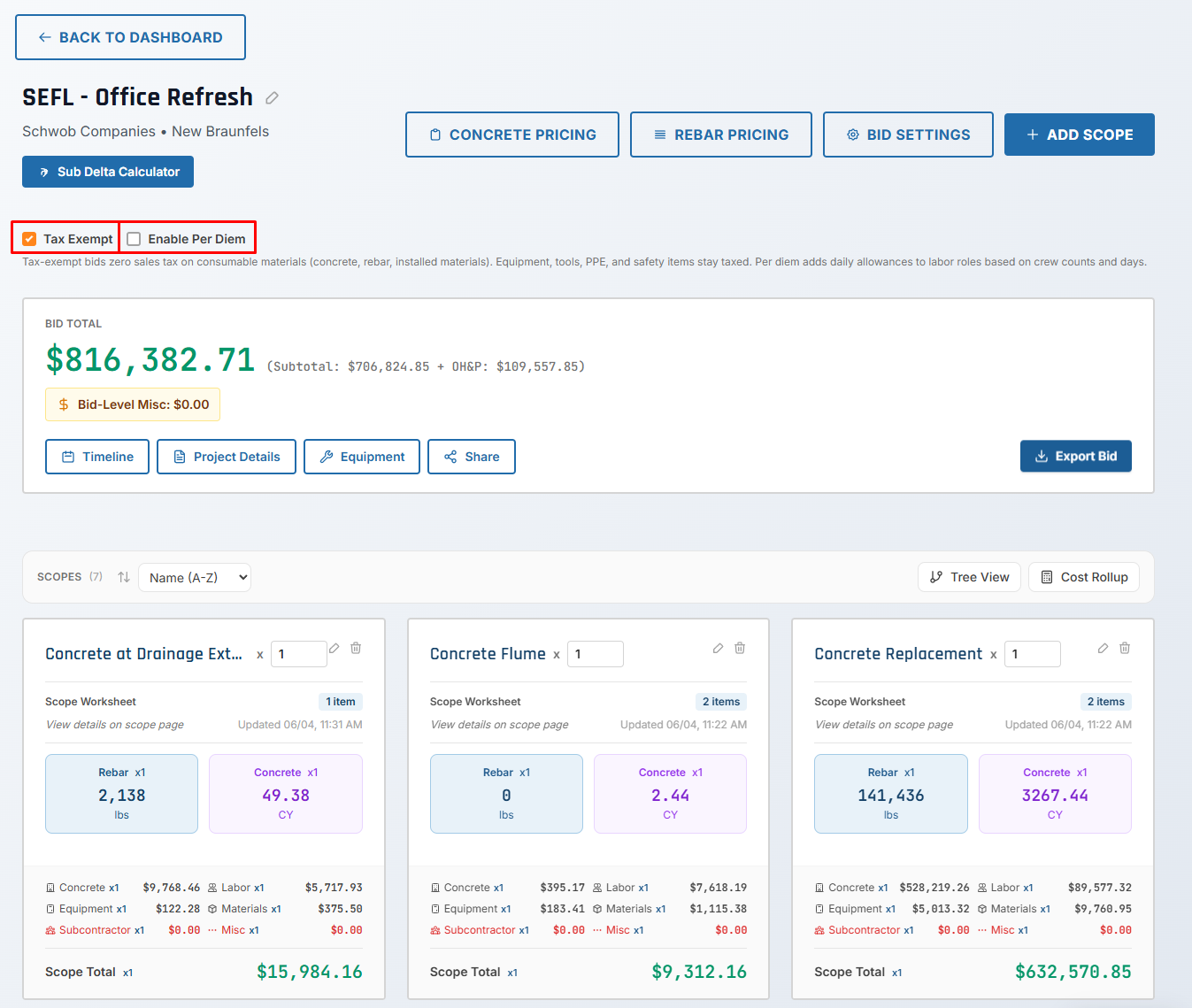
Review scope and bid totals to confirm the exemption applied correctly:
- Consumable materials (concrete, rebar, lumber, etc.) show $0 tax
- Equipment still shows tax — it's never exempt
- Blades, PPE, Safety, Small Tools, and Sprayer materials still show tax
- The bid total drops by the consumable tax only — and unchecking the box restores it exactly
Always verify client tax-exempt status before marking a bid as tax-exempt. Request a copy of their tax exemption certificate for your records.
Per-Jurisdiction Tax Rates
Different states and municipalities have different tax rates. ForgeX supports per-item tax rate overrides in the pricing database.
Common Jurisdiction Rates
- Texas
- California
- Florida
- New York
| Category | Rate | Notes |
|---|---|---|
| Materials | 8.25% | State sales tax |
| Equipment | 12.25% | Equipment rental tax |
| Formwork | 0% | Exempt per construction rules |
| Rebar | 8.25% | Standard materials tax |
| Category | Rate | Notes |
|---|---|---|
| Materials | 7.25% - 10.5% | Varies by county |
| Equipment | 7.25% - 10.5% | Same as materials |
| Formwork | Varies | Check local rules |
| Rebar | 7.25% - 10.5% | Standard materials tax |
| Category | Rate | Notes |
|---|---|---|
| Materials | 6% | State sales tax |
| Equipment | 6% | Same as materials |
| Formwork | 6% | No exemption |
| Rebar | 6% | Standard materials tax |
| Category | Rate | Notes |
|---|---|---|
| Materials | 4% - 8.875% | Varies by locality |
| Equipment | 4% - 8.875% | Same as materials |
| Formwork | Varies | Check local rules |
| Rebar | 4% - 8.875% | Standard materials tax |
Out-of-state projects: When bidding projects outside Texas, update tax rates in the pricing database to match the project's jurisdiction.
Configuring Tax Rates
Tax rates are configured in two places:
1. Global Variables (Defaults)
Global variables set the default tax rates for new items:
Go to Admin → Global Variables.
Find and update:
Materials_Tax(default: 0.0825 = 8.25%) — also applies to rebar itemsEquipment_Tax(default: 0.1225 = 12.25%)
Formwork is tax-free via subcategory exclusion (no variable), and rebar is taxed at the Materials_Tax rate — there is no separate Formwork_Tax or Rebar_Tax variable.
Click "Save".
Note: This only affects new items created after the change. Existing items retain their original tax rates.
2. Pricing Database (Per-Item Overrides)
Each pricing item can have a custom tax rate that overrides the global default:
Go to Admin → Pricing Management.
Find the item (material or equipment) and click "Edit".
Set the "Tax Rate" field:
- Enter as decimal (e.g., 0.0825 for 8.25%)
- Leave blank to use global default
- Set to 0 for tax-exempt items (like formwork)
Click "Save".
All new estimation items using this pricing item will use the custom tax rate.
Existing items are not updated when you change pricing database tax rates. Only new items use the updated rate.
Tax Calculation Flow
Tax is calculated at multiple levels:
Step-by-Step
- Pricing Database: Tax rate defined per item (e.g., 8.25% for rebar)
- Estimation Item Created: Tax rate copied from pricing item
- Exemption Check: If the bid is tax-exempt and the item is a consumable material, override its rate to 0%. Equipment and the always-taxed material subcategories (Blades, PPE, Safety, Small Tools, Sprayer) keep their rate.
- Calculate Tax: Tax = Base Cost × Tax Rate
- Item Total Cost: Base Cost + Tax
- Scope Aggregation: Sum all item costs (including tax)
- Bid Aggregation: Sum all scope costs
- Overhead & Profit: Applied to subtotal (post-tax)
Overhead and profit are calculated on the subtotal which includes tax. This is standard construction industry practice.
Tax Exemptions vs. Zero Tax
There's a difference between tax-exempt bids and zero-tax items:
| Scenario | Tax Exempt Bid | Zero-Tax Item |
|---|---|---|
| Consumable materials (concrete, rebar, lumber…) | Tax = $0 | Tax = $0 |
| Equipment items | Tax unchanged (always taxed) | Tax = $0 |
| Blades / PPE / Safety / Small Tools / Sprayer | Tax unchanged (always taxed) | Tax = $0 |
| Formwork items | Tax = $0 | Tax = $0 (always) |
| Labor items | No change | No change |
| Subcontractor items | No change | No change |
Tax-exempt bids affect only exemption-eligible consumable materials — not equipment, and not the always-taxed material subcategories. Zero-tax items (like formwork) have a 0% tax rate by default, regardless of the bid's exempt status.
Historical Tax Rate Preservation
Important: When tax rates change globally, existing bids preserve their original rates. This ensures historical accuracy.
Example:
January 2025:
- Admin sets Materials_Tax = 8.25%
- User creates Bid A
- Material items in Bid A have 8.25% tax

March 2025:
- Admin changes Materials_Tax to 8.5%
- User creates Bid B
- Material items in Bid B have 8.5% tax

Result:
- Bid A items still have 8.25% tax (preserved)
- Bid B items have 8.5% tax (new default)
This ensures that submitted bids remain accurate even if tax rates change after submission.
Tax Reporting
Per-Bid Tax Summary
View total tax collected for a bid:
- Open the bid detail page
- View the Financial Summary card
- Tax breakdown shows:
- Materials tax total
- Equipment tax total
- Total tax collected
API Endpoint for Tax Data
GET /api/bids/:bidId/tax-summary

Response:
{
  "bidId": "bid-123",
  "taxExempt": false,
  "materialsTax": 3250.50,
  "equipmentTax": 1875.75,
  "totalTax": 5126.25,
  "taxableItems": 42,
  "exemptItems": 5
}
Best Practices
Verify Jurisdiction
Always confirm the project's state/county before creating a bid. Update tax rates if outside Texas.
Request Exemption Certificates
For tax-exempt bids, request and store a copy of the client's tax exemption certificate.
Review Tax Rates Annually
Tax rates change annually. Review and update global variables each January.
Document Tax Exemptions
Add notes to tax-exempt bids explaining the exemption (e.g., "Government project per cert #12345").
Common Scenarios
Government/Municipal Projects
Tax Status: Tax-exempt
Steps:
- Request tax exemption certificate from client
- Mark bid as "Tax Exempt"
- Add note: "Government project - tax exempt per cert #[number]"
- Save exemption certificate to bid attachments
Non-Profit Organizations
Tax Status: Usually tax-exempt (verify 501(c)(3) status)
Steps:
- Request IRS determination letter (501(c)(3) proof)
- Mark bid as "Tax Exempt"
- Add note: "Non-profit - tax exempt per IRS letter"
- Save determination letter to bid attachments
Out-of-State Projects
Tax Status: Taxable, but different rates
Steps:
- Research state/county tax rates for project location
- Update global variables OR create bid-specific pricing items
- Add note: "California project - 9.5% sales tax applied"
- Review all item tax rates before submitting bid
Owner-Furnished Materials
Tax Status: Not applicable (materials not included in bid)
Steps:
- Exclude material items from bid (or set quantity to 0)
- Add exclusion: "Materials provided by owner"
- Only include labor and equipment in scope
Troubleshooting
Common Issues
| Issue | Cause | Solution |
|---|---|---|
| Tax not applying to items | Item has 0% tax rate | Check pricing item tax rate |
| Wrong tax rate | Using old global variable | Update pricing item manually |
| Tax still showing on exempt bid | Bid not marked tax-exempt | Enable "Tax Exempt" in bid settings |
| Formwork has tax | Incorrect pricing item setup | Set formwork tax rate to 0% |
| Out-of-state rate wrong | Using Texas defaults | Update global variables or pricing items |
Future Enhancements
Planned features for tax management:
- Multi-jurisdiction support: Automatic tax rate lookup by ZIP code
- Tax jurisdiction database: Pre-loaded rates for all US states/counties
- Tax exemption certificate storage: Upload and link certificates to bids
- Tax liability reports: Annual tax reporting for accounting
- Resale certificate tracking: For tax-exempt material purchases