Linking Contacts to Projects in Podio
Why Link Contacts to Projects?
Linking GC and customer contacts to a project gives you quick access to "who's who" on each job. When you need to send an RFI or ask a question, you'll know exactly who to reach out to.
Benefits:
- See all project contacts in one place
- Everyone on your team knows who the GC's PM is
- Avoid "who do I send this to?" confusion
How to Link a Contact to a Project
Method 1: From the Project Page
This is the easiest way if you're already looking at the project.
- Open the Project in Podio
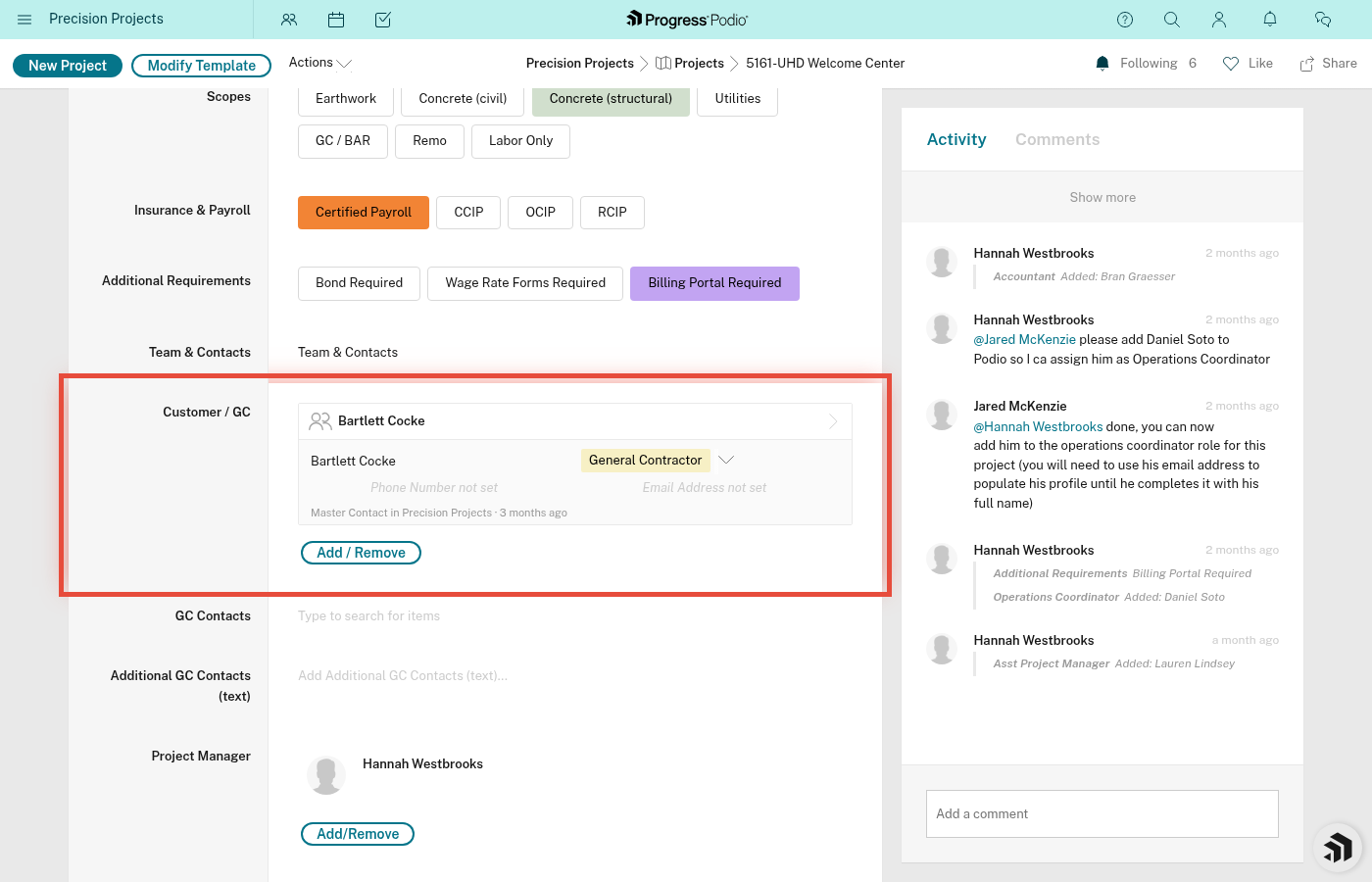
- Find the "Customer / GC" field (it's a relationship field)
- Click in the field to start typing the contact's name
- Select the contact from the dropdown list
- Click Save or just click elsewhere (Podio auto-saves relationship fields)
Can't find the contact?
- They might not exist in the Contacts app yet. Add them first (see Adding Contacts), then come back and link.
Need to link multiple contacts?
- The "Customer / GC" field can hold multiple contacts. Just keep selecting and they'll all be linked.
Method 2: From the Contact Page
Use this if you're looking at the contact and want to link them to a project.
- Open the Contacts app
- Find and open the contact you want to link
- Find the "Linked Projects" field (relationship field)
- Click in the field and start typing the project name or Job #
- Select the project from the dropdown
- Save
Contact detail page with "Linked Projects" relationship field visible would be helpful here. The existing contact screenshots show the Customer/GC field from the project side.
Alternative: Use the GC Contacts Text Field
Some projects use a "GC Contacts" text field for quick notes about who's who. This is a free-form text area where you can type names and roles.
When to use this:
- Quick notes during project setup
- Contact isn't in the system yet and you just need to remember their name
- Temporary contacts who don't need a full Contact record
Example:
Sarah Johnson - GC Project Manager - 281-555-1234
Mike Davis - Safety Coordinator - 281-555-5678
Note: This is just a text note. It doesn't create a link or sync with the Contacts app. For real contacts you'll interact with often, use the relationship field instead.
Viewing Linked Contacts
From the Project:
- Open the project
- Look at the "Customer / GC" field
- Click on any linked contact's name to open their full contact card (phone, email, notes, etc.)
From the Contact:
- Open the contact
- Look at the "Linked Projects" field
- You'll see all projects they're associated with
This works both ways—projects show their contacts, contacts show their projects.
Best Practices
✅ Link early: Add contacts during project setup (Pre-Construction) so everyone knows who to talk to from day one
✅ Keep it current: If the GC's PM changes mid-project, unlink the old one and link the new one. Add a note in the project about the change.
✅ Link the right people: Focus on key decision-makers (GC PM, superintendent, safety coordinator). You don't need every person you might email.
✅ Use both methods: Link via the relationship field for the primary GC contact(s), and use the GC Contacts text field for quick reference notes
Common Questions
Q: Can I link the same contact to multiple projects?
A: Yes! Many GC PMs work on multiple jobs with you. Link them to every relevant project.
Q: What if I unlink a contact by accident?
A: Just link them again. Unlinking doesn't delete the contact—it just removes the connection to that project.
Q: Why are there two ways to track contacts (relationship field + text field)?
A: The relationship field (Customer / GC) creates a real database link—best for key contacts. The text field (GC Contacts) is for quick notes and less formal tracking. Use the relationship field when possible.
Q: Can I link PSS employees (like our PM) to a project?
A: PSS team members are assigned via User fields (Project Manager, OC, FOCS, Foreman), not the Contacts app. Those fields are specifically for internal assignments.
Related Guides
- Adding Contacts - How to create a new contact first
- PSP-101: Creating a New Project
- PSP-104: Communication Best Practices
Need help? Ask your PM or OC. They can show you how the contact fields are set up on your projects.