Finding Your Tasks in Podio
Where Your Tasks Live
Your tasks in Podio are always connected to a Project and a Stage. Think of it like:
- Project = The job site
- Stage = What phase the job is in (Pre-Construction, Mobilization, Construction, etc.)
- Task = Your specific to-do item
Quick Access: My Tasks View
The fastest way to see everything assigned to you:
- Click the Tasks app from your Podio workspace
- Use the filter to show tasks where Responsible = You
- Sort by Due Date to see what's urgent
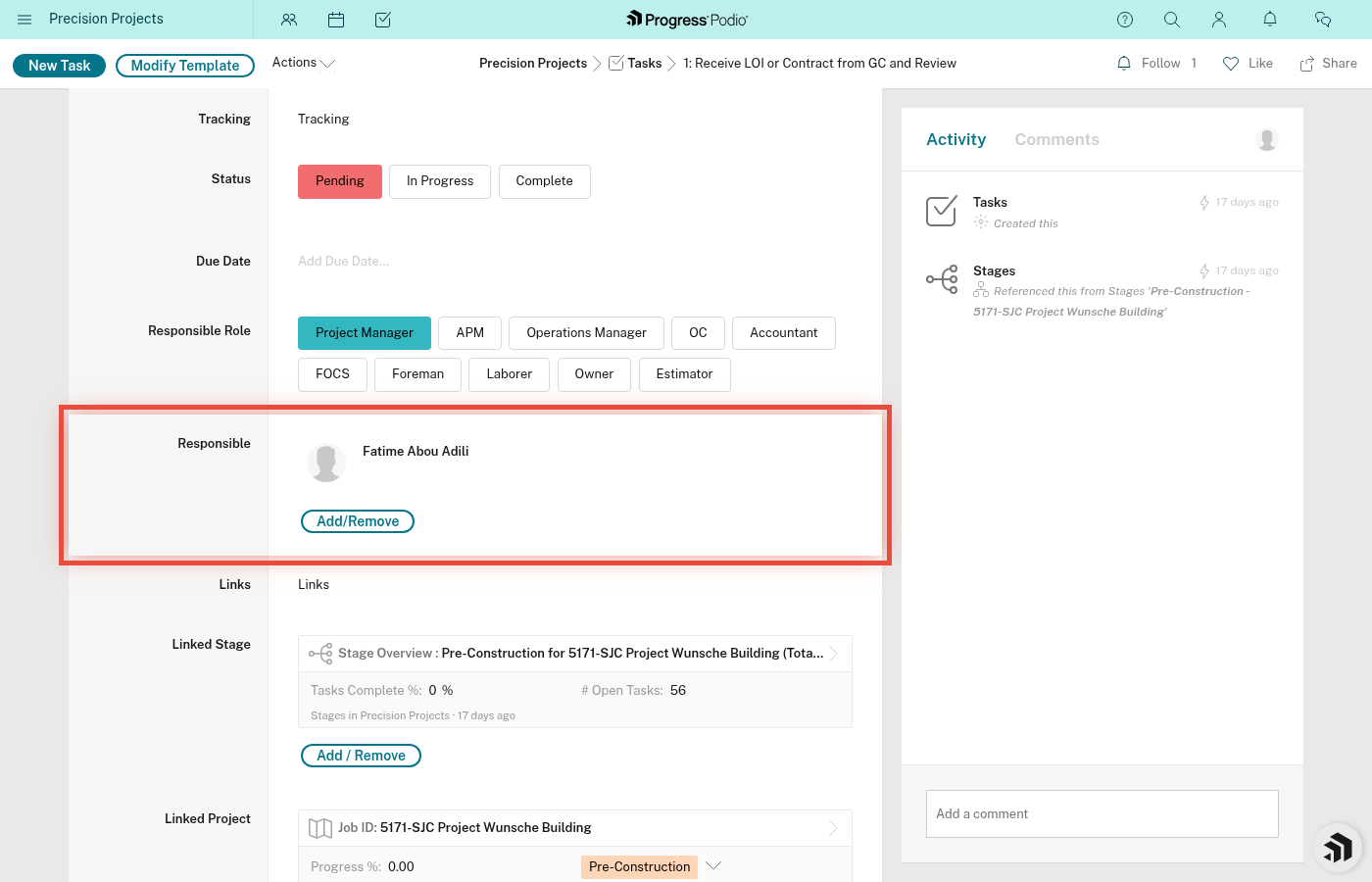
What you'll see:
- Task Name
- Status (Pending/red, In Progress/yellow, Complete/green)
- Due Date
- Which Project and Stage it belongs to
Finding Tasks by Project
If you want to see all tasks for a specific job:
- Open the Projects app
- Find and click your project
- Click into the Current Stage Status to see which stage is active
- Look at the Linked Stages section
- Click the active stage (e.g., "Pre-Construction Active")
- Scroll to Task Overview to see all tasks for that stage
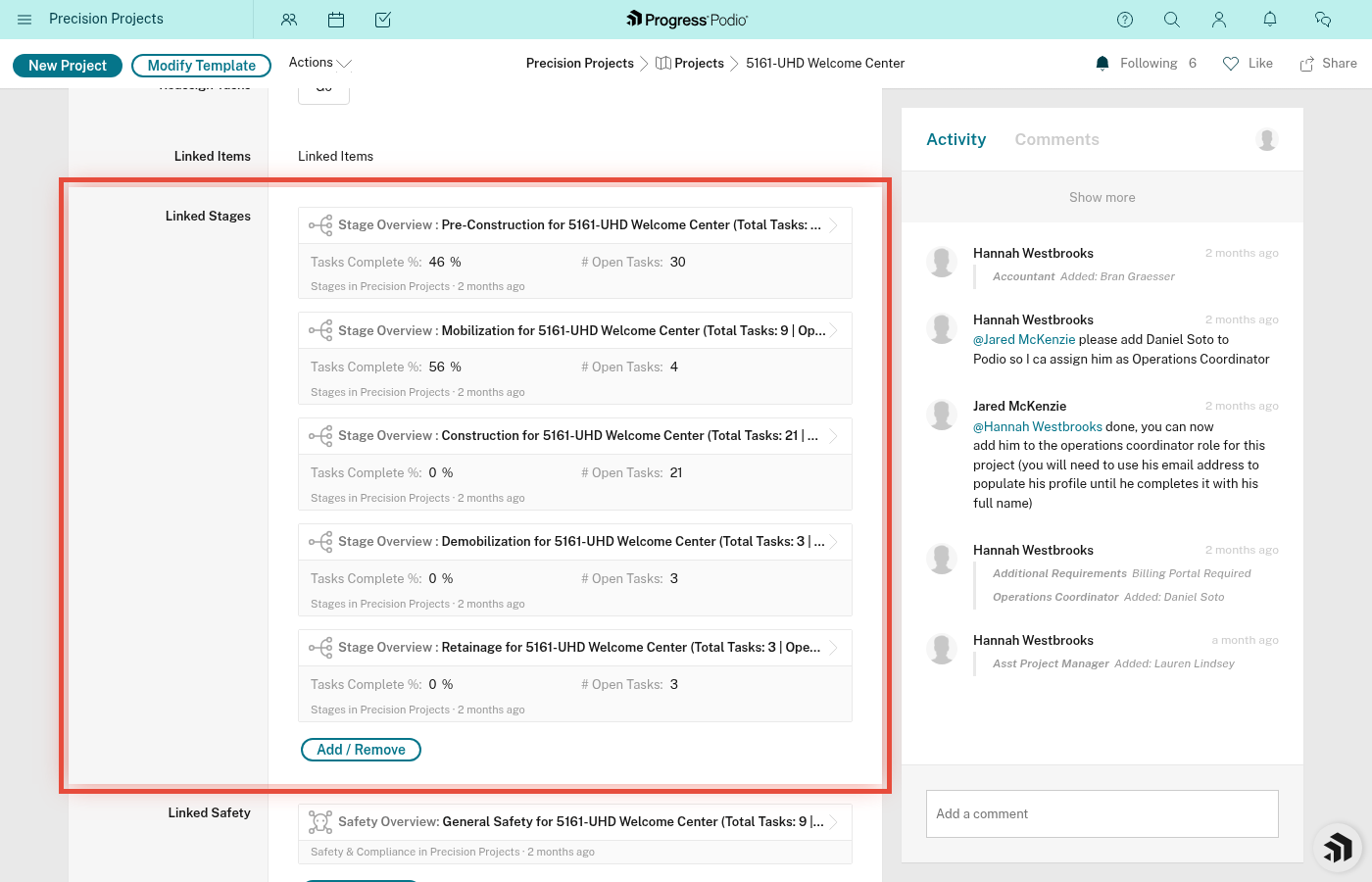
Why this matters: Tasks are organized by stage because different work happens at different phases. Pre-Construction tasks are about planning and permits. Construction tasks are about daily field work.
Understanding Task Status Colors
- 🔴 Pending (Red) - Not started yet, might be waiting on something
- 🟡 In Progress (Yellow) - Actively being worked on
- 🟢 Complete (Green) - Done!
Task Count on Your Project
On each Project page, you'll see Open Tasks Count. This is the total number of incomplete tasks across all stages.
If this number is high, it means there's lots to do. If it's zero, you're either done or the project was just created and tasks are still populating.
Dependent vs Independent Tasks
Some tasks show "Ind or Dep" as either:
- Independent - You can start this right away
- Dependent - This task is waiting for another task to finish first
If a task is Dependent and shows Pending status, check the Dependencies field to see what needs to be completed before you can start.
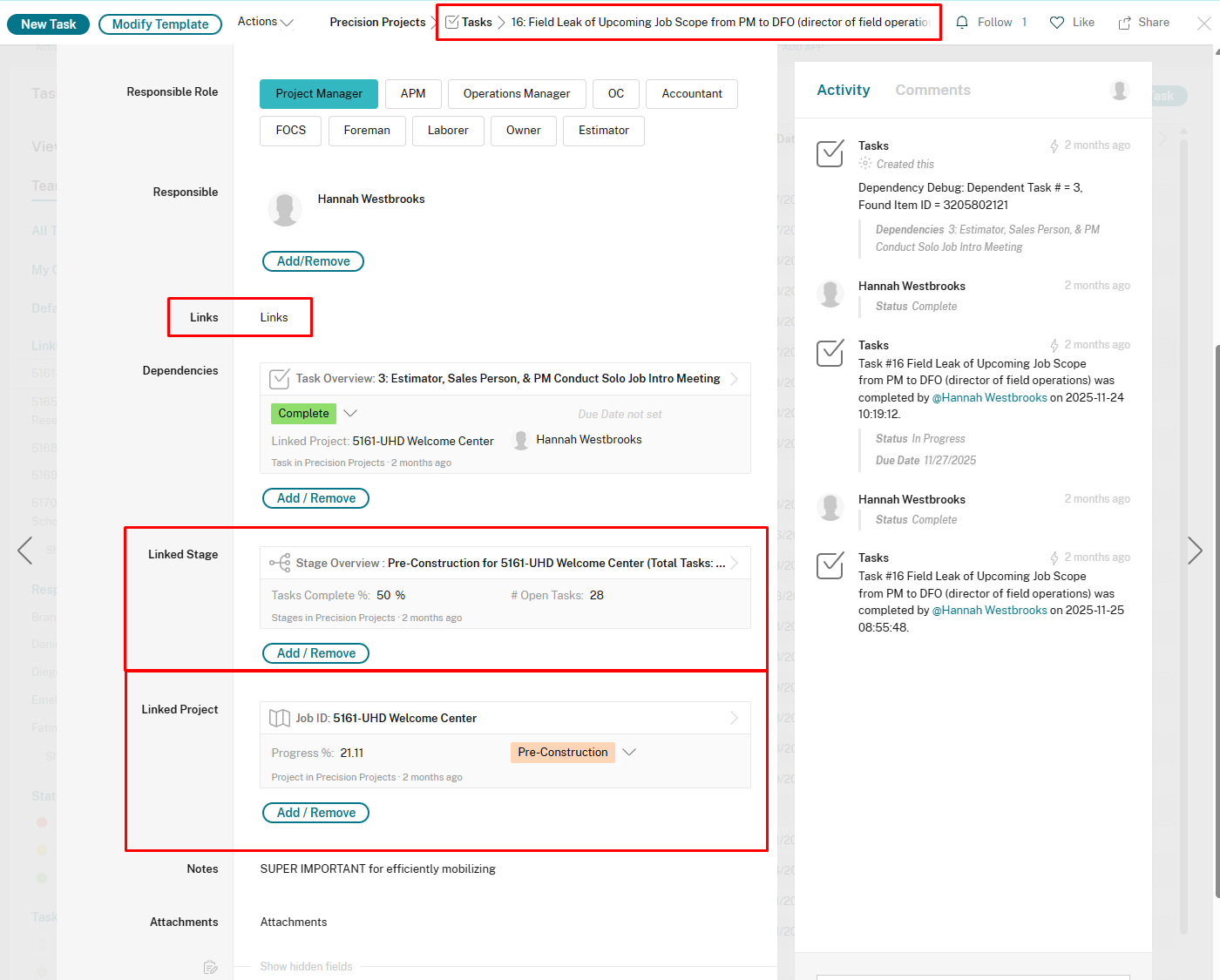
More on this in dependencies.md.
Tips
- Check your tasks daily - New tasks get added automatically when a stage goes active
- Filter by Status = Pending to see what needs attention
- Sort by Due Date to stay on top of deadlines
- Click into a task to see notes, attachments, and who else is involved