Our Apps Explained
This doc walks through each PSS Podio app—what it does, what's in it, and how you'll use it.
1. Projects App (The Hub)
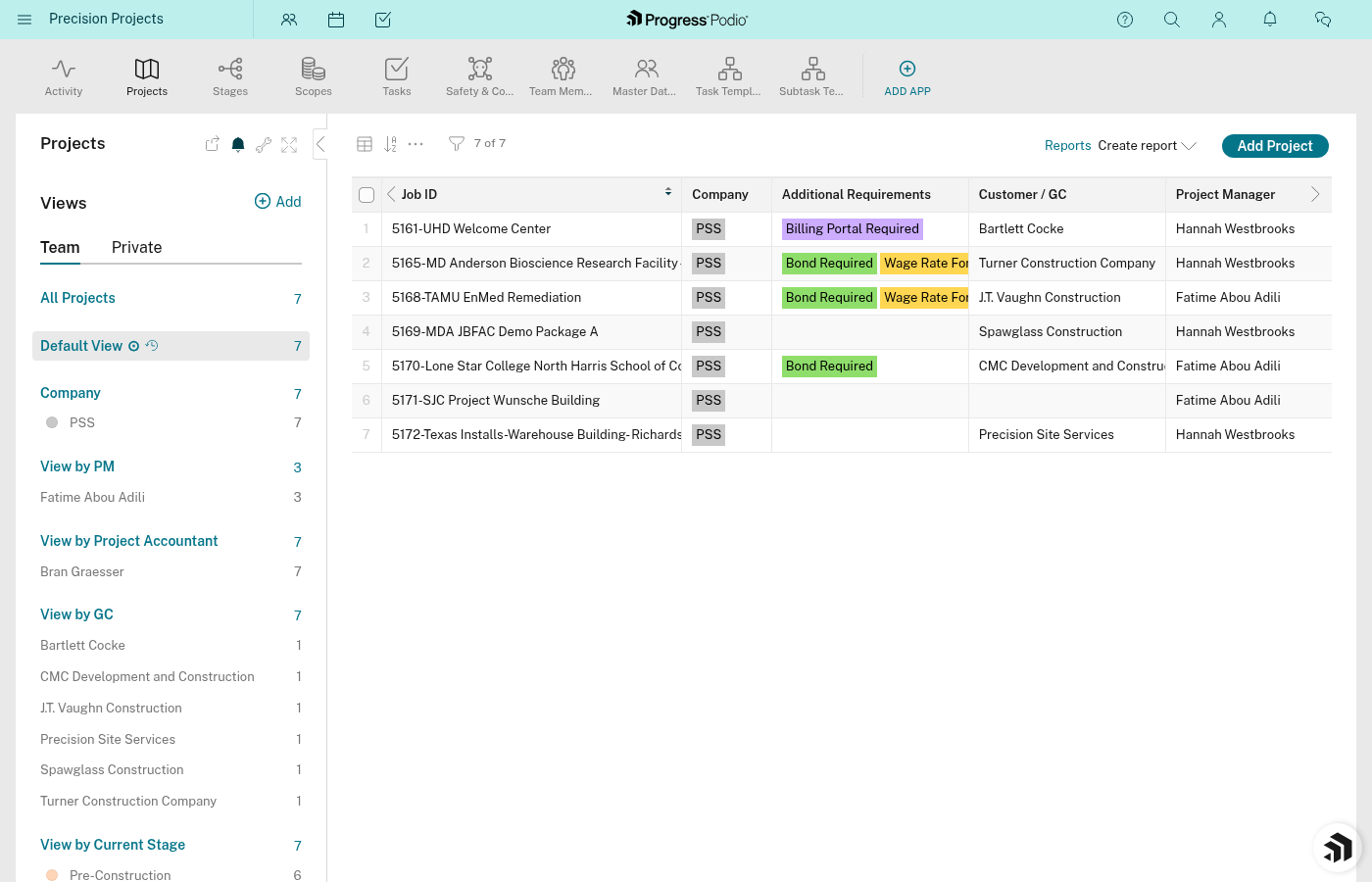
What It Does
The Projects app is your central dashboard. Every job lives here. It's the starting point for everything.
Key Information Stored
| Field | Purpose |
|---|---|
| Job ID | Auto-generated identifier (Job # + Job Name) |
| Job # | Your unique number for this project |
| Job Name | The project name |
| Company | Which company/GC this is for |
| Division | Concrete, Drywall, or Other |
| Scopes | What types of work (Earthwork, Utilities, Foundations, etc.) |
| Current Stage Status | Which stage is currently active |
| Location/Address | Where the job site is |
People Fields
| Field | Role |
|---|---|
| Project Manager (PM) | Overall project ownership |
| OC (Operations Coordinator) | Office-side coordination |
| FOCS (Field Operations Coordinator) | Field-side coordination |
| Foreman | On-site crew lead |
| Customer / GC | Linked contact record |
Financial Fields
| Field | What It Tracks |
|---|---|
| Project Budget | Expected costs |
| Contract Value | What you're billing |
| Variance | Budget minus actual (calculated) |
Progress Tracking
| Field | What It Shows |
|---|---|
| Overall Progress | Average completion across stages (calculated) |
| Open Tasks Count | Incomplete tasks remaining (calculated) |
| Linked Stages | The 5 stages for this project |
| Linked Safety & Compliance | Safety records for this project |
How You'll Use It
- Starting a new job: Create a project item here first
- Checking status: Look at Current Stage Status and Overall Progress
- Finding everything: Use linked fields to jump to stages, tasks, contacts
2. Stages App
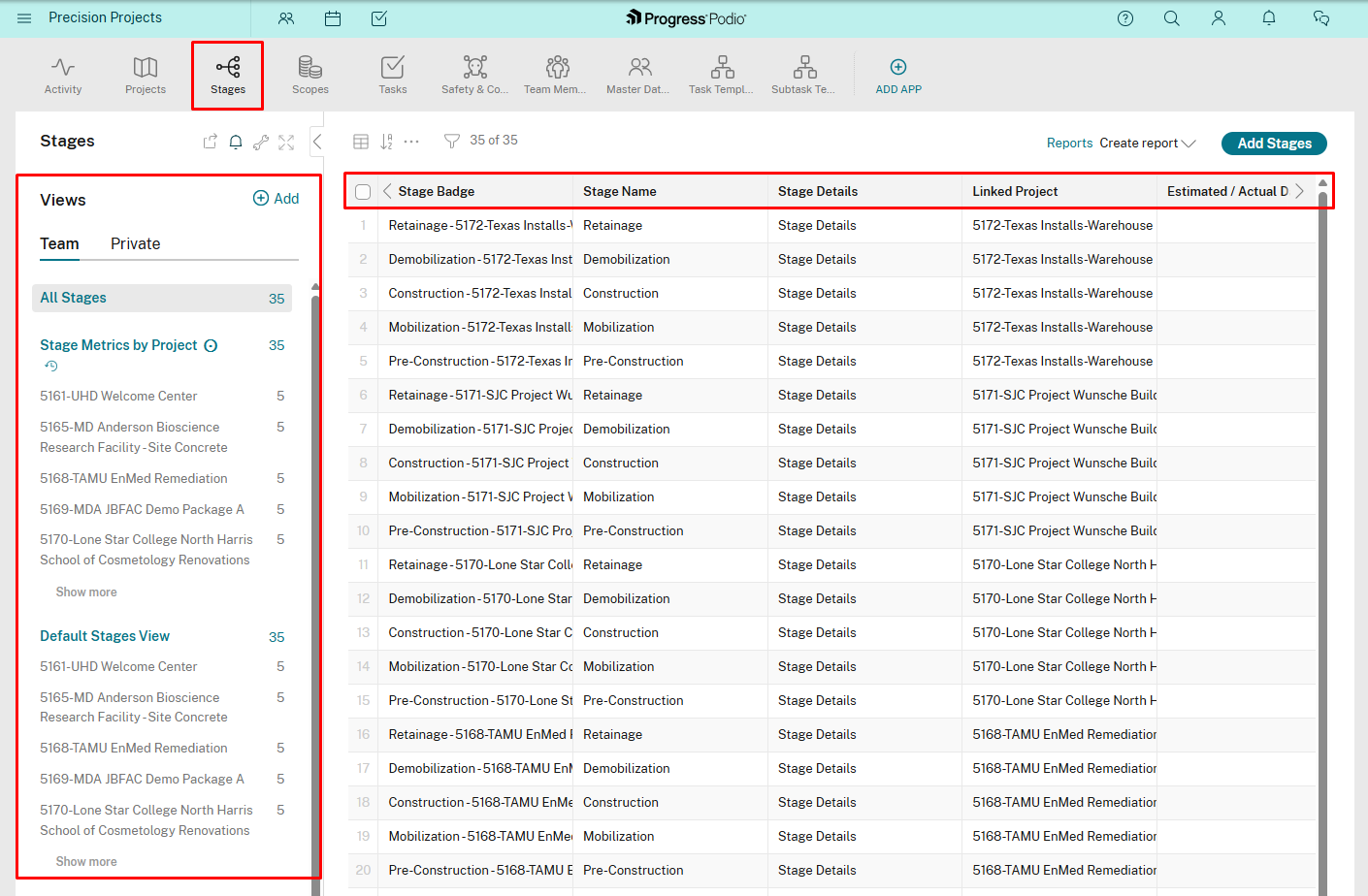
What It Does
Breaks each project into 5 phases. Stages help you track progress and know what's active.
The 5 Stages
| # | Stage | What Happens |
|---|---|---|
| 1 | Pre-Construction | Planning, permitting, submittals, safety setup |
| 2 | Mobilization | Site setup, equipment delivery, crew assignment |
| 3 | Construction | Active work, daily reports |
| 4 | Demobilization | Cleanup, equipment return, punch list |
| 5 | Retainage | Final billing, project closeout |
Key Fields
| Field | Purpose |
|---|---|
| Stage Name | Which of the 5 stages this is |
| Linked Project | The project this stage belongs to |
| Estimated/Actual Dates | When the stage should run |
| Tasks Complete % | Progress (calculated) |
| Open Issues | Count of incomplete tasks (calculated) |
| Task Overview | All tasks linked to this stage |
| Stage Specific Notes | Notes for this phase |
| Automation Status | Tracks if tasks have been auto-created |
How Stages Are Created
You don't create stages manually. When you create a project, automations create all 5 stages automatically.
How You'll Use It
- See what's happening: Check Tasks Complete % for progress
- Jump to tasks: Use Task Overview to see everything in that stage
- Review dates: Update Estimated/Actual as plans change
3. Tasks App
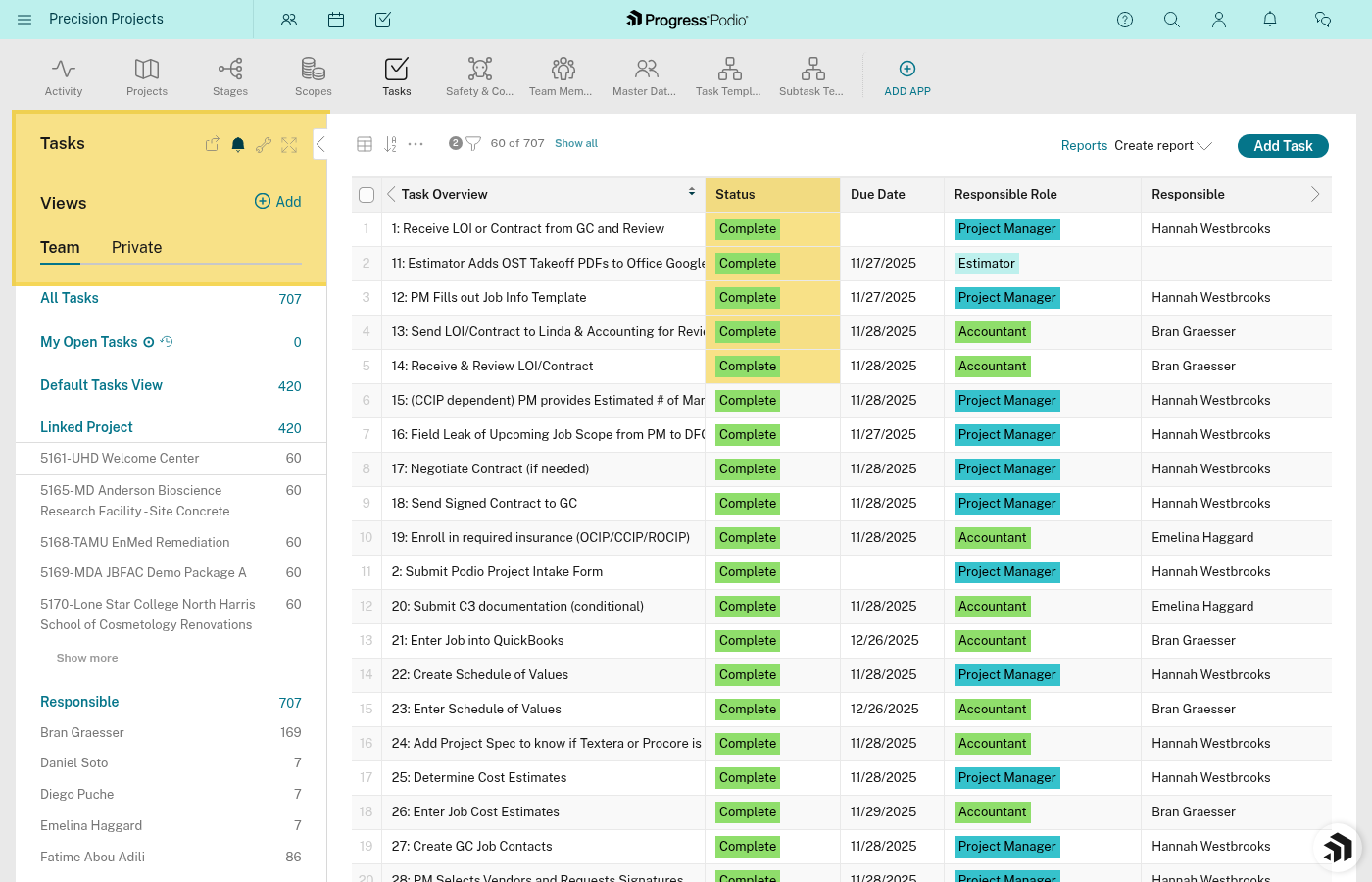
What It Does
Holds every individual action item across all projects. This is where day-to-day work gets tracked.
Key Fields
| Field | Purpose |
|---|---|
| Task Name | What needs to be done |
| Task # | Unique number |
| Status | Pending (red), In Progress (yellow), Complete (green) |
| Due Date | Deadline |
| Responsible | Who owns this task |
| Type | Task, Recurring, or Subtask |
| Notes | Additional details or instructions |
| Attachments | Uploaded files |
Relationship Fields
| Field | Links To |
|---|---|
| Linked Stage | Which stage this task belongs to |
| Linked Project | Which project this task belongs to |
| Dependencies | Other tasks that must complete first |
| Linked Parent Task | For subtasks—the main task they belong to |
Task Dependencies
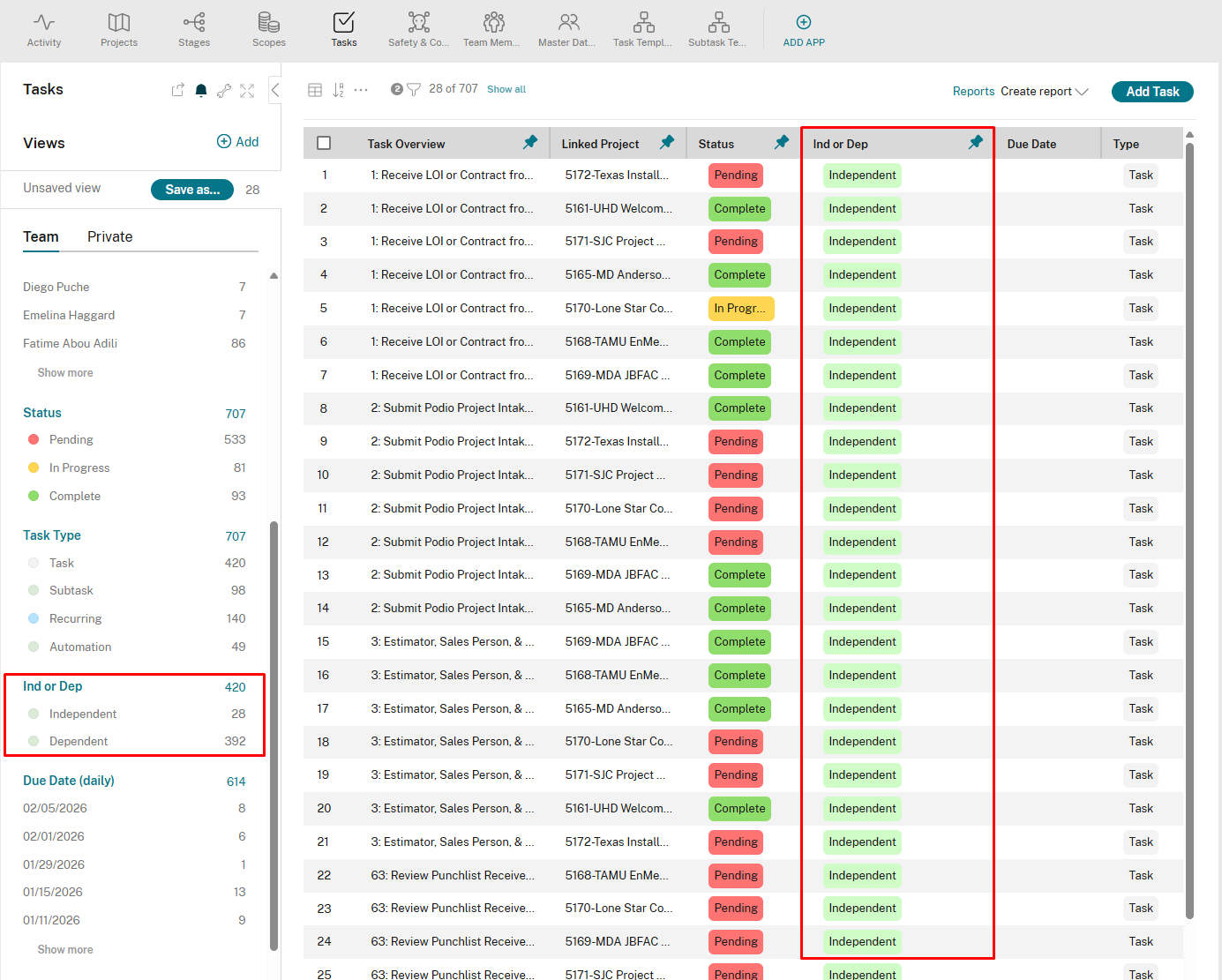
Some tasks can't start until others finish. These are "Dependent" tasks.
| Field | Meaning |
|---|---|
| Ind or Dep | Independent = can start anytime; Dependent = waits for something |
| Dependencies | The specific task(s) that must finish first |
When a prerequisite task completes, dependent tasks automatically move to "In Progress."
How Tasks Get Created
Most tasks are auto-created when the project is created. The system copies from Task Templates and links everything correctly — all tasks for all stages are generated at once.
Some tasks you'll create manually—ad-hoc work that wasn't templated.
How You'll Use It
- Check your work: Filter by Responsible = You, Status ≠ Complete
- Update progress: Change Status as you work
- See blockers: Check Dependencies to know what you're waiting on
4. Safety & Compliance App
What It Does
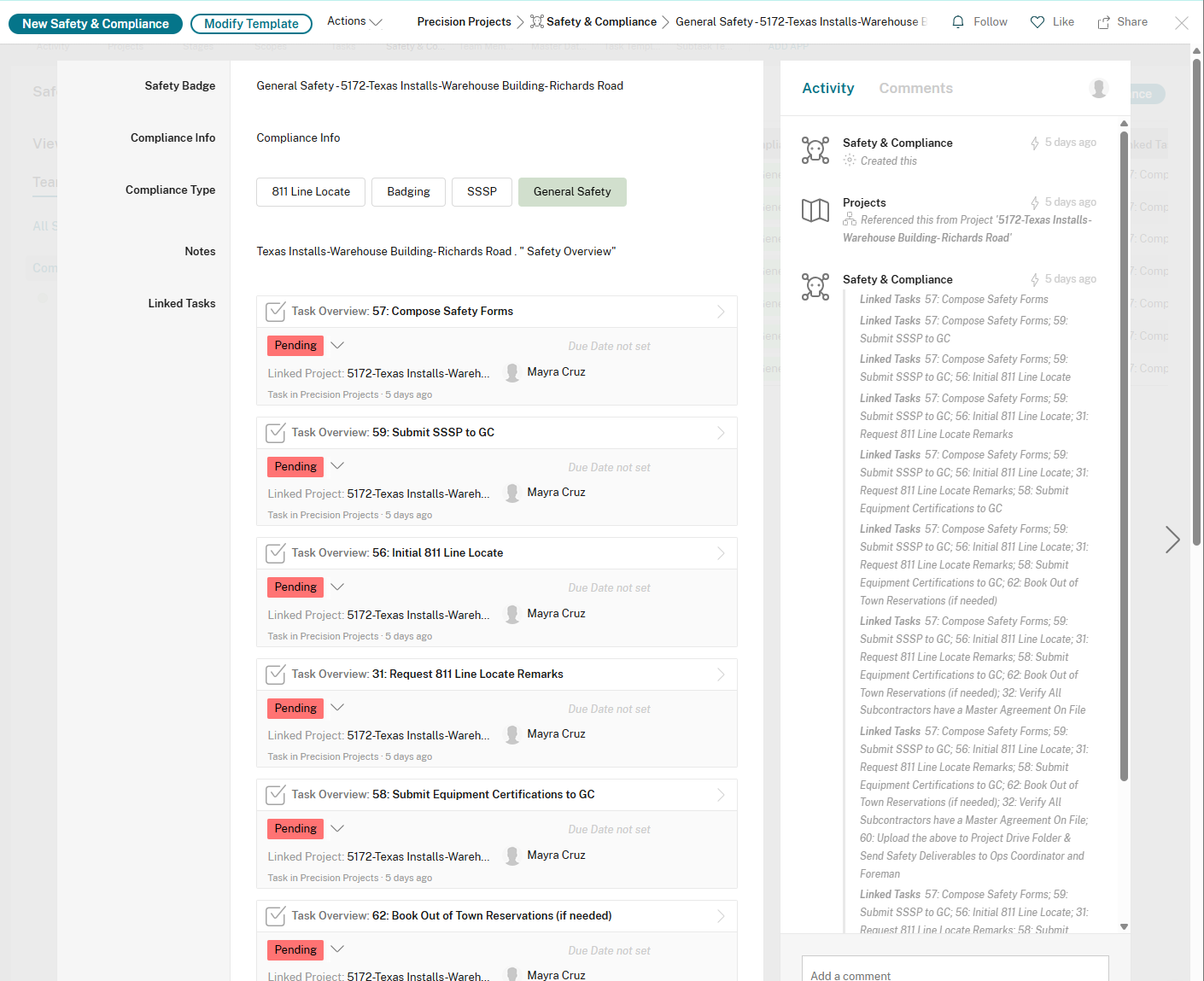
Tracks safety-related compliance items that span multiple stages of a project.
Compliance Types
| Type | What It Covers |
|---|---|
| 811 Locate | Underground utility location requests |
| Badging | Site access credentials and background checks |
| SSSP | Site-Specific Safety Plan documentation |
Key Fields
| Field | Purpose |
|---|---|
| Compliance Type | 811, Badging, or SSSP |
| Notes | Details and updates |
| Files | Uploaded documents |
| Related Tasks | Tasks linked to this compliance item |
| Linked Project | Which project this belongs to |
How Safety Records Get Created
A Safety & Compliance record is auto-created when you create a project.
How You'll Use It
- Track compliance status: See what's pending for a project
- Store documents: Upload SSSP plans, 811 confirmations, badge info
- Link to tasks: Connect compliance items to specific tasks
5. Contacts App
What It Does
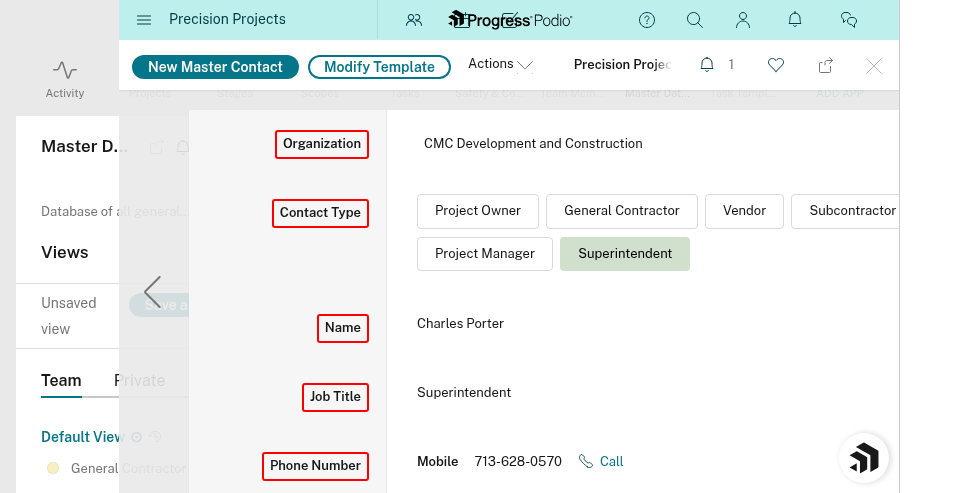
Stores GC and customer contact information. Reusable across multiple projects.
Key Fields
| Field | Purpose |
|---|---|
| Name | Contact's full name |
| Job Title | Their role |
| Organization | Which company they work for |
| Contact email | |
| Phone | Contact phone |
| Address | Physical address |
| Notes | Additional info |
| Linked Projects | All projects involving this contact |
How You'll Use It
- Find contact info: Look up who to call/email
- Link to projects: Connect a contact to their project(s)
- Avoid duplicates: Search before creating—they might already exist
6. Task Templates App (Utility)
What It Does
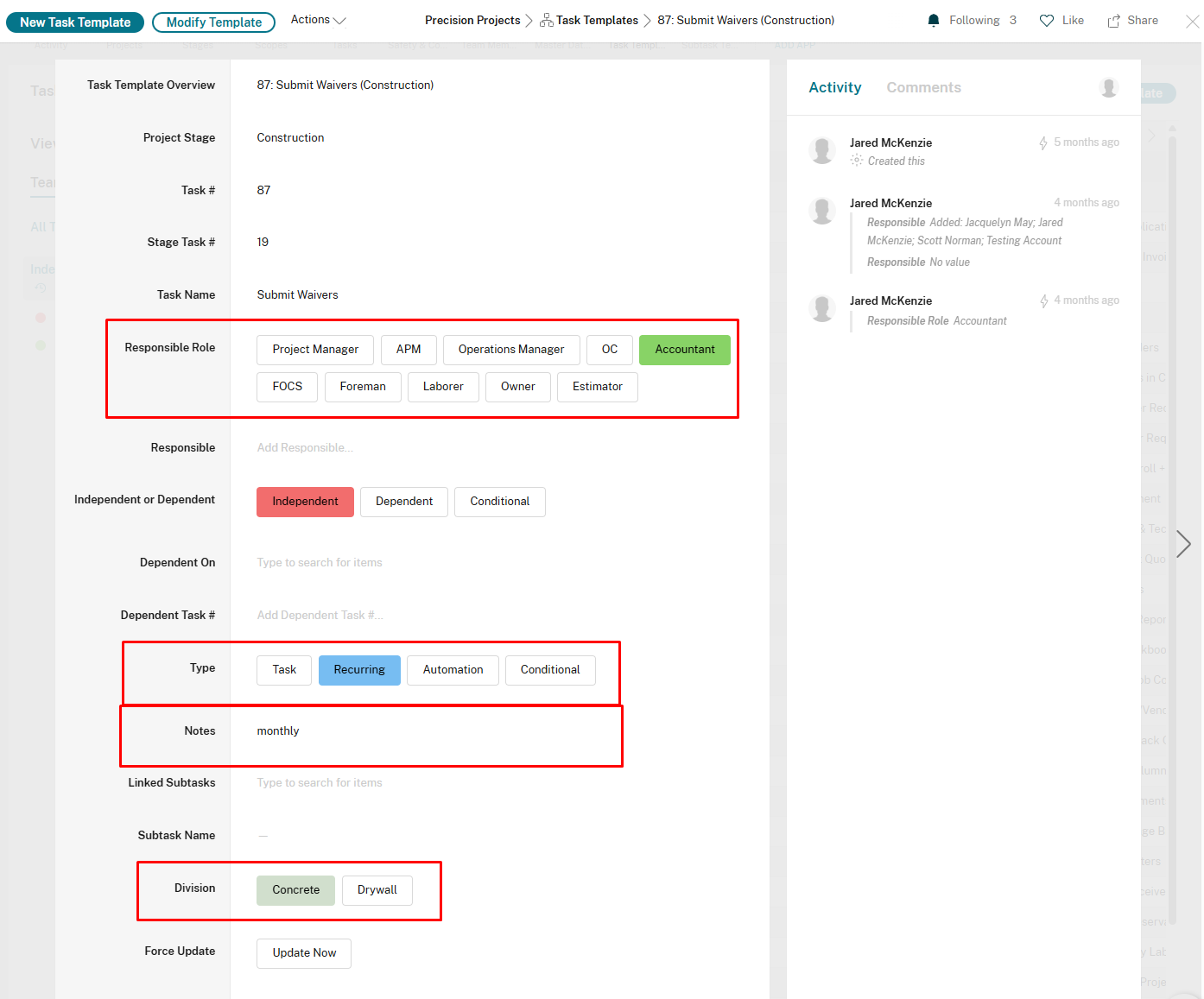
The master list of tasks that automations copy from. You rarely open this directly.
Key Fields
| Field | Purpose |
|---|---|
| Project Stage | Which stage this template is for |
| Task # | Template task number |
| Tasks | Task name |
| Responsible | Who typically owns this (role/function) |
| Division | Concrete, Drywall, or Other |
| Independent or Dependent | Can it start immediately? |
| Dependent Task # | Which task must finish first |
| Type | Task, Recurring, or Automation |
| Linked Subtasks | Subtask templates that belong to this |
How Templates Work
When a project is created, GlobiFlow automations:
- Find templates matching that stage + division
- Create actual tasks from each template
- Link them to the correct stage and project
- Create any subtasks
- Set up dependencies between tasks
7. Subtask Templates App (Utility)
What It Does
Holds subtask definitions linked to main task templates. Also used by automations.
Key Fields
| Field | Purpose |
|---|---|
| Linked Main Task | Which task template this subtask belongs to |
| Subtask # | Number within the parent task |
| Subtasks | Subtask name/description |
| Notes | Additional details |
| Division | Concrete, Drywall, or Other |
Summary: Which Apps You'll Use
| How Often | Apps |
|---|---|
| Daily | Tasks, Projects |
| Weekly | Stages, Safety & Compliance |
| As Needed | Contacts |
| Rarely/Never | Task Templates, Subtask Templates |
The template apps are the "engine room." They power the automations, but you don't need to go there.
Related Docs:
- Apps and Items — Generic concepts
- Fields and Data — All the field types
- How Everything Connects — Relationship model
- Views and Filters — Finding what you need