Finding Projects
You've got dozens (or hundreds) of projects in Podio. Here's how to find the one you need fast.
Method 1: Browse the Projects List
Open the Projects App
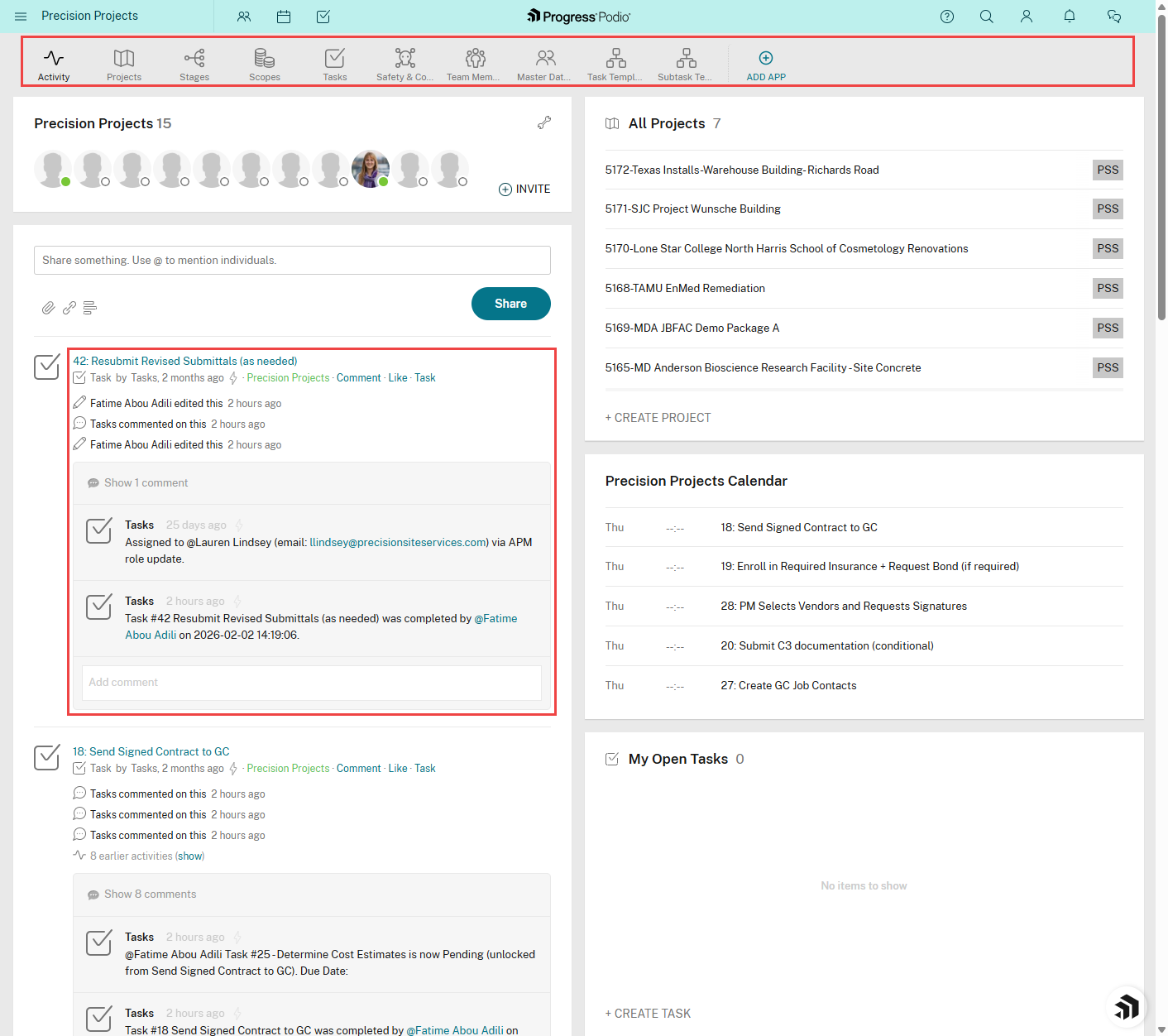
- Go to Precision Projects workspace
- Click Projects
- You'll see a list of all projects
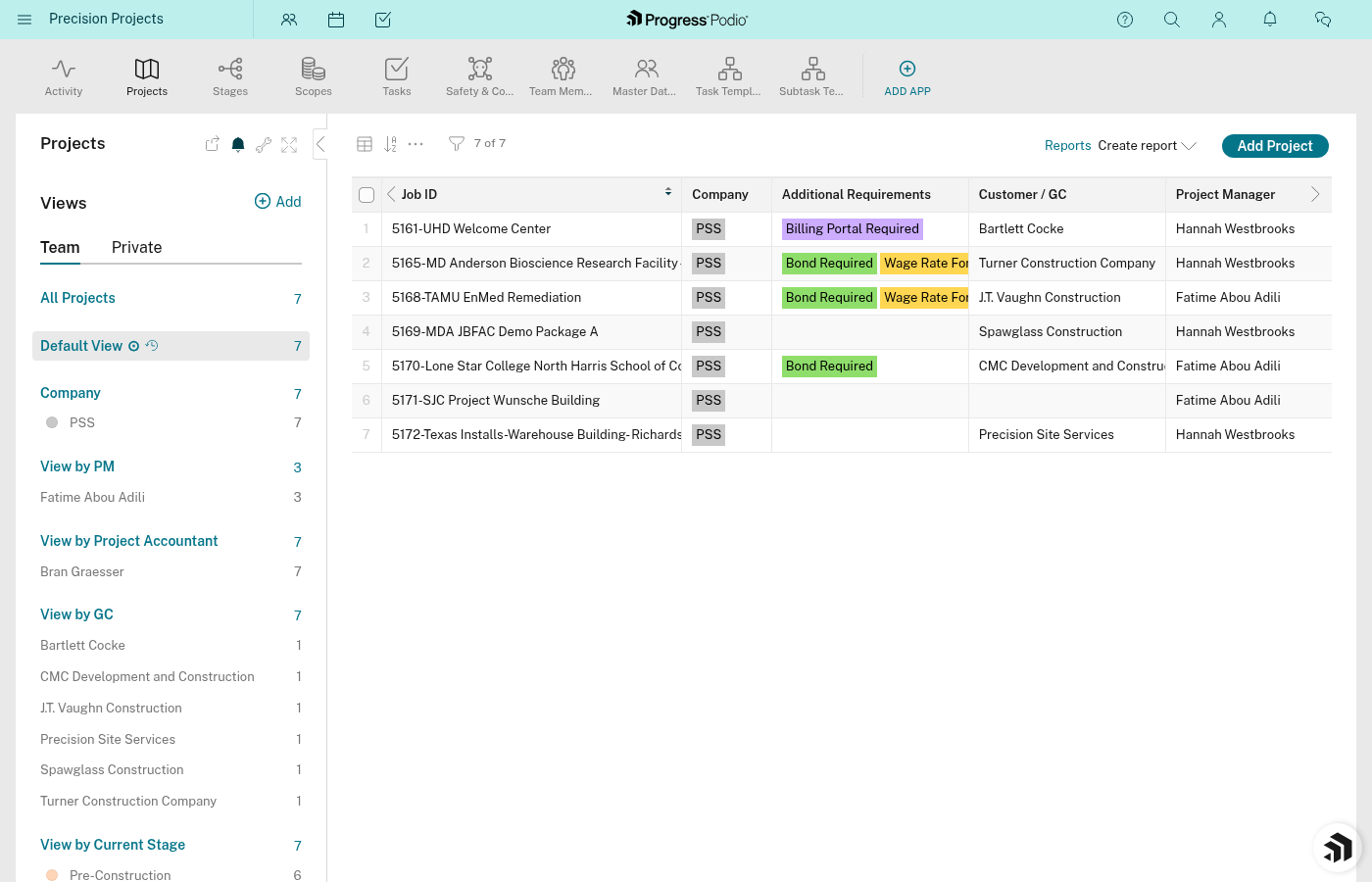
Sort the List
Click the column headers to sort:
- Job ID - Sort alphabetically by job number and name
- Date Entered - Find newest or oldest projects
- Current Stage Status - Group by stage (all Pre-Con projects together, etc.)
- Project Manager - See all projects by PM
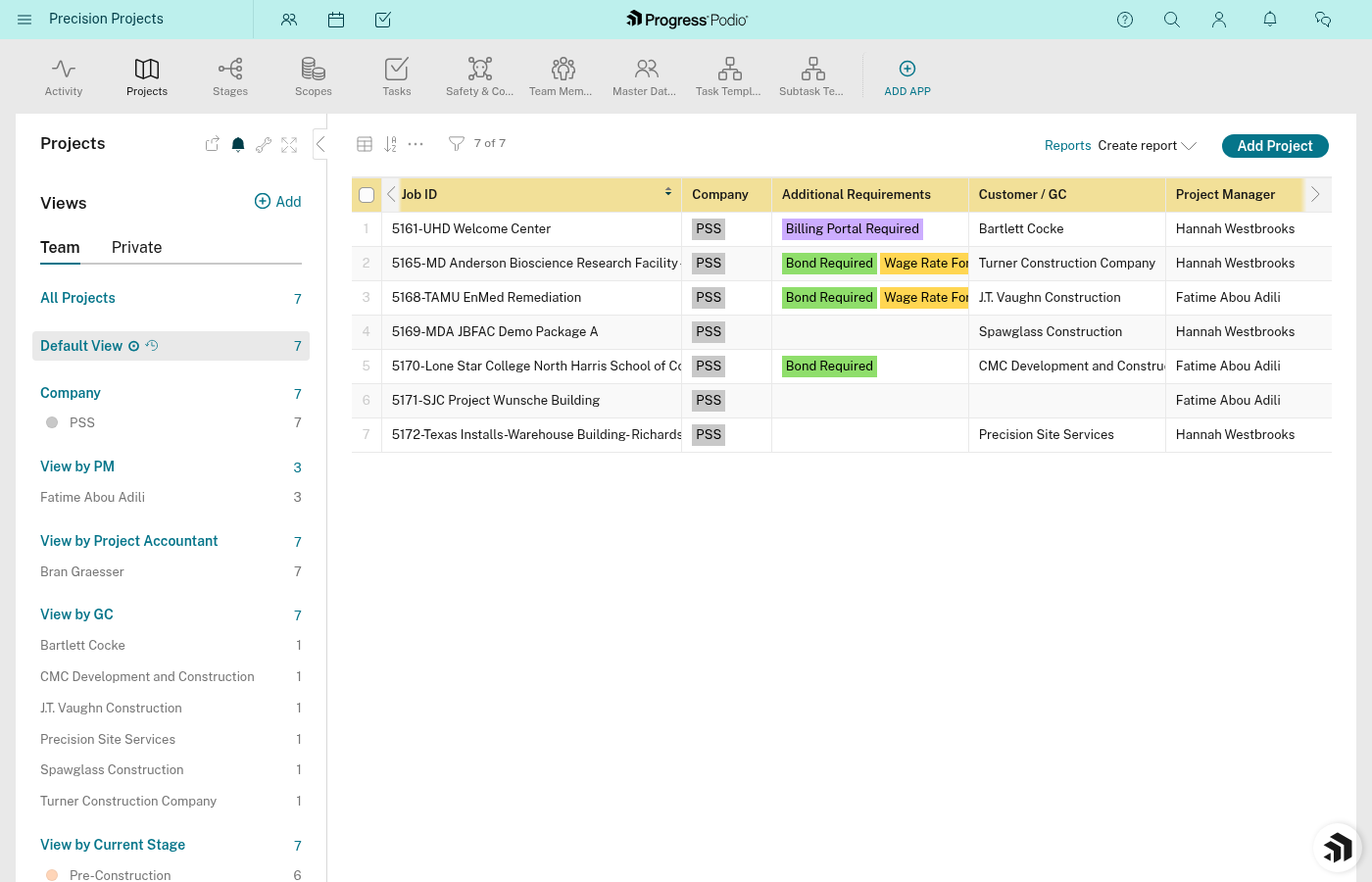
Tip: Click the header once to sort ascending (A-Z, oldest-newest), click again to sort descending (Z-A, newest-oldest).
Method 2: Search by Job # or Name
Use the Search Box
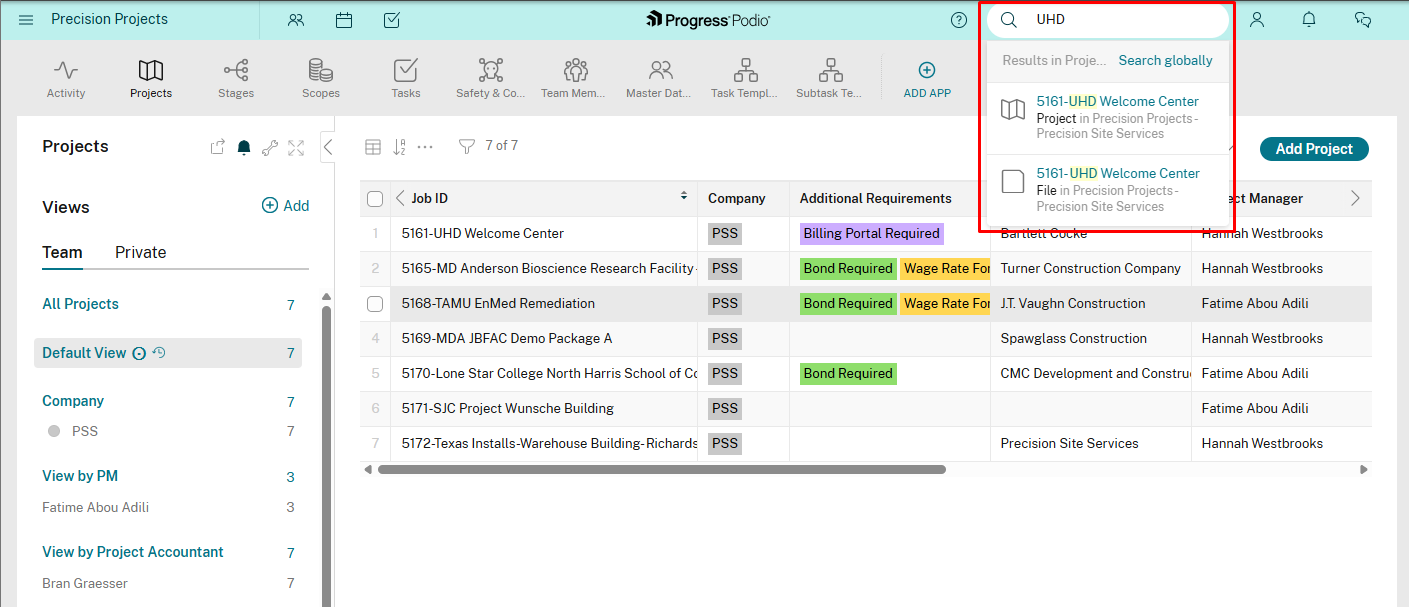
At the top of Podio, there's a search box.
- Type the Job # or Job Name (or part of it)
- Hit Enter
- Projects matching your search will appear
Examples:
- Search "12345" → finds Job #12345
- Search "Main Street" → finds "Main Street Apartments"
- Search "HEB" → finds all HEB-related jobs
Tip: You don't need to type the whole name. A few characters usually work.
Method 3: Filter by Stage
Want to see only active construction projects? Or all jobs in Pre-Con?
Use the Filter Sidebar
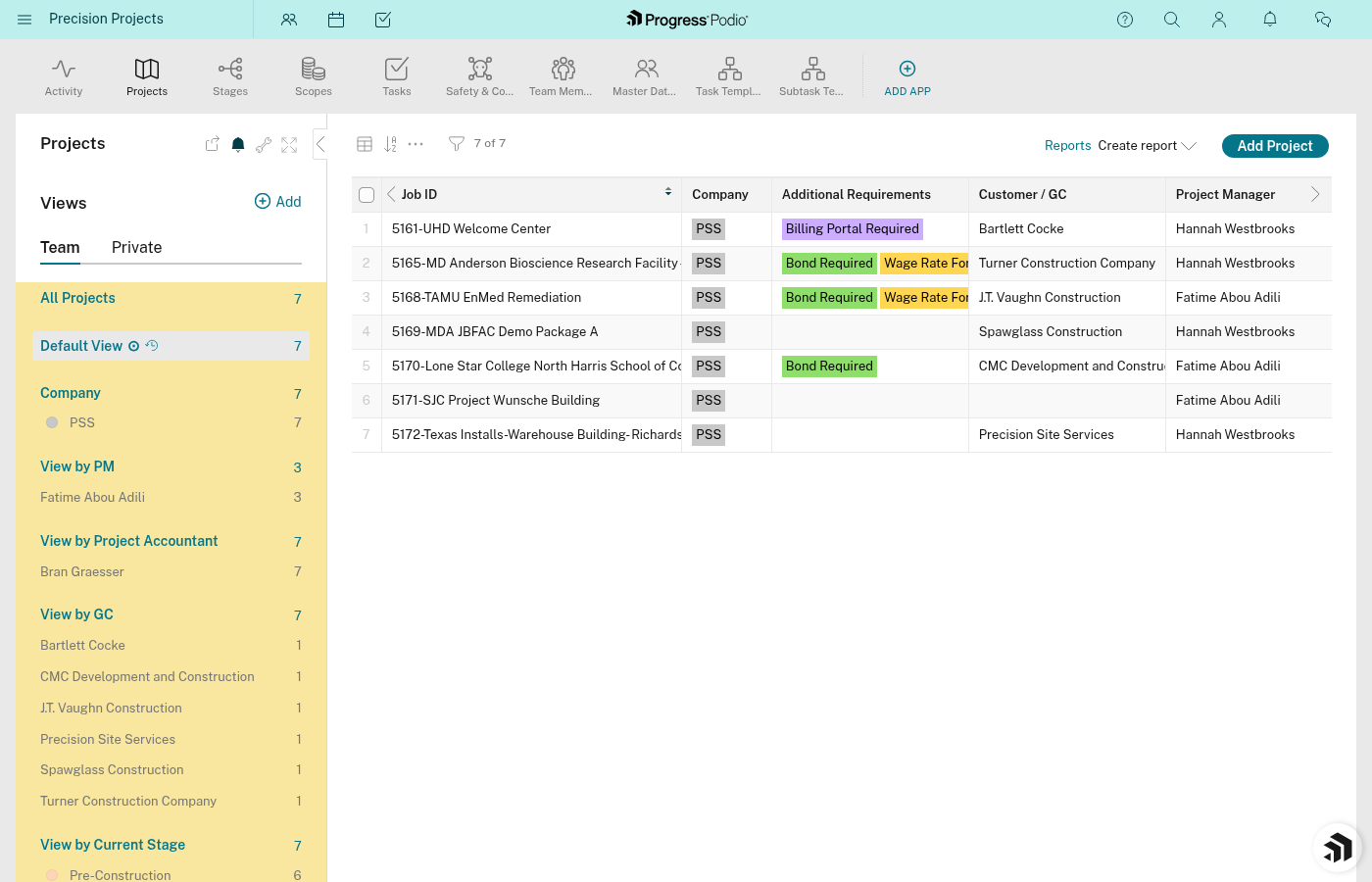
- In the Projects app, look for Filters on the left side
- Click Current Stage Status
- Check the stages you want to see:
- Pre-Construction Active
- Mobilization Active
- Construction Active
- Demobilization Active
- Retainage Active
- The list updates to show only those projects
Tip: You can select multiple stages to see, for example, all jobs in Construction OR Demob.
Method 4: Filter by Team Member
Need to see all jobs assigned to a specific PM or foreman?
Filter by User
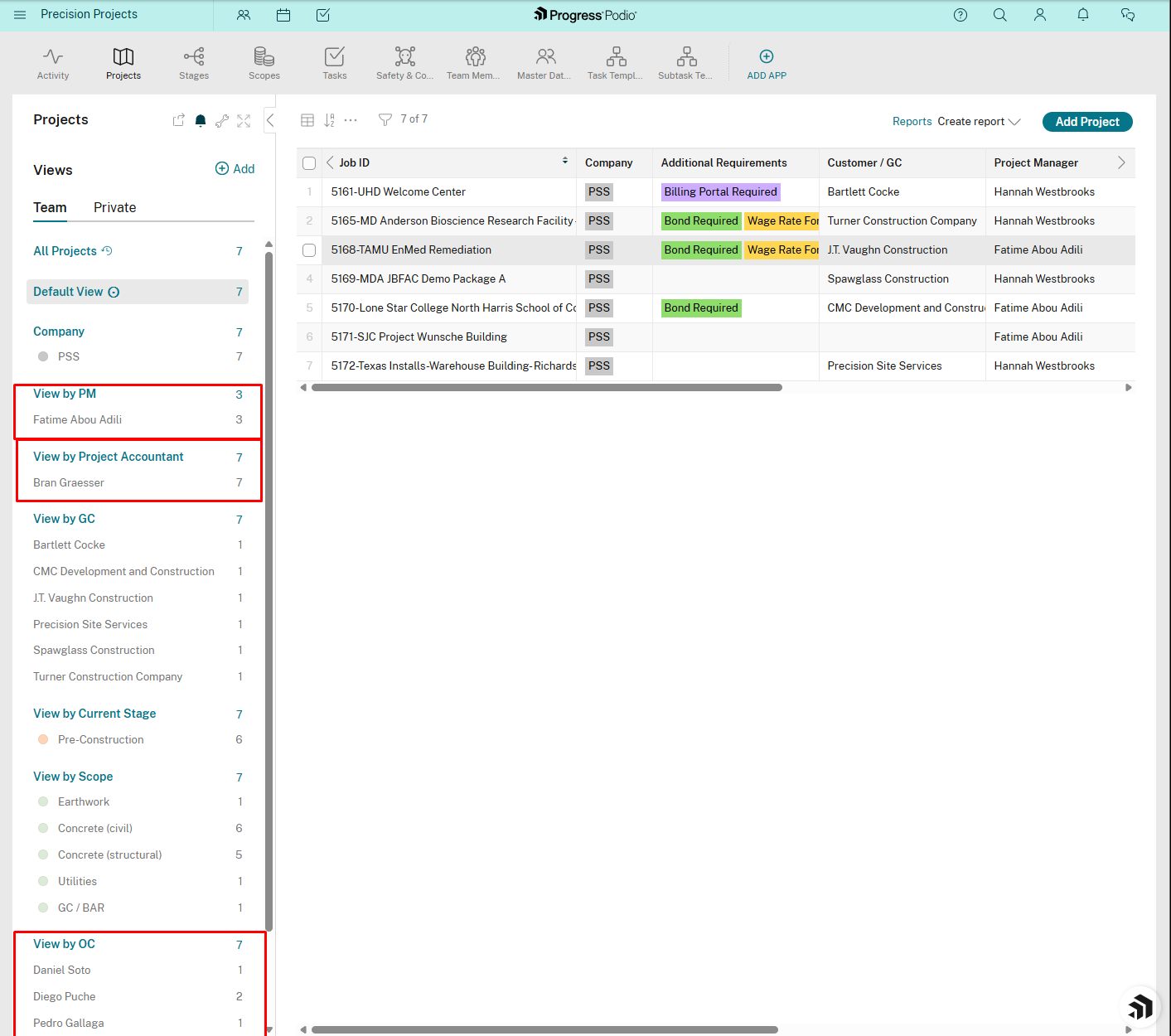
- In the Projects app, click Filters
- Click Project Manager, Foreman, OC, or FOCS
- Select the person's name
- List shows only projects assigned to that person
Use case: A PM wants to see only their projects. Filter by their name under Project Manager.
Method 5: Filter by Division
Working only on Concrete jobs? Or Drywall?
Filter by Division
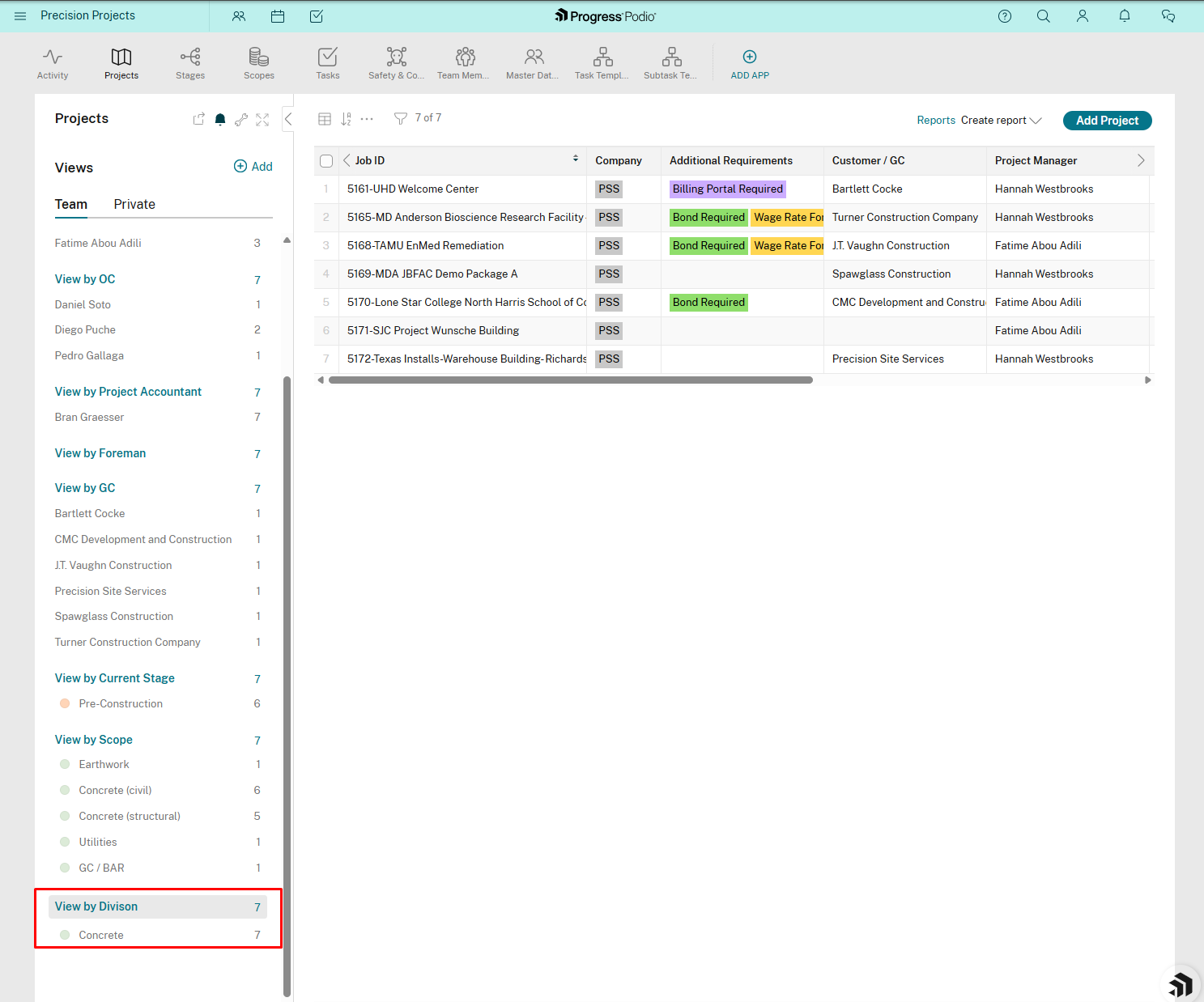
- In Filters, click Division
- Select Concrete, Drywall, or Other
- List shows only projects in that division
Method 6: Filter by Company/GC
Want to see all jobs for a specific general contractor?
Filter by Company
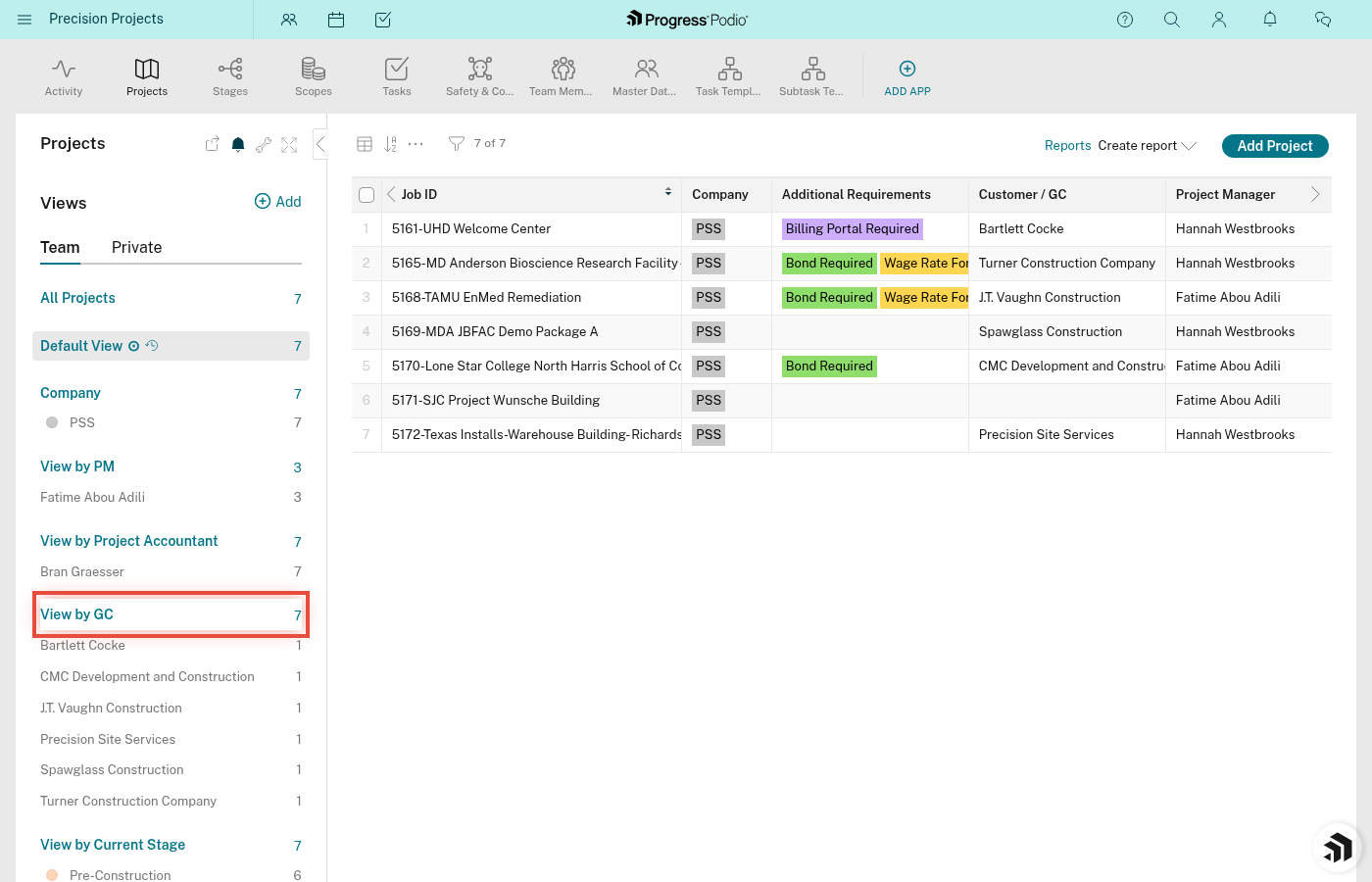
- In Filters, click Company
- Select the GC name from the list
- List shows only projects for that company
Method 7: Combine Filters
You can stack filters to narrow results:
Example:
- Filter by Division = Concrete
- AND Project Manager = John Smith
- AND Current Stage Status = Construction Active
Result: Only active construction concrete jobs managed by John.
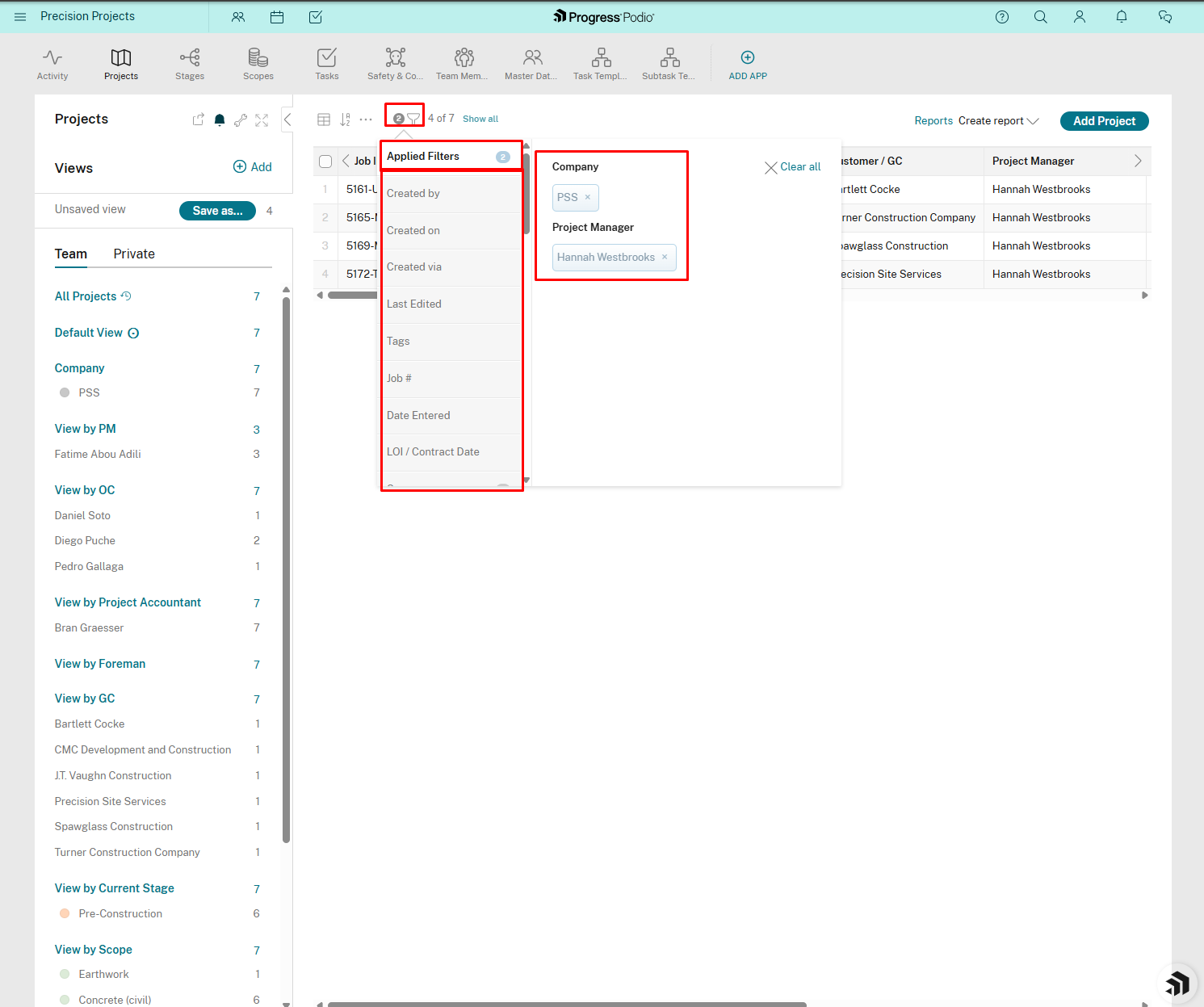
Tip: Clear filters by clicking the X next to each one, or click "Clear all filters" at the top.
Method 8: Save a Custom View
If you use the same filters repeatedly, save them as a view.
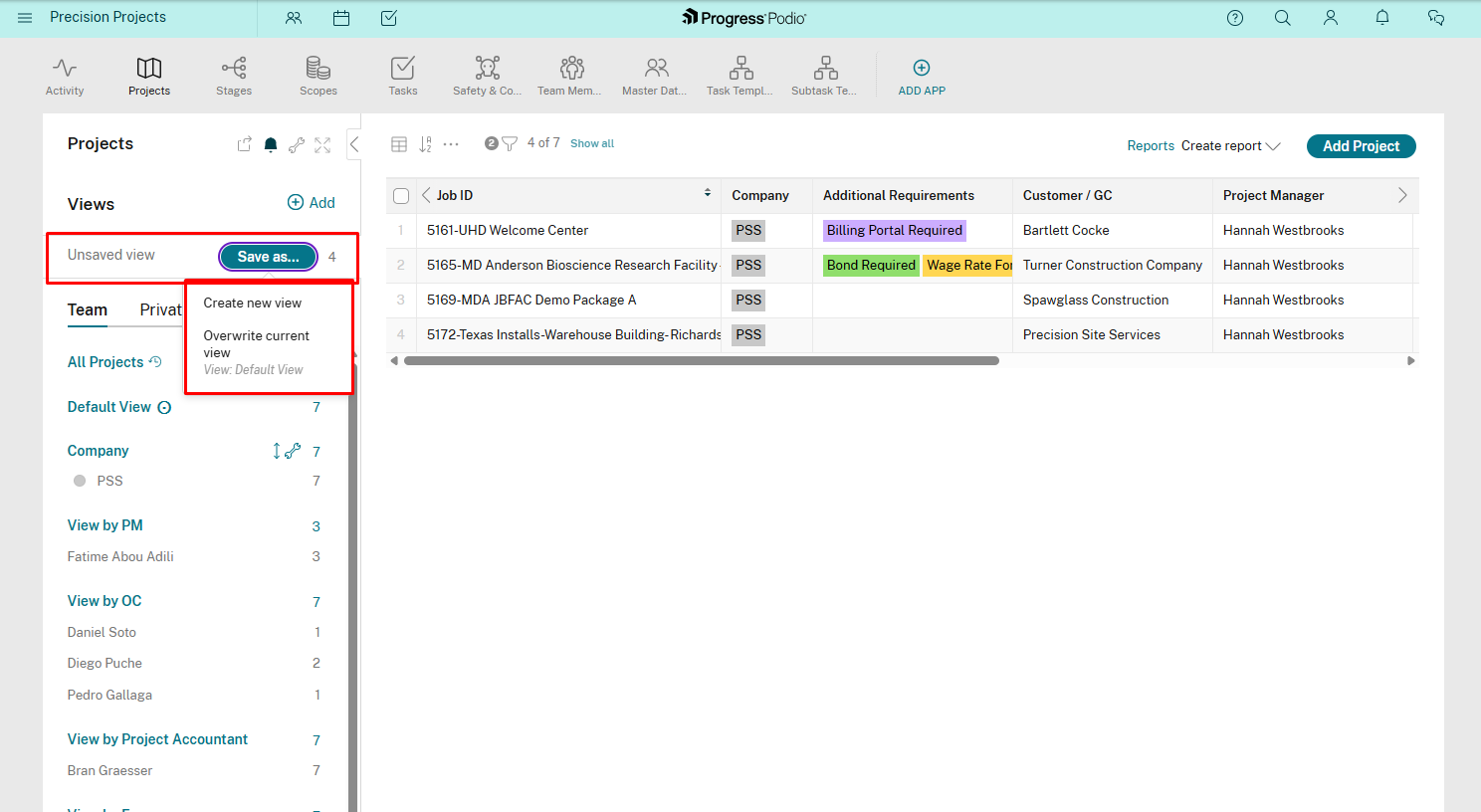
- Apply the filters you want
- Click Save as... next to "Unsaved view"
- Choose Create new view to make a new saved view
- Or choose Overwrite current view to update an existing view
- Your saved view will appear in the Views sidebar for quick access
Tips for Faster Searching
Keep Job Names Consistent
Use a consistent naming format:
- "Client Name - Scope" (e.g., "HEB Expansion - Utilities")
- Makes searching easier
Use Job # for Precision
If you know the exact Job #, search by that — it's faster than scrolling.
Filter by Stage for Daily Work
Most people filter by stage daily:
- PMs: Filter for "Pre-Construction Active" in the morning to review new jobs
- Foremen: Filter for "Construction Active" to see active job sites
- Admins: Filter for "Retainage Active" to handle closeout
Quick Reference: Common Searches
| What You Want | How to Find It |
|---|---|
| All jobs in Construction | Filter: Current Stage Status = "Construction Active" |
| All jobs assigned to you | Filter: Project Manager = [Your Name] |
| All Concrete jobs | Filter: Division = "Concrete" |
| All jobs for ABC Construction (GC) | Filter: Company = "ABC Construction" |
| Specific job by number | Search: Type Job # in search box |
| Jobs entered this month | Sort: Date Entered (newest first) |
| Jobs with open tasks | Sort: Open Tasks Count |
Troubleshooting
"I can't find my project!"
Check:
- Are filters applied that might be hiding it? Clear all filters and try again.
- Did you search the exact Job # or Name? Try searching just part of the name.
- Was the project actually created? Check with whoever was supposed to create it.
"The list is too long to scroll through"
Use filters! Don't try to scroll through hundreds of projects. Filter by stage, division, or PM to narrow it down.
Related Docs: