Managing Submittals in Podio
What Are Submittals?
Submittals are documents you send to the General Contractor (GC) for approval before starting work. Think of them as "here's what we plan to do—can you approve it?" Examples include:
- Material specifications
- Product data sheets
- Shop drawings
- Installation procedures
Getting submittals approved is a critical Pre-Construction task. You can't start work until the GC signs off.
Where Submittals Live
Submittals are tracked as Tasks in the Pre-Construction Stage of your project.
How to Track a Submittal
1. Find the Submittal Task
- Open your Project in Podio
- Click on the Pre-Construction stage from the "Linked Stages" field
- Look in the Task Overview section for tasks related to submittals
- Example task names might include "Submittal: [Material/Product Name]" or "Submit Product Data"
2. Update the Task as You Work
When you create the submittal:
- Open the task
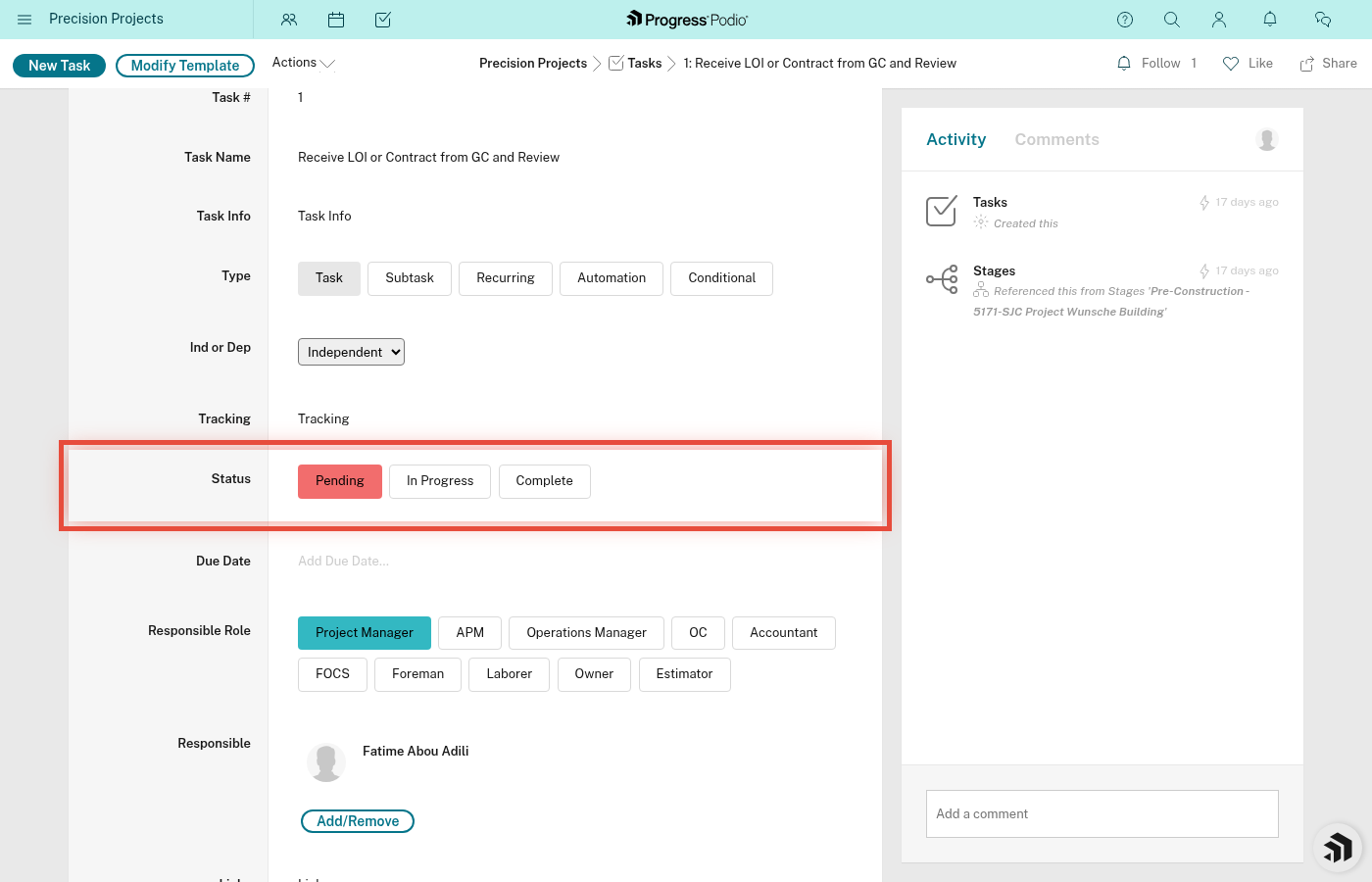
- Change Status to "In Progress" (yellow)
- Upload your submittal document to the Attachments field
- Add any notes in the Notes field (e.g., "Sent to GC via email on 3/15")
When the GC approves:
- Change Status to "Complete" (green)
- Upload the approved version to Attachments
- Add a note: "Approved by [Name] on [Date]"
If revisions are needed:
- Keep Status as "In Progress"
- Add a note explaining what needs to change
- Upload the revised version when ready
3. Track Dependencies
Some submittals must be approved before other tasks can start. The system handles this automatically:
- When you mark a submittal task Complete, any dependent tasks will automatically change from "Pending" to "In Progress"
- The person responsible for the next task gets notified
Example: You can't order materials until the material submittal is approved. The "Order Materials" task depends on "Submittal: Material Specs" being complete.
Best Practices
✅ Upload everything: Keep all versions (draft, revised, approved) in the task Attachments. It creates a complete record.
✅ Use Notes generously: Record who you sent it to, when, and what they said. Future-you will thank you.
✅ Check Due Dates: Pre-Construction tasks often have tight deadlines. Missing a submittal deadline can delay the entire project.
✅ Tag the right person: Make sure the Responsible field shows who's handling the submittal (usually the PM or OC).
Common Questions
Q: Where do I see all submittals at once?
A: There's no built-in filter for submittals. Open the Pre-Construction stage and search the Task Overview for the specific task names that cover your submittal work. Note that submittal-related tasks don't always contain the word "submittal" in the name — you'll need to know which task names apply.
Q: What if the GC loses our submittal?
A: Check the task Attachments. You have a copy there. Re-send it and add a note documenting the re-submission.
Q: Can I add my own submittal tasks?
A: No — tasks are auto-created from the Pre-Construction templates when the project is created. If a submittal task is missing from the template library, raise it with your PM so the template set can be updated for future projects.
Related SOPs
- PSP-107: Managing Submittals (detailed process)
- PSP-000.1: Understanding Task Dependencies
- PSP-103: Advancing a Project to the Next Stage
Need help? Ask your Project Manager or Operations Coordinator. They can walk you through it.