Creating and Tracking Change Order Requests in Podio
What Is a Change Order?
A Change Order Request (COR) is how you formally ask the General Contractor (GC) for additional money or time when the scope of work changes.
Common reasons for a COR:
- GC asks for work not in the original contract
- Site conditions differ from what was shown in plans
- Design changes mid-project
- RFI response requires extra work
- Schedule delays caused by others
Important: A COR protects you. If the work isn't in your contract and you do it anyway, you might not get paid for it.
Where Change Orders Live
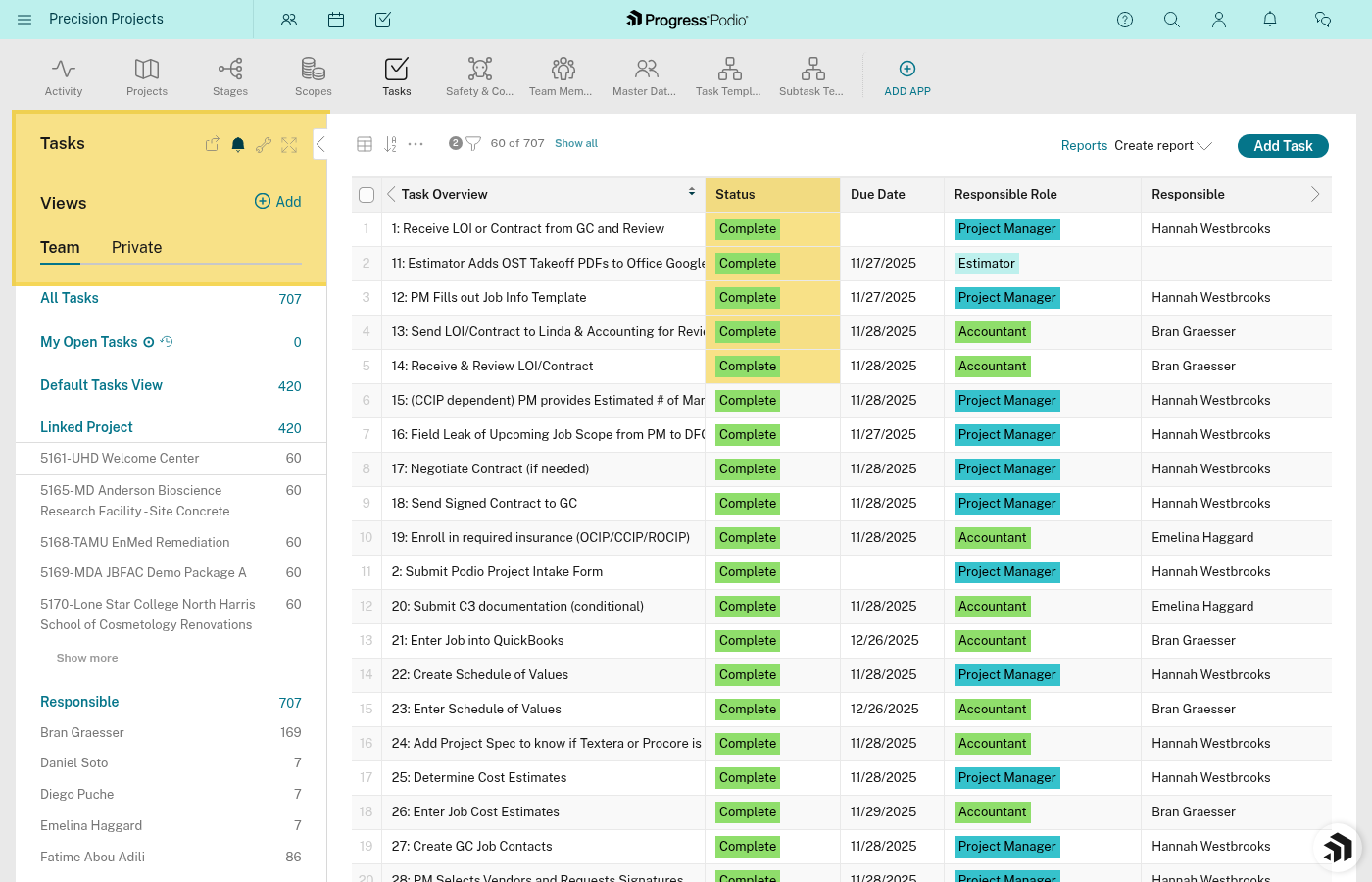
Change Order Requests are tracked as Tasks, usually in the Construction Stage (but can appear in any stage where extra work comes up).
How to Create a Change Order Request
Step 1: Create the COR Task
- Open your Project in Podio
- Navigate to the appropriate Stage (usually Construction)
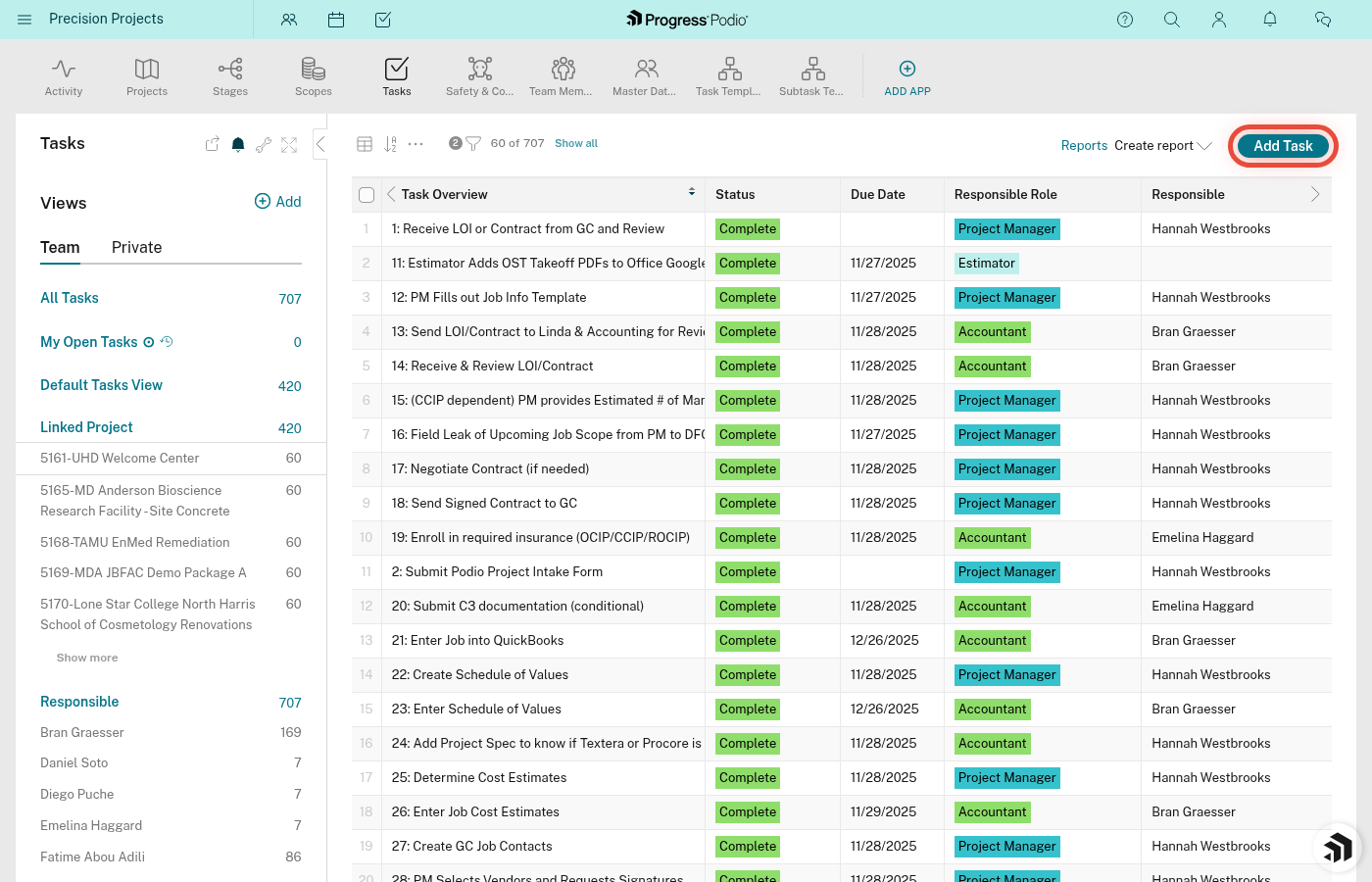
- In the Task Overview, click "Add Task"
- Fill in the task details:
- Task Name: "COR: [Brief Description]" (e.g., "COR: Additional excavation for utilities")
- Status: In Progress (yellow)
- Responsible: Project Manager (PM) or person handling the negotiation
- Type: Task
- Due Date: When you need a response (give them reasonable time)
- Click Save
Step 2: Document the Change
In the Notes field, document:
- What changed: Describe the extra work or condition clearly
- Why it's extra work: Reference the original contract/drawings to show this wasn't included
- Impact: How much extra time/cost it will add
- When requested: Date the GC asked for it (or when you discovered the condition)
- Reference numbers: Link to related RFIs, emails, or meeting notes
Example Note:
COR #5 - Additional Excavation for Unforeseen Utilities
Original plans showed no utilities in this area (see Drawing C-101).
During excavation on 4/2/2024, discovered unmarked water line.
Additional work required:
  - Hand dig around utility
  - Reroute our work to avoid conflict
  - 2 extra days schedule impact
Estimated cost: $3,500 labor + $1,200 equipment
Total COR amount: $4,700
Submitted to GC Sarah Johnson on 4/3/2024.
Step 3: Attach Supporting Documentation
Upload to the Attachments field:
- Photos of the condition or change
- Email requests from the GC
- Marked-up drawings
- Cost breakdowns (labor, materials, equipment)
- Schedule impact analysis
More documentation = stronger case for approval.
Task detail page with Attachments section showing uploaded files would be helpful here.
Step 4: Track the Approval Process
While waiting for approval:
- Keep Status as "In Progress" (yellow)
- Add notes when you follow up: "Followed up with Sarah on 4/10/2024"
- Document any verbal responses or negotiations
When the GC responds:
- If approved:
- Change Status to "Complete" (green)
- Add note: "Approved for $4,700 on 4/12/2024 via email"
- Upload the approval email/signed change order
- Update the Contract Value field in the main Project if instructed by PM
- If rejected:
- Add note explaining why it was rejected
- Discuss with PM whether to revise and resubmit
- Keep Status as "In Progress" if negotiating, or change to "Complete" if you're moving on
- If negotiated:
- Document the back-and-forth in Notes
- Update the final agreed amount when settled
Step 5: Link to Project Budget
[NEEDS VERIFICATION: Exact process for updating Project Budget and Contract Value fields after COR approval]
After approval, your PM or OC will update:
- Contract Value field in the Project (adds the approved amount)
- Project Budget if needed
Make sure they know the COR was approved so they can update these fields.
Best Practices
✅ Number your CORs: Use "COR #1", "COR #2", etc. so you can reference them in conversations
✅ Submit promptly: Don't wait until the end of the project to ask for extra money. Submit CORs as soon as the change happens
✅ Be specific on costs: Break down labor, materials, equipment, and markup. Vague estimates get rejected
✅ Document EVERYTHING: Photos, emails, who said what when. If it goes to a dispute, you need proof
✅ Get it in writing: Never do extra work based on a verbal "yeah, we'll pay you." Wait for written approval or at least document the verbal agreement immediately
✅ Track time impact: If the change delays the schedule, document that too. You might be entitled to time extension even if cost isn't approved
Common Questions
Q: Can I start the extra work before the COR is approved?
A: Ask your PM first. Sometimes the GC will issue a "proceed" directive, but get it in writing. Starting work without approval is risky—you might not get paid.
Q: What if the GC denies the COR but still wants the work done?
A: Escalate to your PM immediately. This is a contract dispute. Don't do work you won't be paid for.
Q: How long does COR approval take?
A: Varies by GC, but typically 1-3 weeks. Budget your schedule accordingly and follow up if they're slow.
Q: What's the difference between a COR and an RFI?
A: An RFI asks a question. A COR asks for more money or time. Sometimes an RFI answer leads to a COR (e.g., "Please use Method B instead of Method A" → "Method B costs $5k more, here's our COR").
Q: Where do I see all my CORs at once?
A: Filter the Task Overview for "COR" in the task name. [NEEDS VERIFICATION: Exact filtering method]
Related SOPs
- PSP-105: Creating and Tracking Change Order Requests (detailed process)
- PSP-106: Managing RFIs
- PSP-104: Communication Best Practices
Important: Always involve your PM or OC in COR discussions. They handle pricing and negotiation strategy. Your job is to document the facts clearly so they can fight for fair payment.