Searching and Filtering
Using Search
The search bar is at the top of every page.
How to Search
- Click the search bar (or press
/on your keyboard) - Type what you're looking for:
- Job number:
5172 - Job name:
MD Anderson - Person's name:
John Smith - Anything else
- Job number:
- Press Enter or click a result
Search Tips
- Be specific — "5172" finds faster than "Anderson project"
- Partial matches work — "ander" will find "MD Anderson"
- Search finds everything — projects, tasks, contacts, comments
Screenshot needed
Search bar with example results showing dropdown search results
Using Filters
Filters help you narrow down lists in any app.
How to Filter
- Open an app (like Projects)
- Look for the Filter button (usually top of the list)
- Click it and choose your criteria:
- By status
- By person assigned
- By date
- By any field
Example: Find Your Active Projects
- Go to Projects app
- Click Filter
- Set: "Project Manager" = your name
- Set: "Status" = "Active"
- Click Apply
Now you only see your active projects.
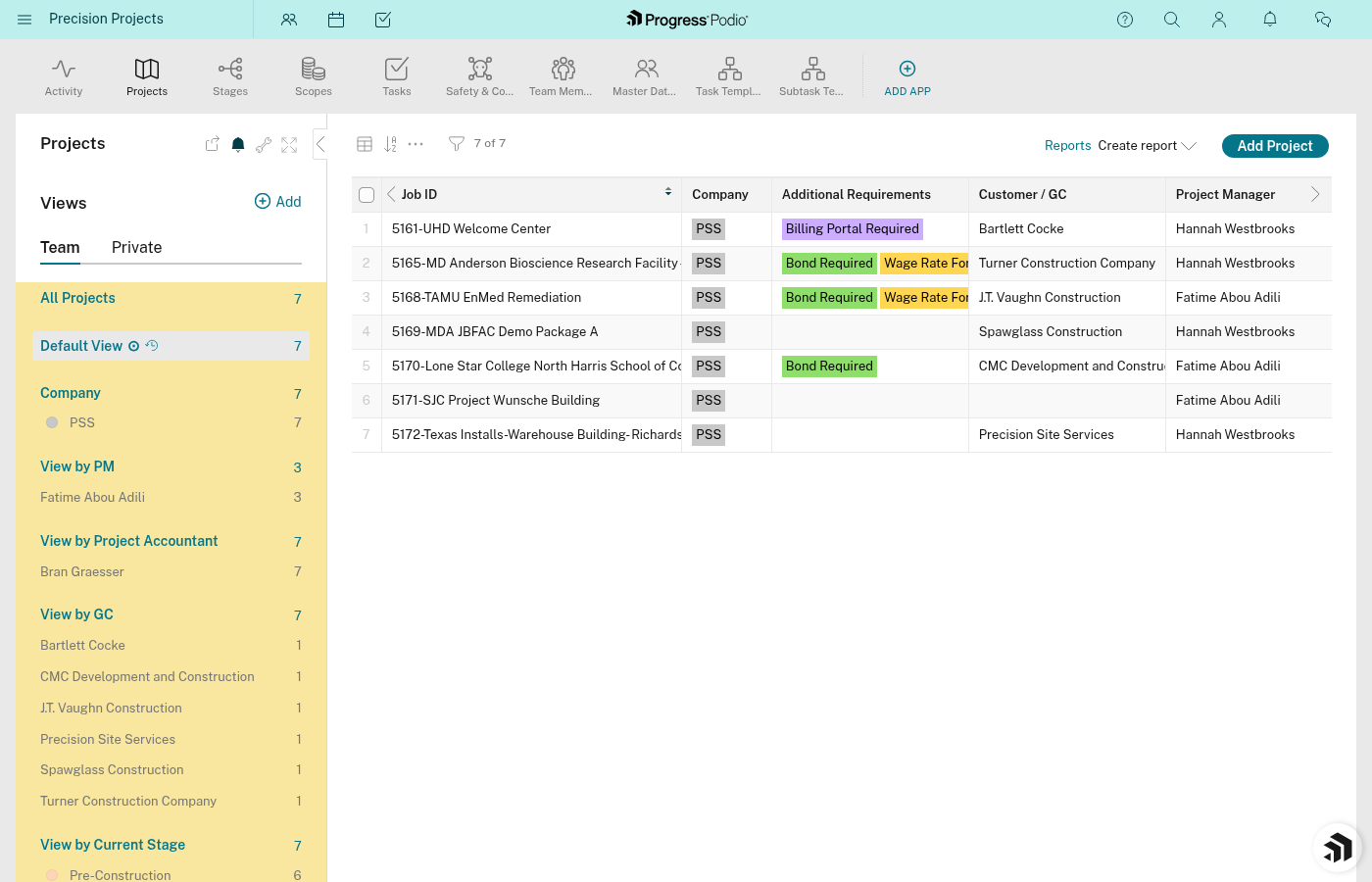
Saving Filters (Views)
If you use the same filter often:
- Set up your filter
- Click Save View (or the ⭐ star icon)
- Give it a name like "My Active Projects"
- Next time, just click that saved view
Common Filters You'll Use
| What You Want | How to Filter |
|---|---|
| My tasks | Tasks app → Responsible = you |
| Overdue tasks | Tasks app → Due Date = Before today |
| Projects in Pre-Con | Projects app → Current Stage = Pre-Construction |
| Jobs for a specific GC | Projects app → Customer = GC name |
Next: The Interface →