The Podio Interface
When you log in, here's what you'll see:
Main Areas
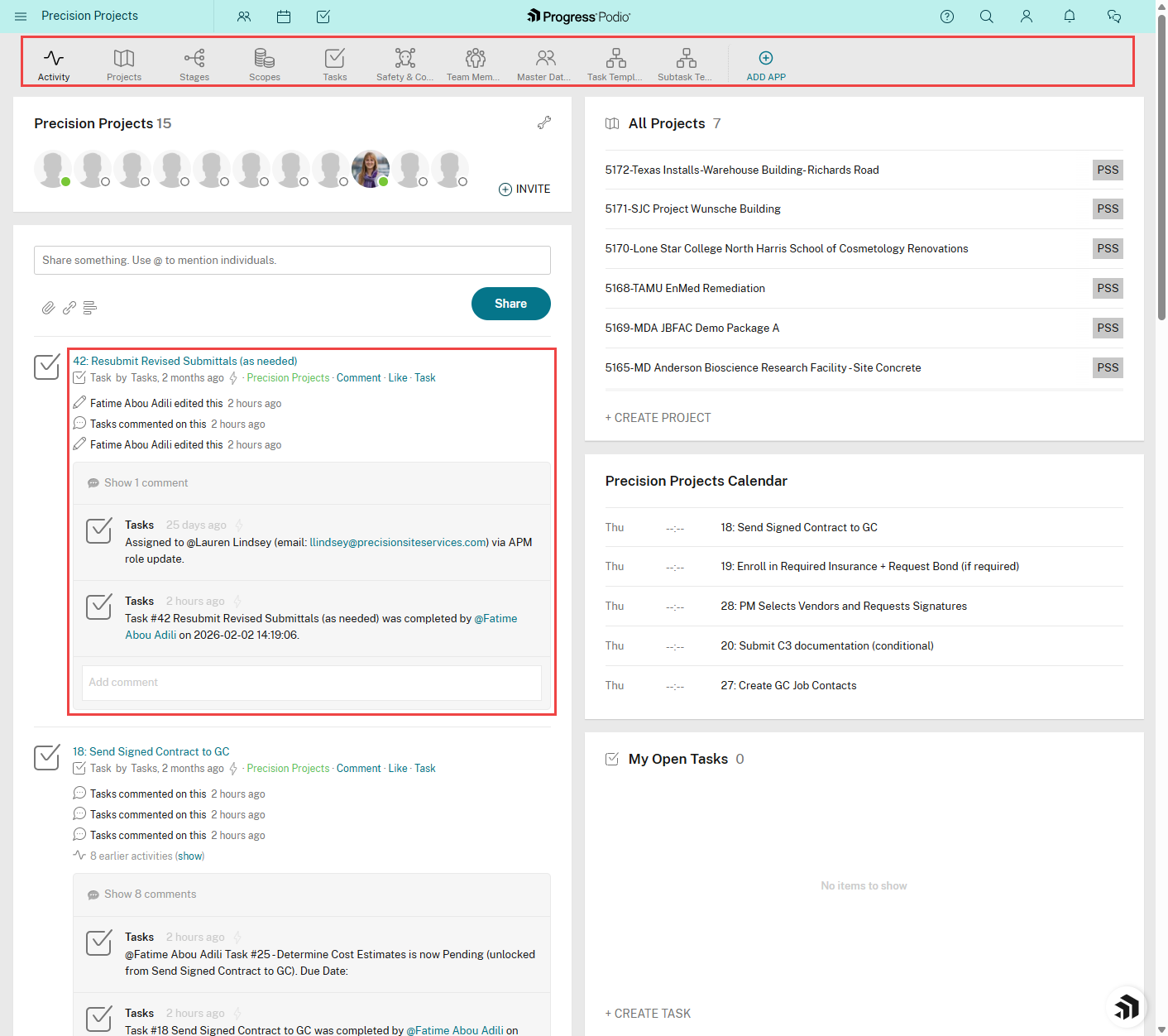
The interface has two main sections:
The App Bar (Top)
This horizontal bar shows all your workspace apps:
| App | What It Contains |
|---|---|
| Activity | Recent updates and activity feed |
| Projects | All jobs/projects |
| Stages | Project phases (Pre-Construction, Mobilization, etc.) |
| Scopes | Work scopes for projects |
| Tasks | Individual to-dos and action items |
| Safety & Co... | Safety and compliance tracking |
| Team Members | Internal PSS employees |
| Master Database | External contacts (GCs, vendors, subs) |
| Task Templates | Template tasks for automations |
| Subtask Templates | Template subtasks |
Click any app name to open it.
The Main Content Area
This changes based on what you're viewing:
- Activity view → Shows recent updates across all apps
- App list view → Shows items in that app (with filters on the left)
- Item detail view → Shows all fields and data for one item
The Top Navigation Bar
The teal bar at the very top includes:
- Workspace name ("Precision Projects")
- Connections - See who's online
- Calendar - View tasks and events
- Tasks - Quick access to your tasks
- Search - Find anything
- Profile - Your account settings
- Notifications - Bell icon for alerts
- Chat - Messaging
App List Views
When you click an app (like Projects), you'll see:
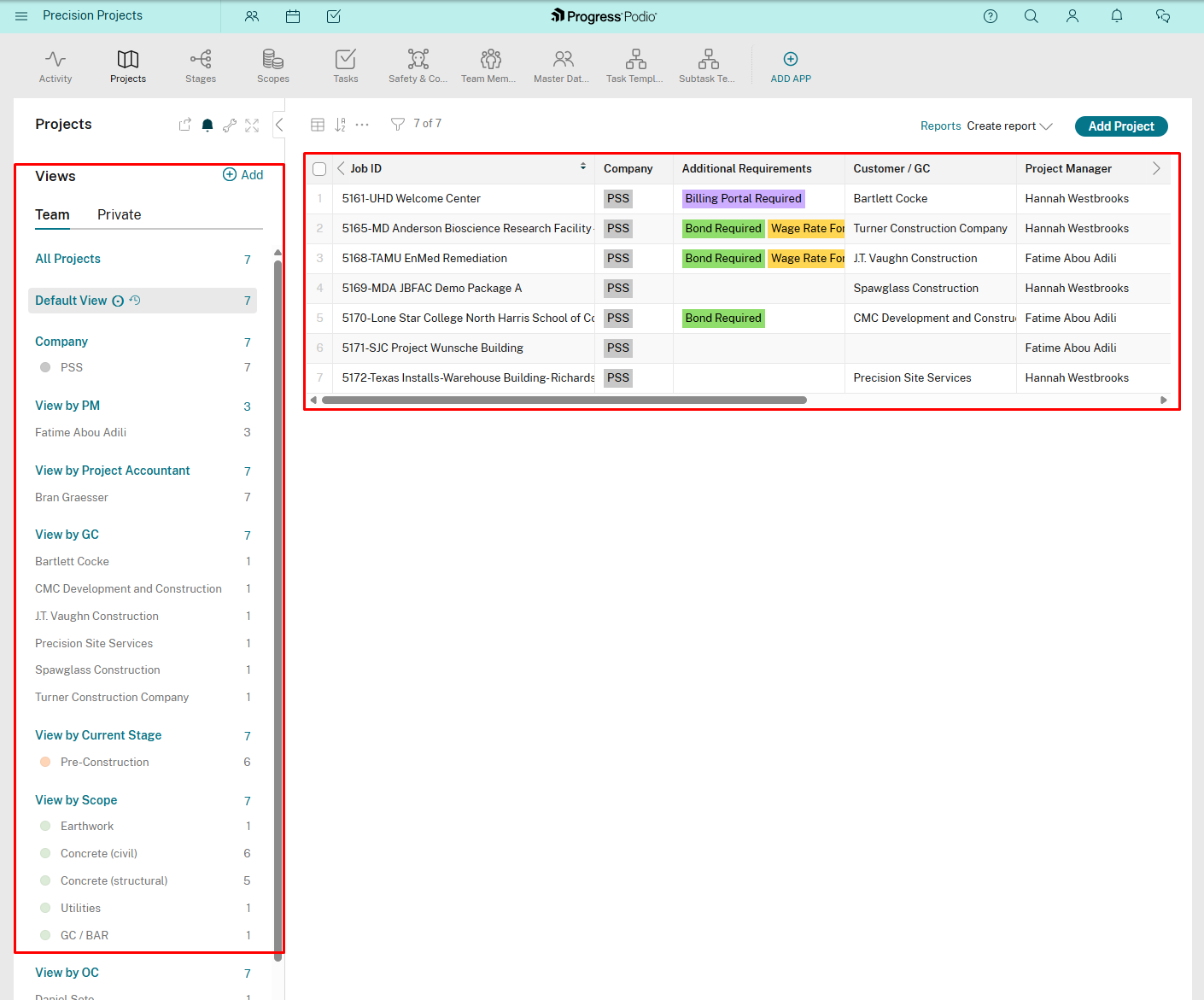
- Left sidebar - Views and filters to narrow down results
- Right area - The list/table of items
The Filter Sidebar
The sidebar lets you:
- Switch between saved Views (All Projects, View by PM, etc.)
- Filter by Company, Stage, Scope, and more
- See counts next to each filter option
Search
Click the search icon (🔍) in the top bar to find anything:
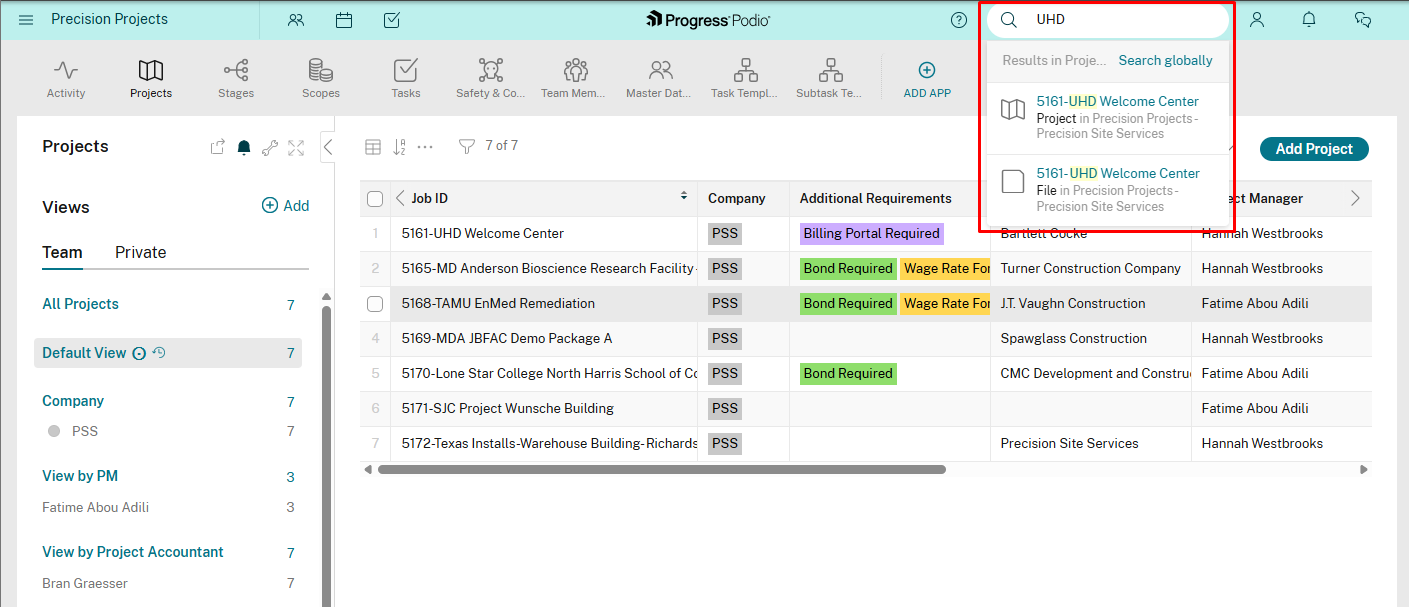
- Type a job number, project name, person's name, etc.
- Results show instantly as you type
- Click a result to jump directly to it
Quick Tips
Getting Around
- Click app names in the App Bar to switch apps
- Use browser back button to go back
- Click "Precision Projects" to return to the Activity view
Finding Things Fast
- Search is your friend — type job numbers, names, anything
- Use filters in the sidebar to narrow down lists
- Save custom Views for quick access to filtered lists