How Just-in-Time Task Population Works
The Problem This Solves
Imagine opening a brand new project and seeing 200+ tasks all at once - Pre-Construction, Mobilization, Construction, Demobilization, and Retainage all dumped on you on Day 1.
Overwhelming. And most of those tasks aren't relevant yet.
PSS Podio uses automatic task population: all tasks for all stages are created when you create a project. This means you'll have all tasks ready from the start, organized by stage.
How It Works: The Big Picture
- You create a new Project
- The system automatically creates 5 Stages (but NO tasks yet)
- You're ready to start Pre-Construction work
- You change Current Stage Status to "Pre-Construction Active"
- 2-3 minutes later, all tasks for all stages appear (could be 100+ tasks total)
- Weeks later, you finish Pre-Con and change status to "Mobilization Active"
- 2-3 minutes later, Mobilization tasks appear
- Repeat for each stage as the project progresses
Step-by-Step: Activating a Stage and Populating Tasks
Step 1: Open Your Project
Go to Projects app → Click your project
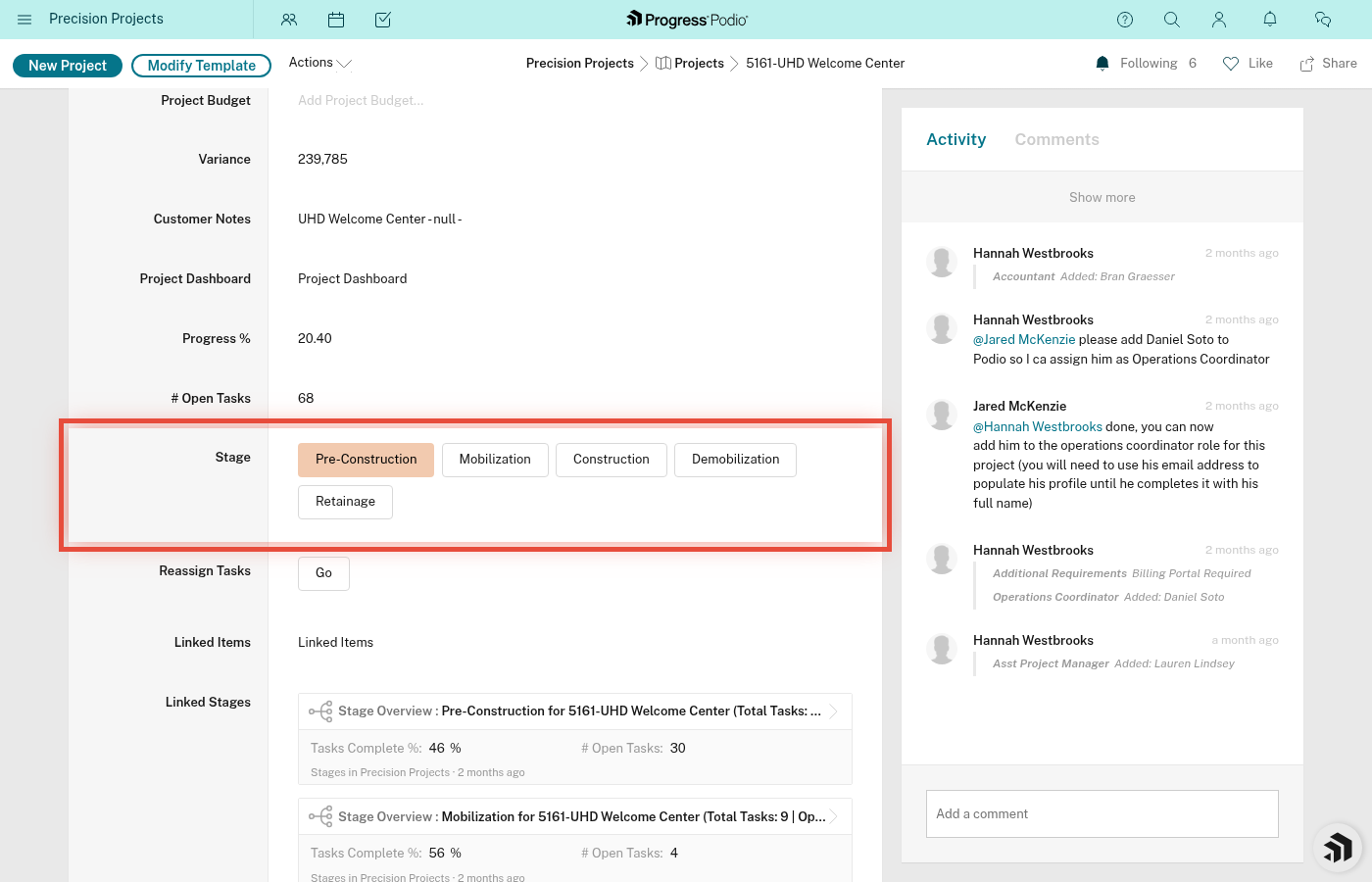
Step 2: Change Current Stage Status
-
Find the Current Stage Status field
-
Click the dropdown
-
Select the stage you're moving to with "Active" suffix:
- Pre-Construction Active
- Mobilization Active
- Construction Active
- Demobilization Active
- Retainage Active
-
Click Save
Step 3: Wait 2-3 Minutes
This is critical: The automation takes time to run.
What's happening behind the scenes:
- GlobiFlow detects the status change
- It queries the Task Templates app for tasks matching:
- The stage you activated (e.g., Pre-Construction)
- Your project's Division (Concrete, Drywall, or Other)
- It creates each task one by one
- It creates subtasks and links them to parent tasks
- It sets Automation Status on the stage to track progress:
- "1 - Pending Creation" → automation started
- "2 - Creation Complete" → all tasks created
- "3 - Linking Complete" → dependencies linked, done!
Don't panic if tasks don't appear instantly. Give it a few minutes.
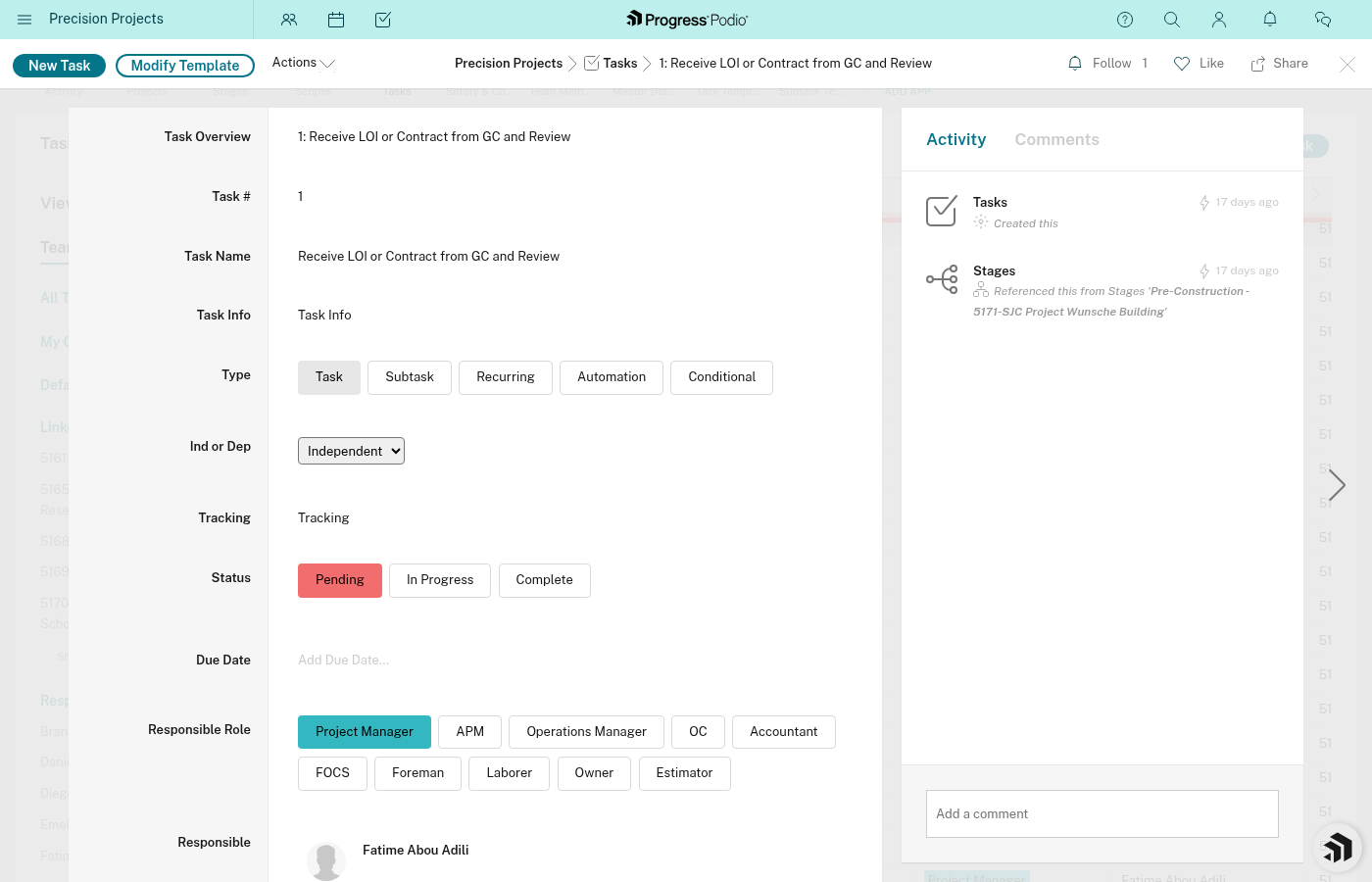
Step 4: Verify Tasks Appeared
- Scroll down to Linked Stages on your project
- Click into the stage you just activated (e.g., Pre-Construction)
- Look at Task Overview - you should see tasks listed
- Check Automation Status - should say "3 - Linking Complete"
If tasks didn't appear, see troubleshooting-automations.md.
What Tasks Get Created?
The tasks come from the Task Templates app, which is a master list of tasks for each stage and division.
Example: Pre-Construction Stage for Concrete Division
45 tasks including:
- Contract & LOI review
- Permit applications and approvals
- Submittals (forms, concrete mix, rebar)
- Safety setup (811 locates, SSSP, badging)
- Scheduling and coordination
- Document collection
Each task has:
- Task Name
- Suggested Responsible role (PM, OC, FOCS, Foreman)
- Independent or Dependent status
- Prerequisite task # (if dependent)
- Type (Task, Recurring, Subtask)
- Notes with instructions
Division Filtering
Your project's Division field determines which task templates are used. Today, Concrete is the only division with a full task library — Drywall and Other are scaffolded for future use but have no tasks defined yet.
Task Assignment: Roles → People
Task templates reference roles (e.g., "Project Manager", "Foreman"), not specific people.
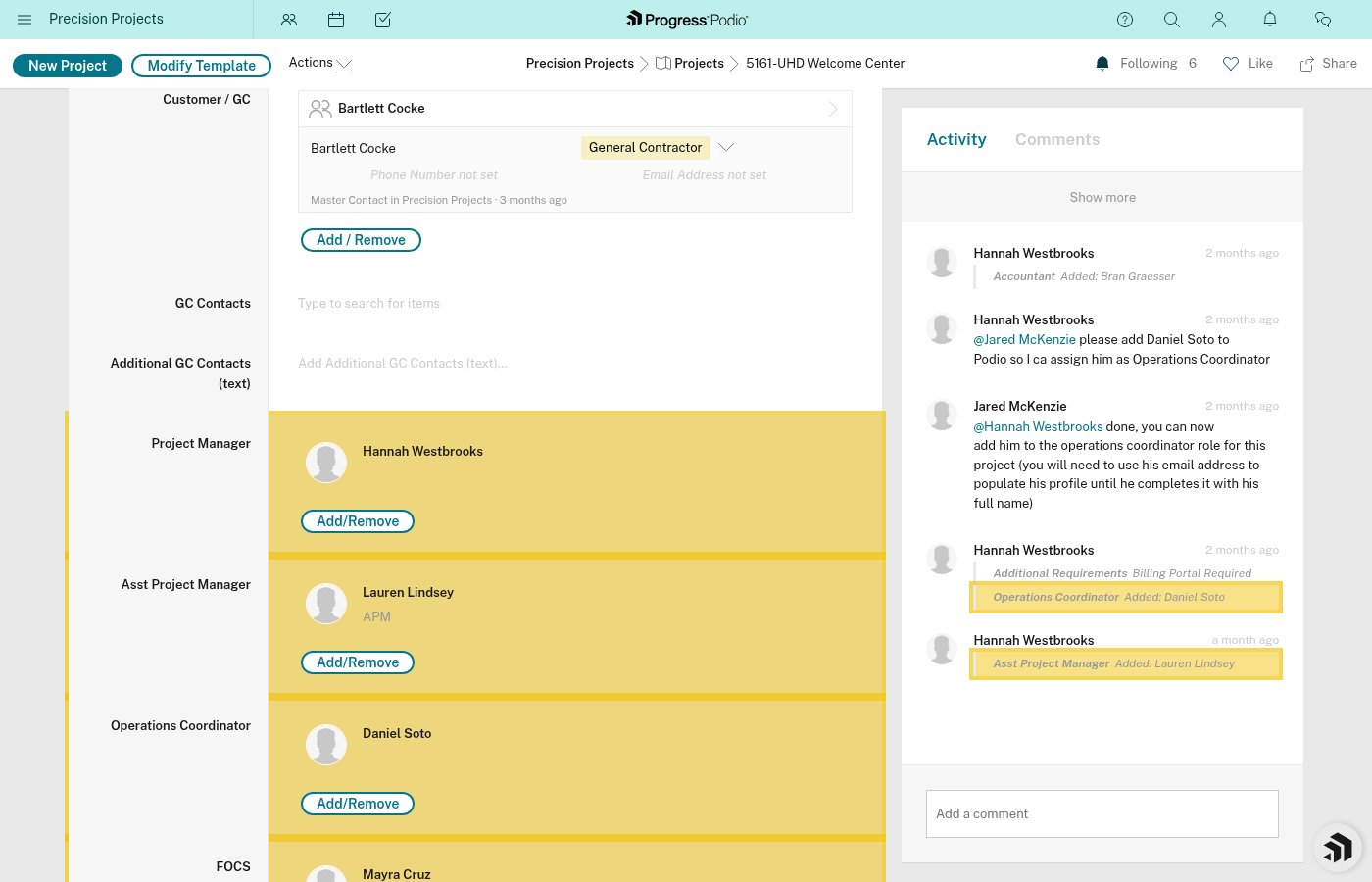
When tasks are created, the automation tries to fill in the actual person based on your Project's fields:
- Project Manager field → fills tasks assigned to "PM"
- OC - Operations Coordinator field → fills tasks assigned to "OC"
- FOCS - Field Operations Coordinator field → fills tasks assigned to "FOCS"
- Foreman field → fills tasks assigned to "Foreman"
If those fields are blank on the project, tasks might be assigned to the role name instead of a person. You'll need to manually reassign them.
Best practice: Fill out PM, OC, FOCS, and Foreman fields before activating the first stage.
Task Dependencies: Automatic Linking
Some tasks can't start until others finish. The templates define these relationships.
Example from Pre-Construction:
- Task 12: "Prepare SSSP" (Independent)
- Task 13: "Submit SSSP to Safety Director" (Dependent on Task 12)
- Task 14: "Receive SSSP Approval" (Dependent on Task 13)
When tasks are created:
- All tasks are created first (Independent and Dependent)
- Independent tasks are set to Status = In Progress
- Dependent tasks are set to Status = Pending
- A second automation runs and links dependencies
- Each dependent task's Dependencies field is populated with the prerequisite task(s)
After linking completes:
- The stage's Automation Status changes to "3 - Linking Complete"
- The dependency chains are fully set up
- As prerequisite tasks are completed, dependent tasks will automatically unlock
See dependencies.md for full details on how this works.
Subtasks: Automatic Creation
Some tasks have subtasks (smaller pieces of work).
Example:
- Main task: "Complete site utility connections"
- Subtasks:
- "Call utility company for schedule"
- "Coordinate site access for utility crew"
- "Walk crew through site"
- "Inspect connections"
When the main task is created from a template, the automation:
- Creates the main task
- Looks up Subtask Templates linked to that task template
- Creates each subtask
- Links subtasks to the parent task via Linked Parent Task field
- Sets Type = Subtask on each
You'll see subtasks as linked items on the parent task.
Timing: Why 2-3 Minutes?
GlobiFlow automations aren't instant. Here's why:
- Trigger detection - GlobiFlow polls for changes (doesn't listen in real-time)
- Batch processing - If creating 45 tasks, it does them one at a time with small delays
- Dependency linking - A second automation runs after task creation completes
- Podio API limits - Automations can't overwhelm the system
Normal timing:
- Simple stage (10 tasks): ~1 minute
- Complex stage (45 tasks): ~2-3 minutes
- If it's been >5 minutes and nothing appeared, something's wrong (see troubleshooting-automations.md)
Don't refresh the page constantly - just wait a few minutes, then check.
Recurring Tasks: Weekly Regeneration
Some tasks have Type = Recurring (e.g., weekly safety meetings, daily reports).
When created from templates, they work like regular tasks BUT:
- When you mark them Complete, the system automatically creates a fresh copy
- This happens on a weekly cadence
- Happens for any active stage that contains recurring tasks (not limited to Construction)
You don't have to manually recreate recurring tasks - they regenerate automatically.
What If I Activate the Wrong Stage?
Example: You accidentally changed to "Mobilization Active" when you meant to stay in Pre-Construction.
To fix:
- Change Current Stage Status back to the correct stage (e.g., "Pre-Construction Active")
- Tasks that were already created do not auto-delete when you change the stage back — they stay in place
- Don't manually delete them; the Task Overview for the current stage will only show tasks linked to that stage, so they won't clutter your workflow
Best practice: Double-check the stage name before saving.
Can I Manually Create Tasks Too?
Yes! Just-in-time population handles the standard workflow, but you can always manually create tasks for:
- One-off items unique to this job
- Client-specific requests
- Additional subtasks
- Custom tracking
See creating-tasks.md for how to do this.
Summary: Task Population Flow
You activate stage
    ↓
GlobiFlow detects change
    ↓
Queries Task Templates (stage + division)
    ↓
Creates tasks (2-3 minutes)
    ↓
Sets Automation Status = "2 - Creation Complete"
    ↓
Second automation links dependencies
    ↓
Sets Automation Status = "3 - Linking Complete"
    ↓
Tasks appear in Task Overview ✅
Key Takeaways
✅ All tasks are created automatically when the project is created ✅ Wait 2-3 minutes for task population to complete ✅ Check Automation Status to verify it worked ("3 - Linking Complete") ✅ Fill out PM/OC/FOCS/Foreman fields before activating stages so tasks are assigned correctly ✅ Division matters - Concrete, Drywall, and Other get different task templates ✅ Dependencies are auto-linked - Dependent tasks start as Pending and unlock when prerequisites complete ✅ Subtasks are auto-created from templates when parent tasks are created ✅ Recurring tasks regenerate automatically after completion
Related:
- what-happens-automatically.md - Overview of all automations
- troubleshooting-automations.md - What to do if tasks don't appear
- dependencies.md - How task dependencies work