Troubleshooting Automations
Things usually work smoothly, but sometimes automations don't fire as expected. Here's how to diagnose and fix common issues.
Problem 1: Tasks Didn't Appear When I Activated a Stage
Symptoms
- You changed Current Stage Status to "[Stage] Active"
- It's been >5 minutes
- Task Overview is still empty on that stage
- Automation Status is stuck on "1 - Pending Creation" or blank
Diagnosis Steps
Step 1: Check Automation Status
- Open the Stage (click it from Linked Stages on the project)
- Look at the Automation Status field
What it should say:
- "3 - Linking Complete" ✅ (all done)
What it might say:
- "1 - Pending Creation" ⏳ (still processing, give it more time)
- Blank ❌ (automation didn't trigger)
- "2 - Creation Complete" ⏸️ (tasks created, but dependencies not linked yet)
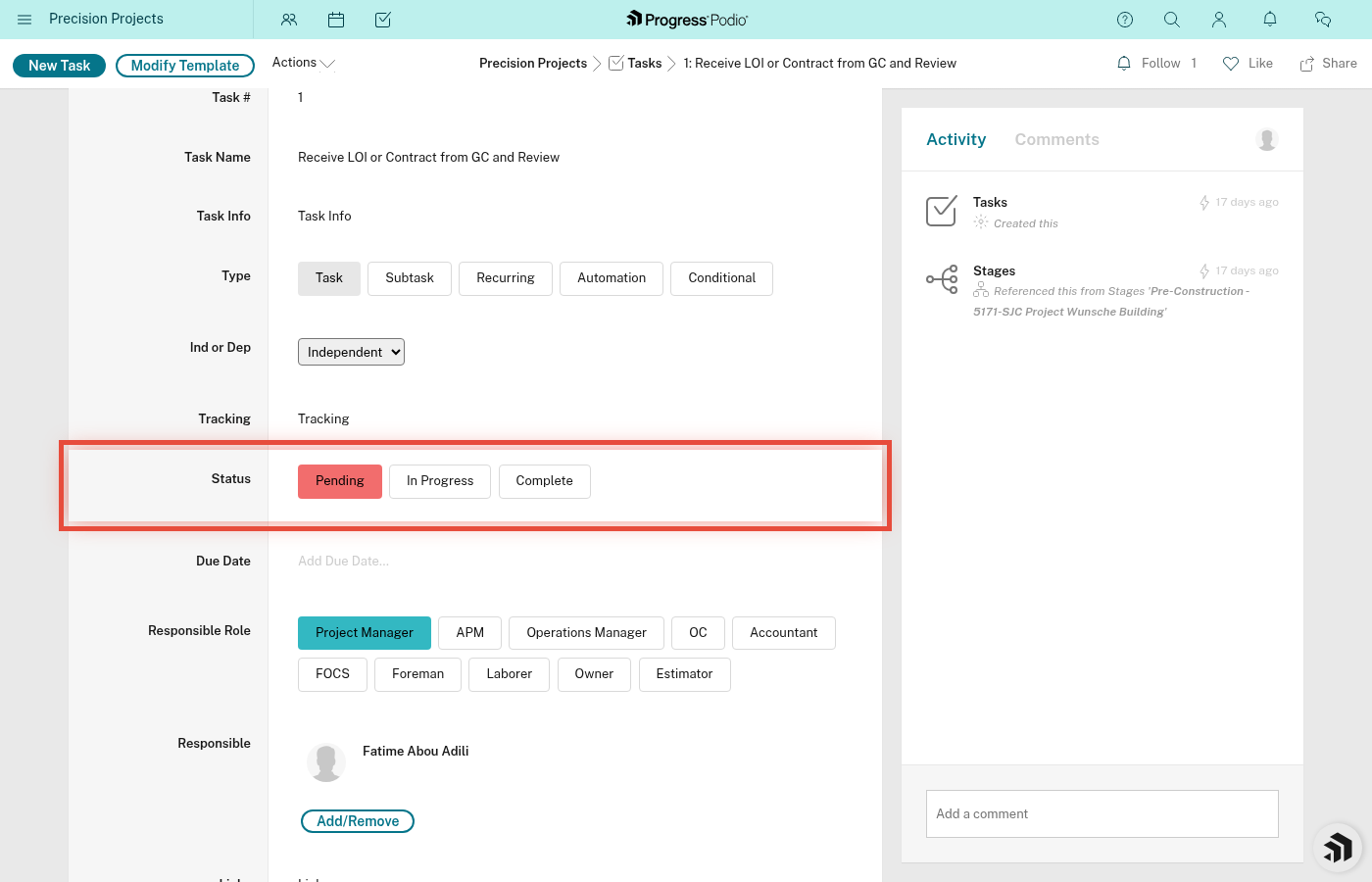
Step 2: Check Task Templates Exist The automation pulls from Task Templates app.
- Go to Task Templates app (should be in your workspace)
- Filter by Project Stage = [Your Stage] (e.g., Pre-Construction)
- Filter by Division = [Your Project Division] (e.g., Concrete)
- Do templates exist?
If NO templates exist:
- The automation has nothing to create tasks from
- Contact your admin/PM to populate templates
If templates exist:
- Automation should have worked
- Continue to Step 3
Step 3: Check Project Division Field The automation filters templates by Division.
- Open your Project
- Look at the Division field
- Is it set to Concrete, Drywall, or Other?
If Division is blank:
- Automation can't find templates
- Set the Division field
- Change Current Stage Status to the stage again to re-trigger automation
Step 4: Wait Longer (Seriously) If it's only been 2-3 minutes, be patient.
Complex stages (40+ tasks) can take up to 5 minutes if the system is busy.
Step 5: Re-Trigger the Automation If it's been >5 minutes and still nothing:
- Change Current Stage Status to a different stage (e.g., if stuck on Pre-Con, change to Mobilization)
- Save
- Wait 30 seconds
- Change it back to the correct stage (e.g., Pre-Construction Active)
- Save
- Wait 2-3 minutes
This "resets" the automation trigger.
Still Not Working?
Contact your GlobiFlow admin or PM. Possible causes:
- GlobiFlow automation is paused or disabled
- API connection issue with Podio
- Template app was moved or deleted
- Automation was edited incorrectly
Problem 2: Tasks Were Created But Dependencies Didn't Link
Symptoms
- Tasks appeared in Task Overview ✅
- Automation Status says "2 - Creation Complete" (not "3 - Linking Complete")
- Dependent tasks have empty Dependencies field (should show prerequisite tasks)
- All tasks are In Progress (Dependent tasks should be Pending)
Diagnosis Steps
Step 1: Check Automation Status If it says "2 - Creation Complete":
- Task creation worked
- Dependency linking automation didn't run (yet or at all)
Step 2: Wait a Bit Longer Dependency linking is a second automation that runs after task creation completes.
Give it another 2-3 minutes.
Step 3: Check Task Templates for Dependent Task # The linking automation uses Dependent Task # field in templates to know what to link.
- Go to Task Templates app
- Find a template that should be Dependent
- Check if Dependent Task # field is filled out
If it's blank:
- Template is incomplete
- Tasks won't link automatically
- You'll need to manually add dependencies (see below)
Step 4: Manually Link Dependencies If automation failed or templates are incomplete:
- Open a Dependent task
- Edit the Dependencies field
- Search for and select the prerequisite task(s)
- Change Status from In Progress to Pending (since it should wait)
- Save
Repeat for each dependent task.
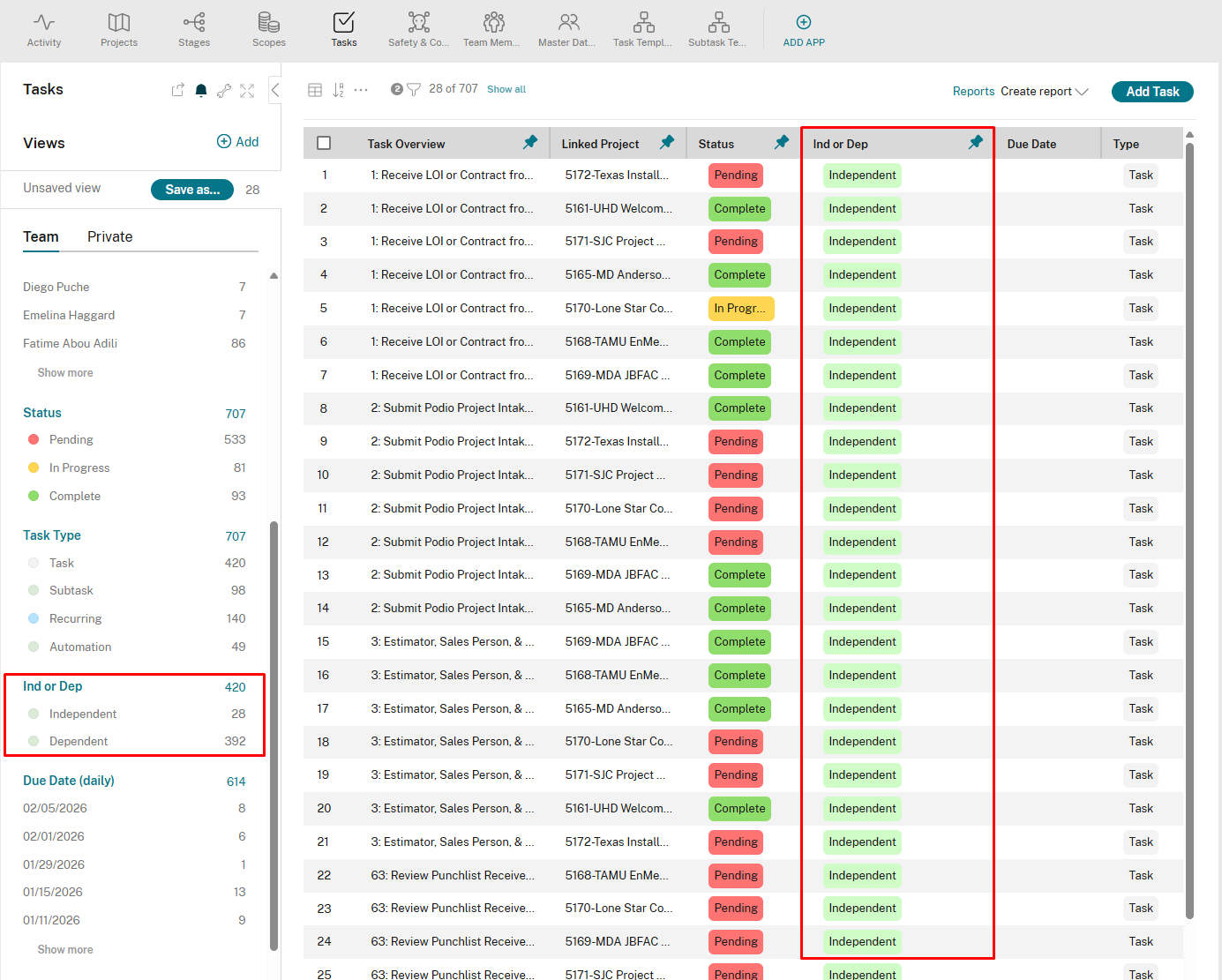
This is tedious but ensures workflows work correctly.
Problem 3: Dependent Task Didn't Unlock When I Completed Prerequisite
Symptoms
- You marked Task A Complete
- Task B depends on Task A (you verified in Dependencies field)
- Task B is still Status = Pending (should have changed to In Progress)
- The responsible person wasn't notified
Diagnosis Steps
Step 1: Verify Dependency is Set Correctly
- Open Task B (the dependent task)
- Look at Dependencies field
- Does it list Task A?
If NO:
- The dependency wasn't linked correctly
- Automation won't trigger
- Manually add Task A to Dependencies field, then re-complete Task A (see Step 4)
If YES:
- Dependency is set correctly
- Continue to Step 2
Step 2: Check Task A is Actually Complete
- Open Task A
- Look at Status field
- Is it Complete (green)?
If NO:
- You might have changed it back by mistake
- Mark it Complete again
Step 3: Check GlobiFlow is Running
You can't check GlobiFlow status yourself — only an admin can. If you suspect GlobiFlow is paused, disabled, or failing, ask an admin to investigate. If GlobiFlow isn't running, automations won't fire.
Step 4: Re-Trigger the Automation
- Open Task A (the prerequisite)
- Change Status to In Progress (temporarily)
- Save
- Change Status back to Complete
- Save
- Wait 30 seconds
- Check Task B - it should now be In Progress
This forces the automation to detect the completion event again.
Step 5: Manually Unlock Task B If automation still doesn't work:
- Open Task B
- Change Status to In Progress
- Save
- Manually notify the responsible person
Then contact your admin about the automation failure.
Problem 4: Recurring Tasks Didn't Regenerate
Symptoms
- You completed a task with Type = Recurring
- It's been a week (or the expected recurrence interval)
- No new copy of the task appeared
Diagnosis Steps
Step 1: Check Stage is Still Active Recurring tasks only regenerate for active stages.
- Open your Project
- Check Current Stage Status
- Is the stage the task belongs to still Active?
If NO:
- You moved to a new stage
- Recurring tasks from old stage won't regenerate
- This is expected behavior
If YES:
- Continue to Step 2
Step 2: Check Type Field
- Open the completed recurring task
- Look at Type field
- Is it set to Recurring?
If NO:
- It's not marked as recurring
- Won't regenerate
- Edit it and set Type = Recurring, or manually create a new copy
Step 3: Check Recurrence Schedule
Recurring tasks regenerate on a weekly cadence. If you completed the task recently, the next copy may not appear until the next weekly run.
Step 4: Contact Admin If it's past the expected regeneration time and still nothing:
- GlobiFlow recurring task automation might be disabled
- Schedule might have changed
- Contact admin to investigate
Problem 5: New Project Didn't Create Stages
Symptoms
- You created a new Project
- Stages weren't automatically created
- Linked Stages field is empty
Diagnosis Steps
Step 1: Wait a Minute Stage creation is usually fast (30-60 seconds), but give it a minute.
Step 2: Check GlobiFlow The "Create Stages on New Project" automation might be paused.
Contact your admin to verify it's active.
Step 3: Manually Create Stages If automation is broken and you need to move forward:
- Go to Stages app
- Create 5 stages manually:
- Pre-Construction
- Mobilization
- Construction
- Demobilization
- Retainage
- For each stage, set Linked Project to your project
- Fill out other fields (Stage Name, etc.)
This is tedious, but gets you unblocked.
Then contact admin to fix the automation for future projects.
Problem 6: Tasks Assigned to Wrong People
Symptoms
- Tasks were created, but Responsible field shows the wrong person or a role name (e.g., "Project Manager" instead of "Jared McKenzie")
Diagnosis Steps
Step 1: Check Project Role Fields Task assignment pulls from Project fields:
- Open your Project
- Check these fields:
- Project Manager (should be a person's name)
- OC - Operations Coordinator (should be a person's name)
- FOCS - Field Operations Coordinator (should be a person's name)
- Foreman (should be a person's name)
If any are blank:
- Tasks assigned to that role will be blank or show the role name
- Fill in the correct person
- Manually reassign the tasks (see assigning-tasks.md)
Step 2: Reassign via the Project page Don't edit individual tasks. Use the project-level Reassign Tasks flow:
- Open the Project
- Set the correct person in the relevant role field (Project Manager, OC, FOCS, or Foreman)
- Scroll to the bottom of the project page
- Click "Go" next to the Reassign Tasks field
- Every task owned by the previous person for that role is reassigned to the new person
See assigning-tasks.md for details.
Problem 7: Automation Status Stuck on "1 - Pending Creation"
Symptoms
- Changed Current Stage Status
- Automation Status shows "1 - Pending Creation"
- It's been >10 minutes
- No tasks appeared
Diagnosis
This means the automation started but didn't finish.
Possible causes:
- GlobiFlow encountered an error mid-process
- API rate limit hit
- Template data is malformed
Solution
Step 1: Re-Trigger
- Change Current Stage Status to a different stage
- Save
- Wait 1 minute
- Change back to the correct stage
- Save
- Wait 5 minutes
Step 2: Contact Admin If it happens again, there's a deeper issue with the automation.
Provide:
- Project name
- Stage you tried to activate
- Division
- Time you triggered it
Admin can check GlobiFlow logs for errors.
General Troubleshooting Tips
✅ Do:
- Wait at least 2-3 minutes before assuming an automation failed
- Check Automation Status field for clues
- Verify required fields are filled out (Division, PM, OC, etc.)
- Re-trigger automations by changing and re-changing fields
- Manually fix issues if you need to keep working (reassign tasks, add dependencies)
- Document what went wrong so you can report to admin
❌ Don't:
- Panic and start deleting things
- Create duplicate tasks while waiting for automation (wait first!)
- Assume it's broken after 30 seconds
- Manually create 40+ tasks when you could just re-trigger automation
When to Contact Admin
Contact your GlobiFlow admin or PM if:
- Automation fails repeatedly
- Automation Status is stuck for >10 minutes
- Tasks are missing fields or data
- You see error messages
- Recurring tasks haven't regenerated after multiple cycles
- Entire stages are missing tasks
Provide details:
- Project name
- Stage
- Division
- What you were trying to do
- What happened (or didn't happen)
- Screenshot of Automation Status or error
Quick Reference: Automation Status Meanings
| Status | Meaning | What To Do |
|---|---|---|
| Blank | Automation hasn't triggered | Re-trigger by changing stage status again |
| "1 - Pending Creation" | Automation started, creating tasks | Wait 2-5 minutes |
| "2 - Creation Complete" | Tasks created, linking dependencies | Wait 1-2 more minutes |
| "3 - Linking Complete" | All done! ✅ | Nothing, it worked |
| Stuck on "1" for >10 min | Automation failed mid-process | Re-trigger, contact admin if repeats |
Related:
- what-happens-automatically.md - Overview of all automations
- task-population.md - How automatic task creation works
- dependencies.md - How dependencies work