Creating Tasks
All tasks (including subtasks) are auto-created from templates when a project is created. Creating tasks manually is strongly discouraged — it bypasses the template library, breaks reporting, and leads to tasks that don't participate in the dependency/automation system.
If a task is missing that you hit regularly, raise it with your PM so the template library can be updated. For one-off items unique to a single project, track them with a note on an existing task rather than creating a new Podio task.
The rest of this page describes the manual task creation flow for rare cases where your PM explicitly authorizes it. Default assumption: you shouldn't be creating tasks manually.
How to Create a New Task
Step 1: Go to the Tasks App
- Open the Tasks app from your Podio workspace
- Click "Add new task" (usually a + button or "New" button)
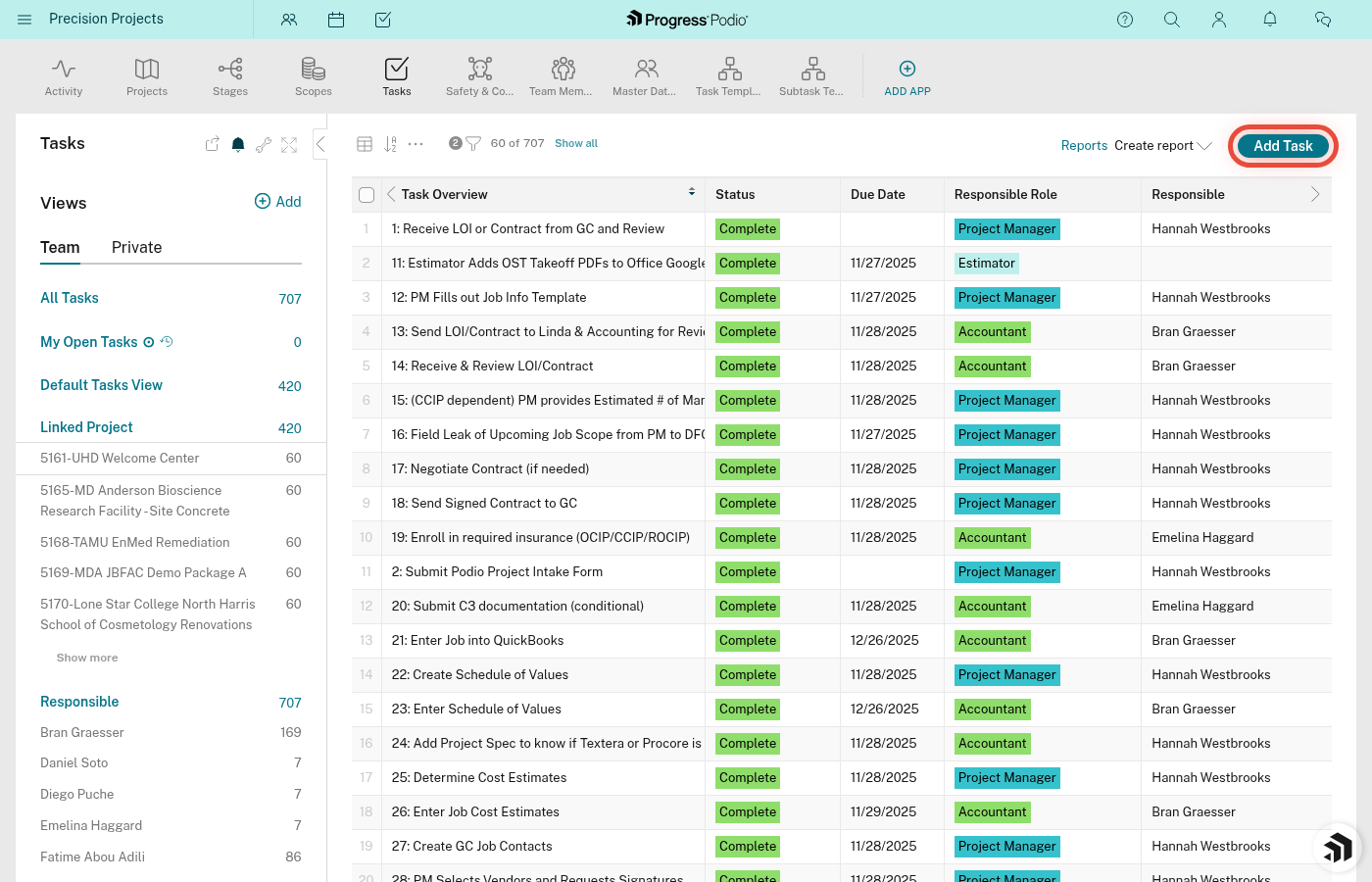
Step 2: Fill Out Required Fields
Task Name (Text)
- Clear, specific description
- Good: "Submit electrical permit application"
- Bad: "Permit stuff"
Status (Category)
- Pending - not started yet
- In Progress - actively working on it
- Complete - done
- Most new tasks start as either Pending or In Progress
Responsible (User)
- Who's doing this task?
- Pick from the dropdown of PSS team members
- If you're creating it for yourself, pick your name
Linked Stage (Relationship)
- Which stage does this belong to?
- Pick from the 5 stages: Pre-Construction, Mobilization, Construction, Demobilization, or Retainage
- Important: This links the task to the stage so it shows up in that stage's Task Overview
Linked Project (Relationship)
- Which job is this for?
- Pick the project from the dropdown
- This connects the task to the overall job
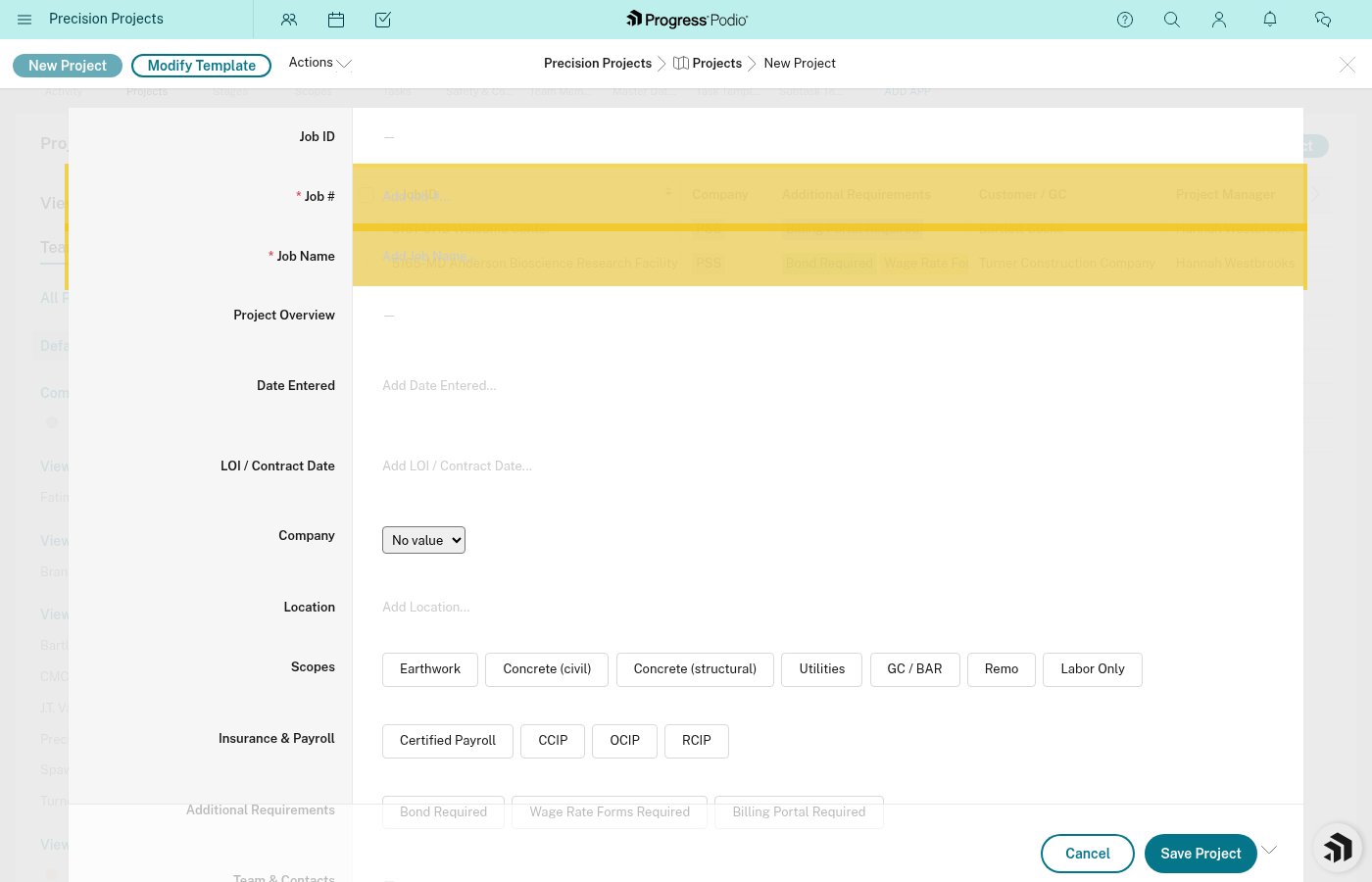
Step 3: Fill Out Optional But Helpful Fields
Due Date (Date)
- When does this need to be done?
- Helps with sorting and urgency
Ind or Dep (Category)
- Independent - can be started right away
- Dependent - waits for another task first
- If you pick Dependent, fill out Dependencies field (see below)
Dependencies (Relationship to Tasks)
- Only needed if this is a Dependent task
- Click into the field and search for the task(s) that must be completed before this one can start
- You can link to multiple prerequisite tasks
Type (Category)
- Task - standard one-time task (most common)
- Recurring - repeats on a schedule (e.g., weekly safety meetings)
- Subtask - a smaller task under a parent task
- If Subtask, fill out Linked Parent Task field
Notes (Text multi-line)
- Add context, instructions, or background
- Super helpful for whoever is responsible
Attachments (Files)
- Upload relevant docs, photos, contracts, etc.
Task creation form showing all optional/advanced fields would be helpful here.
Step 4: Save
Click Save or Create button.
Your task now appears in:
- The Tasks app
- The Task Overview for the stage you linked it to
- The responsible person's task list
Creating Subtasks
If you need to break a task into smaller pieces:
Step 1: Create the Main Task First
Follow the steps above. Let's say you create "Install formwork system" as the main task.
Step 2: Create Subtasks
- Create a new task (same as above)
- Give it a clear name, like "Set up form panels - Grid A1"
- Set Type = Subtask
- In Linked Parent Task field, search for and select "Install formwork system"
- Fill out Responsible, Status, Linked Stage, and Linked Project (subtasks need these too)
- Save
Repeat for each subtask.
What This Does
- Subtasks appear as linked items under the parent task
- You can complete subtasks independently
- The parent task's completion percentage auto-calculates from subtask completion — you don't have to update it manually.
Creating Recurring Tasks
For tasks that happen regularly (daily reports, weekly meetings, etc.):
- Create a task as normal
- Set Type = Recurring
- Fill out all fields like normal
- Save
What happens:
- When you mark this task Complete, a new copy automatically gets created
- The completed task stays in the system for record-keeping
- This keeps repeating until you delete the recurring task or the stage becomes inactive
The regeneration runs on a weekly cadence and applies to any active stage that has recurring tasks (not limited to Construction).
Tips for Creating Good Tasks
✅ Do:
- Use clear, action-oriented task names ("Submit permit" not "Permit")
- Assign to a specific person, not "TBD"
- Set realistic due dates
- Add notes with context - future you will thank you
- Link to the correct Stage and Project (required for it to show up in the right places)
❌ Don't:
- Create duplicate tasks that already exist in templates
- Create tasks without linking to a Stage and Project (they'll be orphaned)
- Forget to set Ind or Dep - this affects workflow automation
- Leave Responsible blank - every task needs an owner
Editing Tasks After Creation
Made a mistake? No problem:
- Open the task
- Click Edit (or fields might be directly editable)
- Change whatever needs fixing
- Save
You can edit any field at any time - Status, Responsible, Due Date, Dependencies, etc.
Deleting Tasks
If you created a task by mistake:
- Open the task
- Click the Delete or Archive option (usually in a menu)
- Confirm
Warning: Deleting a task that other tasks depend on might break dependency chains. If unsure, check with your PM.
Common Scenarios
Scenario 1: Client Requests Special Inspection
- Create new task: "Coordinate special geotechnical inspection"
- Type = Task, Ind or Dep = Independent
- Responsible = Project Manager
- Linked Stage = Construction
- Linked Project = [Your job]
- Due Date = [When client needs it]
- Notes = "Client requested soil testing on grid lines A3-A5 per email 1/15"
- Save
Scenario 2: Breaking Down a Complex Task
Main task: "Complete utility connections"
Subtasks:
- "Call utility company for schedule" (Type = Subtask, Linked Parent = main task)
- "Coordinate utility crew site access" (Type = Subtask, Linked Parent = main task)
- "Walk utility crew through site" (Type = Subtask, Linked Parent = main task)
- "Inspect connections after installation" (Type = Subtask, Linked Parent = main task)
Each subtask has its own Responsible person and Due Date.
Scenario 3: Creating a Dependency Chain
Task A: "Finalize concrete mix design" (Independent, In Progress) Task B: "Order concrete materials" (Dependent, Pending, Dependencies = Task A)
When Task A is marked Complete, Task B will automatically change to In Progress.
Related:
- task-population.md - How most tasks are created automatically
- dependencies.md - How to set up task dependencies
- assigning-tasks.md - How to change who's responsible