Editing Project Info
Things change. Budget adjusts. Team members rotate. Addresses get corrected. Here's how to update project details after creation.
Step-by-Step: Editing a Project
1. Find the Project
Use any method from Finding Projects:
- Search by Job # or Name
- Browse the Projects list
- Filter by stage, PM, or division
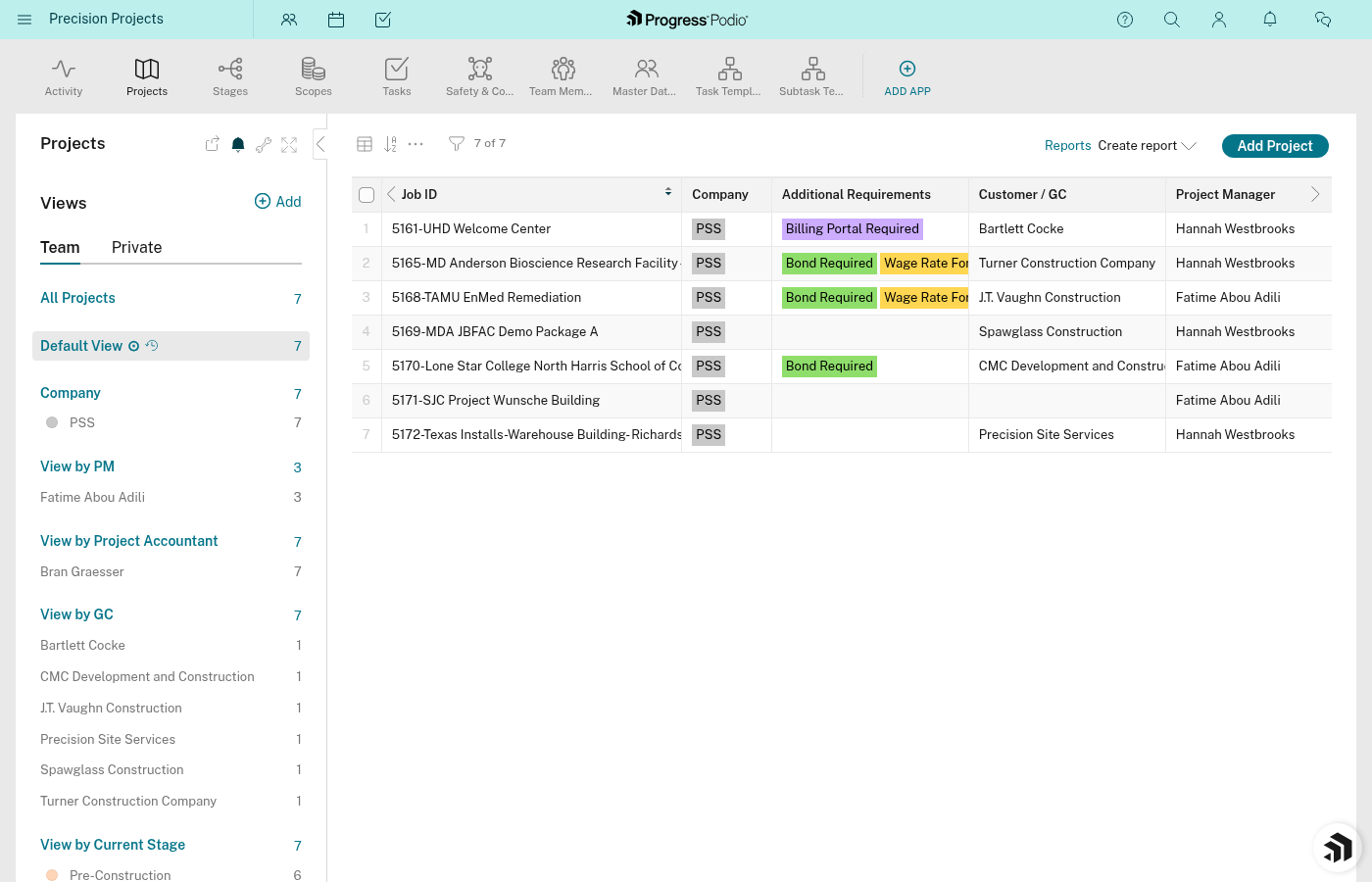
2. Open the Project
Click on the project to open it.
You'll see the full project page with all fields.
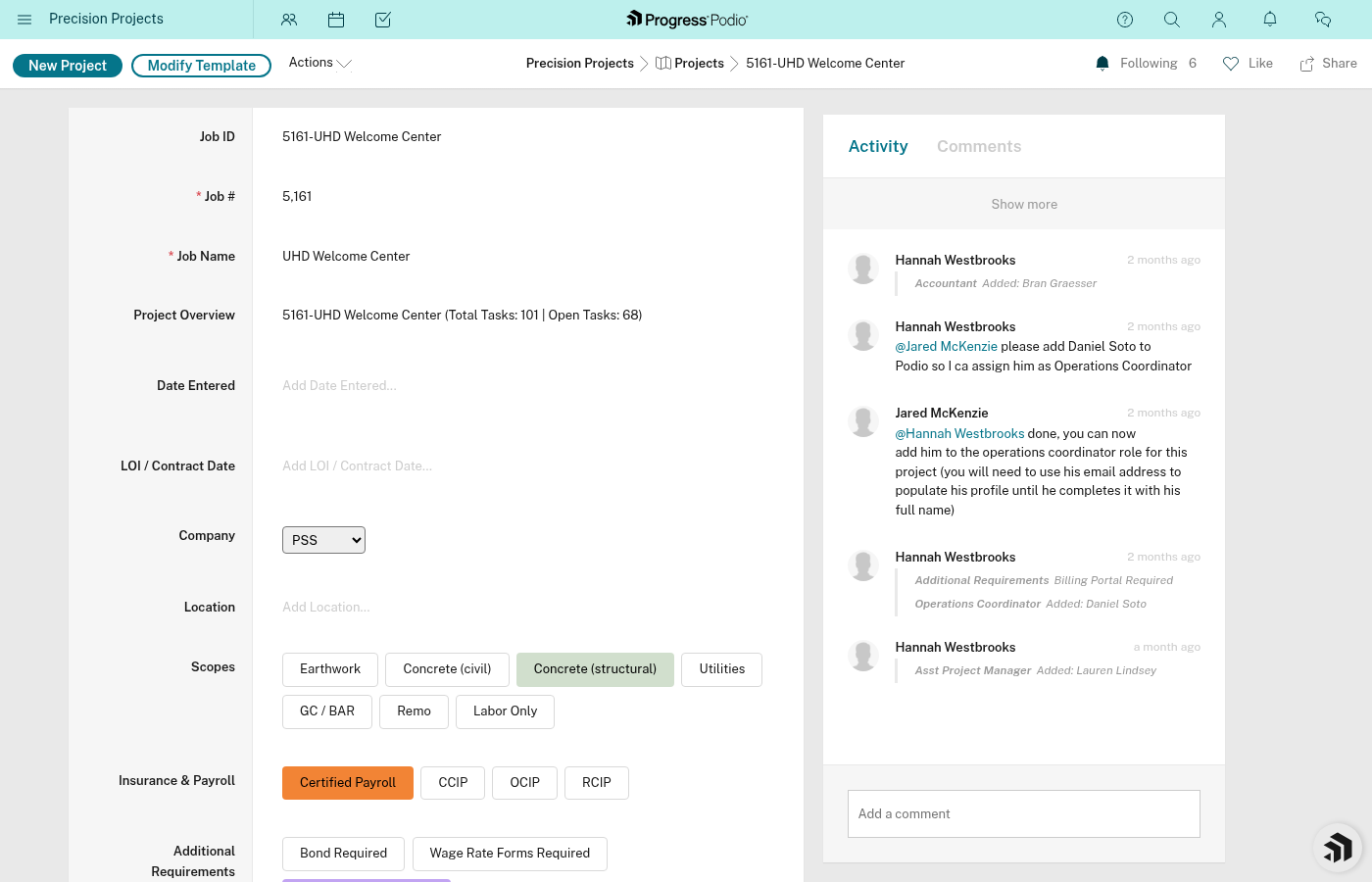
3. Click Into Fields
Podio doesn't have an "edit mode" — just click directly into any field to change it. Your changes save automatically.
4. Update the Fields You Need
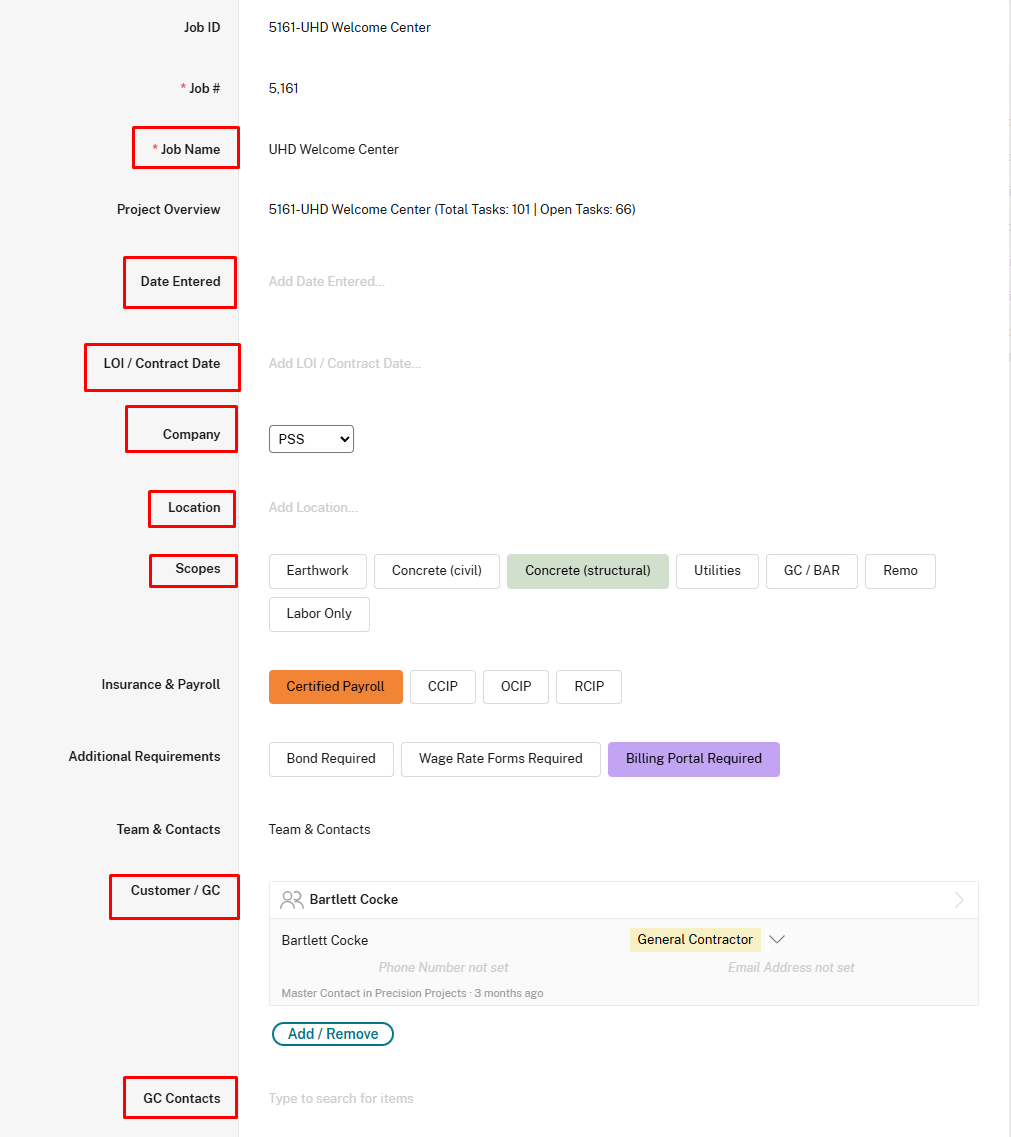
You can edit most fields. Here's what you can and can't change:
✅ Safe to Edit Anytime
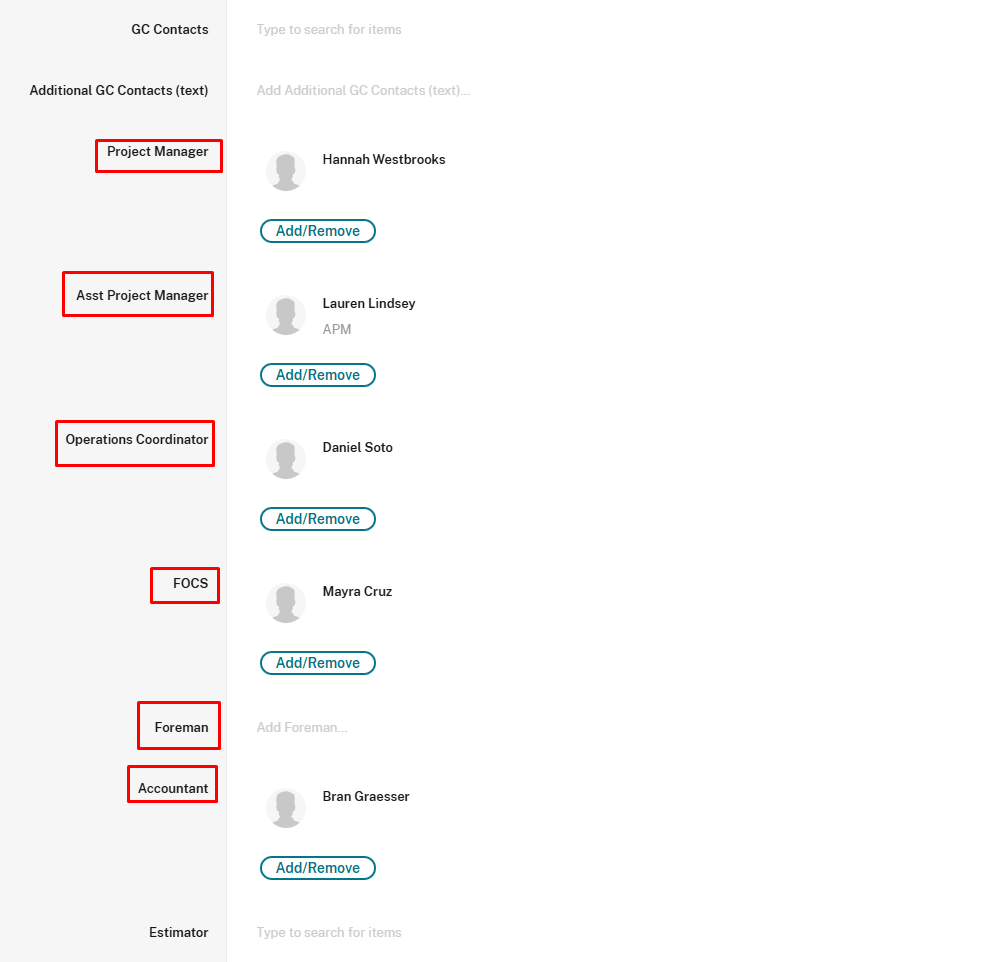
These fields can be updated without breaking anything:
- Job Name - Rename the project
- Location/Address - Fix typos or update address
- Company - Change the entity if needed
- GC Contacts - Add/remove contact info
- Customer / GC - Link or unlink contacts
- Scopes - Add or remove scope types
- Project Manager - Reassign to different PM
- OC - Change Operations Coordinator
- FOCS - Change Field Operations Coordinator
- Foreman - Reassign to different foreman
- Project Budget - Update budget as needed
- Contract Value - Update contract amount
- LOI/Contract Date - Adjust dates
- Documents & Logs - Add or remove files

⚠️ Edit With Caution
These fields CAN be edited, but be careful:
Job #
Why be careful: This is your unique identifier. If you change it:
- Reports might lose track of the project
- People referring to the old number will be confused
- Timesheets or invoices might get disconnected
When to change it: Only if it was entered incorrectly from the start.
How to change it safely:
- Tell everyone on the team the number is changing
- Update any external references (spreadsheets, emails, etc.)
- Change it in Podio
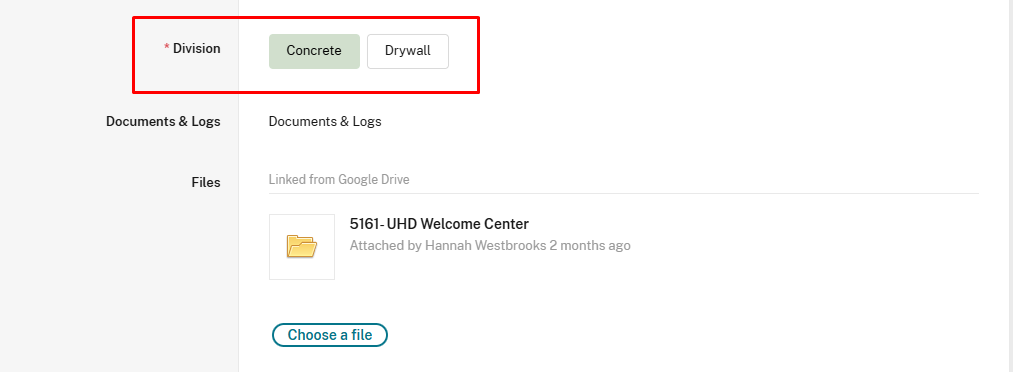
Division
Why be careful: Division controls which task templates get loaded.
What happens if you change it:
- Already-created tasks WON'T change
- Future stages will use the new division's tasks
- This can create a mismatch (Pre-Con tasks for Concrete, but Construction tasks for Drywall)
When to change it: Only if it was wrong from the start AND you haven't advanced past Pre-Construction yet.
Better option: If you're deep into the project, leave it as-is or create a new project with the correct division.
⚠️ Do not change Division after the project is created — it will break task assignments.
Current Stage Status
Why be careful: This field is used for organization and visibility. All tasks already exist, but changing the active stage helps track progress.
Don't change this casually. Only change it when you're actually ready to advance to the next stage.
❌ Can't Edit (Calculated or Auto-Created)
These fields are automatic — you can't edit them:
- Job ID - Calculated from Job # + Job Name
- Date Entered - Set when project was created
- Variance - Calculated from budget vs. costs
- Overall Progress - Calculated from task completion
- Open Tasks Count - Calculated from incomplete tasks
- Linked Stages - Created automatically when project was created
If you need to "edit" one of these, you have to change the underlying data:
- Want to change Job ID? Edit Job # or Job Name
- Want to change Variance? Update Project Budget or costs
- Want to change Overall Progress? Complete more tasks
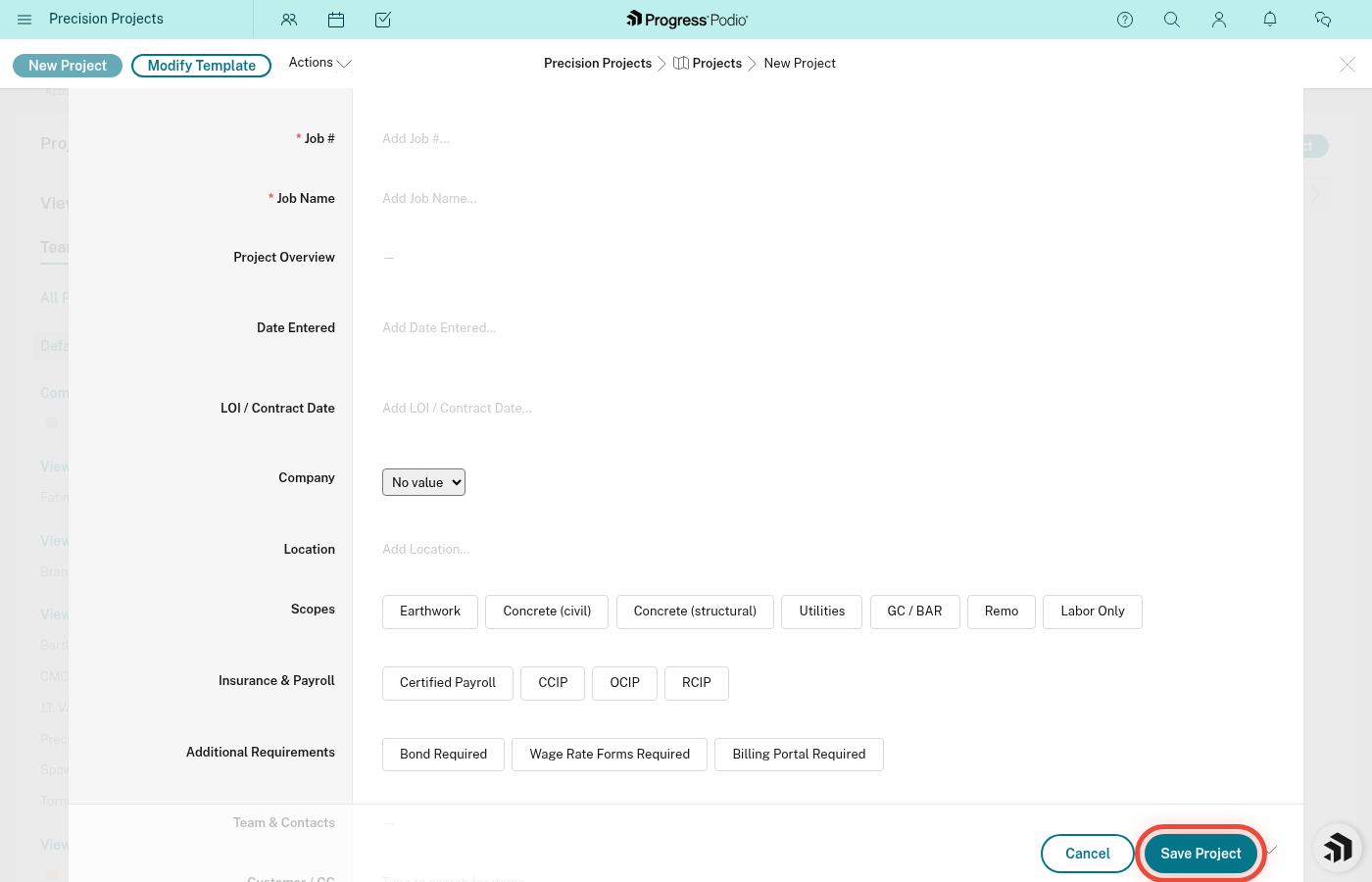
5. Save Your Changes
After editing:
- Click Save (usually at the bottom of the page)
- Changes are applied immediately
- Anyone viewing the project will see the updates
Common Edits & How-Tos
Changing the Project Manager
When: PM switches, someone goes on vacation, or project gets reassigned.
How:
- Open the project
- Click the Project Manager field
- Select the new PM from the dropdown
- Save
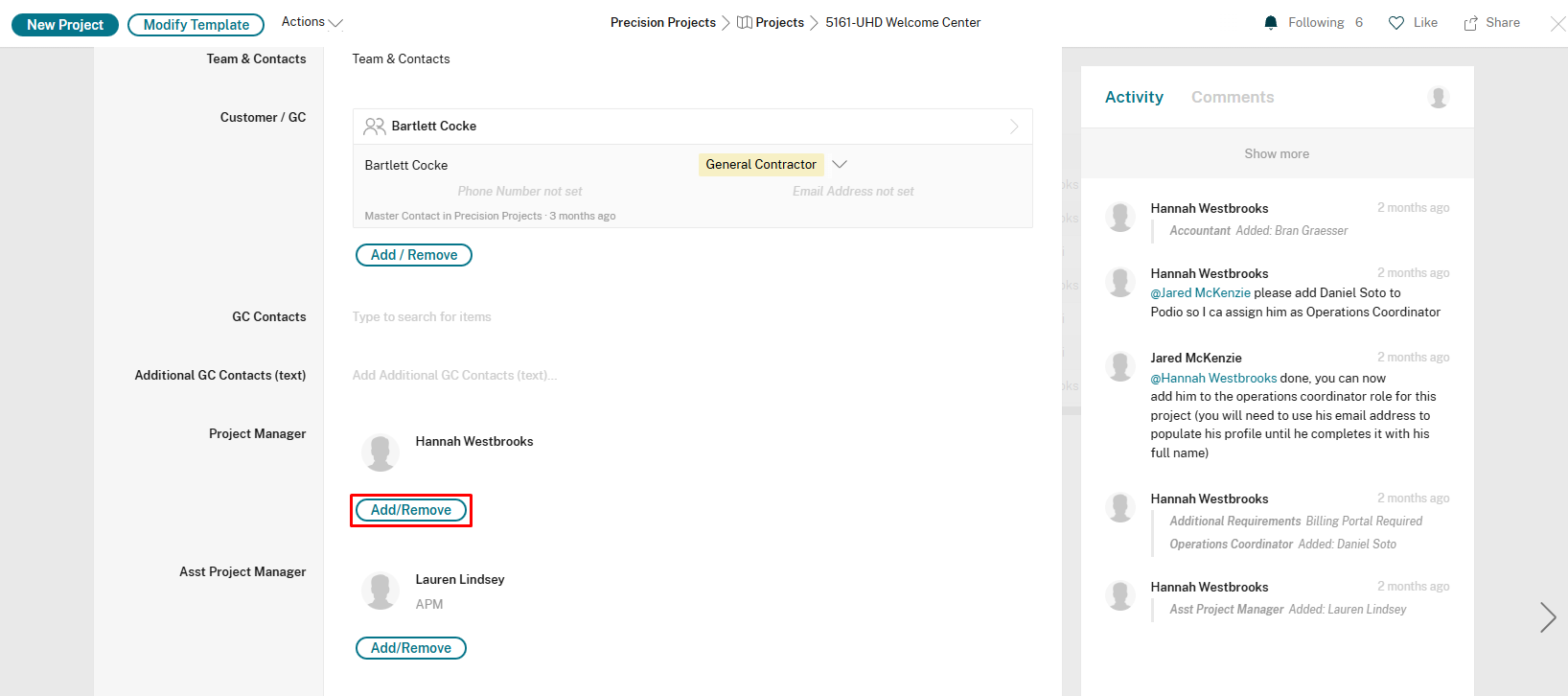
How to change it:
- Click the Add/Remove button next to the Project Manager field
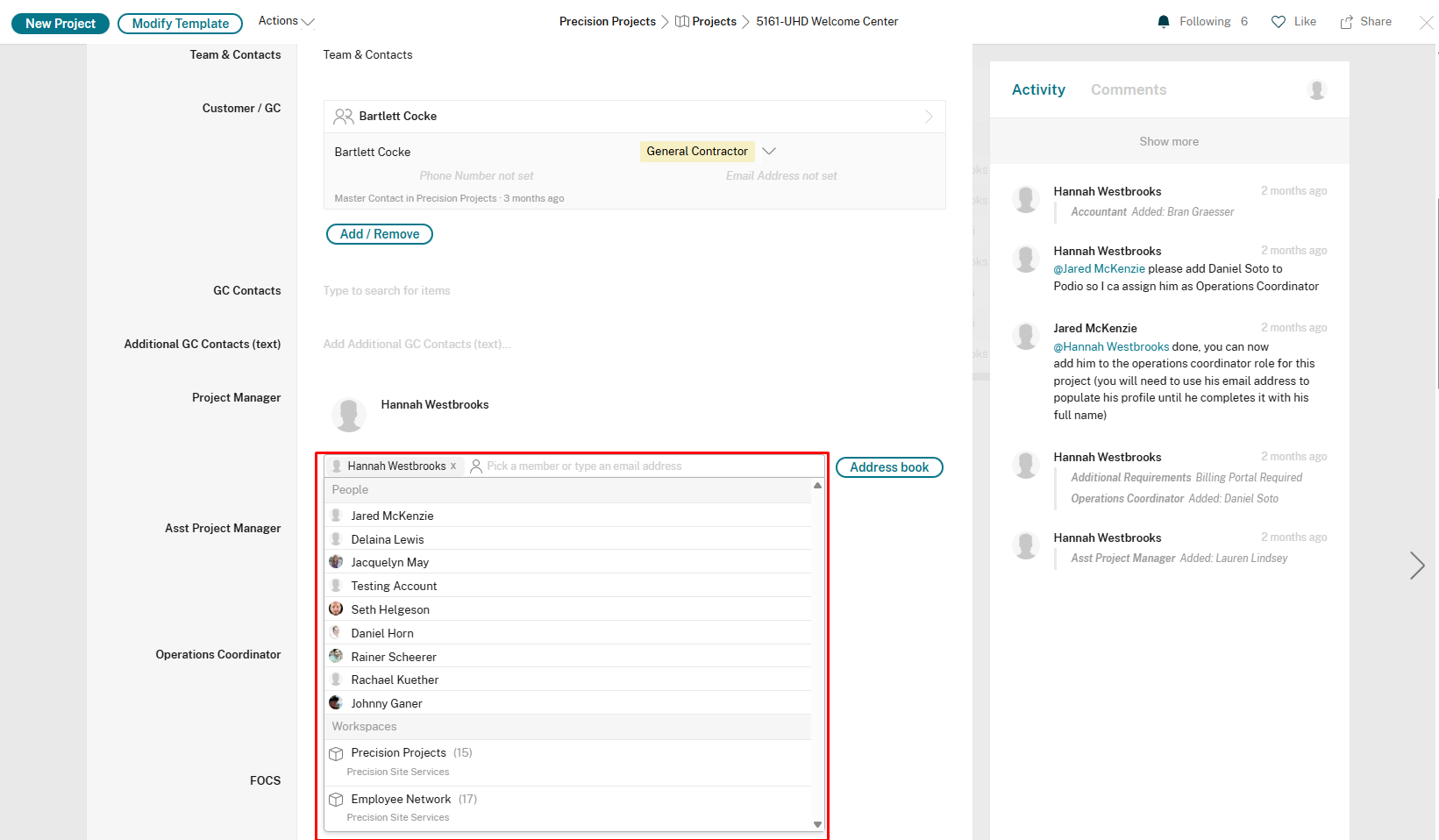
- A dropdown will appear showing the current PM with an "x" next to their name
- Click the "x" to remove the current PM
- Either click a name from the list, or type a name and select it
What happens:
- Tasks assigned to the old PM stay assigned to them
- New PM gets access to the project
- Existing tasks do NOT auto-reassign — you'll need to manually reassign them if needed
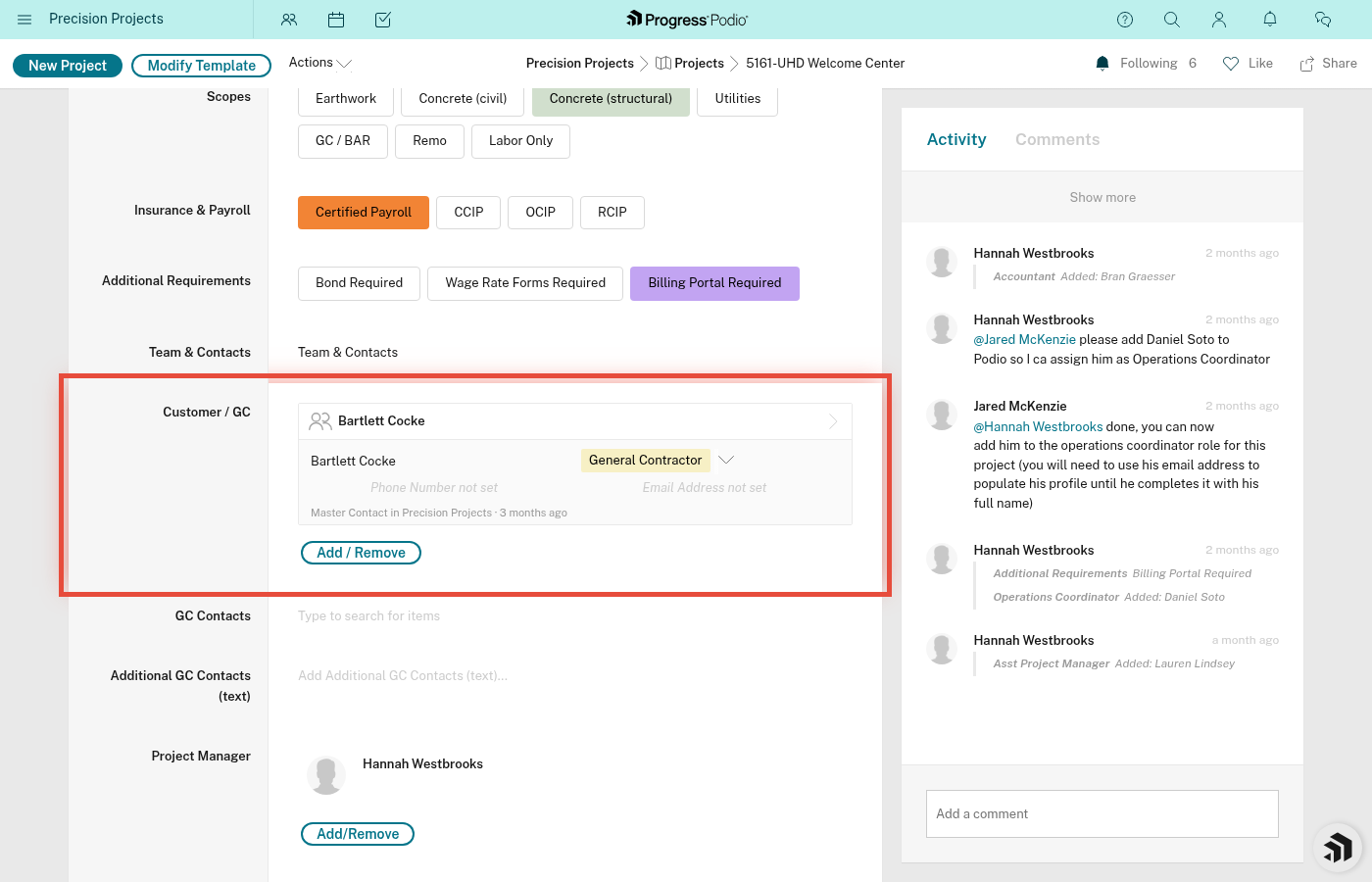
Adding a Contact
When: You get a new GC contact, or need to add someone to the project.
How:
- Open the project
- Click the Customer / GC field
- Search for the contact (if they already exist in your Contacts app)
- Found them? Select and save.
- Don't see them? Create a new contact first (in the Contacts app), then come back and link them.
Shortcut for quick notes: Just type their name and phone in the GC Contacts text field if you don't need a full contact record.
Updating Budget or Contract Value
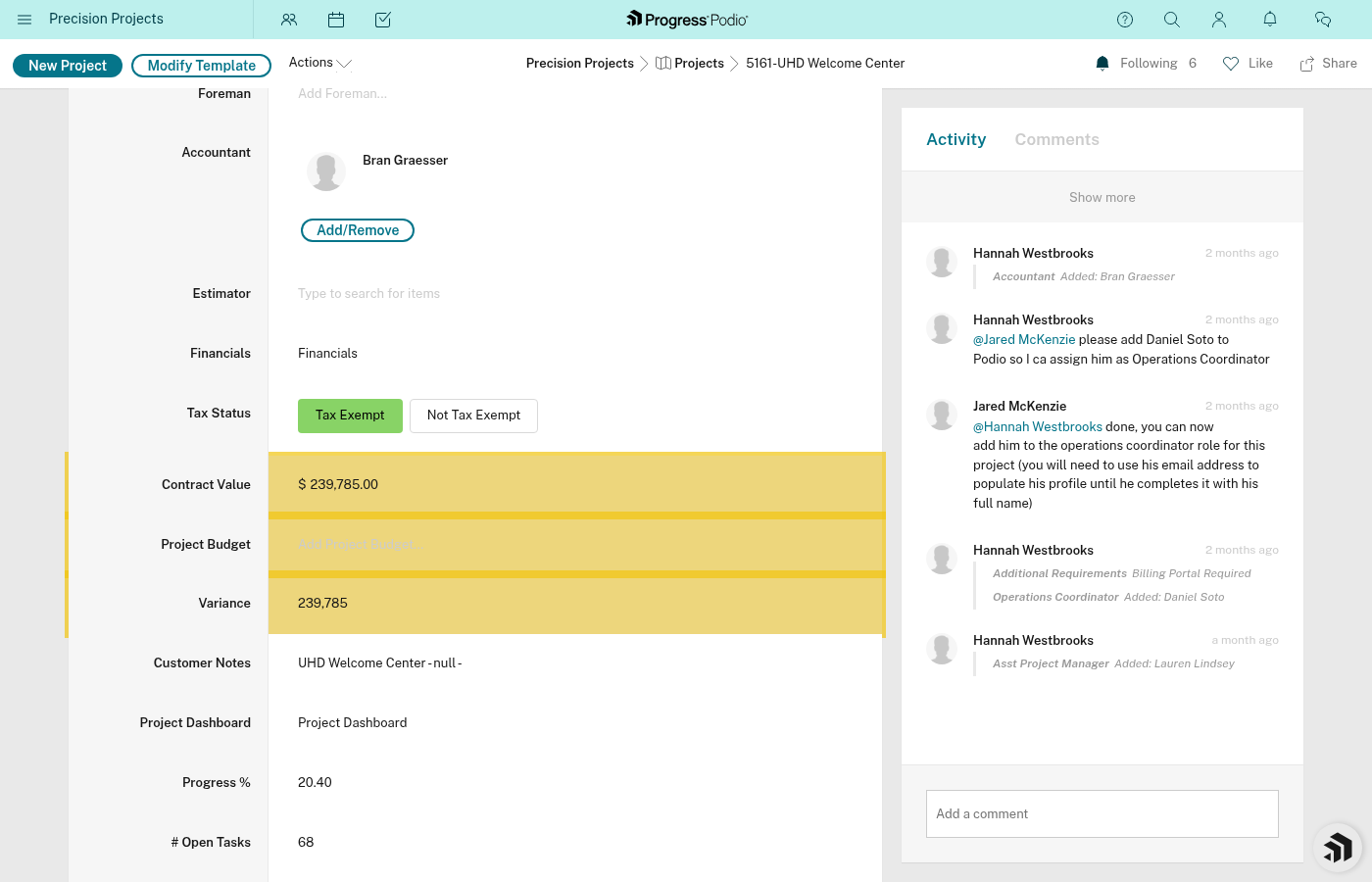
When: Numbers change due to change orders, revised contracts, or corrections.
How:
- Open the project
- Click into Project Budget or Contract Value
- Enter the new dollar amount
- Save
What happens:
- Variance recalculates automatically
Tip: If this is a change order, document it! Add a note in a task or upload the change order document to Documents & Logs.
Adding Files or Documents
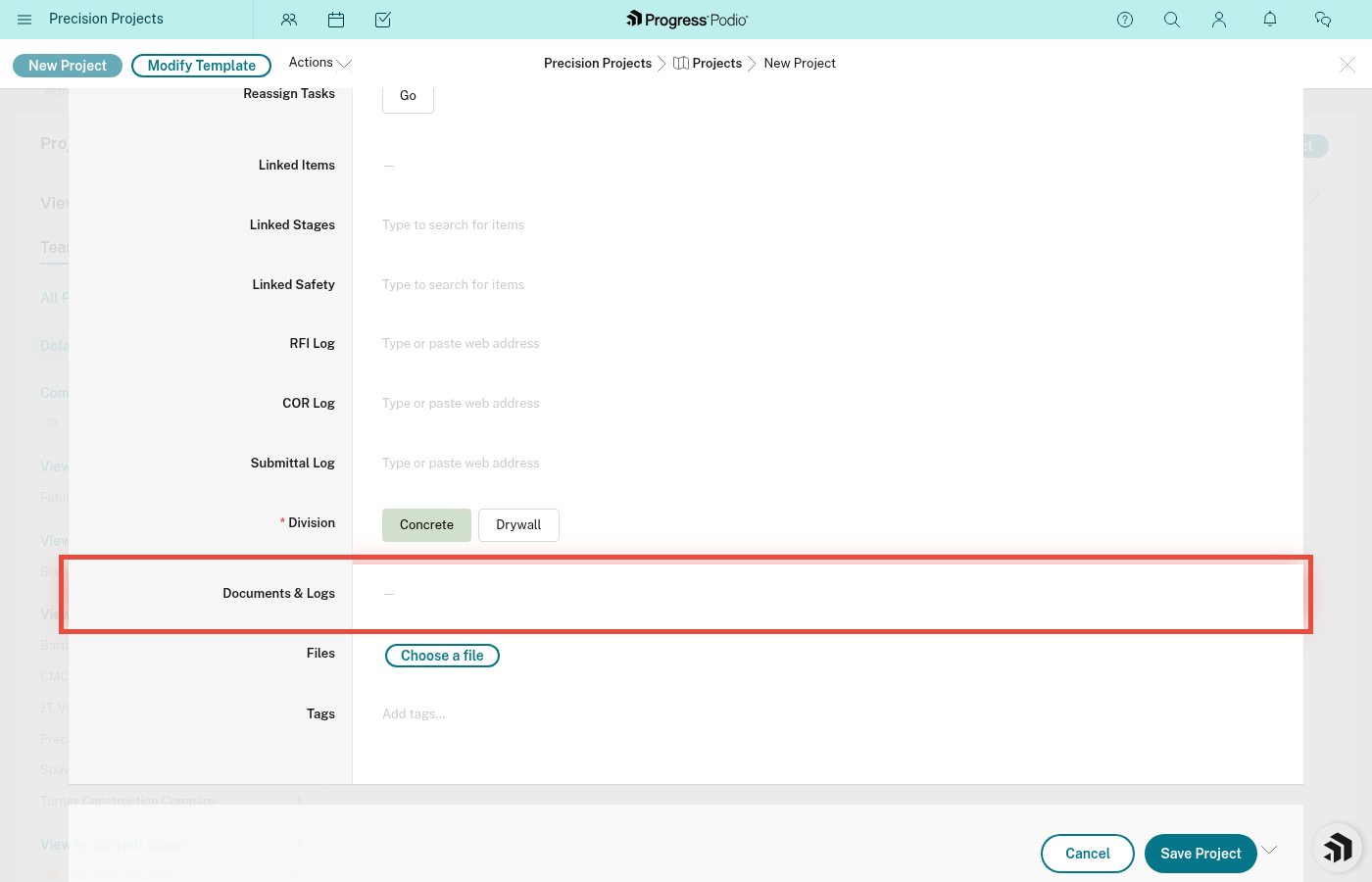
When: You get new contracts, updated plans, photos, sign-offs, etc.
How:
- Open the project
- Scroll to Documents & Logs
- Drag and drop files, or click to browse and upload
- Files appear in the list
- Save
What happens:
- Files are stored with the project
- Anyone with access can view/download them
Tip: Name files clearly before uploading (e.g., "Contract-Signed-2024-01-15.pdf" instead of "scan001.pdf").
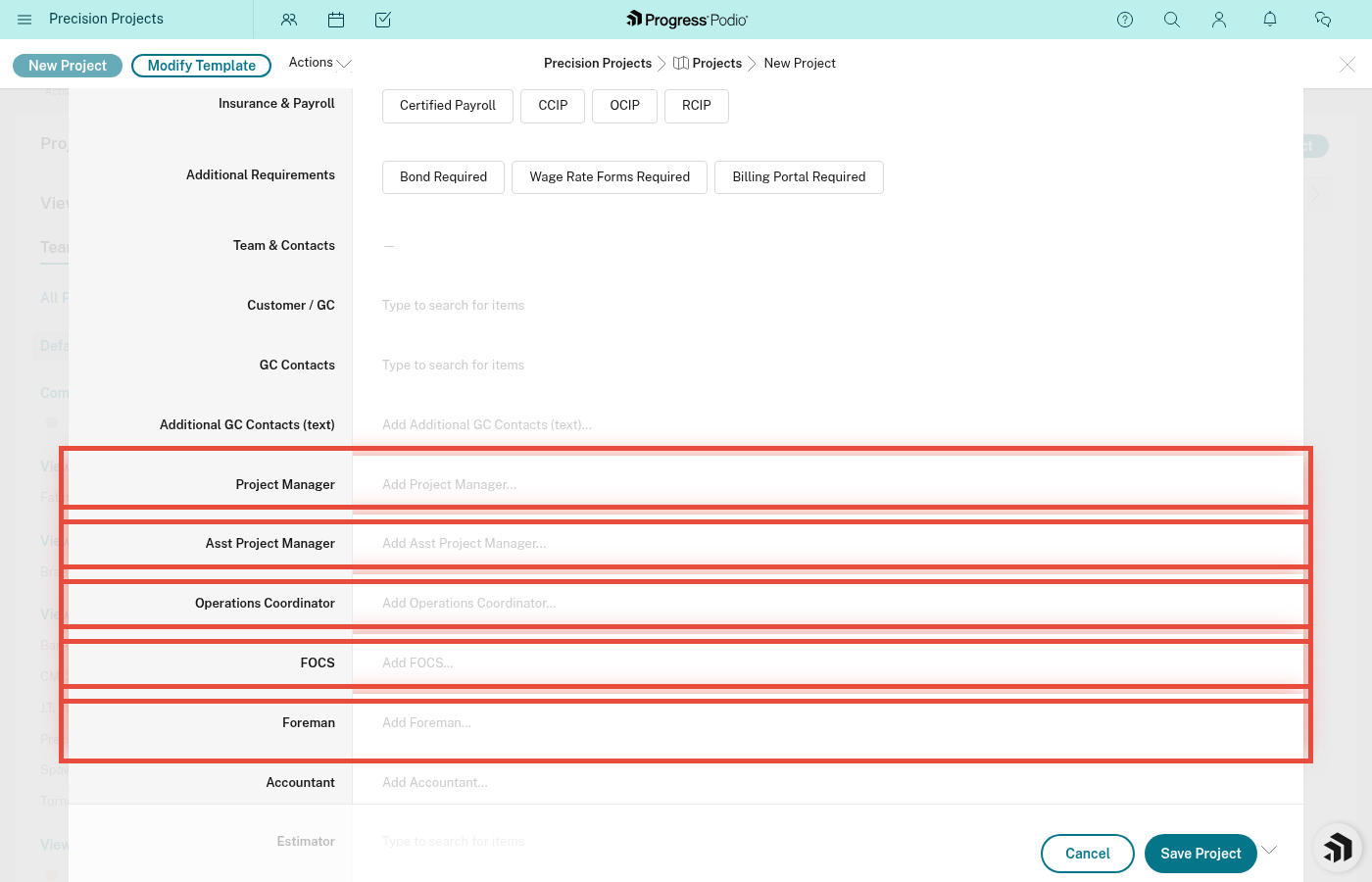
Changing Team Members (OC, FOCS, Foreman)
Same process as changing PM:
- Click the field (OC, FOCS, or Foreman)
- Select the new person from the dropdown
- Save
Fixing a Typo in Job Name or Address
- Click into the field (Job Name or Location/Address)
- Edit the text
- Save
Note: If you edit Job Name, the Job ID will recalculate automatically (since Job ID = Job # + Job Name).
What NOT to Do
❌ Don't Change Job # Mid-Project
Unless it's absolutely wrong and you're willing to deal with confusion, leave it alone.
❌ Don't Delete Linked Stages
The 5 stages are created automatically and should stay linked to the project. Don't unlink them.
You can unlink stages — they are not locked.
❌ Don't Advance Stage Status Unless Ready
Changing Current Stage Status to "Construction Active" before you're actually ready will create a bunch of tasks you're not ready for.
❌ Don't Delete Documents Without Checking
If someone uploaded a contract or plan, make sure you don't need it before deleting. Once deleted, it's gone.
Deleted files cannot be recovered in Podio.
Permissions & Who Can Edit
Any employee in the workspace can edit any project — there are no role-based restrictions on editing.
General rule: If you can see the project, you can probably edit it. But use common sense:
- Don't edit budget if you're not the PM
- Don't reassign team members unless you're authorized
- Don't delete files unless you uploaded them or got permission
Troubleshooting
"I can't edit a field — it's grayed out"
Possible reasons:
- It's a calculated field (Job ID, Variance, Overall Progress, etc.)
- You don't have permission
Fix: If it should be editable, check with an admin.
"I edited the field but it didn't save"
Possible reasons:
- You didn't click Save
- Your internet connection dropped
- The field has a validation error (e.g., you entered text in a number field)
Fix: Refresh the page and try again. Make sure to click Save.
"I changed Division but tasks didn't update"
That's expected. Changing Division doesn't retroactively change already-created tasks.
Fix: The only solution is to delete the project and recreate it with the correct Division. There is no other way.
"I accidentally deleted a document — can I get it back?"
No, you cannot recover deleted documents. You'll need to re-upload it. If you didn't originally upload the document, @ the person who did and ask them to re-upload it.
Best practice: Don't delete files unless you're 100% sure. Rename them to "OLD - filename" if you're not sure instead of deleting.
Quick Reference: What You Can Edit
| Field | Can Edit? | Notes |
|---|---|---|
| Job # | ⚠️ Yes (caution) | Only change if wrong from the start |
| Job Name | Yes | Safe anytime |
| Company | Yes | Safe anytime |
| Location | Yes | Safe anytime |
| GC Contacts | Yes | Safe anytime |
| Customer / GC | Yes | Safe anytime |
| Scopes | Yes | Safe anytime |
| Division | ⚠️ Yes (caution) | Won't change existing tasks |
| Project Manager | Yes | Safe anytime |
| OC, FOCS, Foreman | Yes | Safe anytime |
| Project Budget | Yes | Safe anytime |
| Contract Value | Yes | Safe anytime |
| LOI/Contract Date | Yes | Safe anytime |
| Current Stage Status | ⚠️ Yes (caution) | Triggers automations! |
| Documents & Logs | Yes | Safe to add/remove files |
| Job ID | No | Calculated field |
| Date Entered | No | Auto-set on creation |
| Variance | No | Calculated field |
| Overall Progress | No | Calculated field |
| Open Tasks Count | No | Calculated field |
| Linked Stages | No | Auto-created |
Related Docs: