Creating a New Project
When you win a new job, you need to create a project in Podio. This kicks off the whole system — stages get created automatically, tasks start flowing, and your team gets visibility.
Time: About 5 minutes
What happens: You fill in project details → Podio creates 5 stages and a safety record automatically
Step-by-Step
1. Open the Projects App
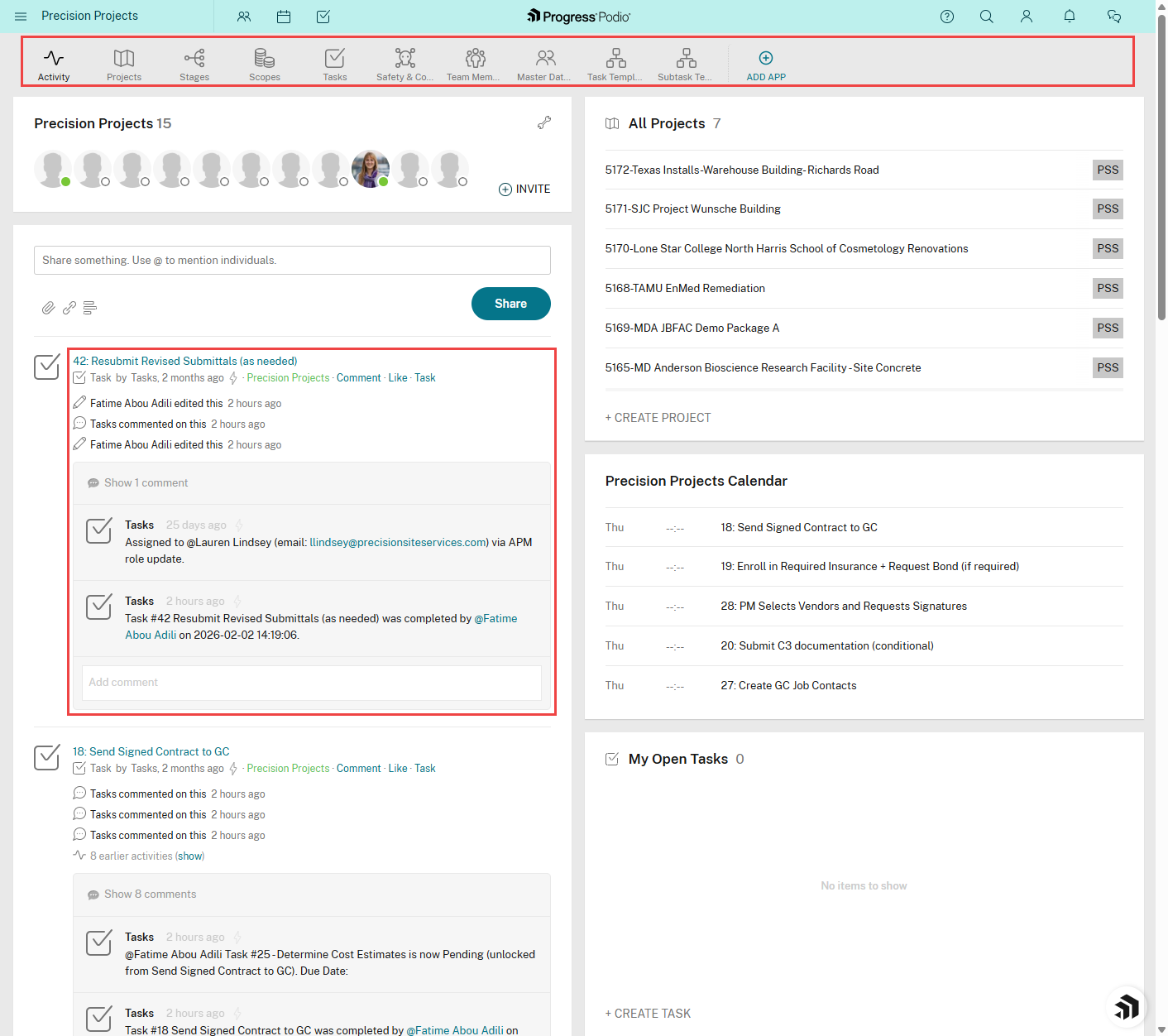
- Log into Podio
- Go to the Precision Projects workspace
- Click Projects app
2. Click "Add New Item"
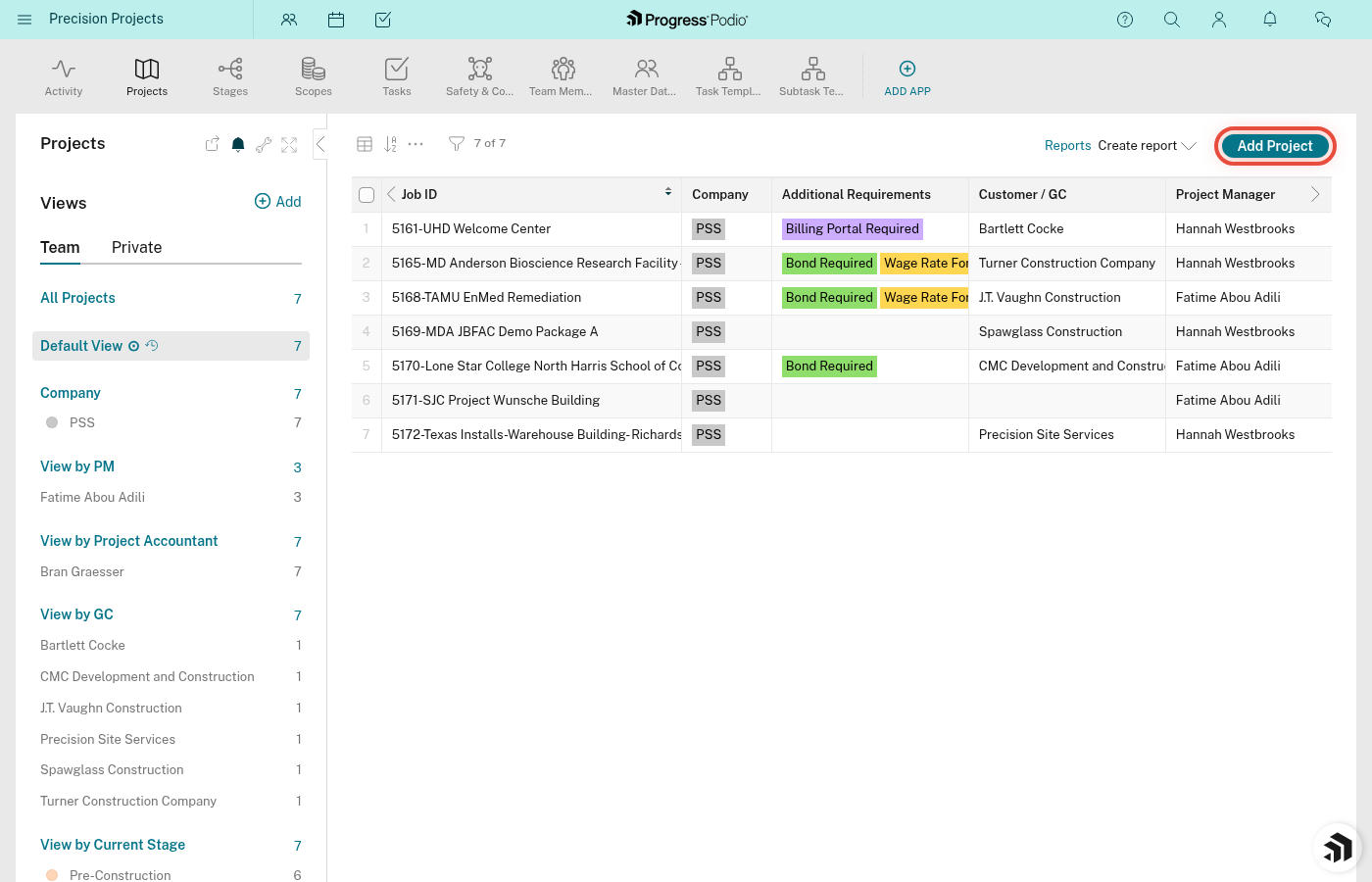
- Look for the "+ Add new" button (usually top-right)
- Click it
- A blank project form will open
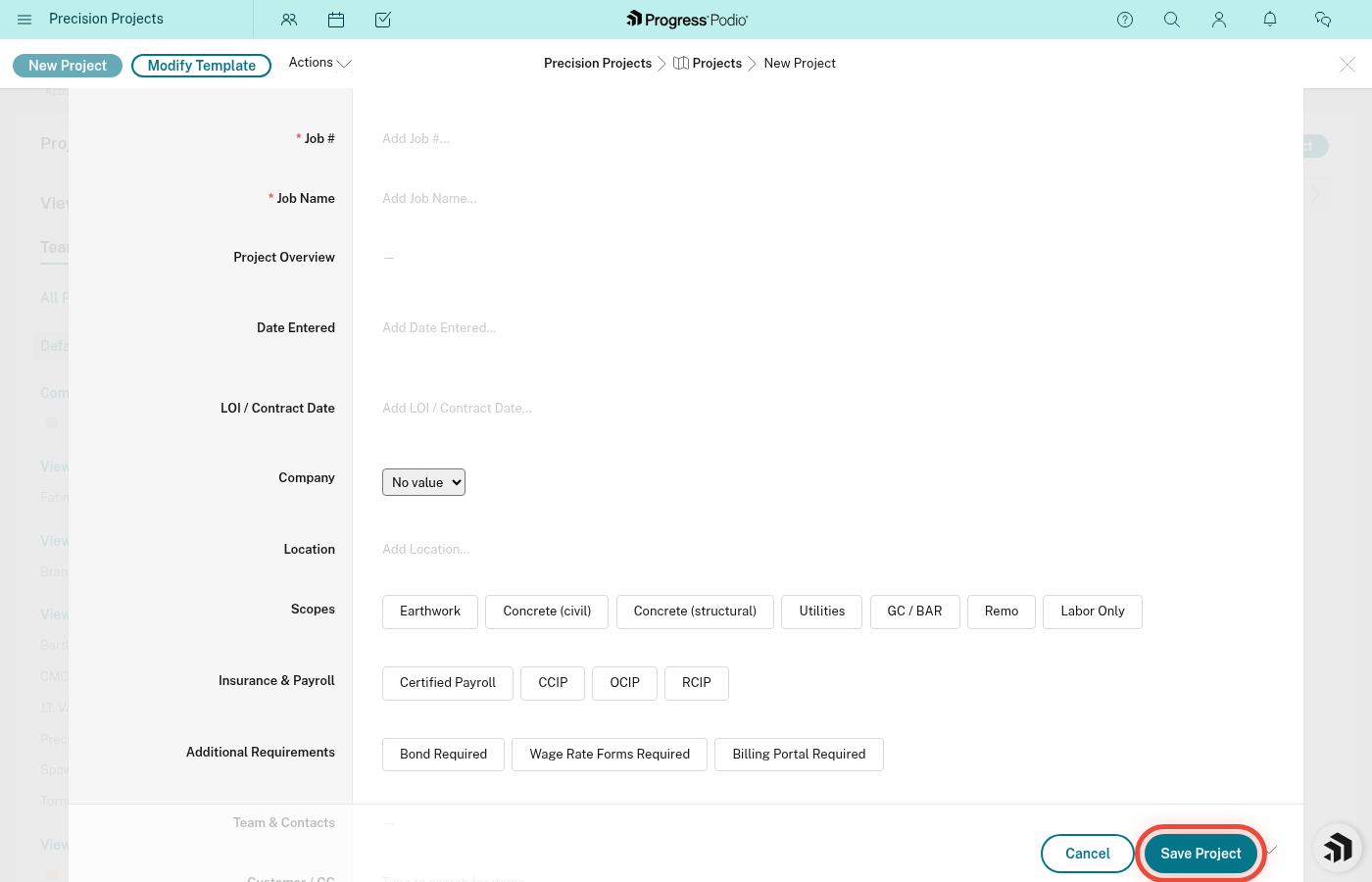
3. Fill in the Required Fields
These are the must-haves. Don't skip them or things will break.
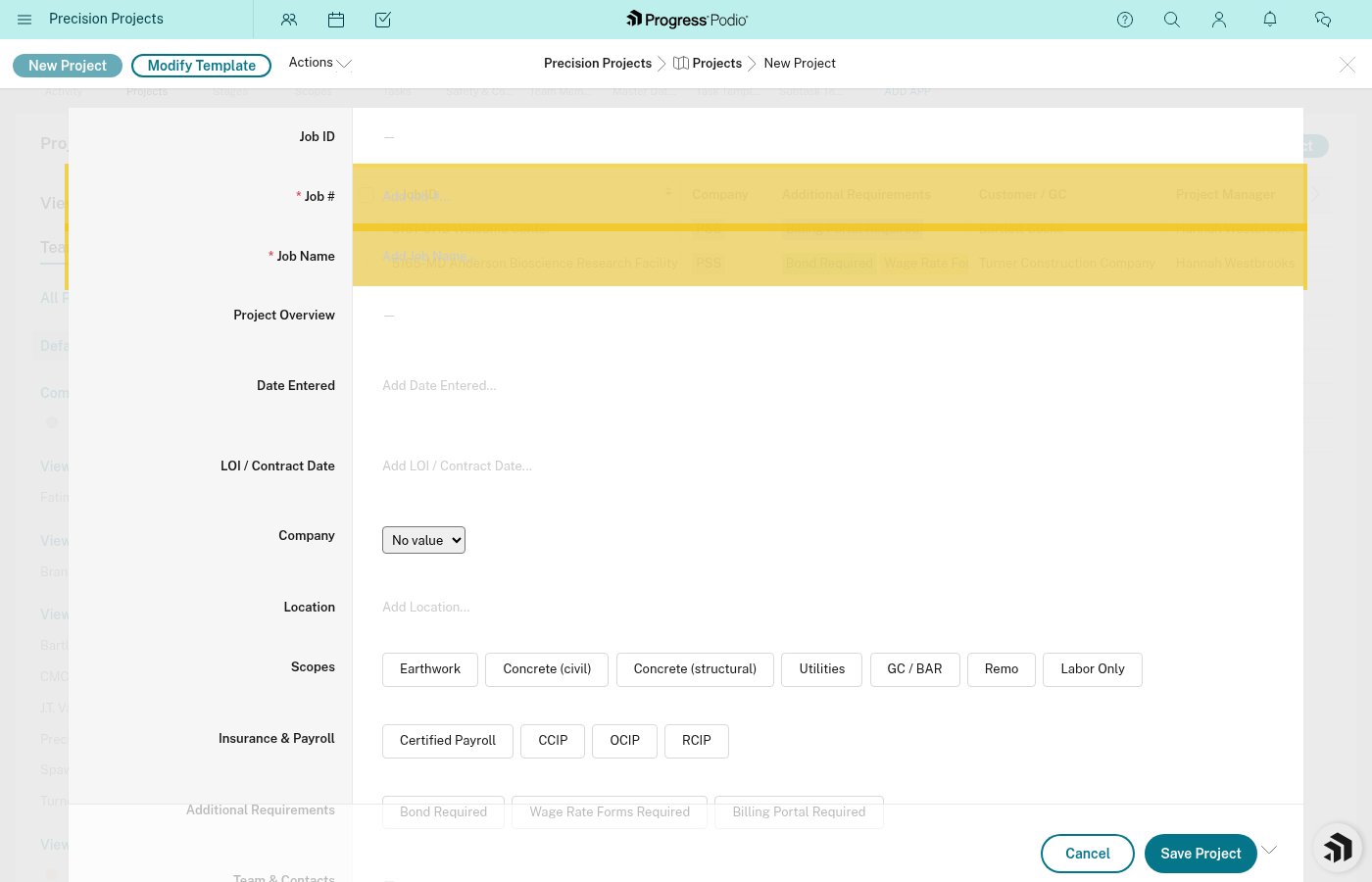
Job #
Enter a unique number for this job.
How to pick one: Check the Job Listings Google Sheet to find out what the next job number is for the specific entity that the new project is for.
Job Name
Give it a clear, descriptive name.
Examples:
- "Main Street Apartments - Foundation"
- "HEB Expansion - Utilities"
- "Cypress Creek Phase 2"
Tip: Keep it short but specific enough that people know what job you're talking about.
Division
THIS IS CRITICAL. Pick the right division:
- Concrete (most common — foundation work, flatwork, etc.)
- Drywall
Why it matters: This controls which task templates get loaded. If you pick the wrong division, you'll get the wrong tasks.
4. Fill in Team Members
Assign the people running this job:
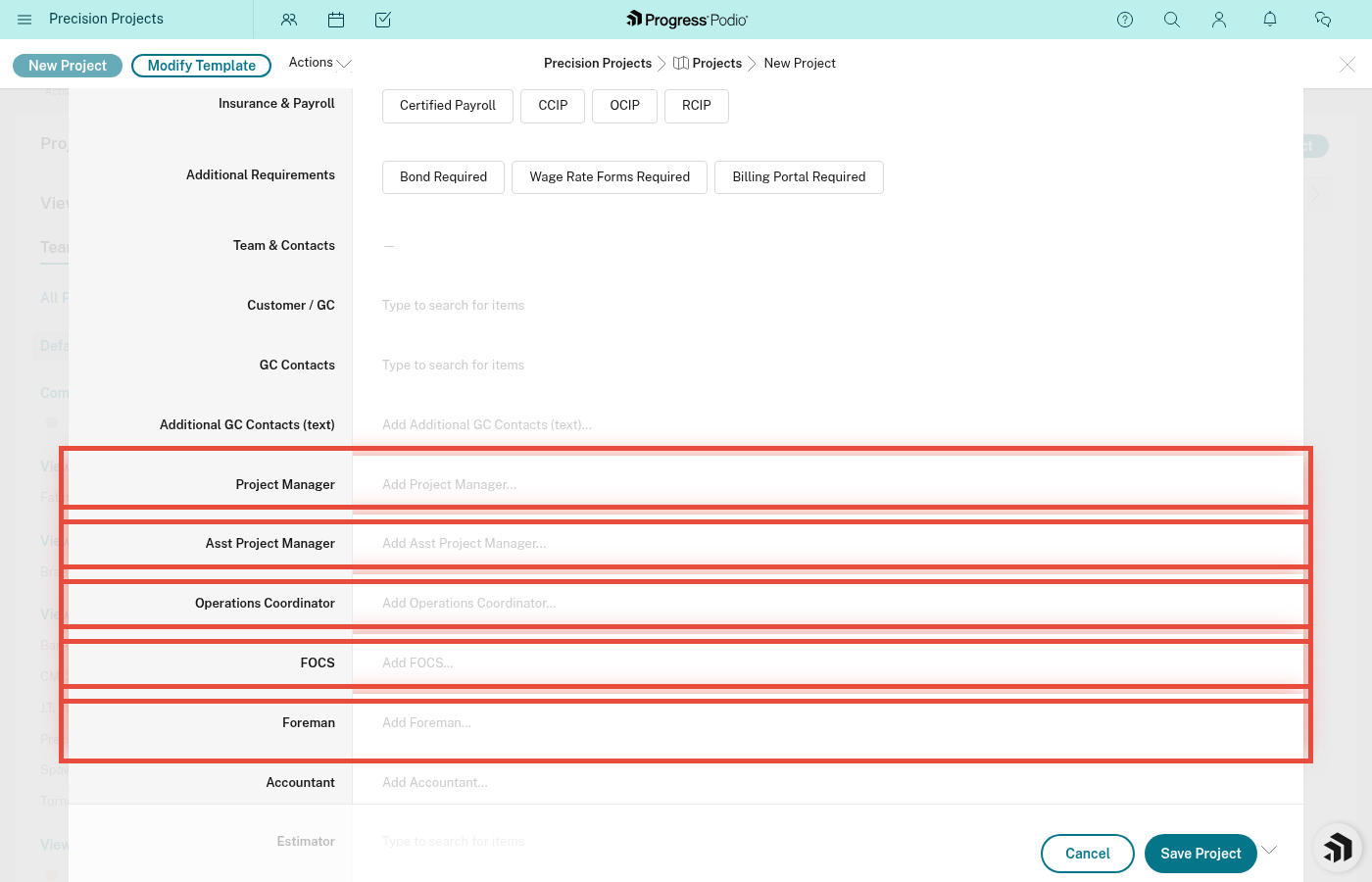
- Project Manager (required)
- OC - Operations Coordinator (if applicable)
- FOCS - Field Operations Coordinator (if applicable)
- Foreman (if known — you can add later if not assigned yet)
Tip: If you're not sure who's assigned yet, at minimum add the PM. You can update the rest later.
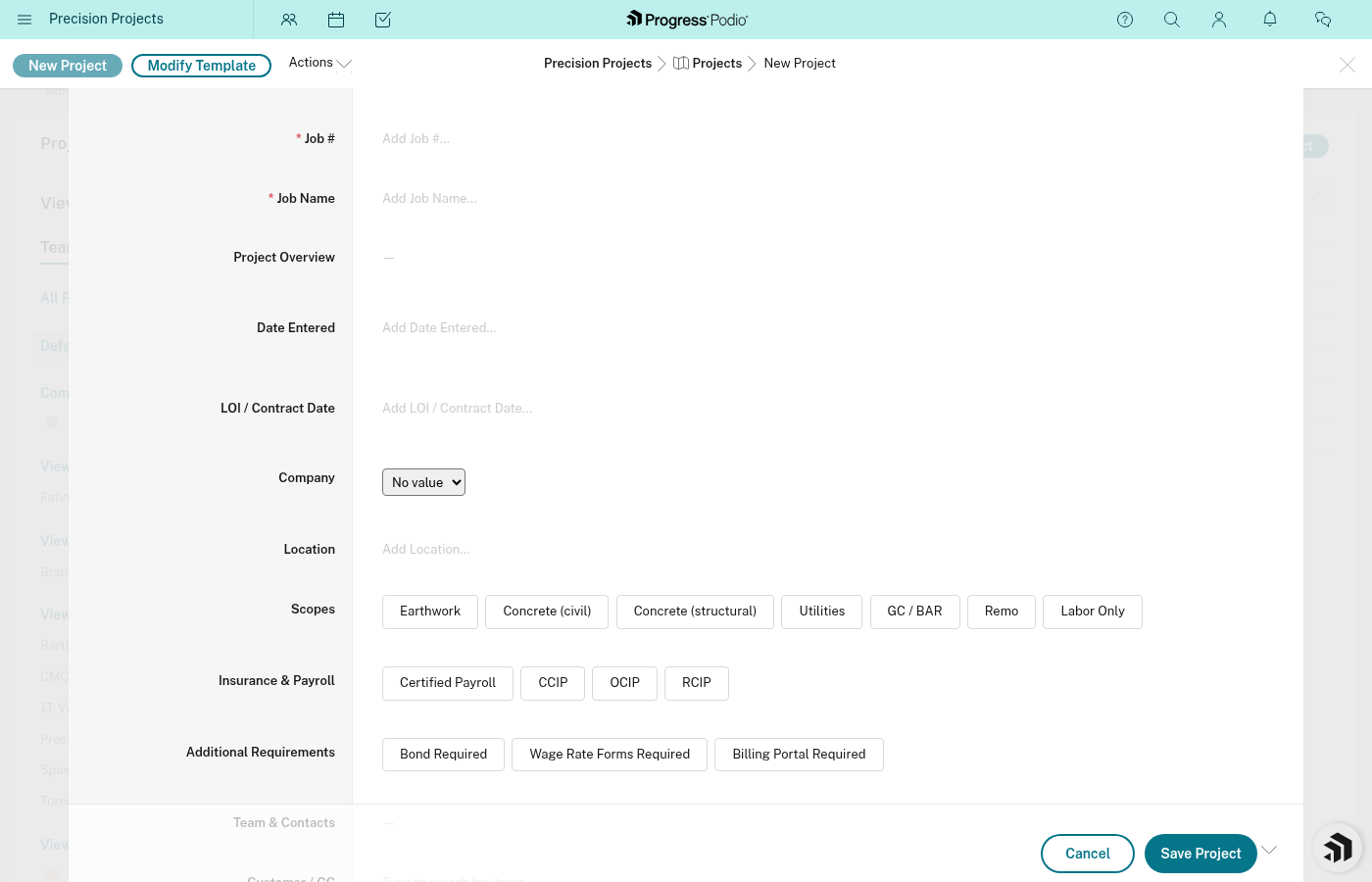
5. Add Basic Job Details
Fill in what you know:
- Company - Select the GC or client from the dropdown (or add new)
- Location/Address - Where's the job site?
- LOI/Contract Date - When was the contract signed? (Add date range if you have start/end)
- Scopes - Check all that apply (Earthwork, Utilities, Foundations, etc.)
6. Add Contact Information
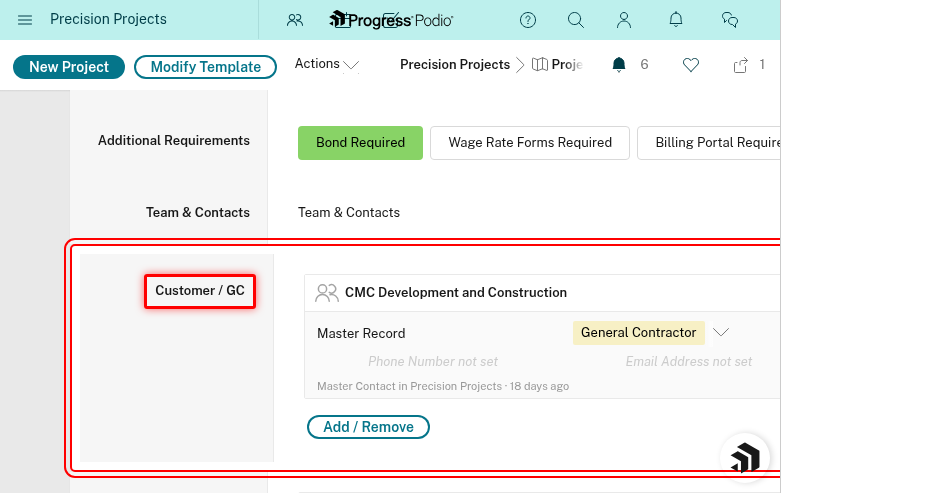
Option 1: Quick Notes (GC Contacts field) Type names and phone numbers in the GC Contacts text field for quick reference.
Option 2: Link Full Contacts (Customer / GC field) Click Customer / GC to search and select existing contacts from your Contacts app.
Tip: Use Option 2 if the contact already exists — it keeps info synced and you get their full email/phone/title.
7. Add Money Details
If you know the numbers, enter them now:
- Project Budget - How much can you spend?
- Contract Value - How much are you getting paid?
Tip: You can fill these in later if you don't have final numbers yet.
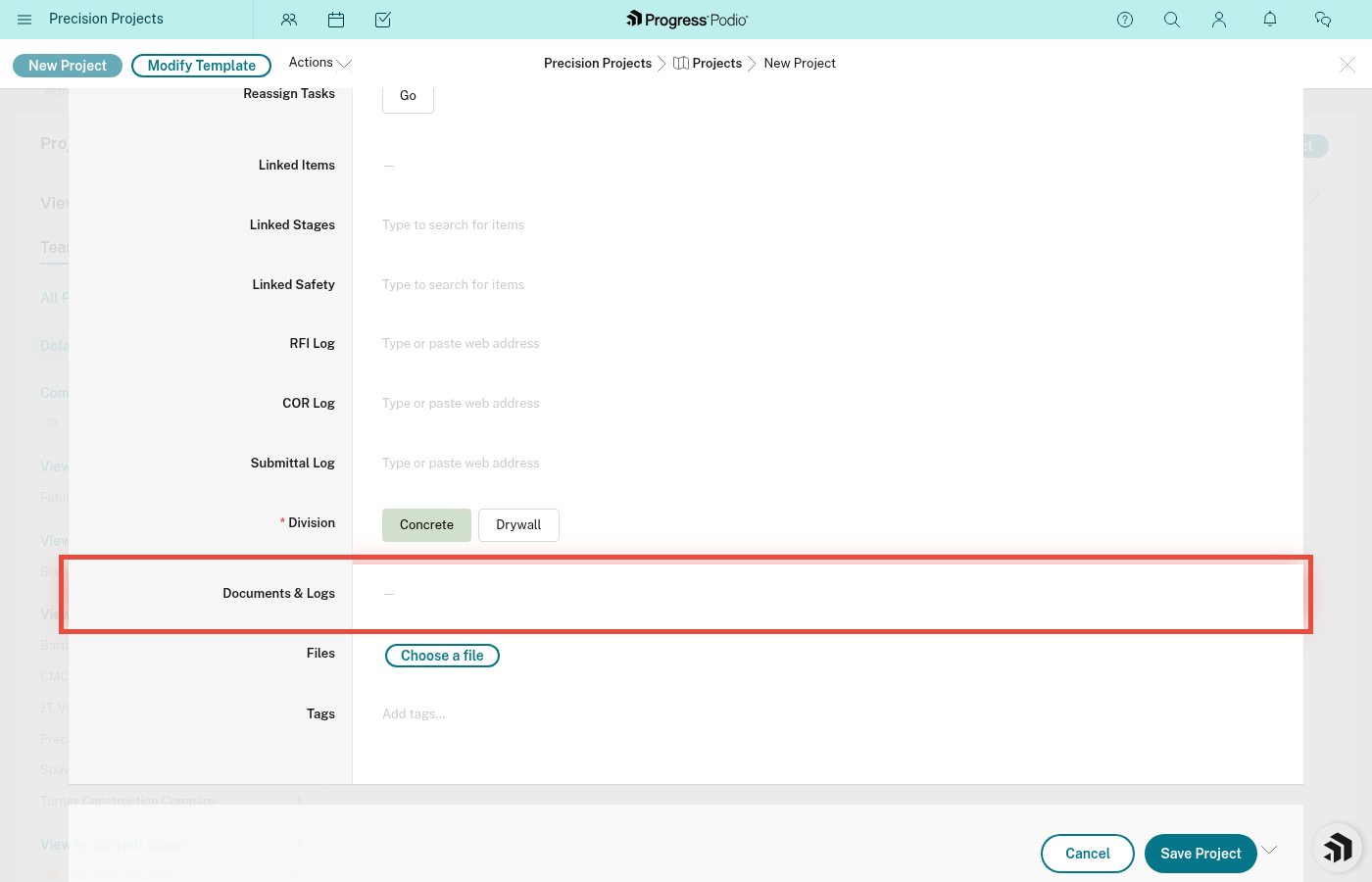
8. Upload Documents (Optional but Recommended)
If you have them, upload:
- Contract or LOI
- Site plans
- Scope of work documents
Drag and drop files into the Documents & Logs field.
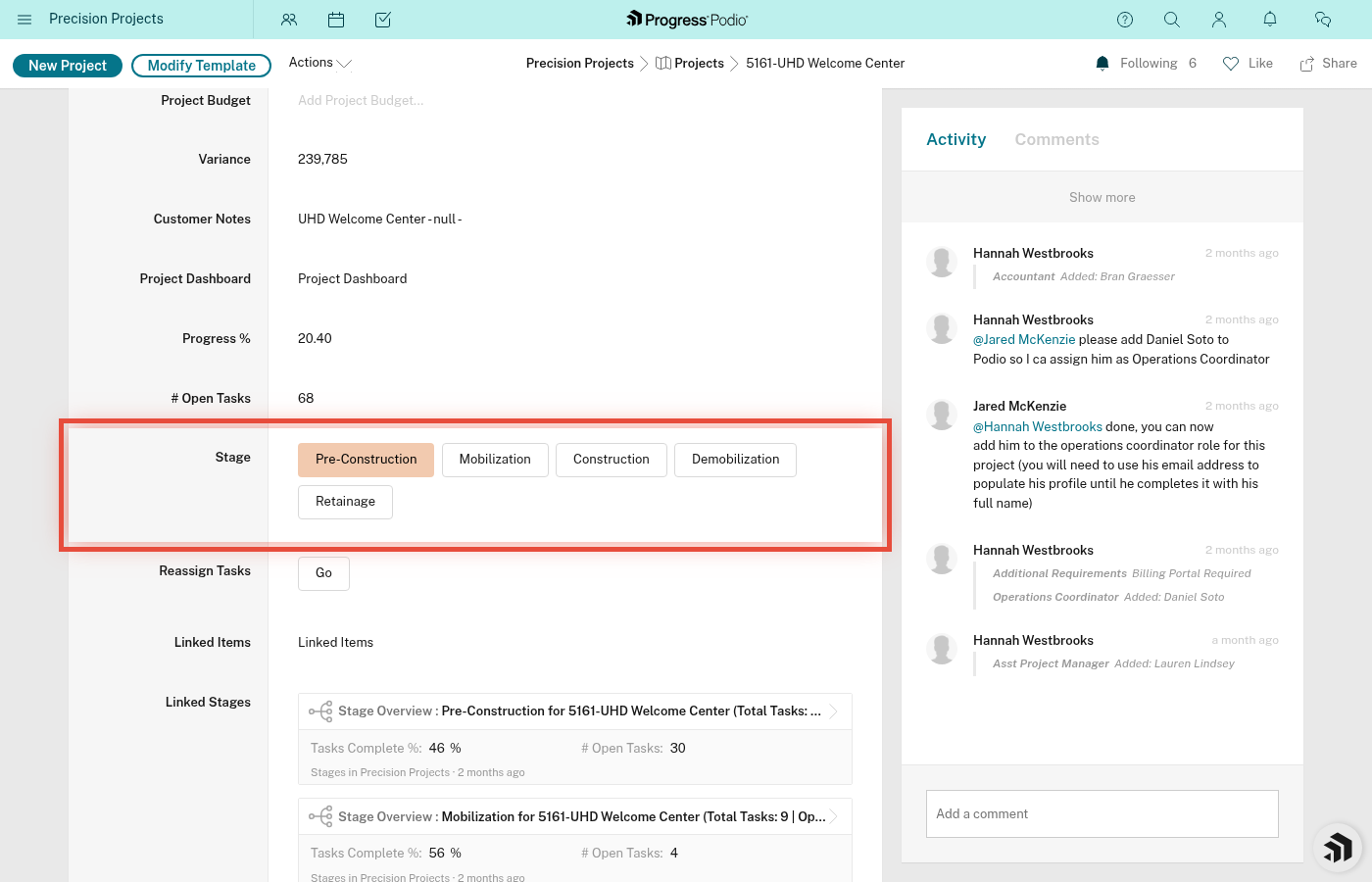
9. Set Initial Stage Status
Set Current Stage Status to:
- Pre-Construction Active
This is where every project starts. Don't set it to Mobilization or Construction yet — you need to do pre-con work first.
10. Save the Project
Click Save (or Create, depending on your Podio version).
What Happens Next (Automatically)
After you hit Save, Podio goes to work behind the scenes:
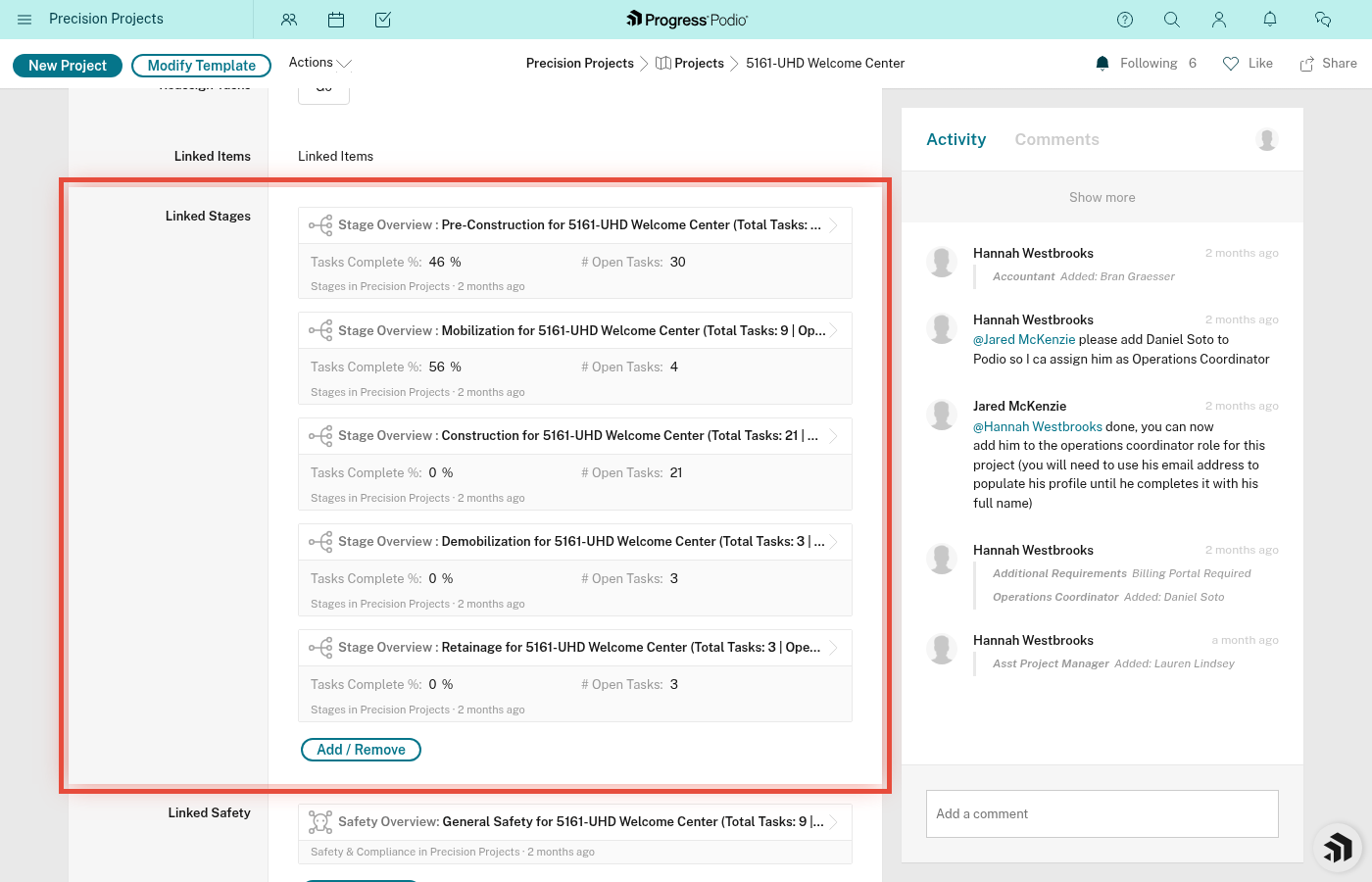
✅ 5 Stages Get Created
Within seconds, you'll see 5 linked stages appear:
- Pre-Construction
- Mobilization
- Construction
- Demobilization
- Retainage
✅ Safety Record Gets Created
A blank Safety & Compliance record gets created and linked to your project.
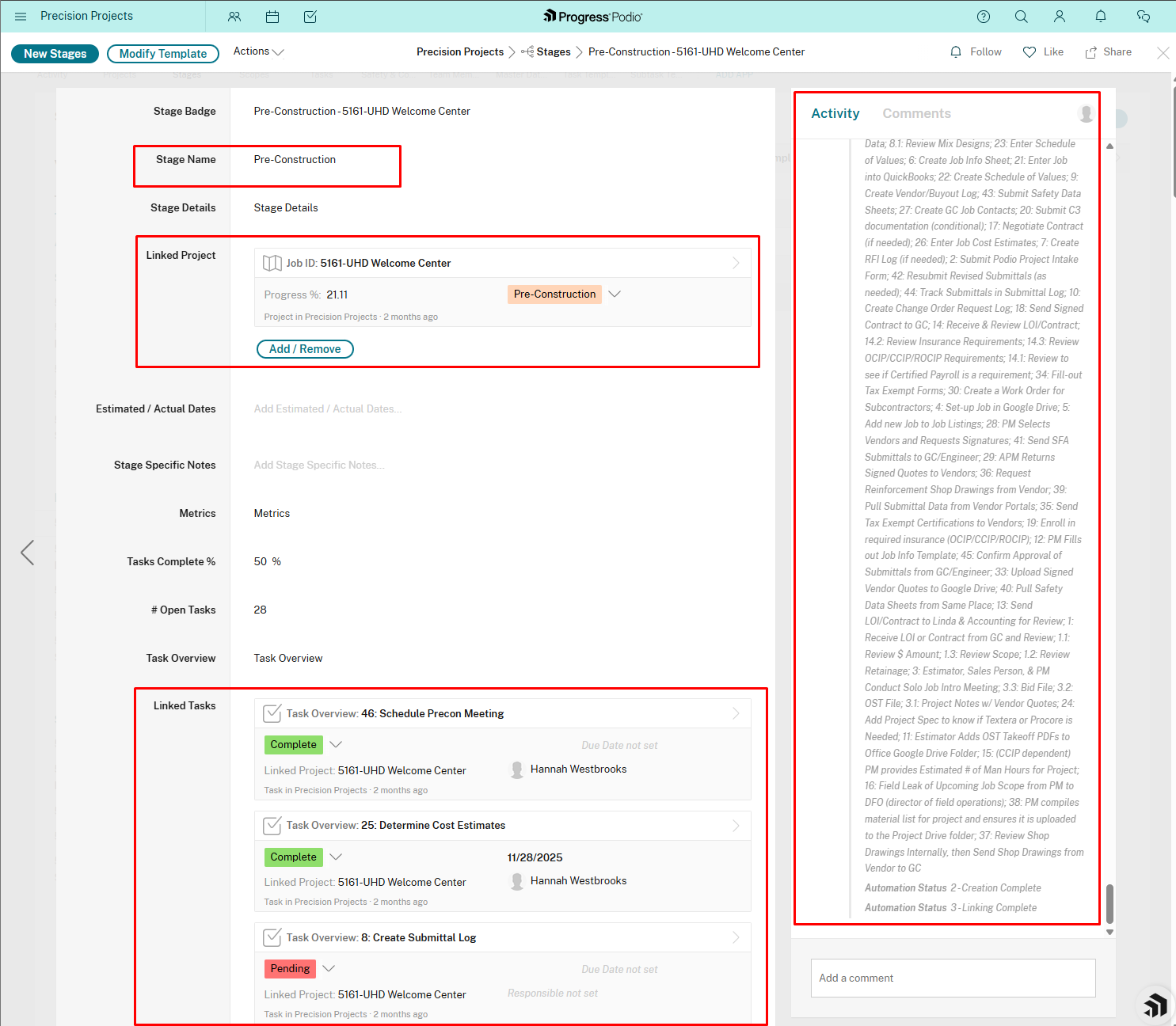
✅ Pre-Construction Tasks Get Created
All tasks for all stages are created automatically when the project is created.
Wait 2-3 minutes. Then refresh the project page.
✅ You'll Get a Notification
The Project Manager listed on the Project will get a notification when a new project is created.
Check Your Work
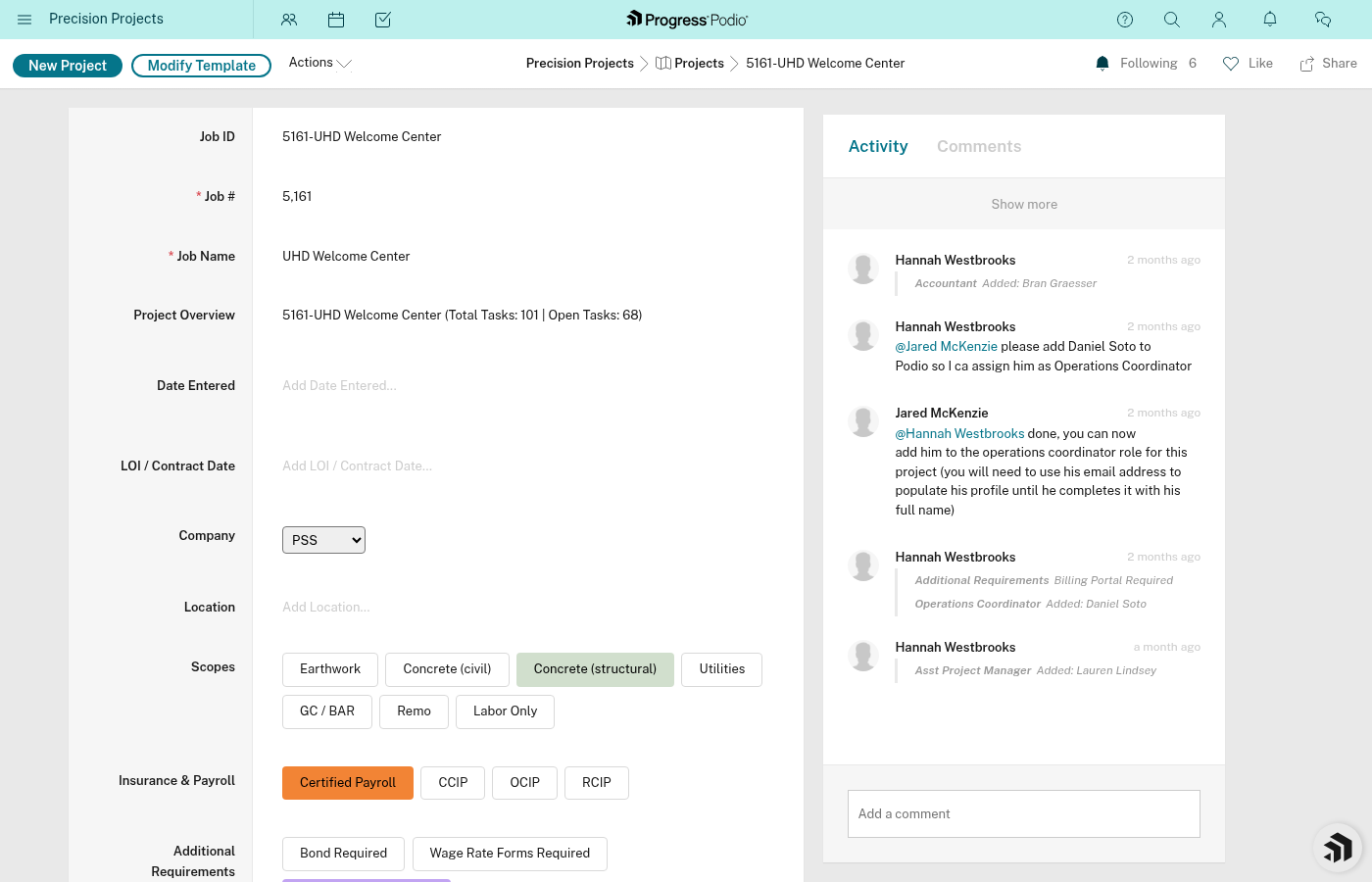
Go back to the project page and make sure:
- Linked Stages shows all 5 stages
- Click the Pre-Construction stage → you should see tasks populating
- Open Tasks Count is climbing (tasks are being created)
- Team members are assigned correctly
- Division is correct (this can't easily be changed later without recreating tasks)
Common Mistakes
❌ Wrong Division Selected
Problem: You picked "Drywall" but this is a concrete job.
Fix: You cannot change the division mid-project — it will break everything. You must delete the project and re-create it with the correct division.
❌ Forgot to Set Stage to Pre-Construction Active
Problem: You left Current Stage Status blank.
Fix: Edit the project and set it to "Pre-Construction Active". Note: All tasks for every stage are created automatically when the project is created (not just-in-time per stage), but setting the active stage helps with organization and visibility.
❌ Duplicate Job
Problem: You used a Job # that already exists.
Fix: Podio does not block duplicate Job #s. You can edit the Job # to the correct one — it won't break anything. However, you will need to manually rename the Google Drive folder, as that does not update automatically.
❌ No PM Assigned
Problem: Project has no owner.
Fix: Edit and add a Project Manager immediately.
What's Next?
Now that your project exists:
- Review Pre-Construction tasks - Click into the Pre-Construction stage and start working through tasks
- Add any missing info - Update budget, contacts, documents as you get them
- Assign tasks - Make sure each task has a responsible person
- Start working - Pre-Construction is 75% of project success. Don't rush it.
Related Docs:
Quick Checklist
Before saving a new project, make sure you have:
- Unique Job #
- Clear Job Name
- Correct Division selected
- Project Manager assigned
- Company/GC selected
- Location entered
- Current Stage Status = "Pre-Construction Active"
- Contract or LOI uploaded (if available)
Once saved:
- Wait 2-3 minutes
- Refresh the page
- Verify 5 stages were created
- Verify Pre-Construction tasks are populating
- Check that Safety record was created