The Project Page: Field-by-Field Guide
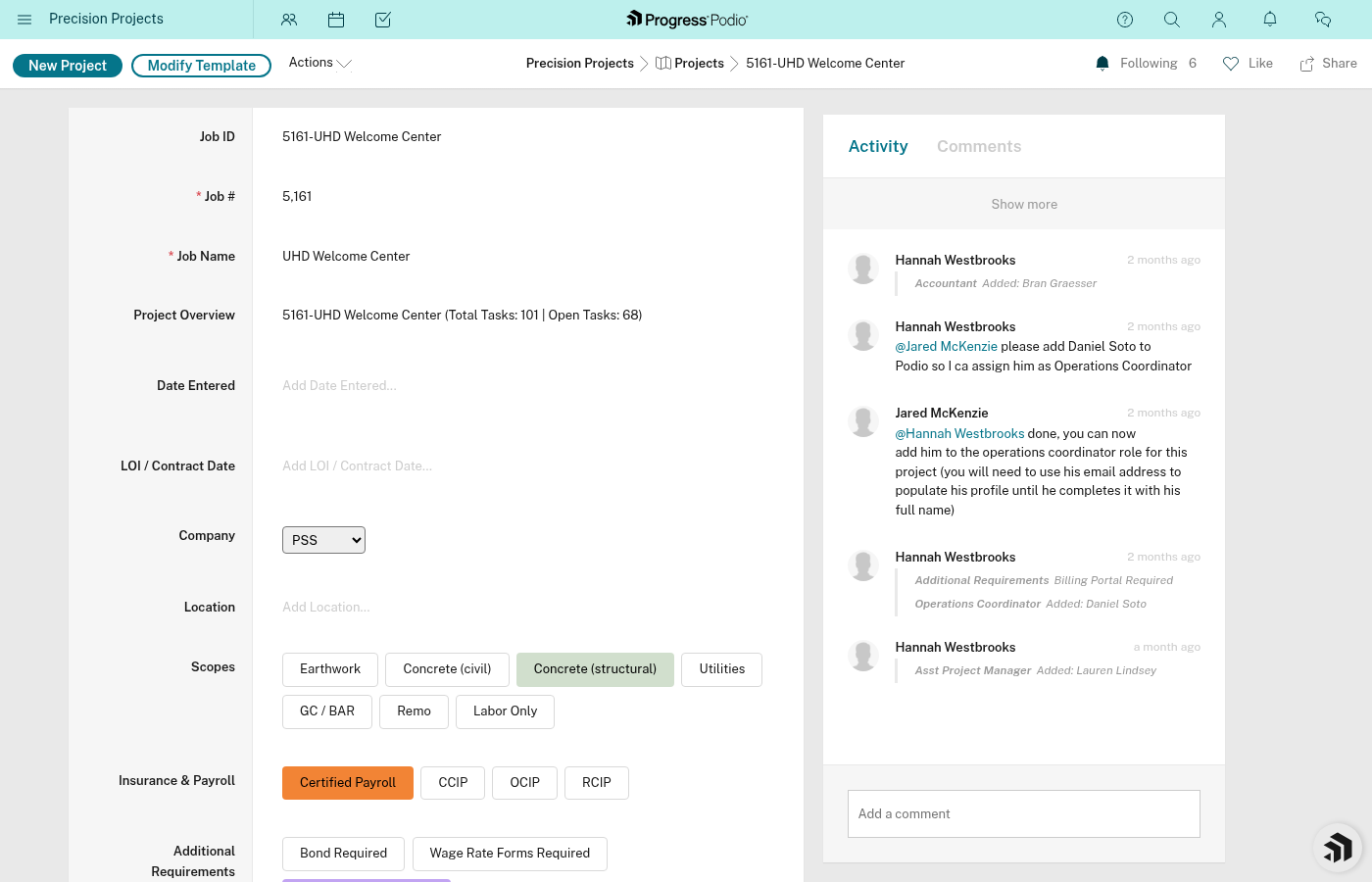
Every project in Podio is your central hub for that job. Think of it like the project's brain — everything connects back to it.
Basic Info Fields
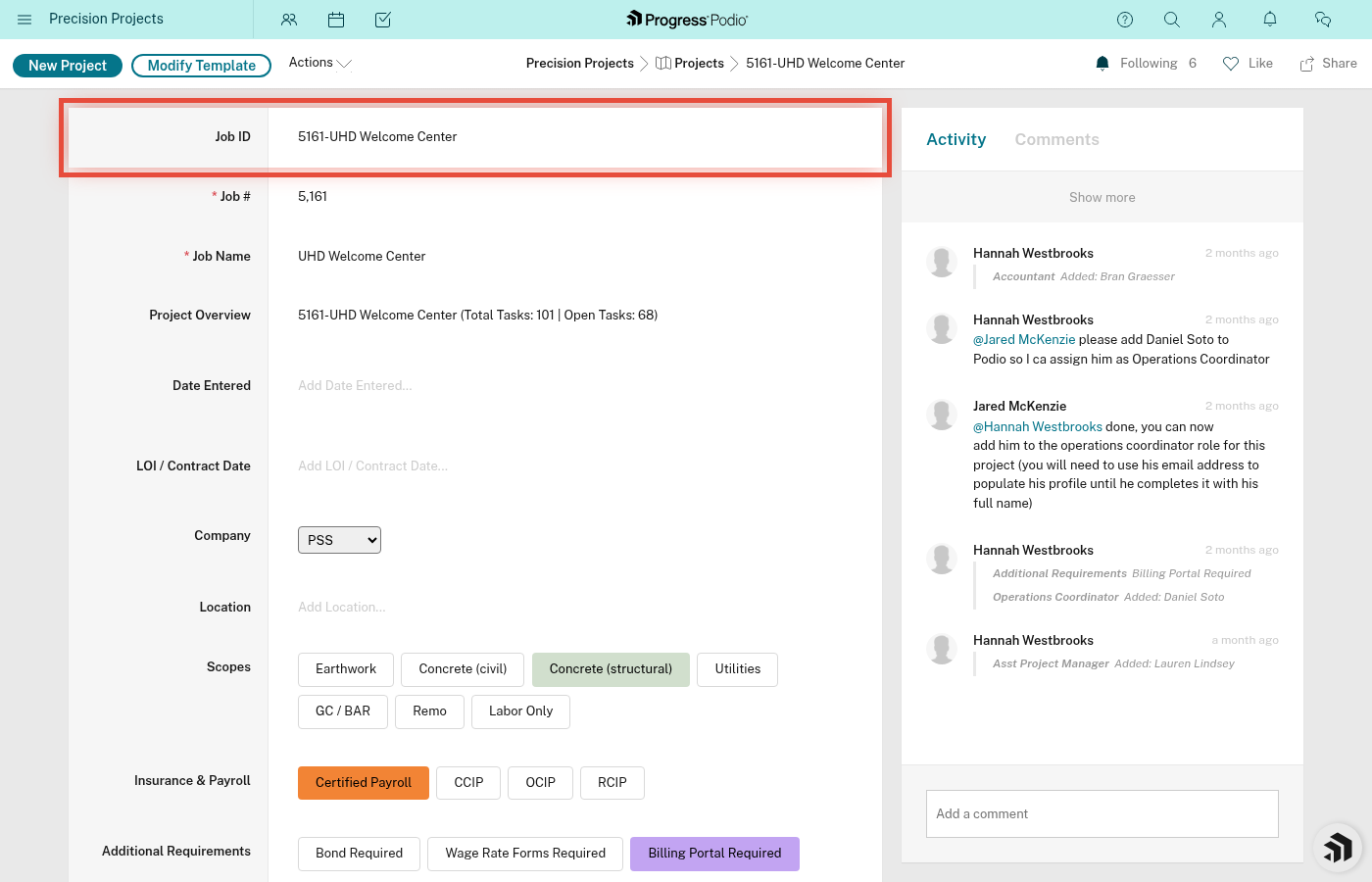
Job ID
What it is: Automatically created by combining your Job # + Job Name (e.g., "12345 - Main Street Apartments")
Why it matters: This is your project's unique identifier. You'll see it in searches, reports, and lists.
Can you edit it? No — it's calculated automatically.
Date Entered
What it is: The date this project was first created in Podio.
Why it matters: Helps track how long projects have been in the system.
Can you edit it? No — it's set automatically when you create the project.
Job
What it is: A unique number for this job (e.g., 12345).
Why it matters: This is how you'll reference the job in billing, timesheets, and conversations. Every job needs a unique number.
Can you edit it? Yes, but only when first creating the project. Don't change it later — it'll mess up references.
Job Name
What it is: The friendly name for the project (e.g., "Main Street Apartments" or "HEB Expansion").
Why it matters: This is what people actually call the job. Make it descriptive but short.
Can you edit it? Yes, anytime.
Company
What it is: The general contractor or client company (dropdown menu).
Why it matters: Helps filter and group projects by who you're working for.
Can you edit it? Yes. Pick from the dropdown, or add a new company if it's not there.
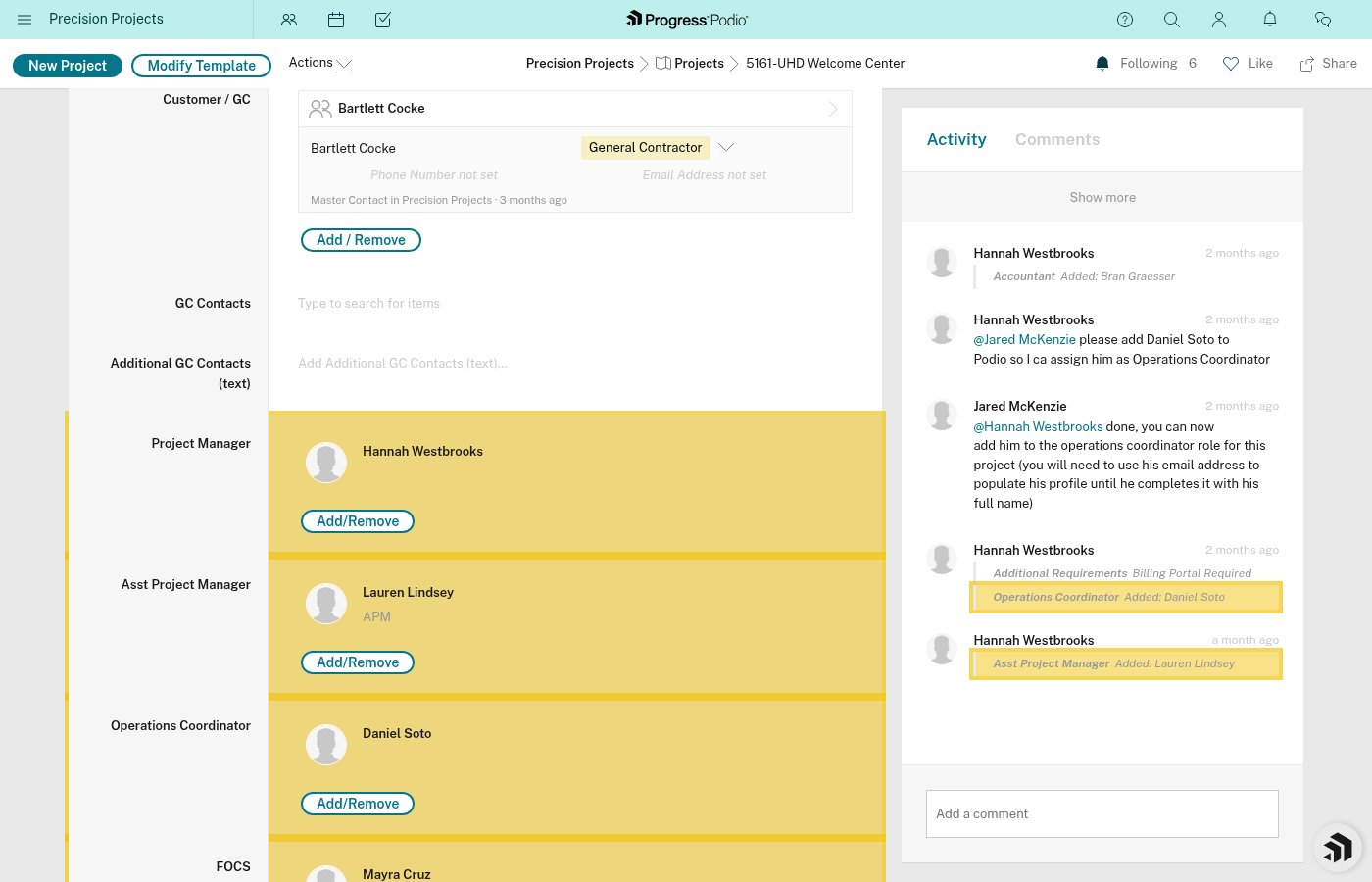
GC Contacts
What it is: Free-text field for quick notes about who to contact at the GC (name, phone, role).
Why it matters: Quick reference when you need to call someone.
Can you edit it? Yes, anytime.
Note: For detailed contact info, use the "Customer / GC" field below — it links to the full Contacts app.
LOI/Contract Date
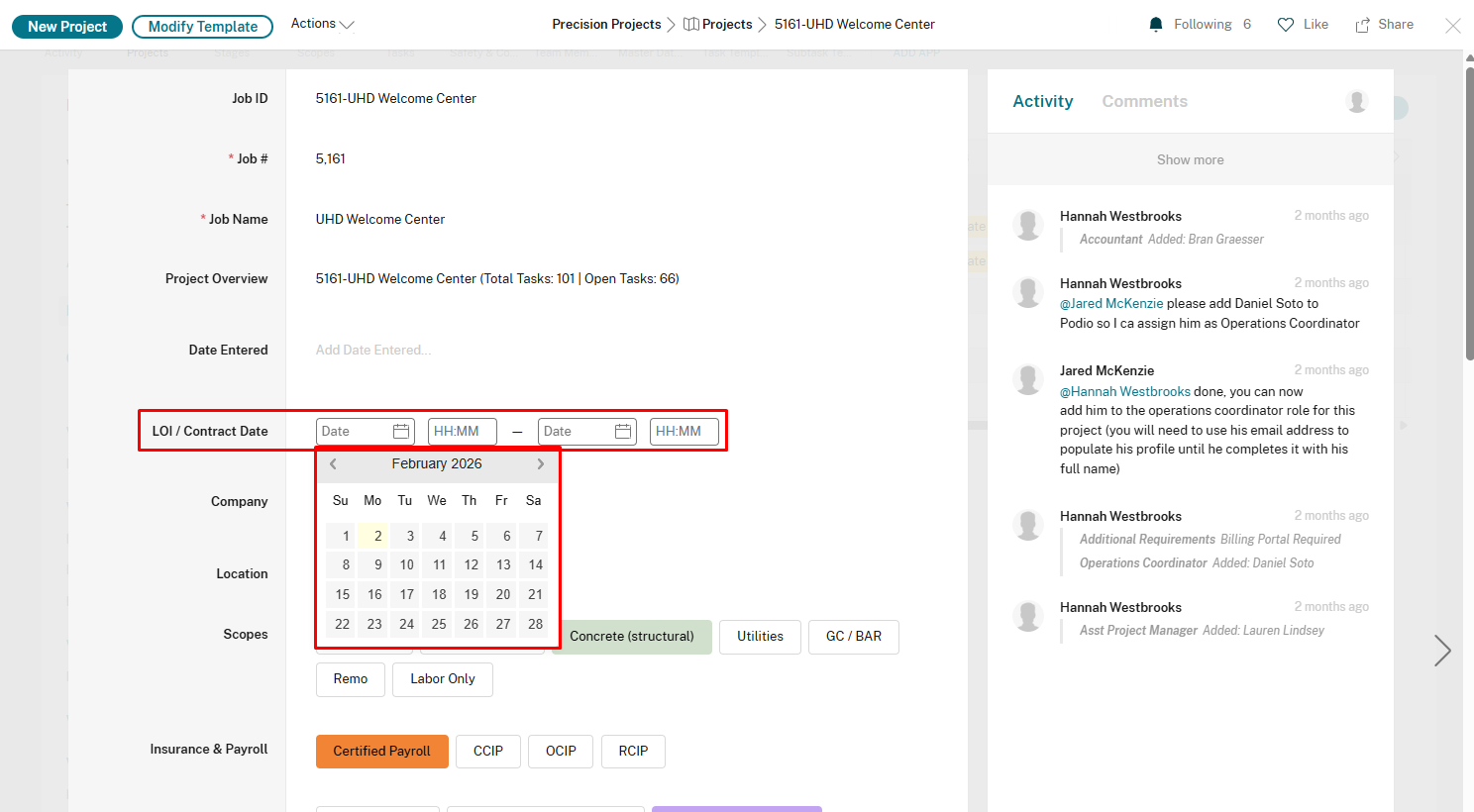
What it is: Date range showing when the contract or Letter of Intent was signed/valid.
Why it matters: Tracks when the job officially started and any contract end dates.
Can you edit it? Yes. Use the date picker to set start and end dates.
Location/Address
What it is: Where the job site is located (address or general area).
Why it matters: Your crew needs to know where to show up!
Can you edit it? Yes, anytime.
Customer / GC
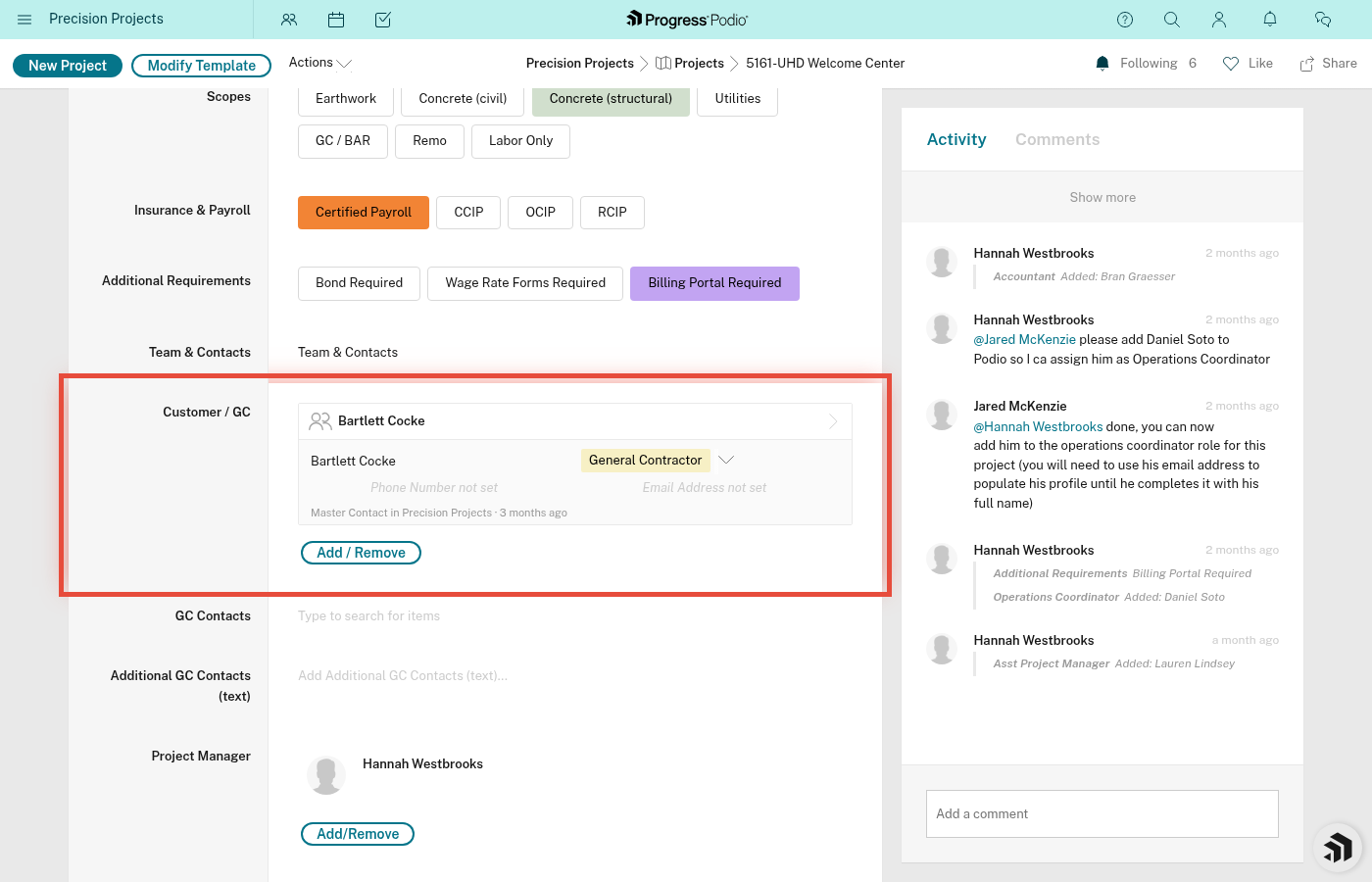
What it is: Linked contacts from your Contacts app (can select multiple people).
Why it matters: This pulls in full contact records (email, phone, title) instead of just typing names. When contact info changes, it updates everywhere.
Can you edit it? Yes. Click to search and select from your Contacts app. You can link multiple people.
Scopes
What it is: What type of work you're doing on this job (checkboxes: Earthwork, Utilities, Foundations, etc.).
Why it matters: Helps categorize the work and filter projects by scope.
Can you edit it? Yes. Check all that apply. You can select multiple scopes.
Team Fields
Project Manager
What it is: The PM responsible for this job.
Why it matters: The PM oversees the project, manages budget, and is the main point of contact.
Can you edit it? Yes. Pick from the user dropdown.
OC - Operations Coordinator
What it is: The person coordinating operations between office and field.
Why it matters: The OC handles logistics, scheduling, and keeps things moving.
Can you edit it? Yes. Pick from the user dropdown.
FOCS - Field Operations Coordinator
What it is: The person coordinating field operations and crew logistics.
Why it matters: The FOCS manages day-to-day field coordination.
Can you edit it? Yes. Pick from the user dropdown.
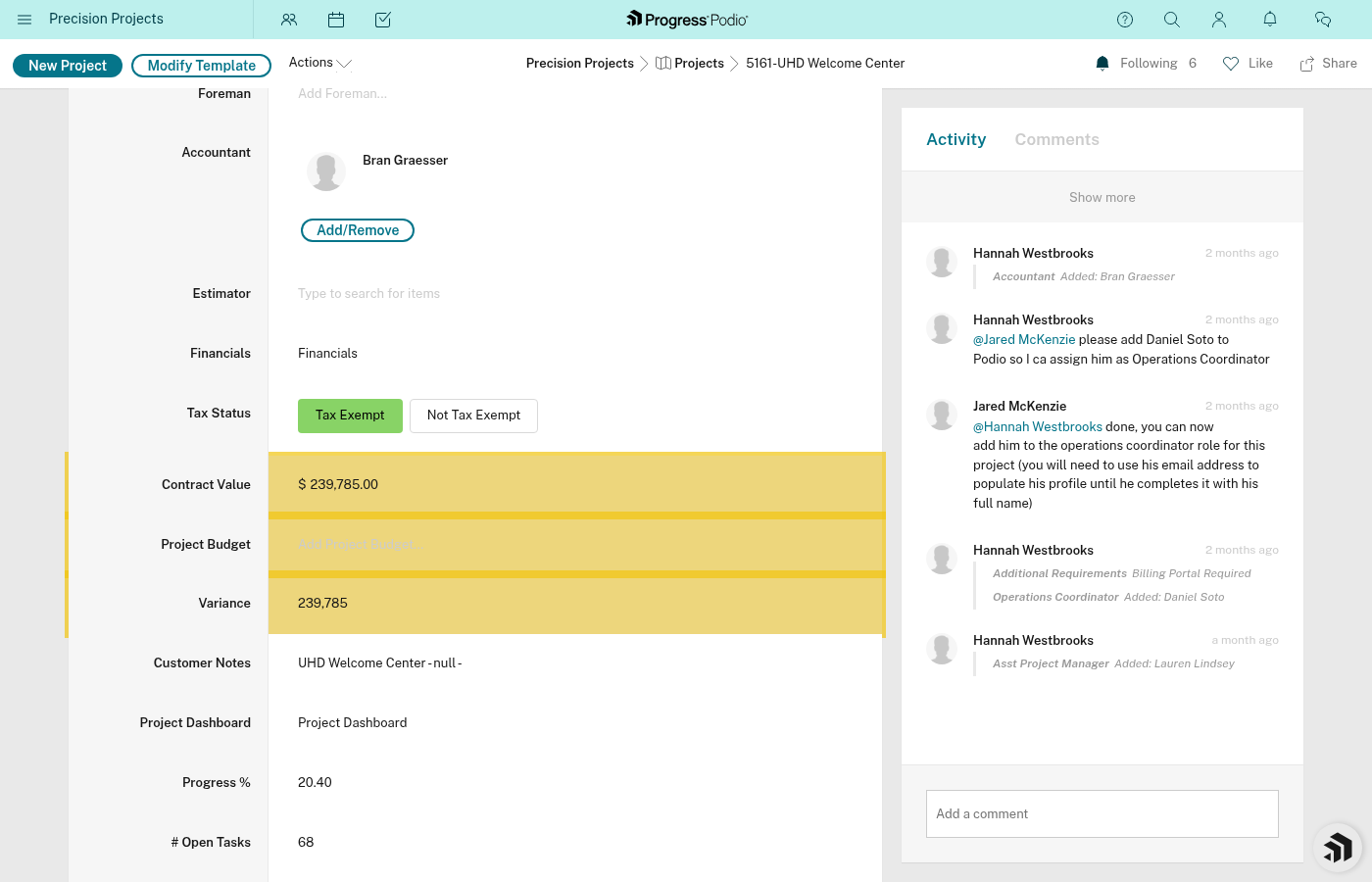
Foreman
What it is: The lead foreman running the job site.
Why it matters: The foreman is boots-on-the-ground, running the crew and executing the plan.
Can you edit it? Yes. Pick from the user dropdown.
Money Fields
Project Budget
What it is: The total budget allocated for this project (in dollars).
Why it matters: This is your target — stay under it and the job is profitable.
Can you edit it? Yes. Enter dollar amount.
Contract Value
What it is: The total contract amount you're getting paid for this job.
Why it matters: This is your revenue. Compare it to Project Budget to see your margin.
Can you edit it? Yes. Enter dollar amount.
Variance
What it is: Automatically calculated (Project Budget minus actual costs).
Why it matters: Shows if you're over or under budget. Green = good, red = trouble.
Can you edit it? No — it's calculated automatically.
Progress & Status Fields
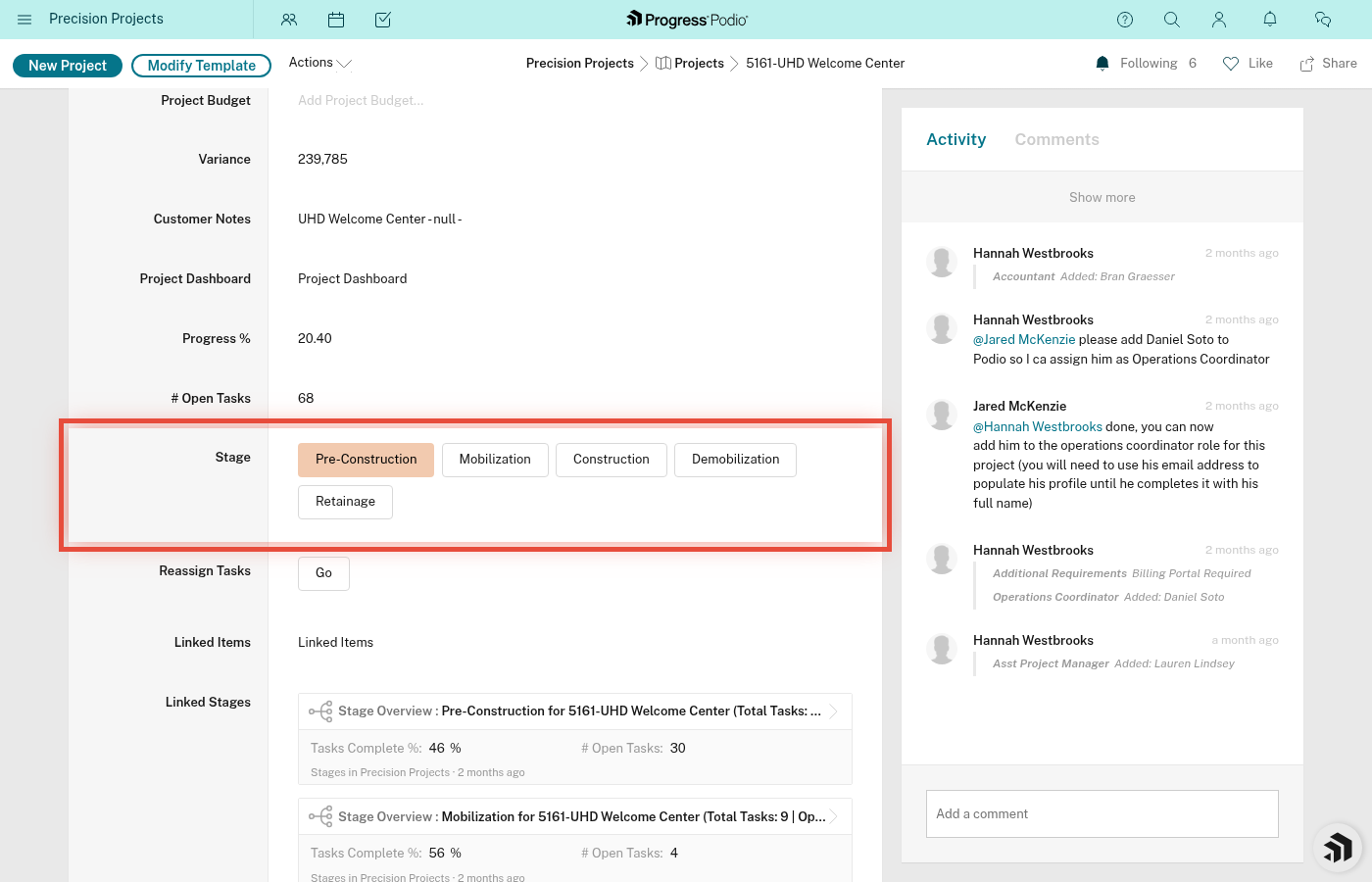
Current Stage Status
What it is: Where the project is right now (dropdown: Pre-Construction Active, Mobilization Active, Construction Active, Demobilization Active, Retainage Active).
Why it matters: This is THE most important field. Changing this field triggers automation to create tasks for the next stage.
Can you edit it? Yes — but only change it when you're actually ready to move to the next stage.
How it works:
- Set to "Pre-Construction Active" when project starts
- Change to "Mobilization Active" when ready to mobilize → tasks auto-create
- Change to "Construction Active" when ready to start work → tasks auto-create
- And so on through Demob and Retainage
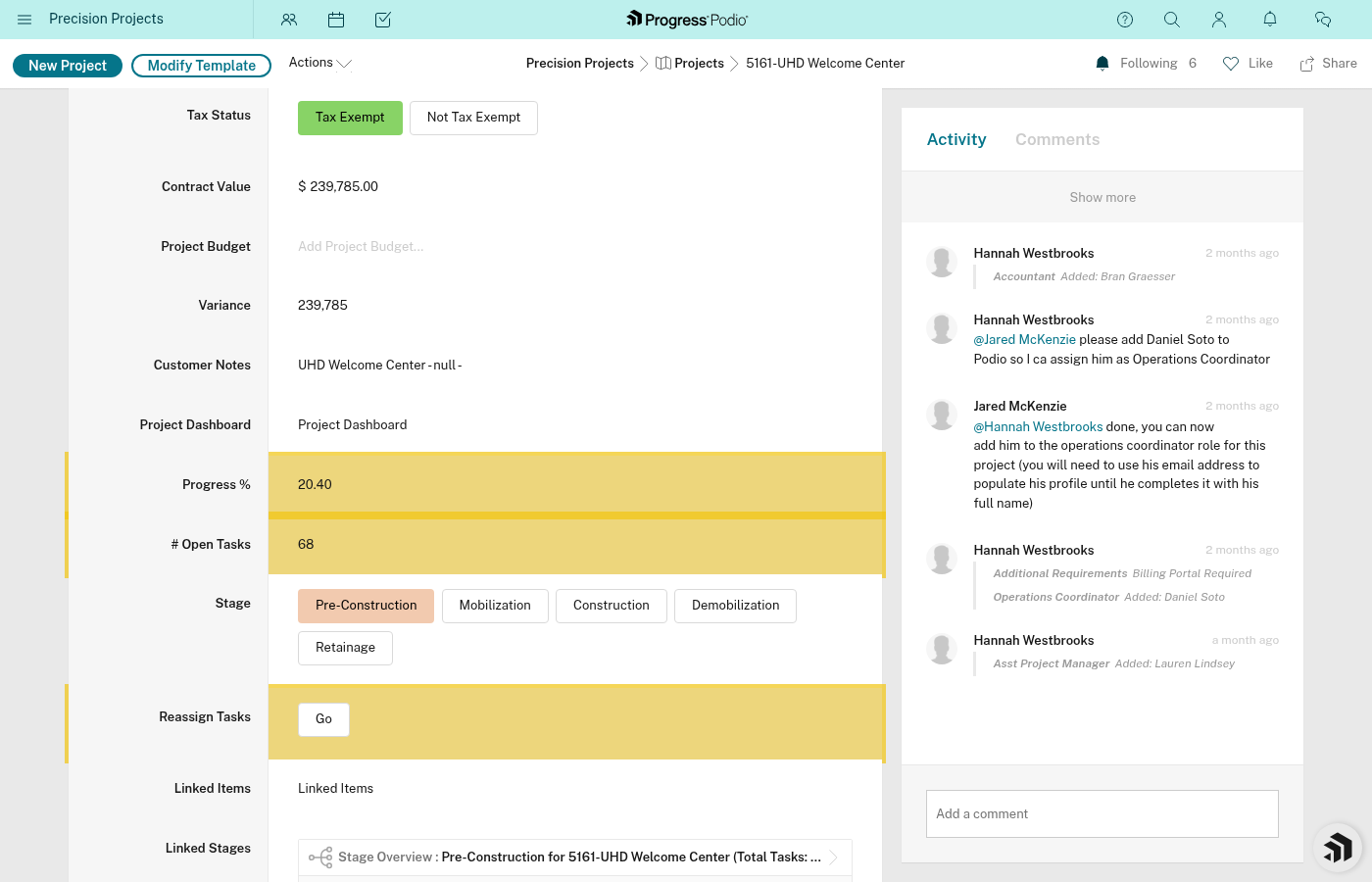
Overall Progress
What it is: Automatically calculated average of completion % across all stages.
Why it matters: Quick visual of how far along the project is.
Can you edit it? No — it's calculated automatically based on task completion.
Open Tasks Count
What it is: Automatically calculated count of incomplete tasks.
Why it matters: Shows how much work is left. If this number is high, the team needs to focus.
Can you edit it? No — it's calculated automatically.
Linked Records
Linked Stages
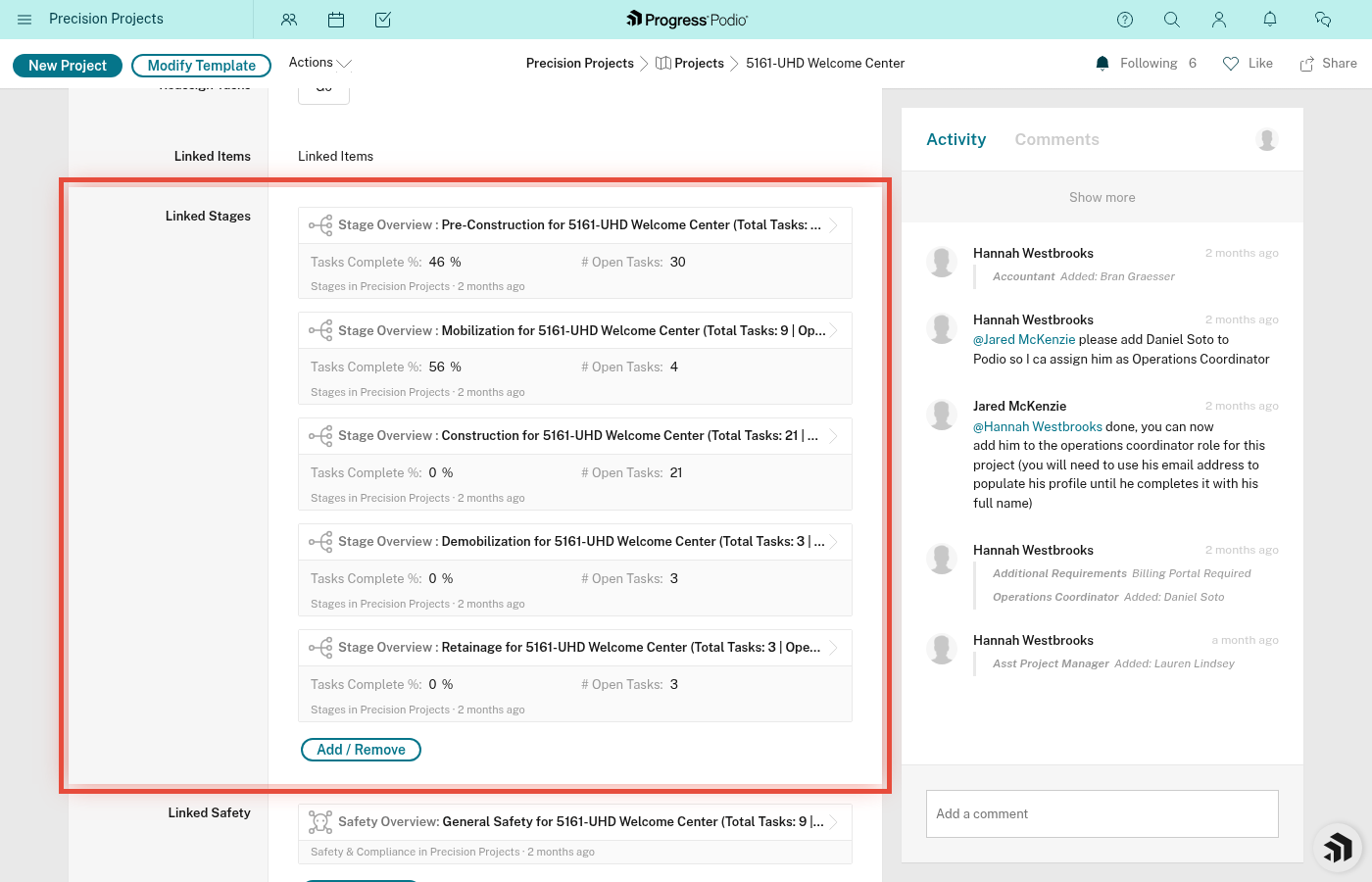
What it is: Links to the 5 stage records for this project (Pre-Construction, Mobilization, Construction, Demobilization, Retainage).
Why it matters: Click these to see stage-specific tasks and details. Each stage has its own page.
Can you edit it? No — these are created automatically when you create a project.
Linked Safety & Compliance
What it is: Links to safety records for this project (811 Locate tickets, Badging, SSSP).
Why it matters: Keeps safety items tied to the project. Click to view/edit safety documents.
Can you edit it? The links appear automatically when safety records are created. You can add new safety records by creating them in the Safety app and linking them here.
Division
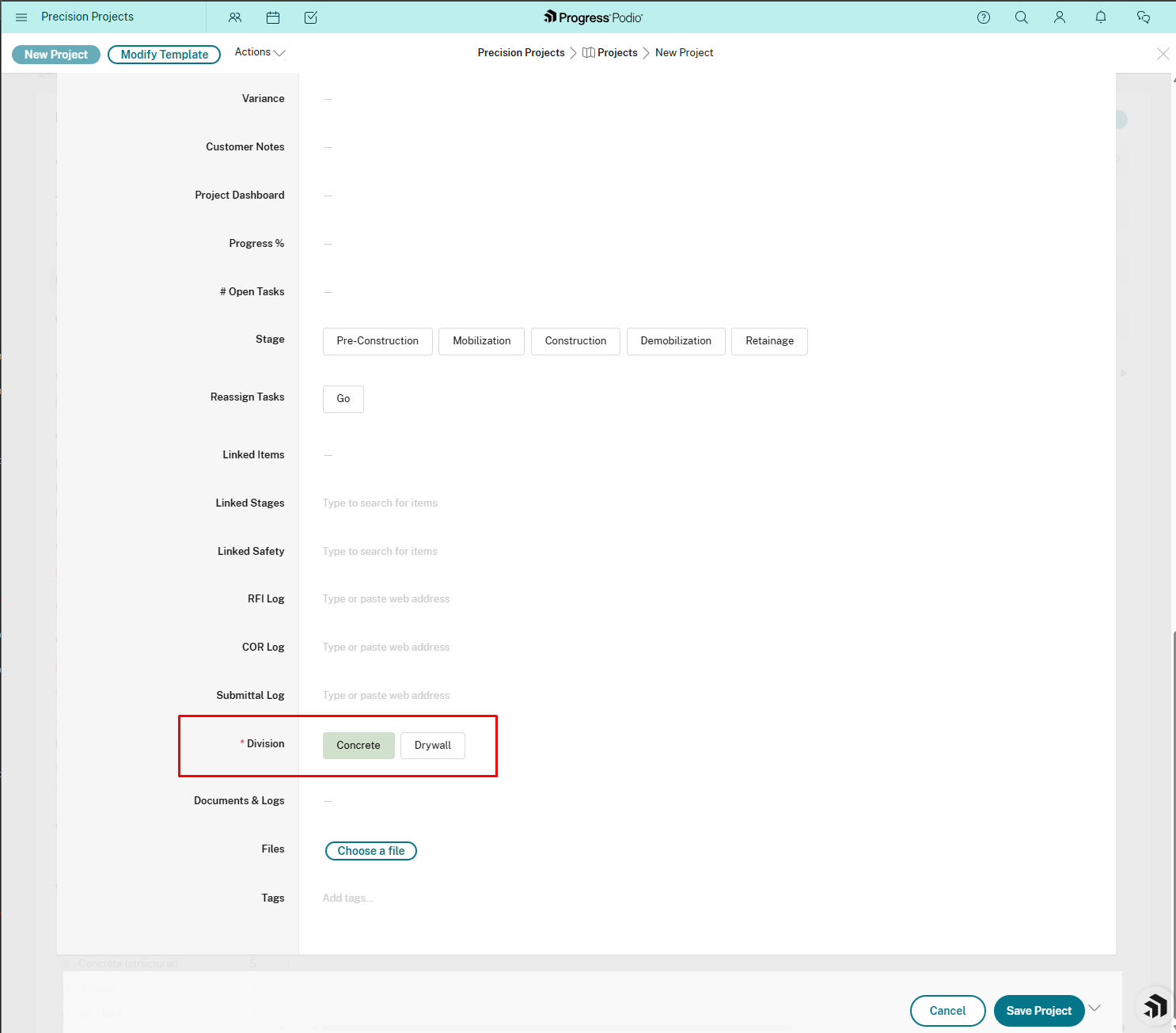
What it is: The type of work division (dropdown: Concrete, Drywall, Other).
Why it matters: This controls which tasks get created! Different divisions have different task templates. Make sure you pick the right one when creating a project.
Can you edit it? Yes, but be careful — changing this after tasks are created won't retroactively change existing tasks.
Documents & Logs
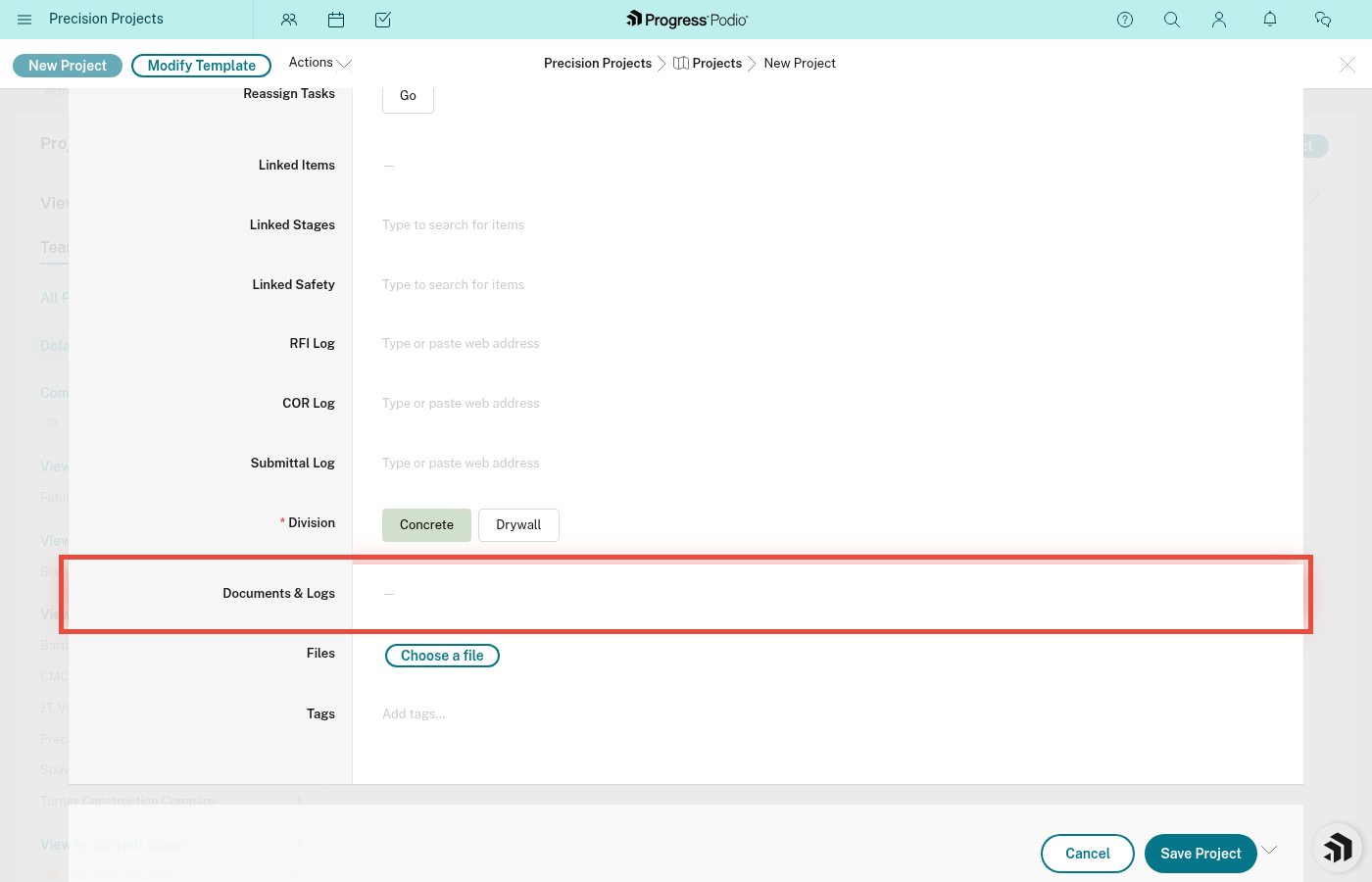
What it is: File upload field for any project-related documents (contracts, plans, photos, etc.).
Why it matters: Central repository for project files. Keep everything in one place.
Can you edit it? Yes. Drag and drop files or click to upload. You can attach multiple files.
Quick Reference Table
| Field Name | Type | Can Edit? | Auto-Populated? |
|---|---|---|---|
| Job ID | Calculated | No | Yes |
| Date Entered | Date | No | Yes |
| Job # | Number | Yes (on creation) | No |
| Job Name | Text | Yes | No |
| Company | Dropdown | Yes | No |
| GC Contacts | Text | Yes | No |
| LOI/Contract Date | Date Range | Yes | No |
| Location/Address | Text | Yes | No |
| Customer / GC | Linked Contacts | Yes | No |
| Scopes | Multi-select | Yes | No |
| Project Manager | User | Yes | No |
| OC | User | Yes | No |
| FOCS | User | Yes | No |
| Foreman | User | Yes | No |
| Project Budget | Money | Yes | No |
| Contract Value | Money | Yes | No |
| Variance | Calculated | No | Yes |
| Current Stage Status | Dropdown | Yes | No |
| Overall Progress | Calculated | No | Yes |
| Open Tasks Count | Calculated | No | Yes |
| Linked Stages | Linked Records | No | Yes |
| Linked Safety & Compliance | Linked Records | Yes (indirect) | Partial |
| Division | Dropdown | Yes | No |
| Documents & Logs | Files | Yes | No |
Tips
- Fill out Division first when creating a project — it determines which tasks you'll get.
- Don't mess with Current Stage Status unless you're actually ready to advance. It triggers big automations.
- Use Customer / GC for important contacts instead of GC Contacts — it's more powerful and keeps info synced.
- Upload documents early — contracts, plans, LOIs. Future-you will thank you.
- Check Variance regularly — if it's going negative, dig into costs.
Next: Creating a Project | Finding Projects | Editing Project Info