The Interface
Layout overview
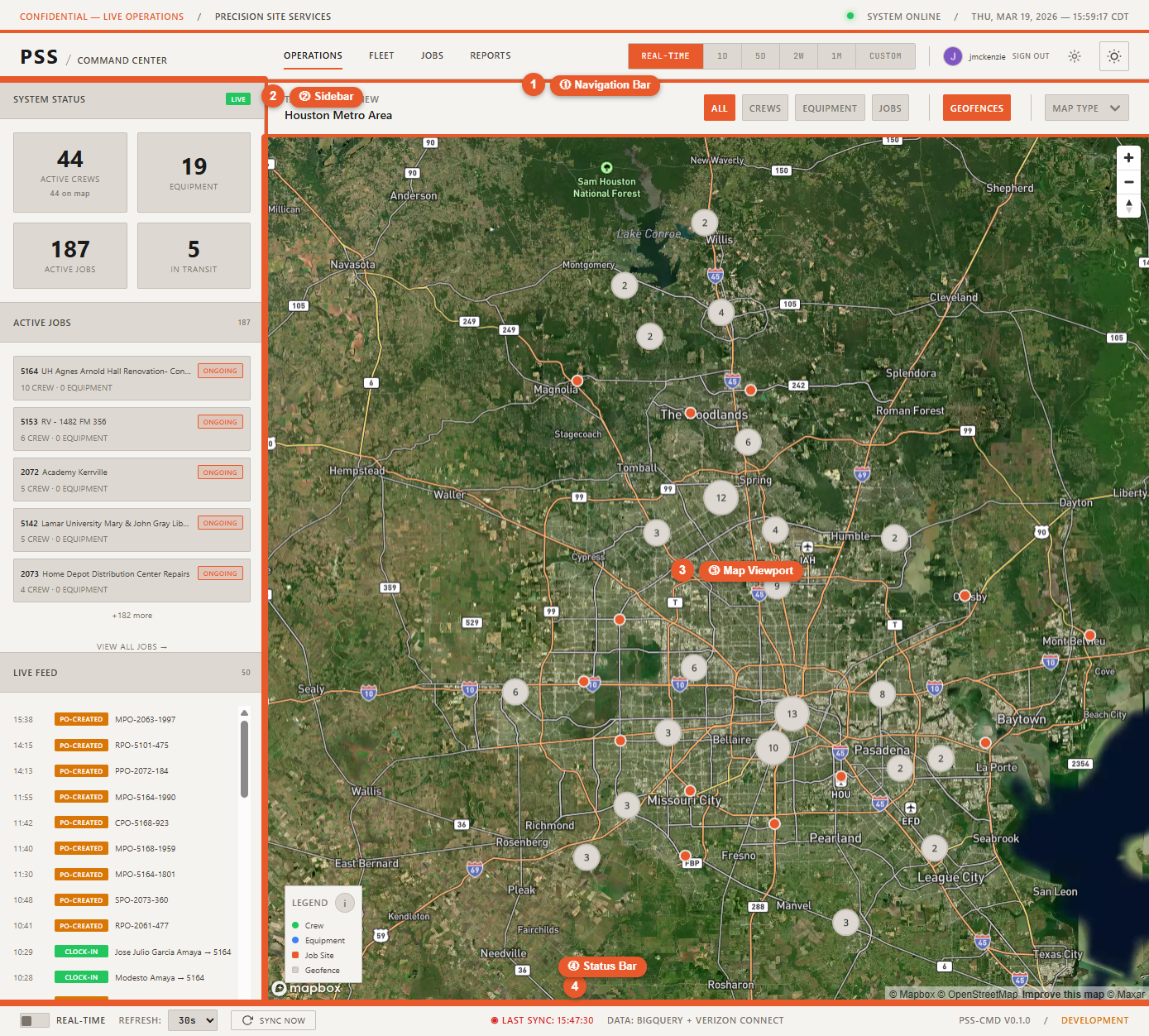
The Command Center is divided into four main areas:
Navbar (top)
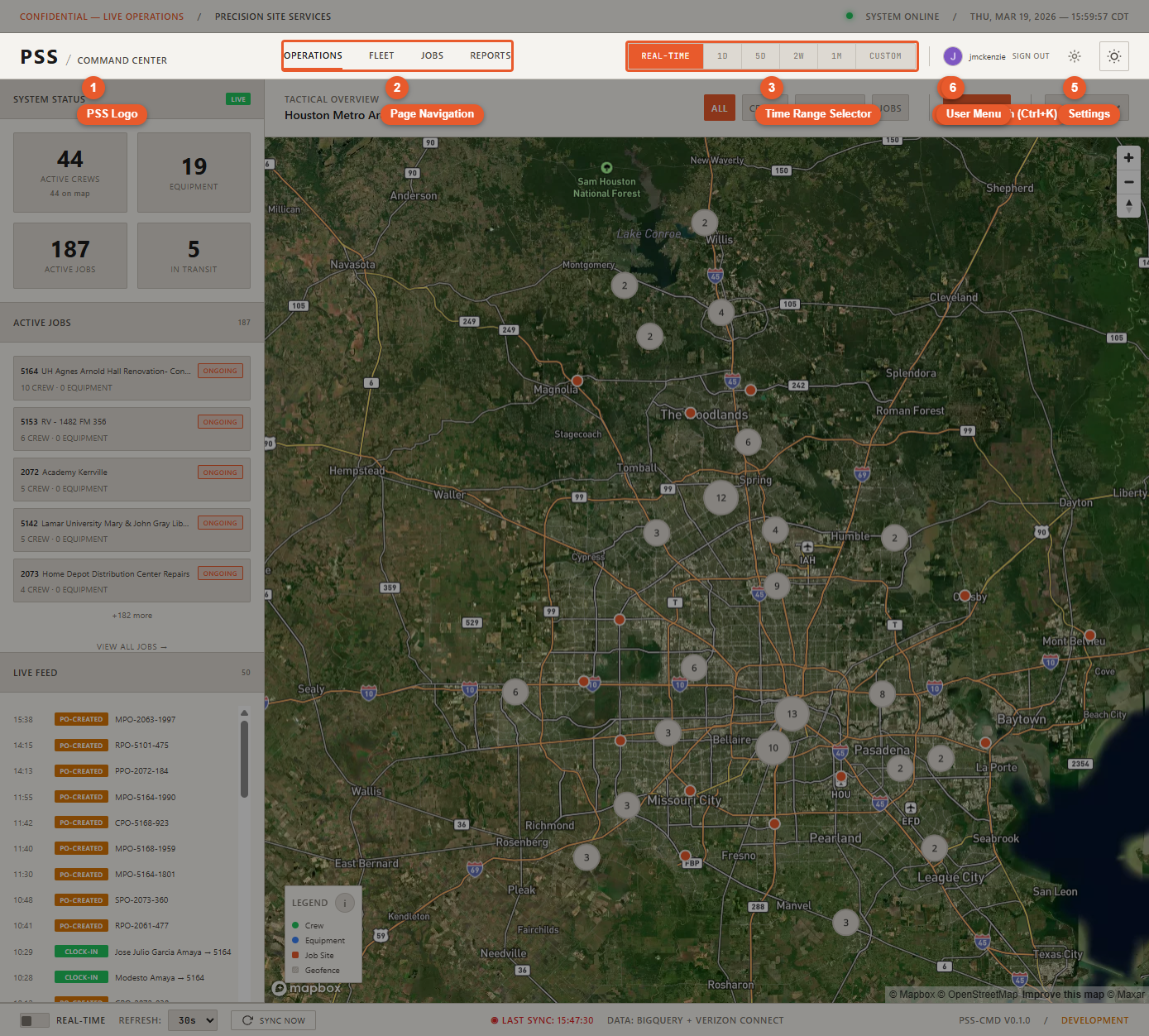 Contains the PSS logo, navigation links (Operations, Fleet, Jobs), the global search button, settings gear icon, and theme toggle.
Map area (center)
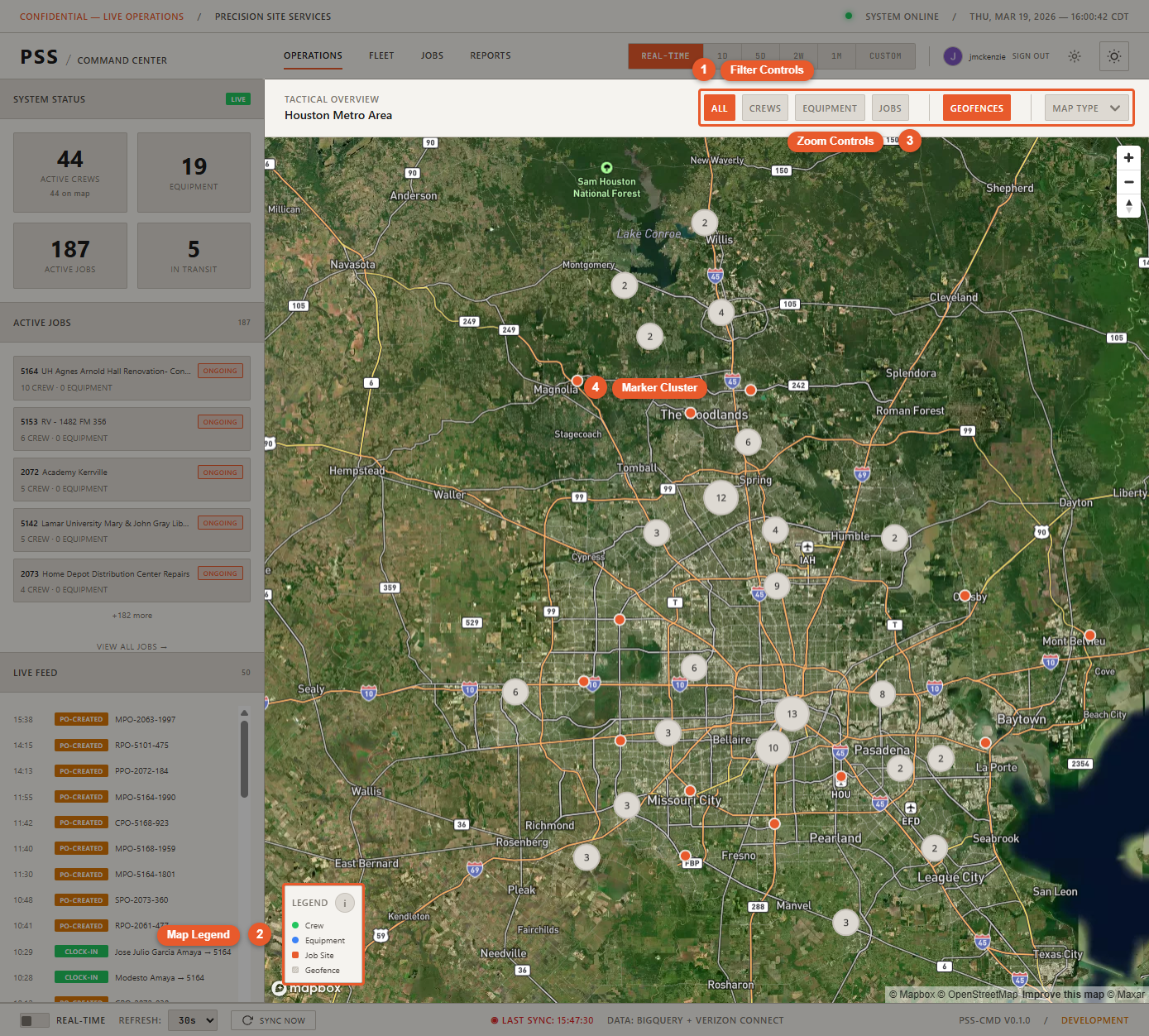 The interactive Mapbox map takes up the majority of the screen. This is where workers, equipment, and job sites are plotted as markers.
Sidebar panels (right)
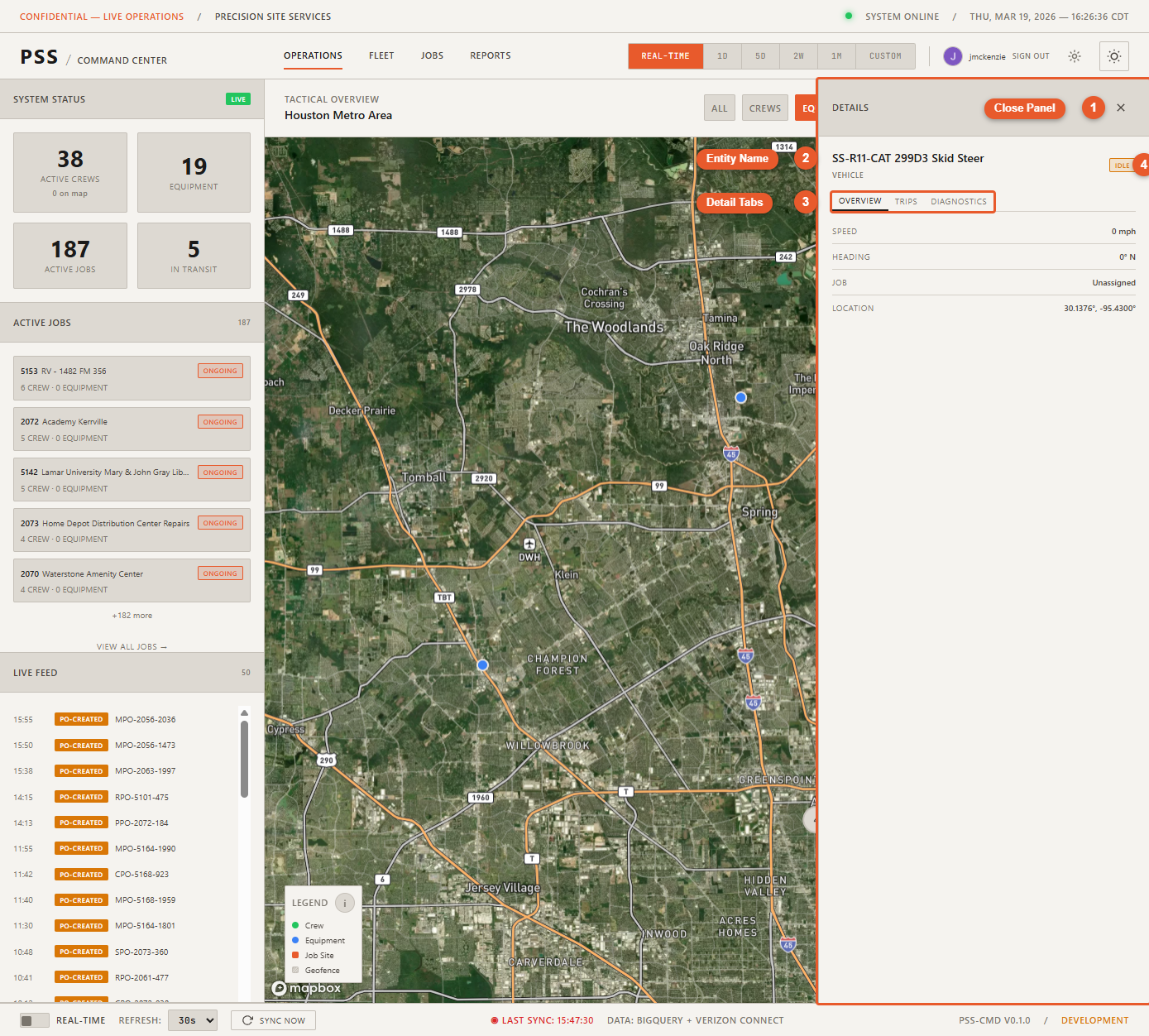 Clicking any marker on the map opens a sliding detail panel on the right side. Panels show worker, equipment, or job details depending on what you clicked. Panels can be closed with the X button or by pressing Escape.
Status bar (bottom)
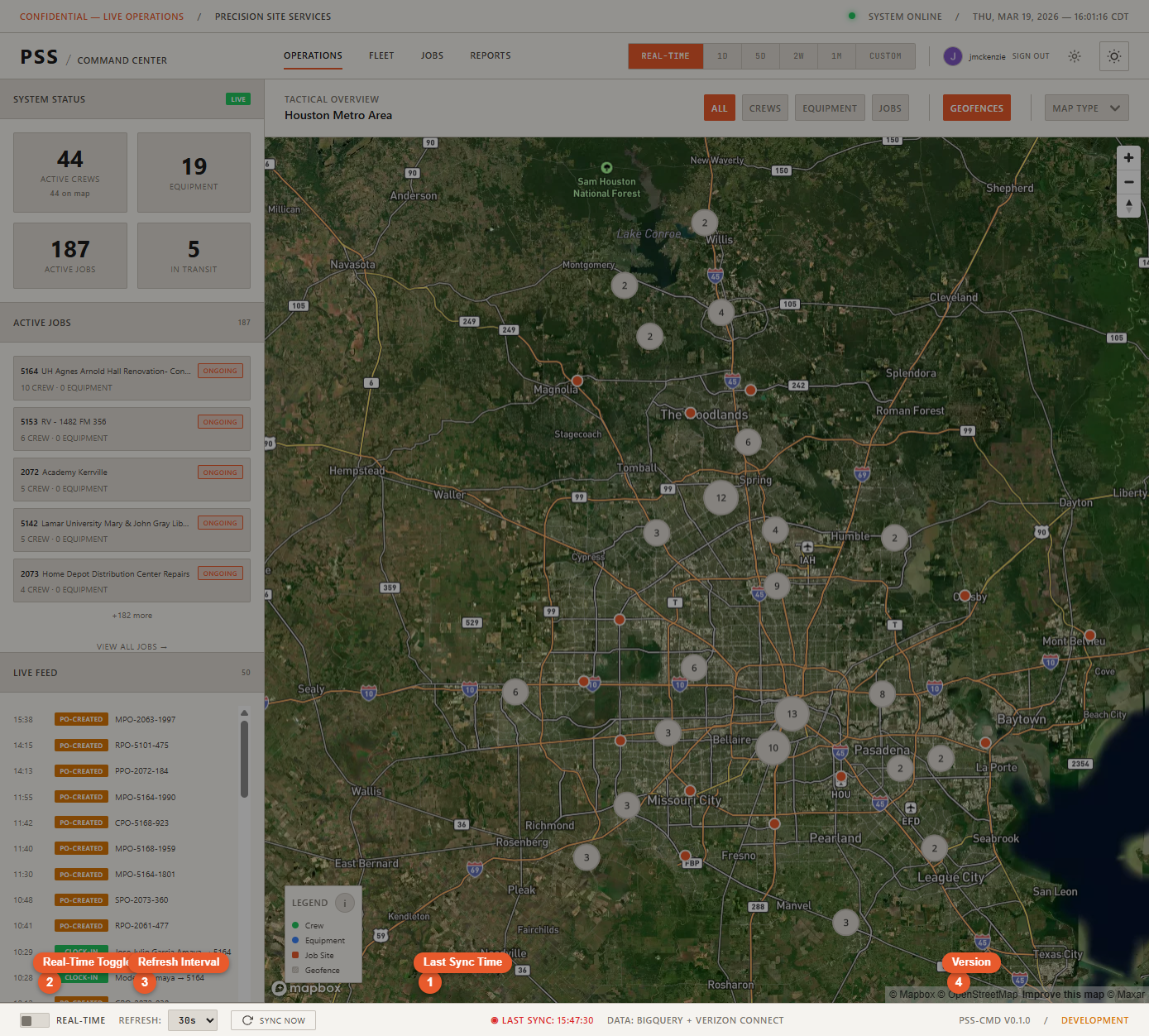 A persistent footer showing:
- Last Sync timestamp — green if synced within 5 minutes, red if stale
- Sync Now button — forces an immediate refresh of all data
- Refresh interval selector — 15s / 30s / 1m / 5m
- Real-time toggle — turn live polling on or off
- Connection status indicator
Navigating between pages
Use the navbar links to switch between:
- Operations — the main map view
- Fleet — full equipment table
- Jobs — full jobs table
Theme and font size
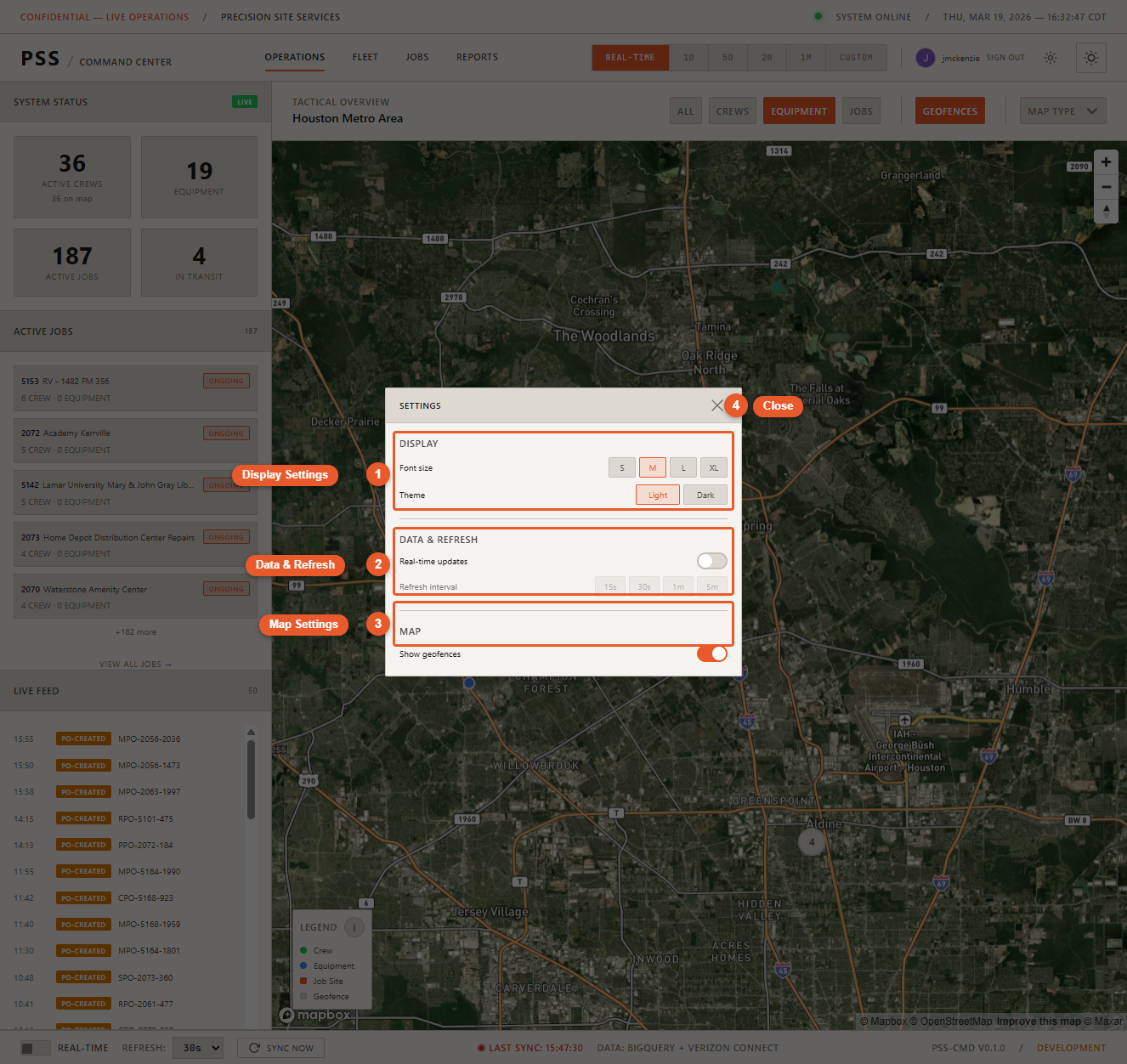
Open Settings (gear icon in navbar) to adjust:
- Theme — Light or Dark mode. Dark is the default.
- Font size — Small (14px), Medium (16px, default), Large (18px), X-Large (20px)
Both settings are saved to your browser and persist across sessions.