Purchase Order Tracking
The Command Center displays purchase order data pulled from the PSS Purchase Order AppSheet app. This is a read-only view — you cannot create, edit, or approve POs from the dashboard. Those actions happen in the AppSheet PO app.
Where POs appear
PO data surfaces in three places in the dashboard:
Live Feed
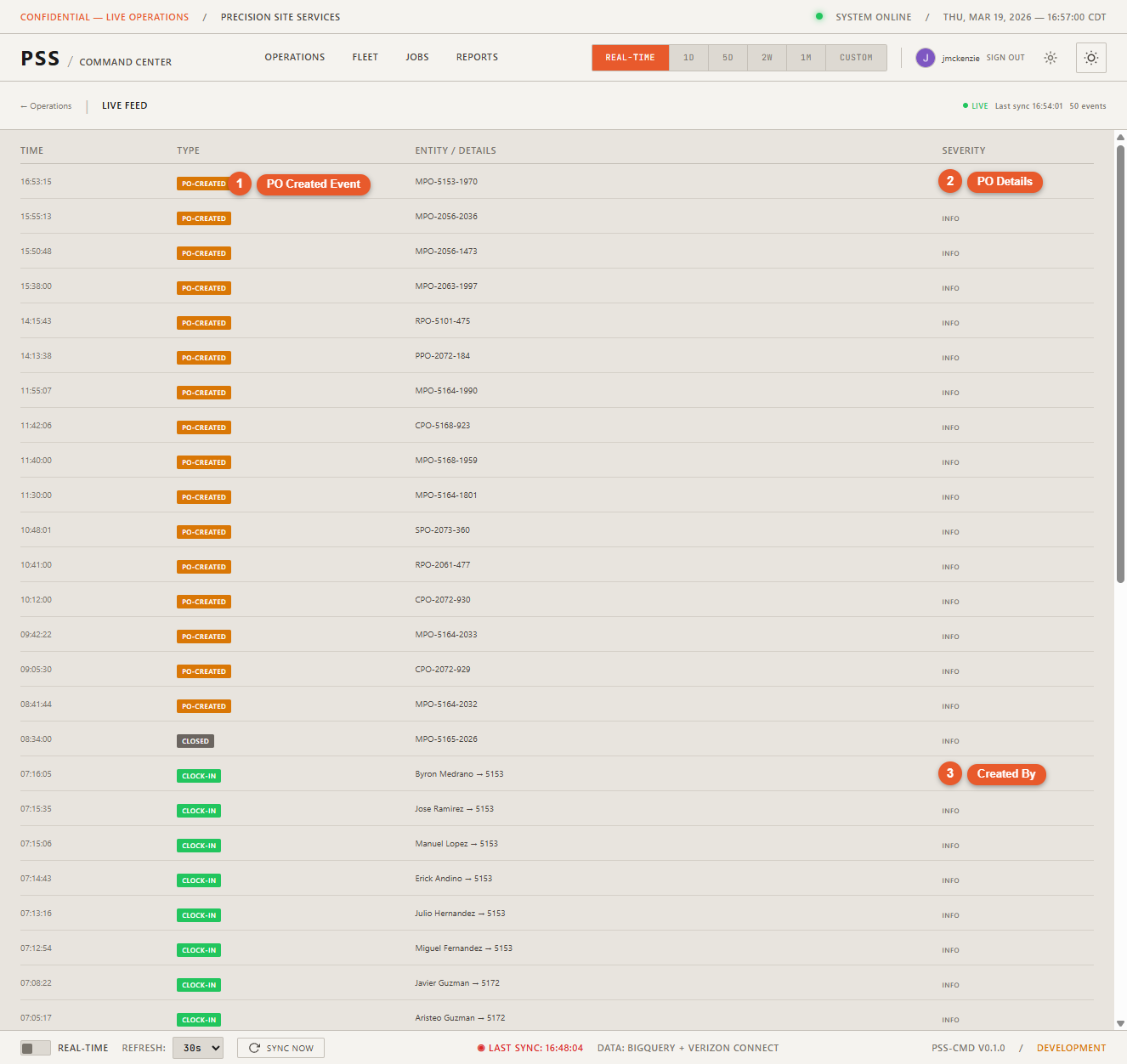
PO events appear in the live feed as they occur — when a PO is created, submitted, approved, reviewed, or closed. Each event shows the PO details and the new status.
Worker detail panel
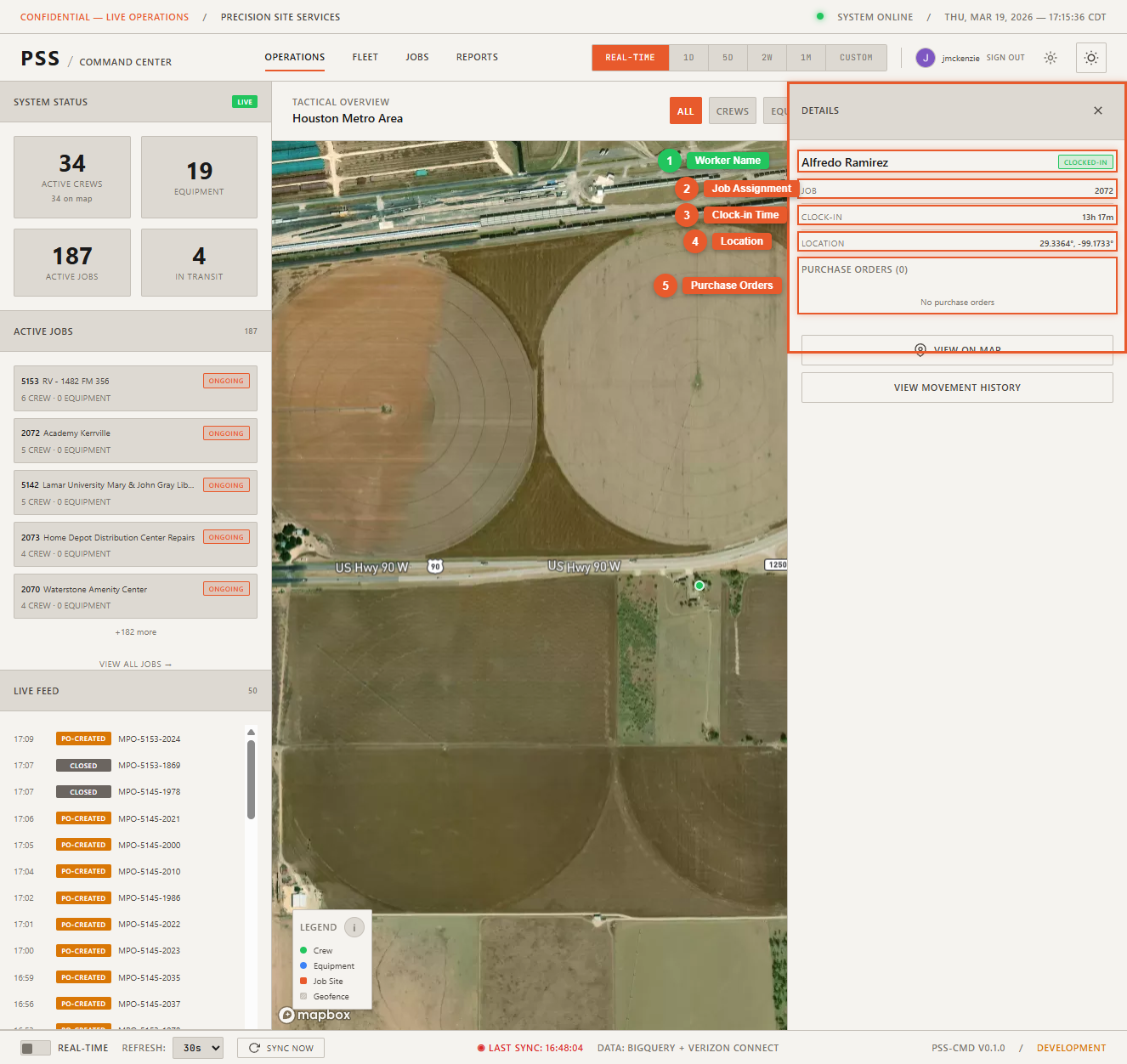
When you open a worker's detail panel, you can see all purchase orders that worker has created today, along with their current status.
Job detail panel
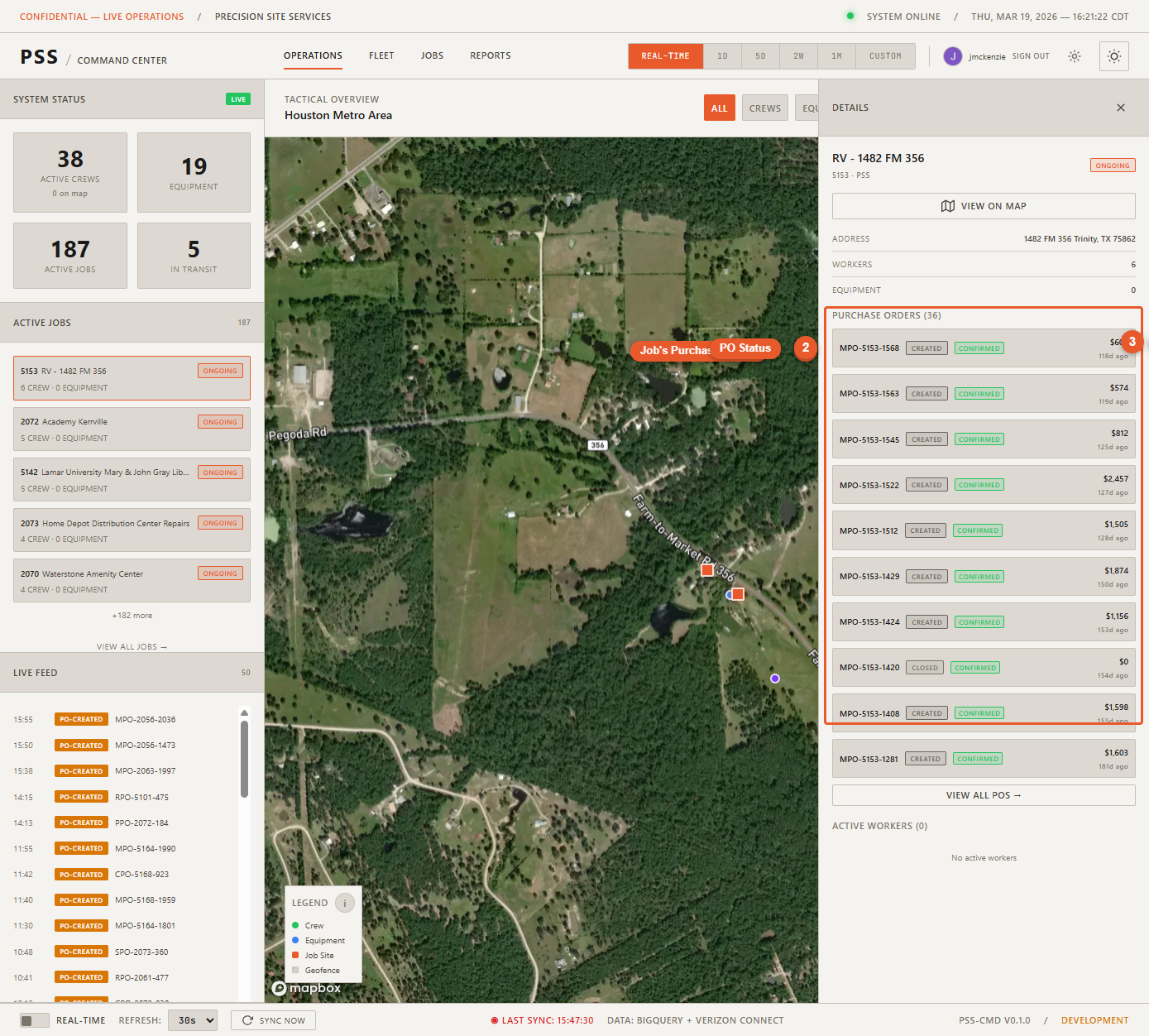
When you open a job's detail panel, you can see all purchase orders associated with that job, with status badges showing where each PO is in the approval process.
Refresh rate
PO data refreshes every 5 minutes. Click Sync Now for an immediate update.
PO lifecycle
See PO Lifecycle for a breakdown of each status and what it means.