Fleet Page
The Fleet page provides a full table view of all tracked equipment — not just what is visible in the current map viewport.
Navigating to Fleet
Click Fleet in the top navbar from any page.
The equipment table
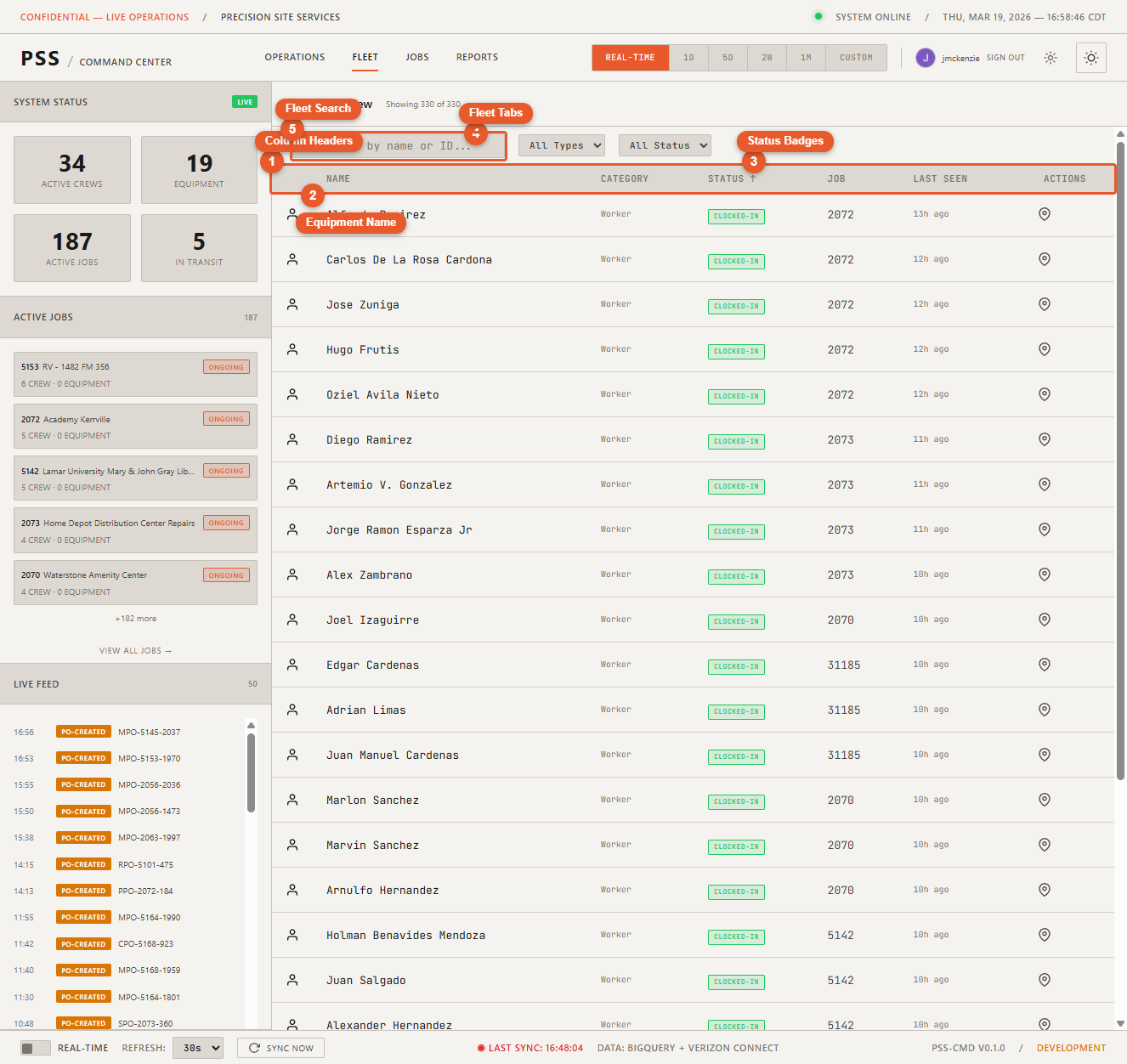
The table lists every piece of equipment with the following columns:
- Name — Equipment identifier or description
- Type — Category (truck, excavator, trailer, etc.)
- Status — Online, offline, or idle
- Last position — Most recent GPS coordinates or job site association
- Last updated — Timestamp of the last GPS report
- Job — Currently assigned job, if any
Sorting and filtering
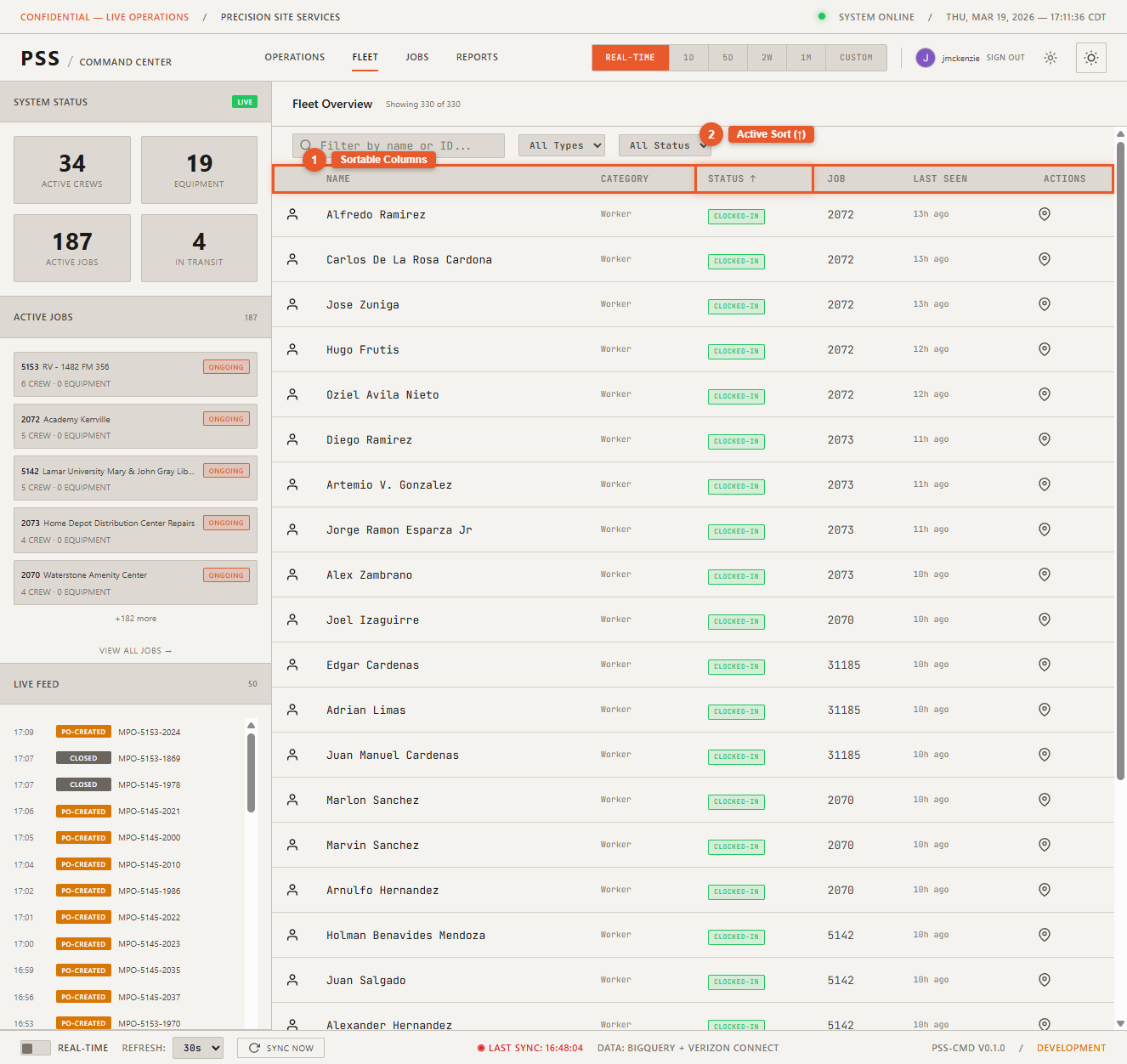
Click any column header to sort the table by that column. An arrow indicates the current sort direction.
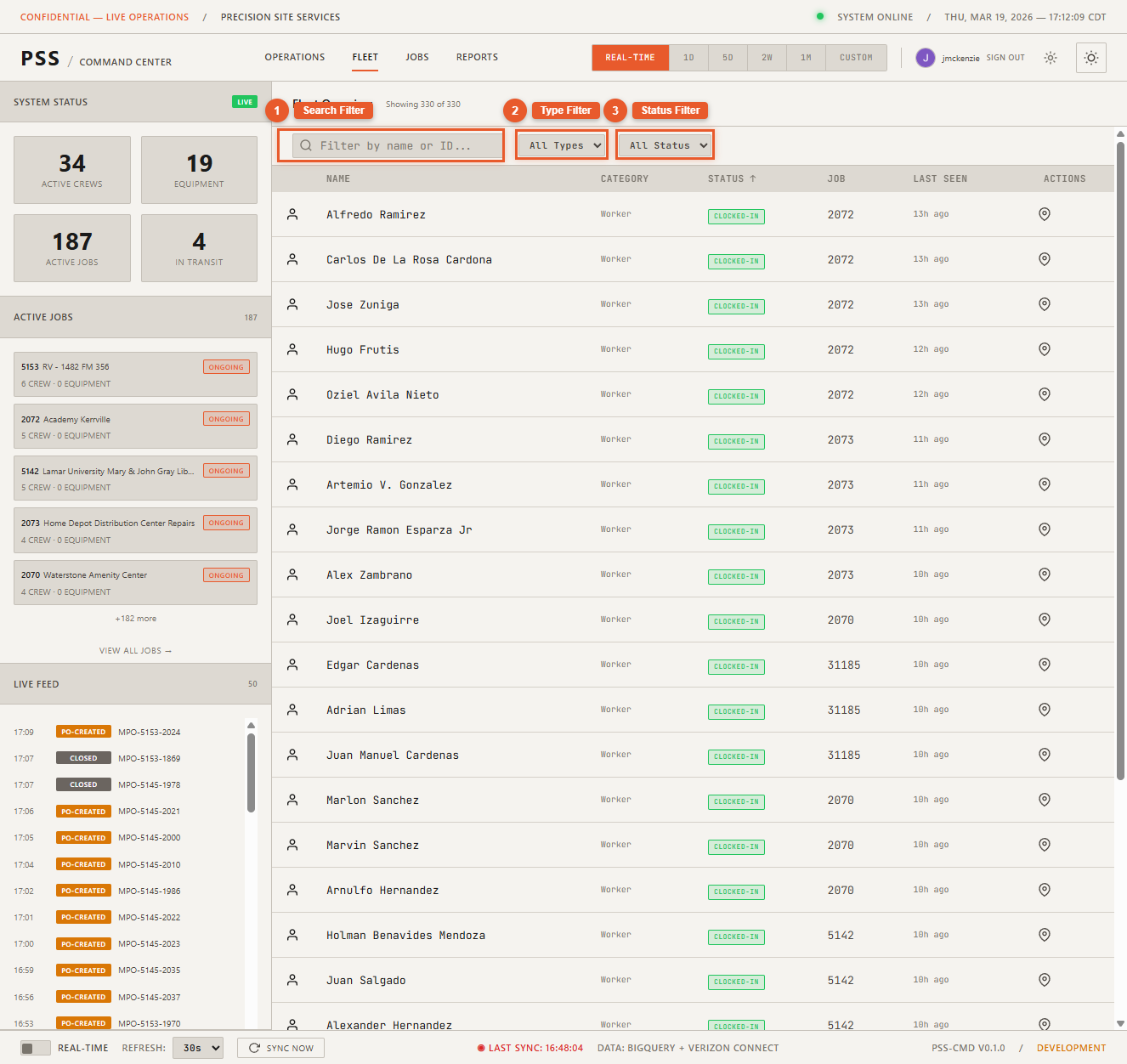
Use the search bar above the table to filter by equipment name or type. Results update as you type.
Equipment detail panel
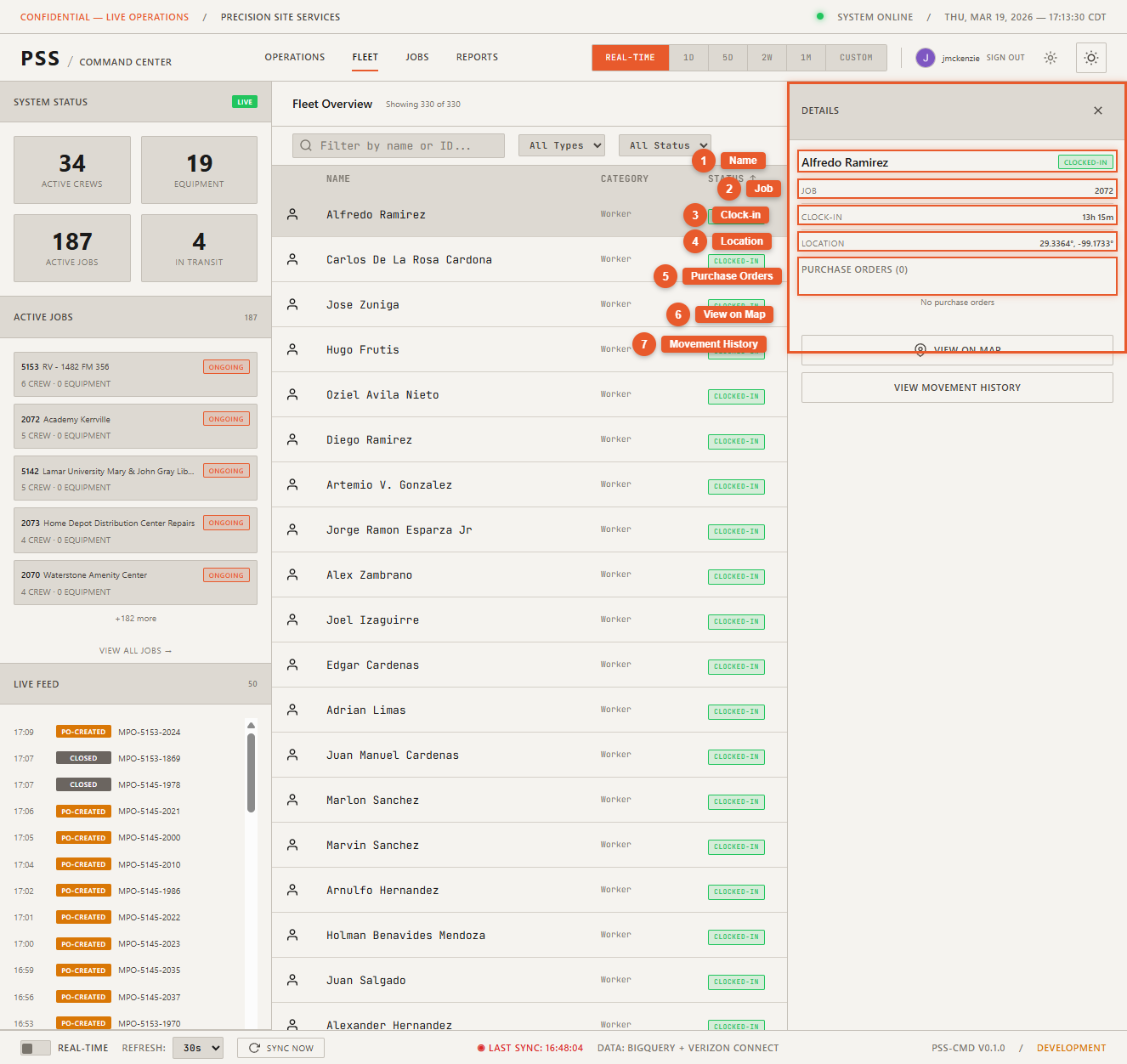
Click any row to open the equipment detail panel on the right side of the page. The detail panel includes a mini-map showing the equipment's last known position, along with all the same information available from the Operations map:
- Name, type, status, speed
- Job assignment
- Movement History button
View on Operations Map
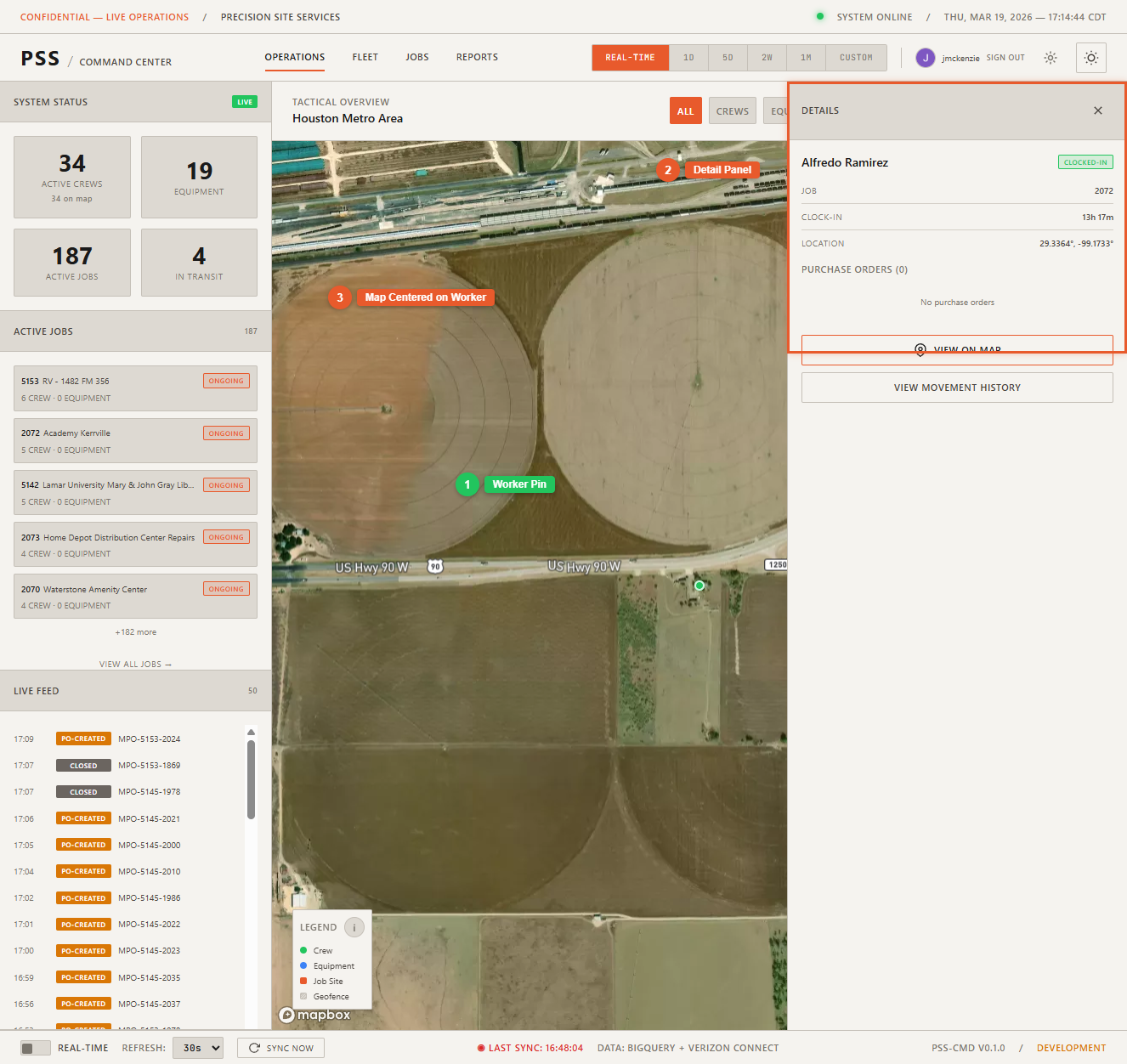
Click View on Operations Map in the detail panel to navigate to the Operations page with the map zoomed to that equipment's location and its detail panel already open.