Global Search
Global Search lets you instantly find any worker, piece of equipment, or job without scrolling the map or tables.
Opening search
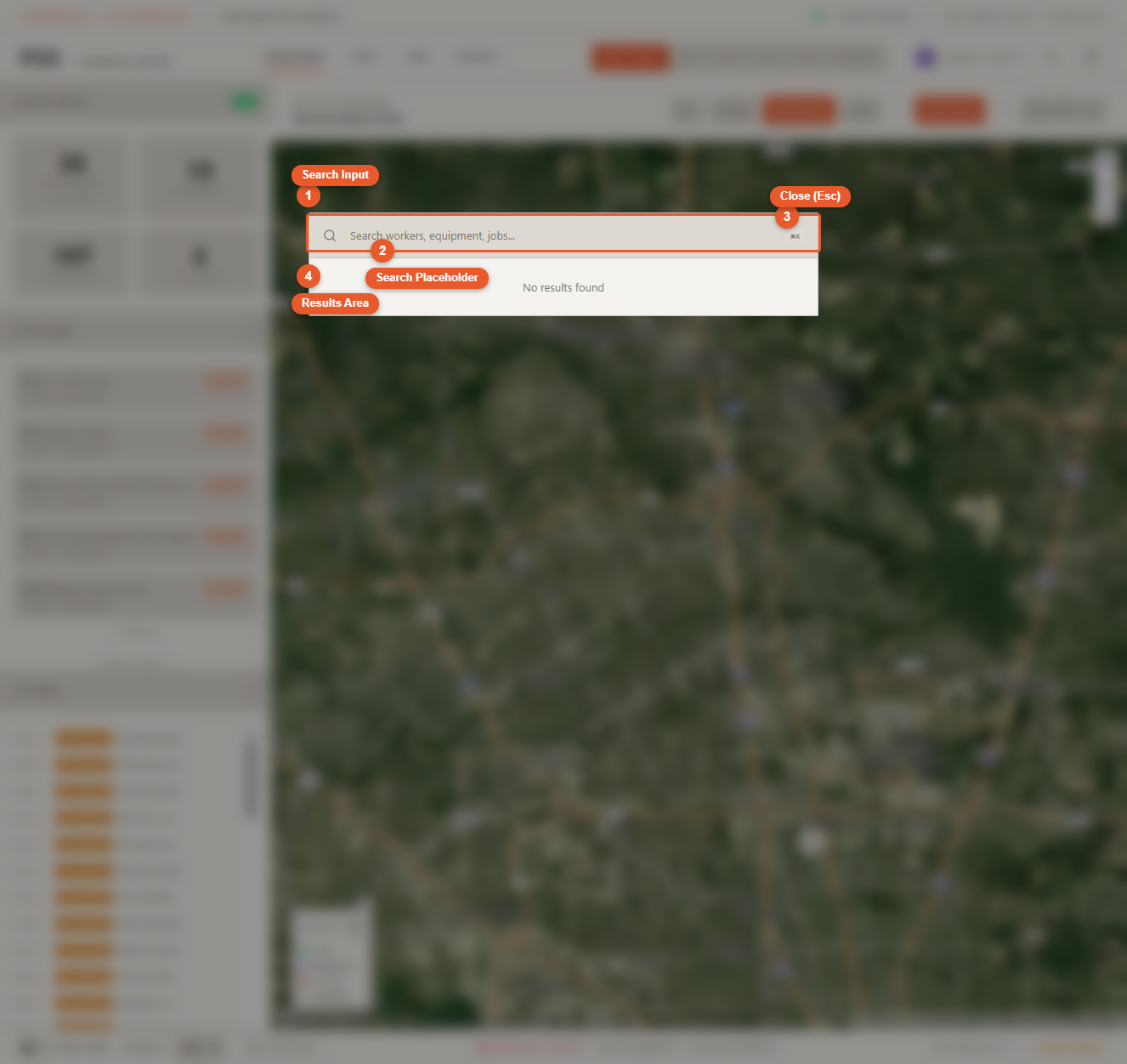
Press Cmd+K on Mac or Ctrl+K on Windows to open the search modal from anywhere in the dashboard. You can also click the search icon in the navbar.
How to search
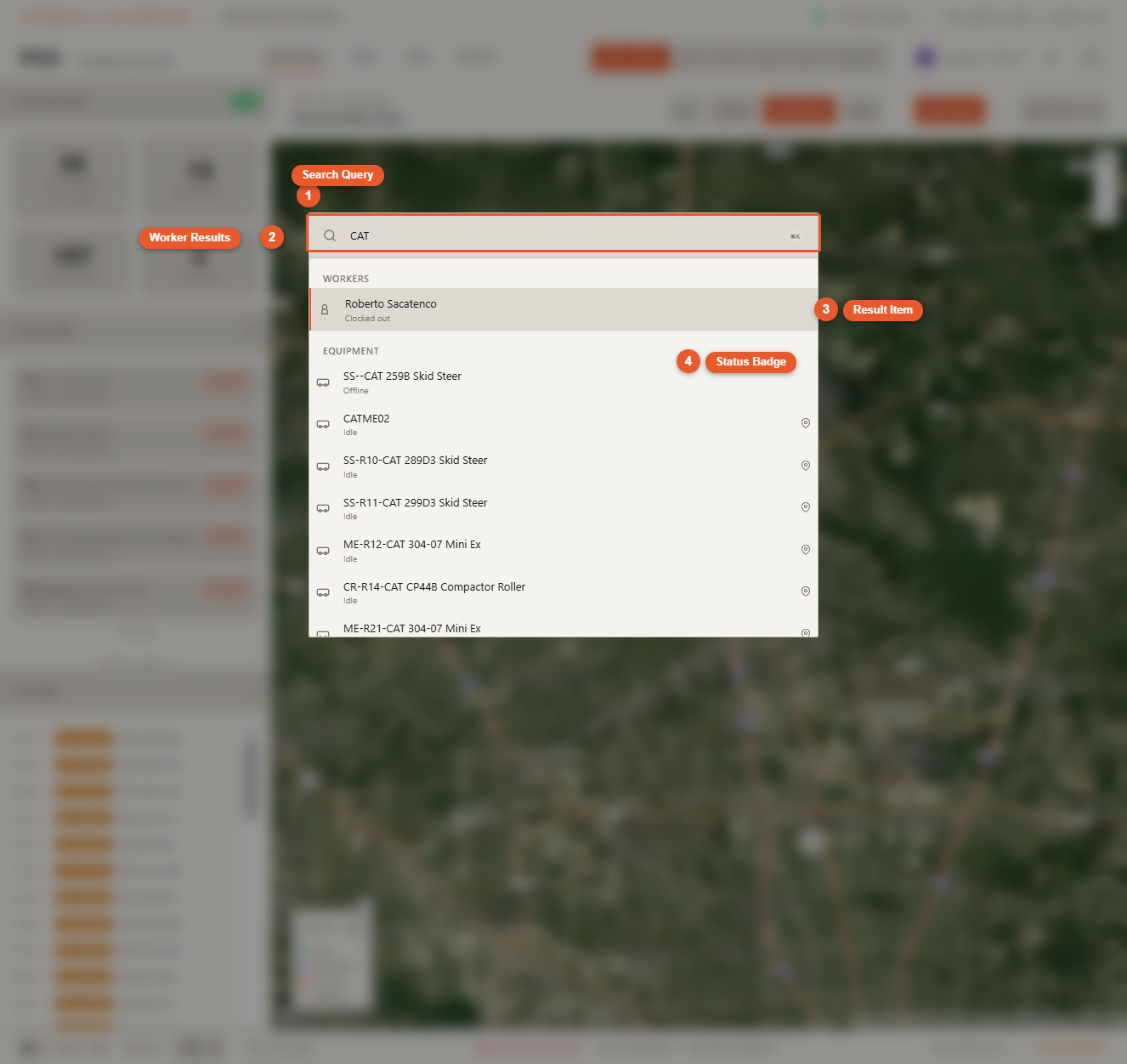
Start typing a name, ID, or description. Results appear immediately as you type, grouped by type:
- Workers — matched by name
- Equipment — matched by name or type
- Jobs — matched by job ID or job name
Acting on a result
Click any result to:
- Close the search modal
- Zoom the Operations map to that entity's location
- Open the detail panel for that entity automatically
This works for workers, equipment, and jobs alike.
Closing search
Press Escape or click outside the modal to close search without navigating anywhere.
Search tips
- Search is case-insensitive
- Partial matches work — typing "oak" will match "Oak Ridge Job Site"
- If you are on the Fleet or Jobs page, search still works and will navigate you back to the Operations map when you select a result