The Operations Map
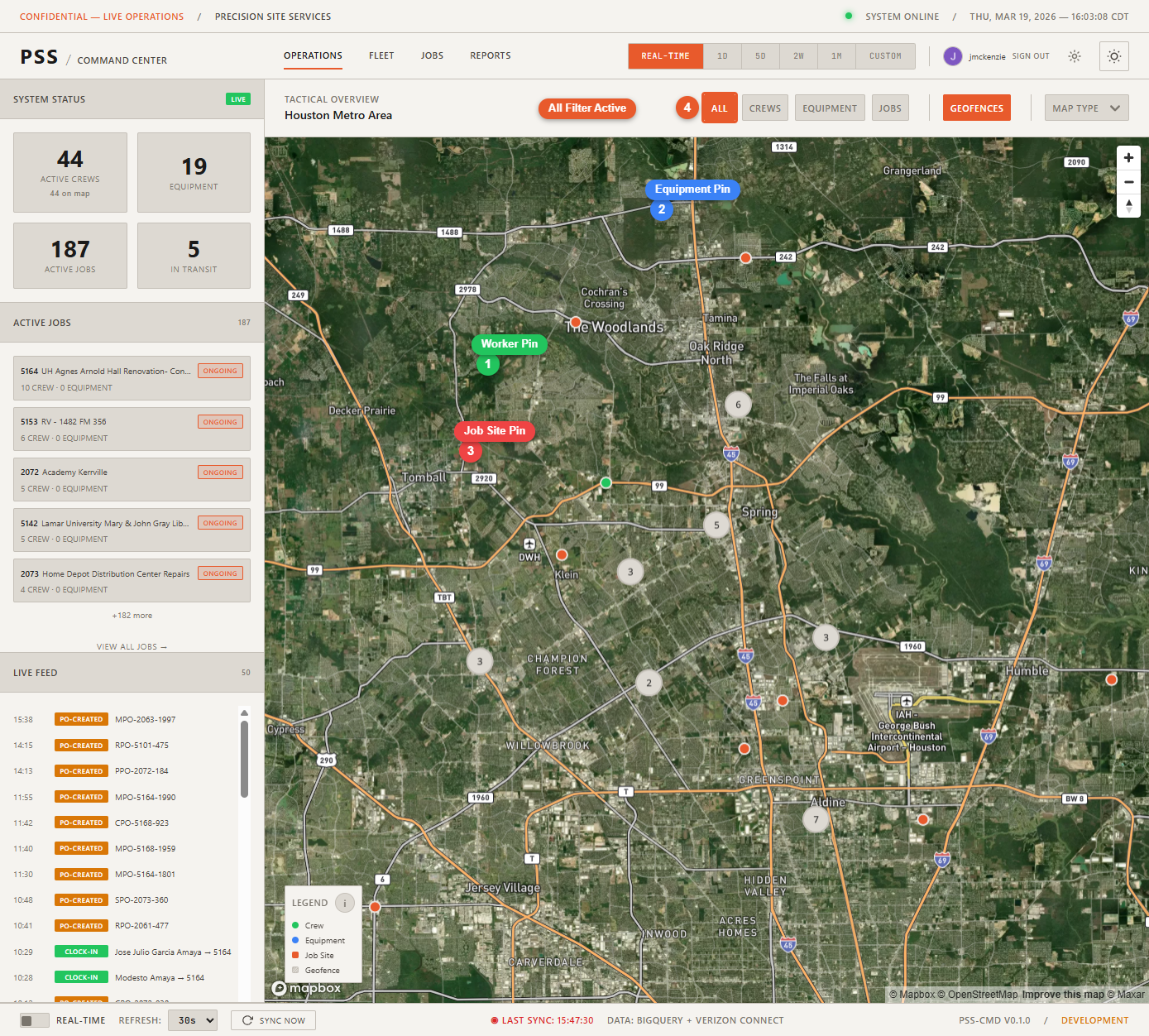
The Operations page is the main view of the Command Center. It shows an interactive map with all active workers, equipment, and job sites plotted as markers.
Map markers
| Marker type | What it represents |
|---|---|
| Worker pin | A field employee who has clocked in today |
| Equipment pin | A tracked piece of equipment with a GPS position |
| Job site pin | An active job with a geocoded address |
Click any marker to open the detail panel for that entity on the right side of the screen.
Filter buttons
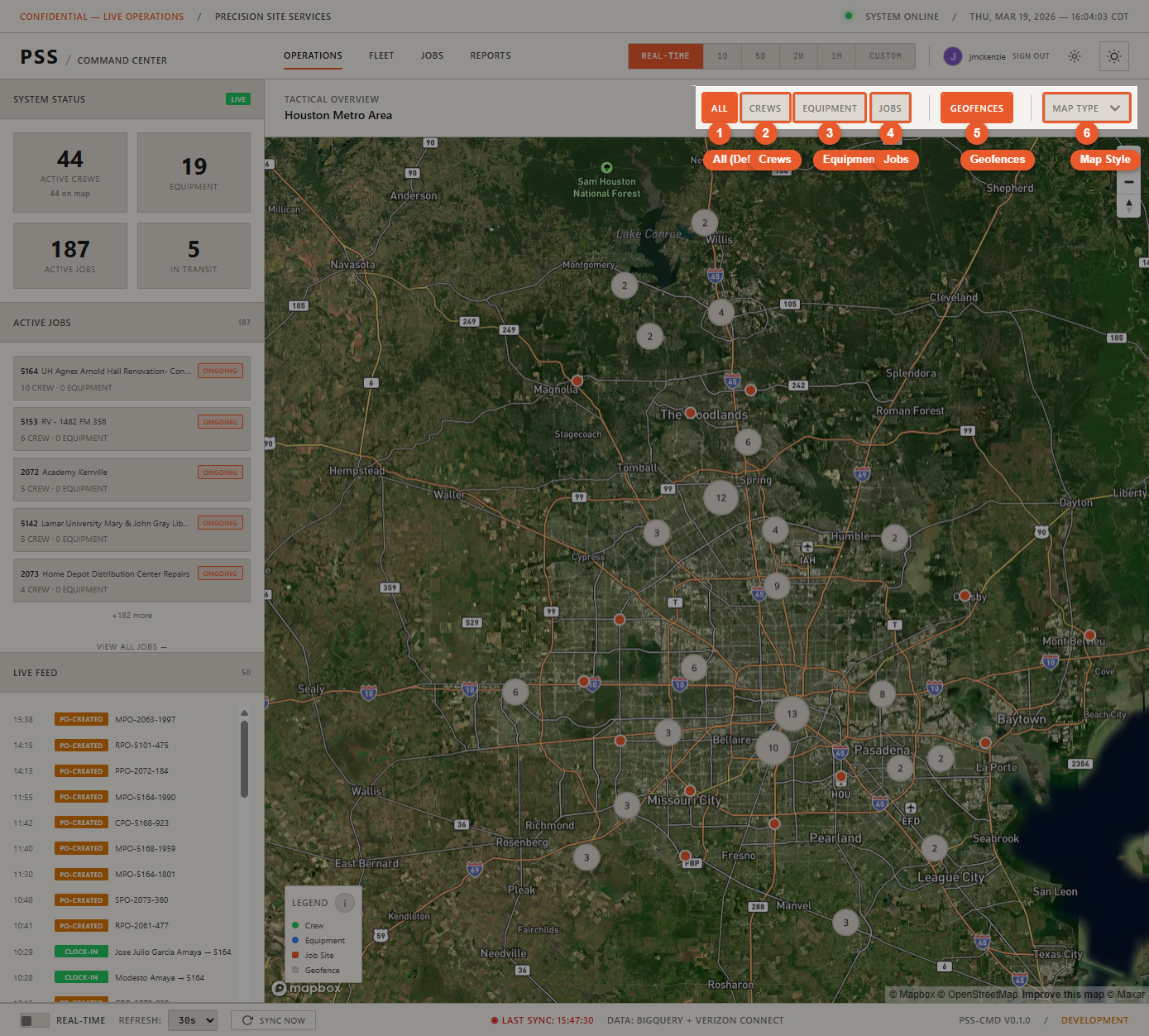
At the top of the map, four filter buttons control which markers are visible:
- All — Show all workers, equipment, and jobs simultaneously
- Crews — Show only worker pins
- Equipment — Show only equipment pins
- Jobs — Show only job site pins
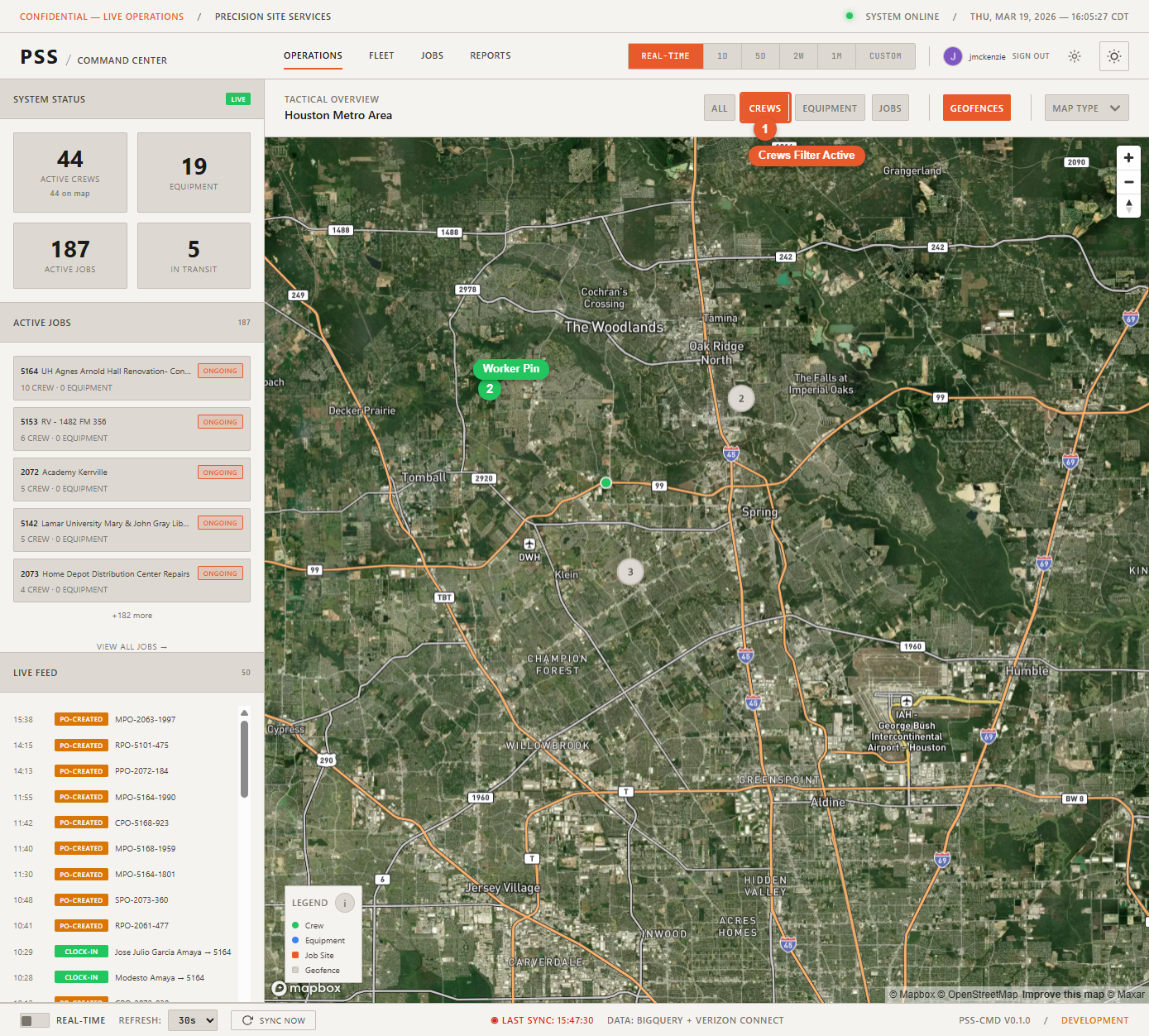
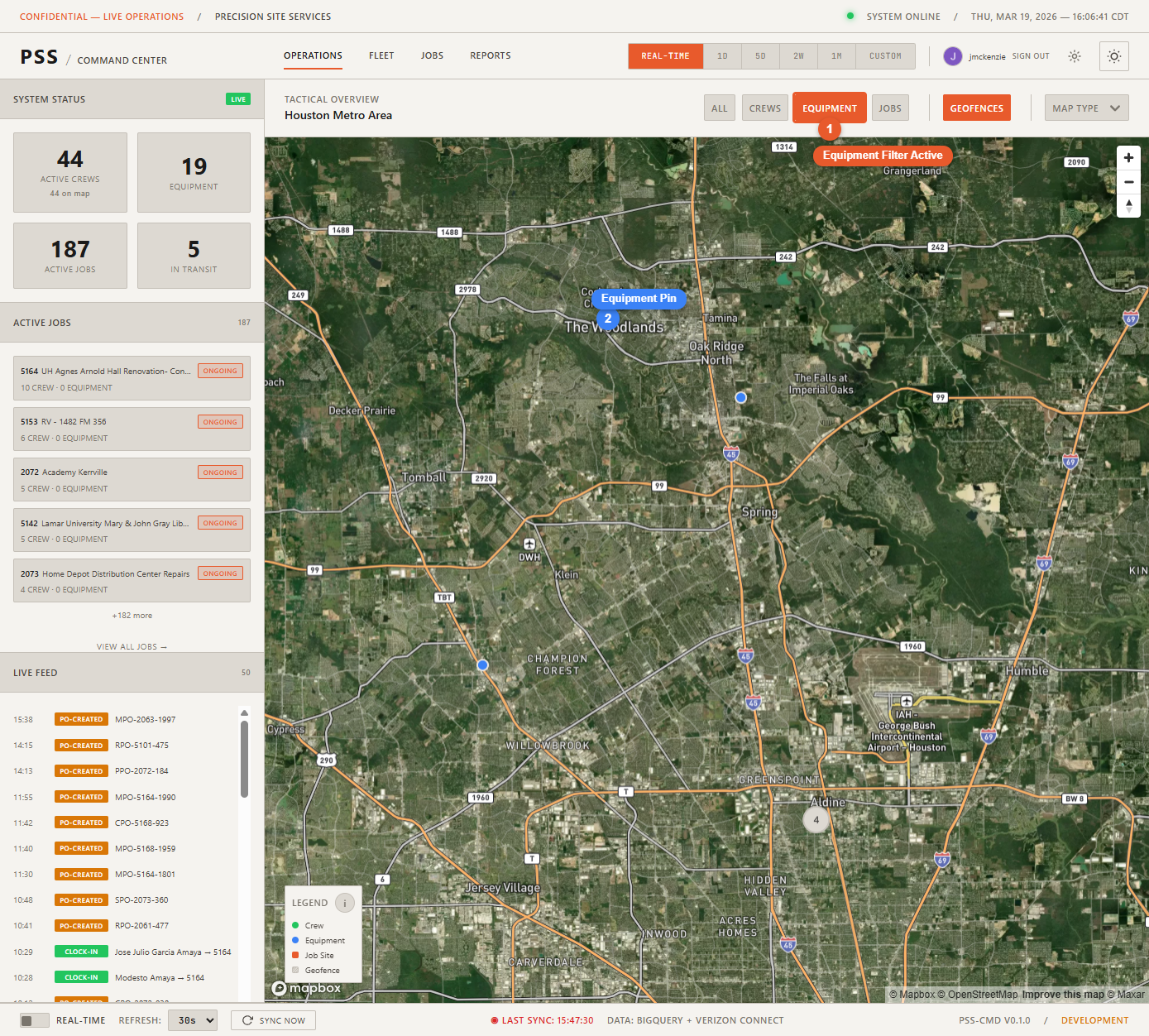
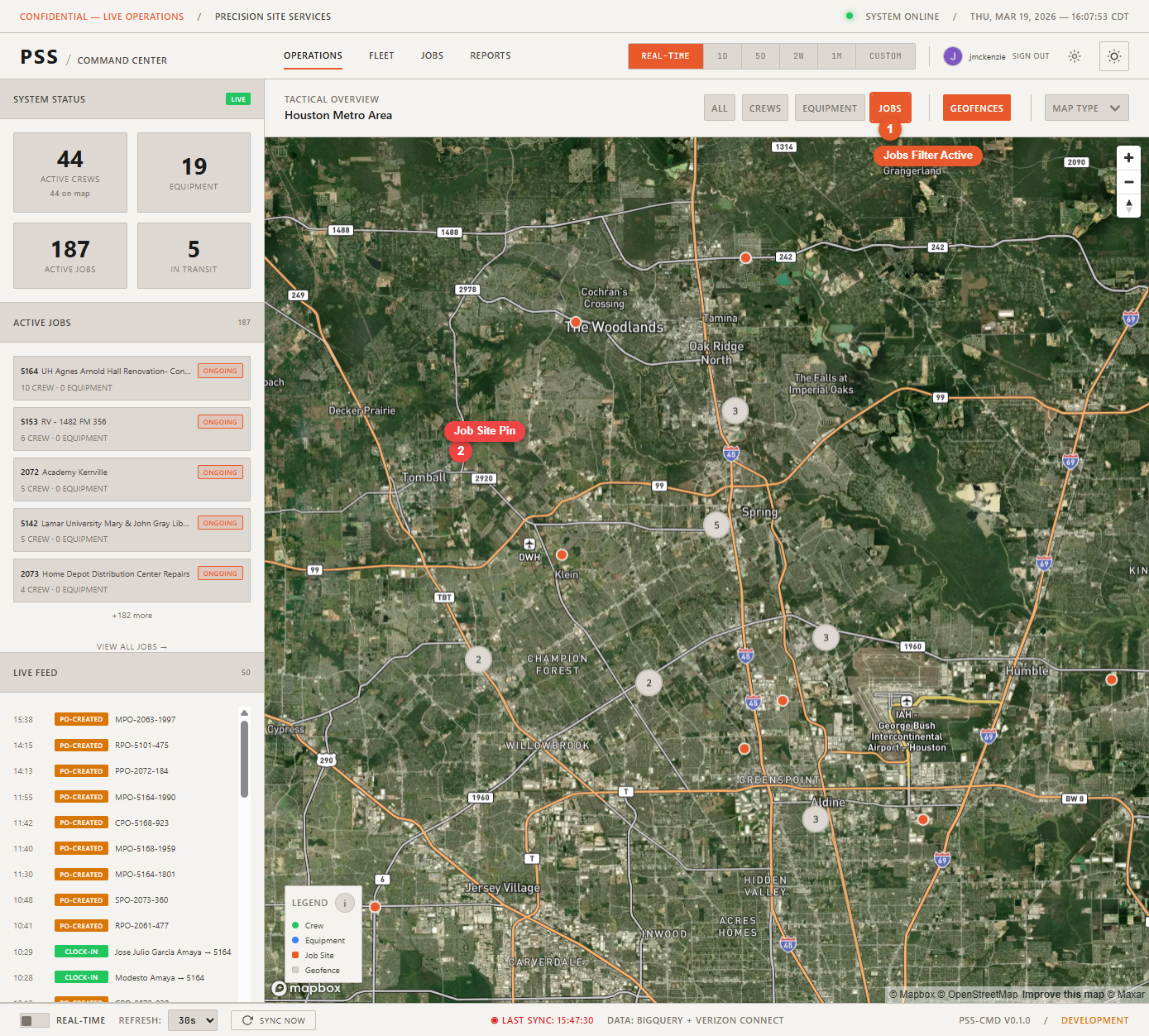
Use filters to reduce clutter when you are focused on a specific type of entity.
Map styles
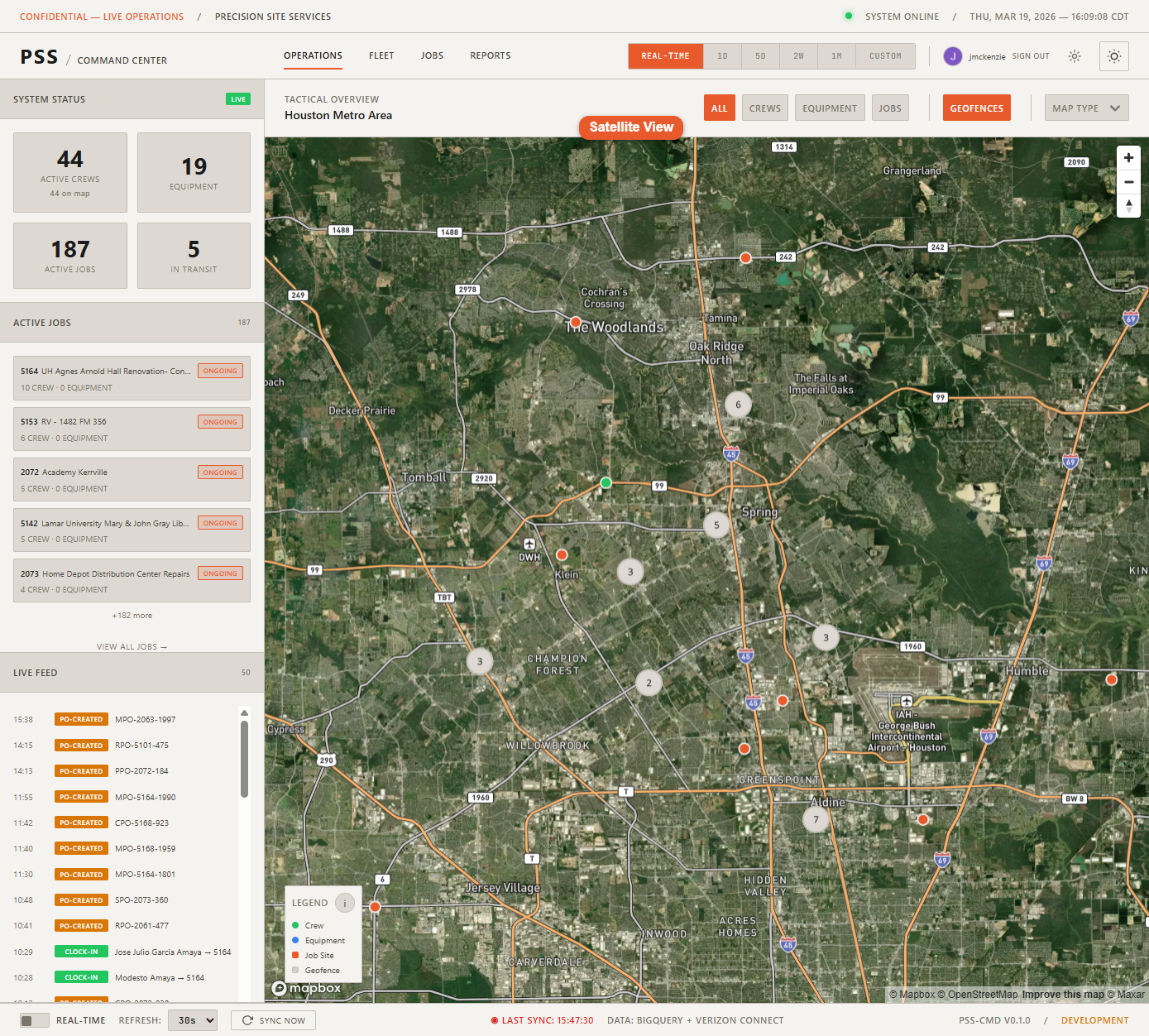
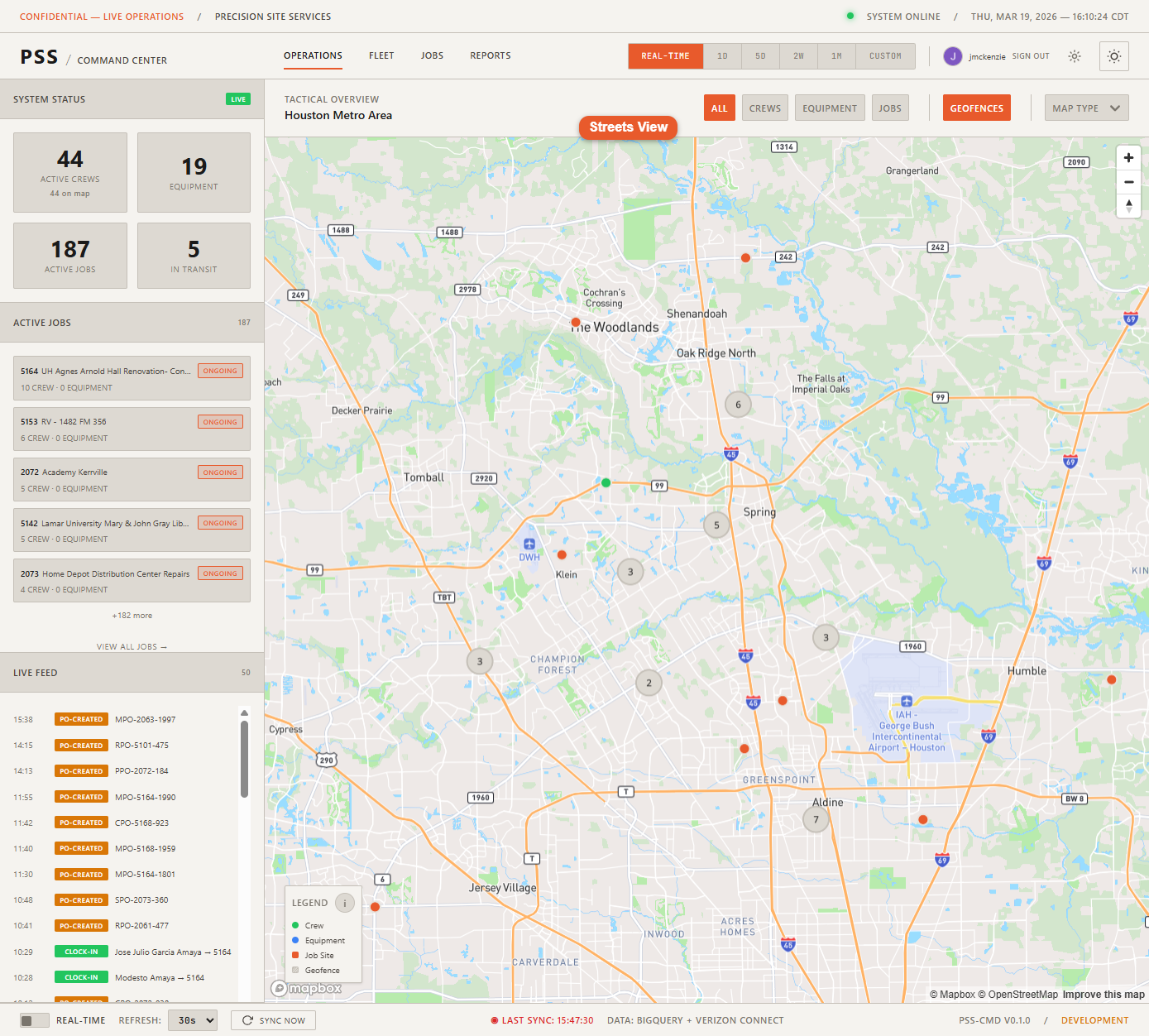
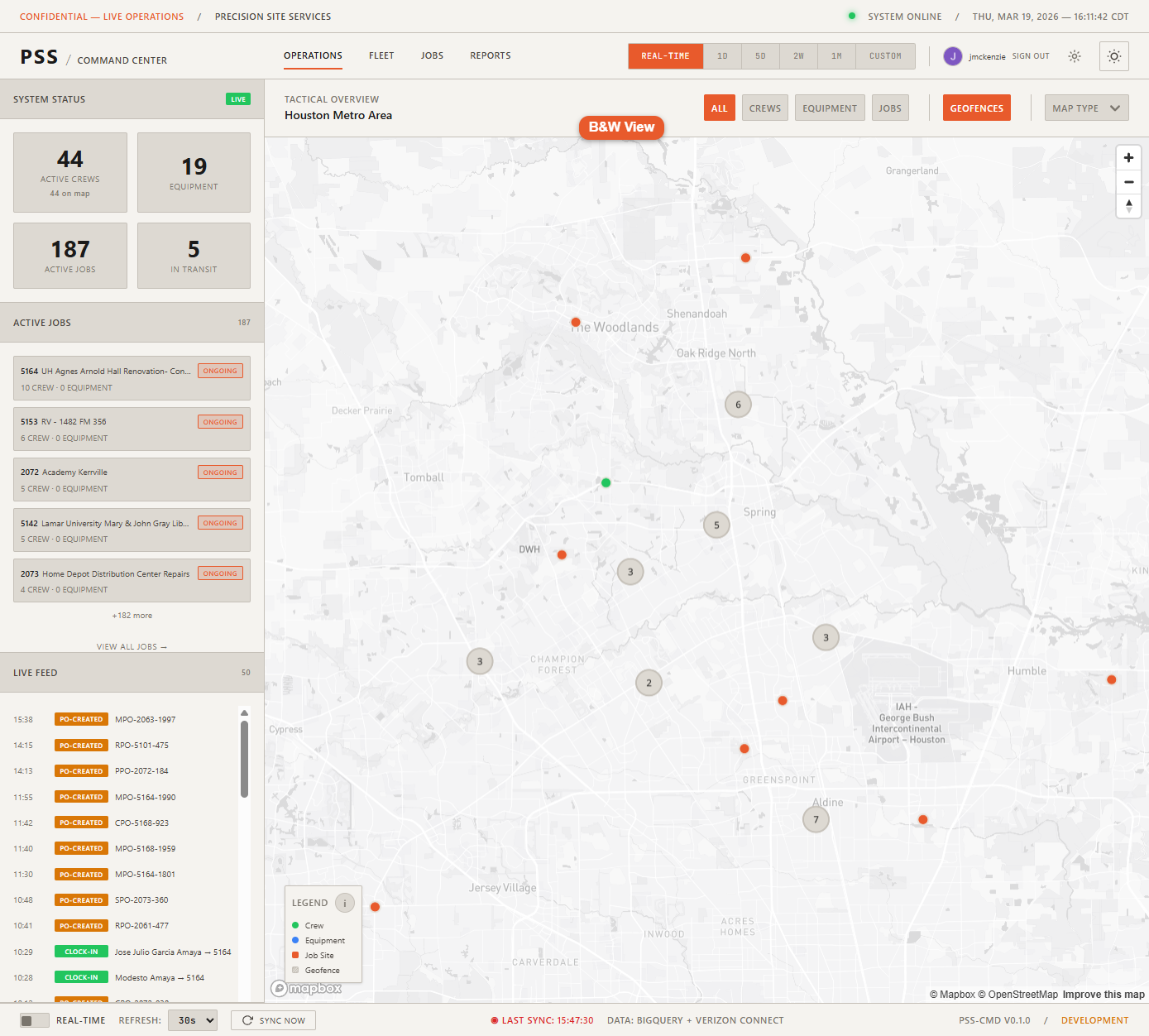
Open Settings (gear icon) to change the map style:
- Satellite — Aerial imagery. Best for identifying terrain and field conditions.
- Streets — Standard road map. Best for navigation and address lookups.
- B&W — Monochrome streets map. Best for wall display legibility.
Geofence overlays
Geofence boundaries from Verizon Connect Reveal can be toggled on and off via Settings. When enabled, geofenced areas appear as shaded polygons on the map. See Geofences for details.
Clicking a marker
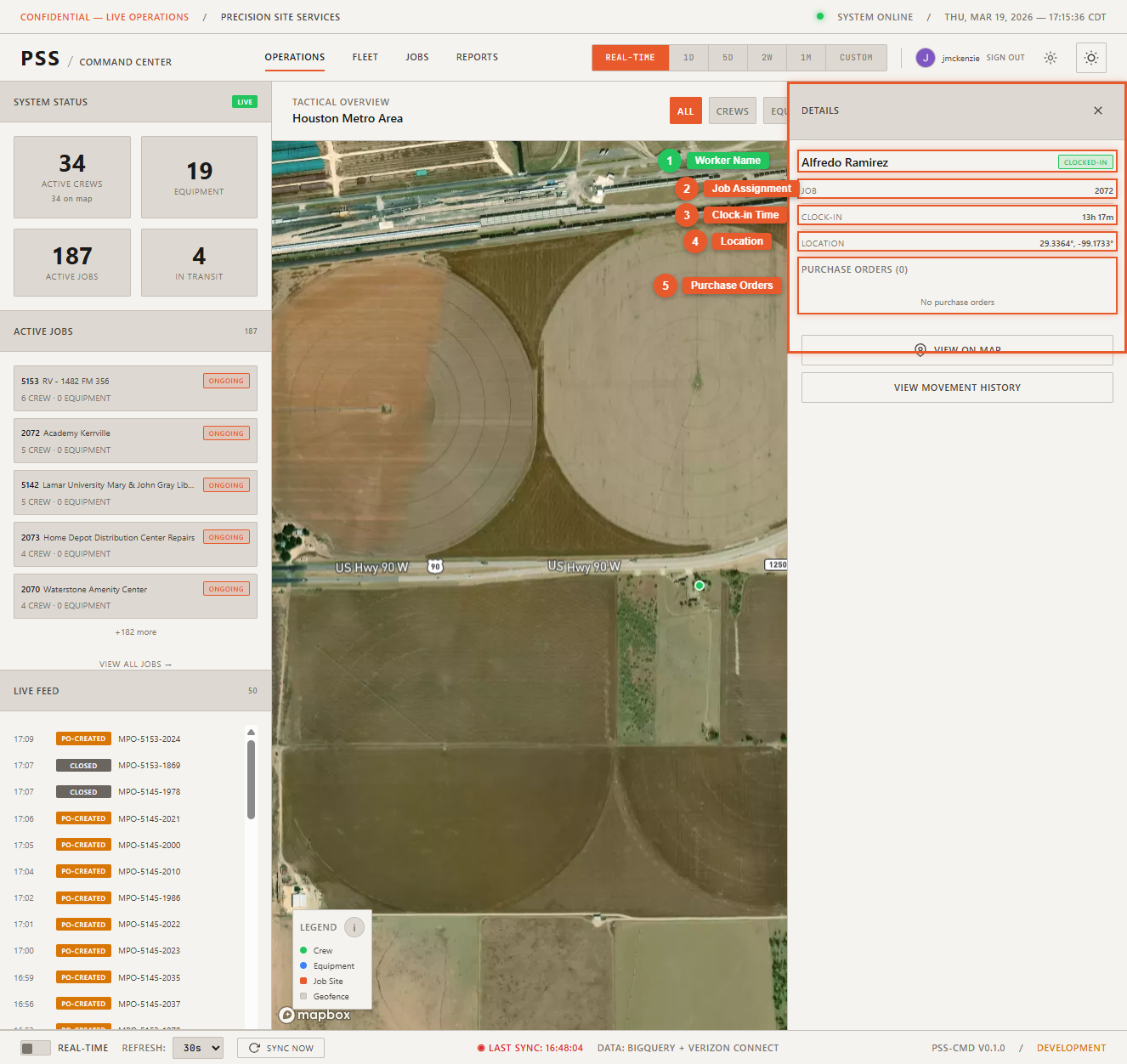
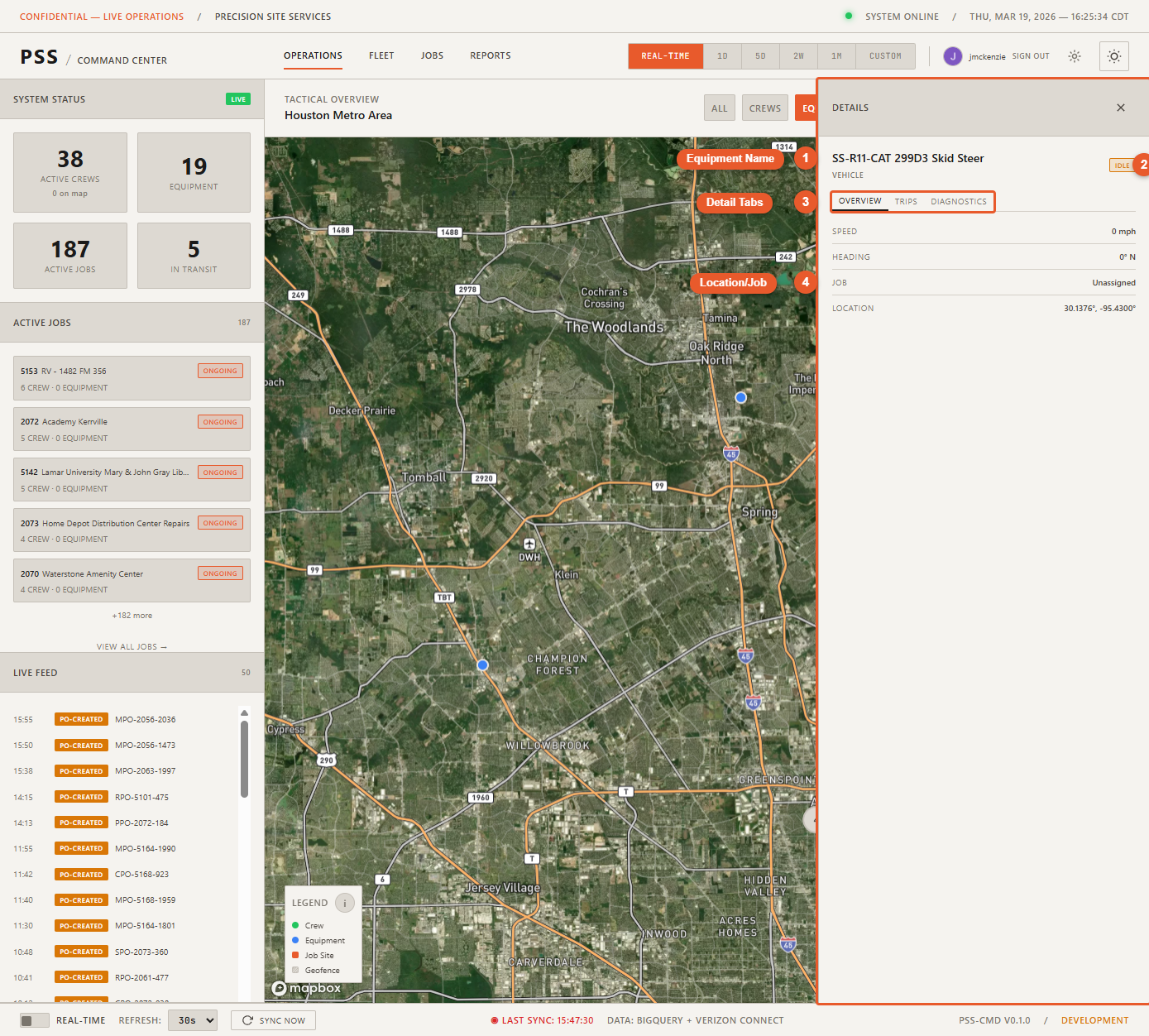
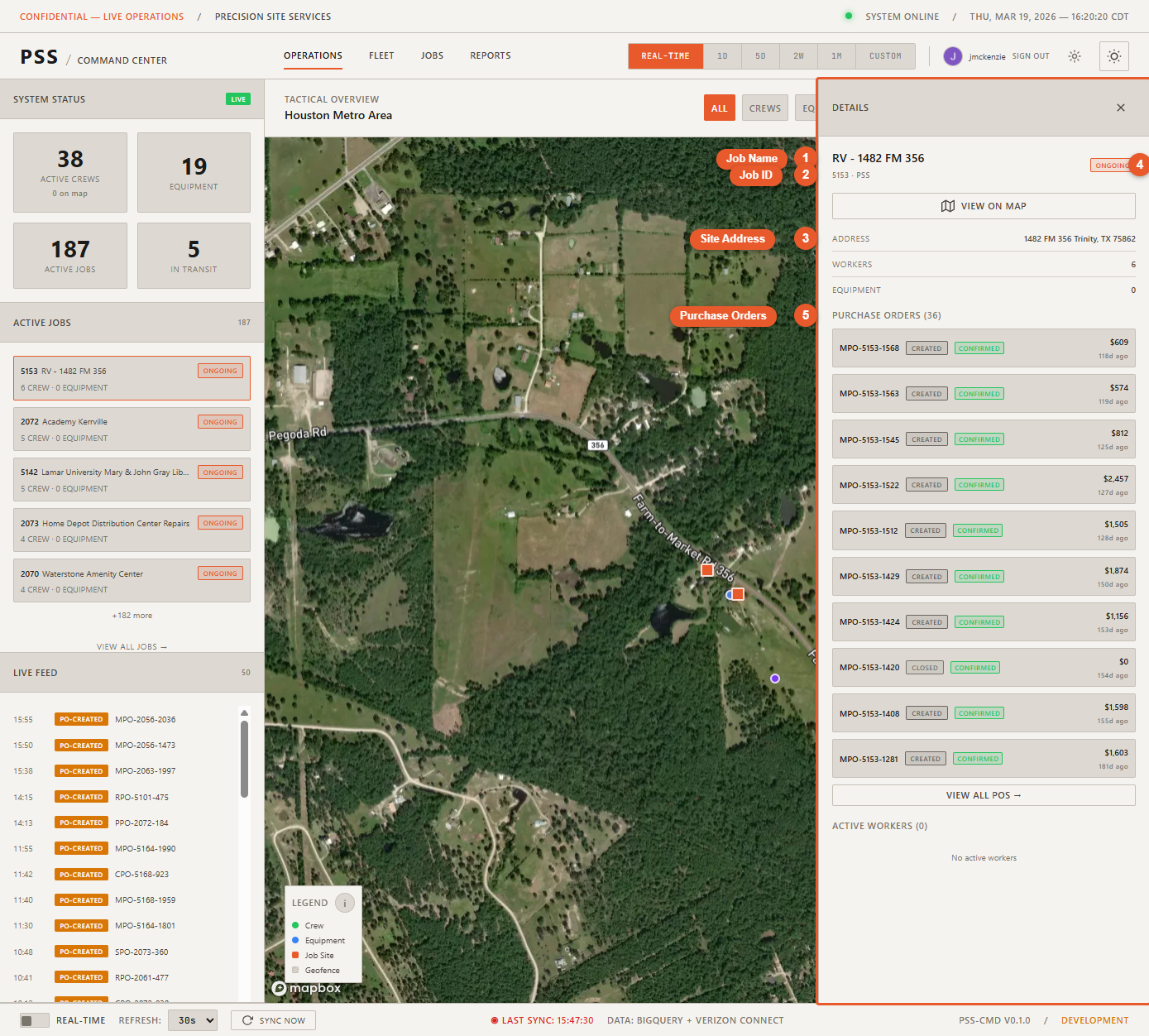
Clicking any marker opens the corresponding detail panel:
- Worker marker → Worker detail (name, status, job, clock-in time, POs)
- Equipment marker → Equipment detail (name, type, status, speed, job)
- Job marker → Job detail (job ID, address, Podio stage, crew, equipment, POs)
Close the panel with the X button or press Escape.