Settings
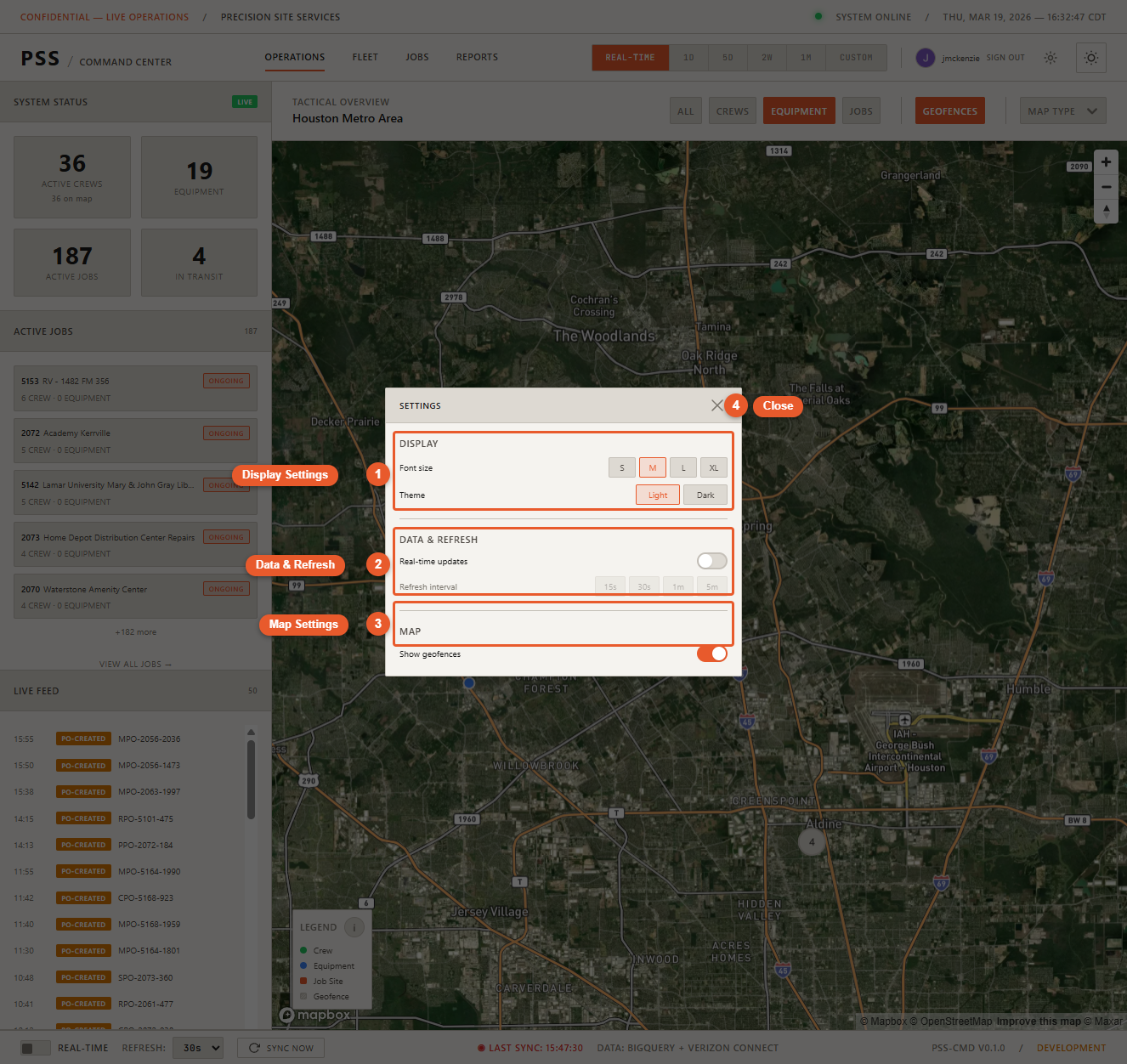
Open Settings by clicking the gear icon in the top-right area of the navbar. Settings persist across sessions — your preferences are saved to your browser automatically.
Display
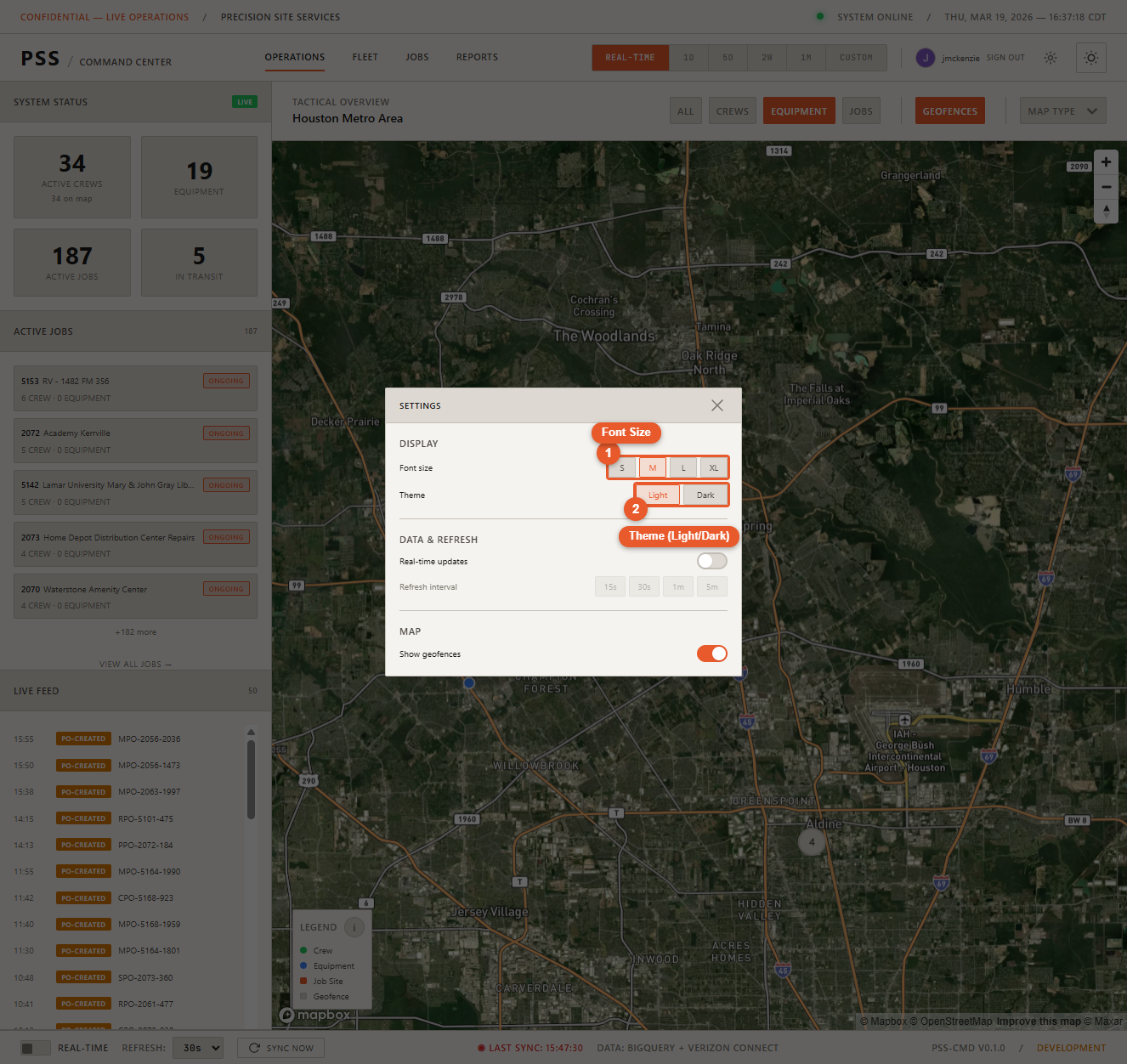
Font size Choose between four font size options that scale the entire dashboard UI:
- Small — 14px
- Medium — 16px (default)
- Large — 18px
- X-Large — 20px
The larger sizes are useful on wall displays or for accessibility.
Theme Toggle between Light mode and Dark mode. Dark mode is the default and matches the tactical aesthetic of the dashboard.
Data & Refresh
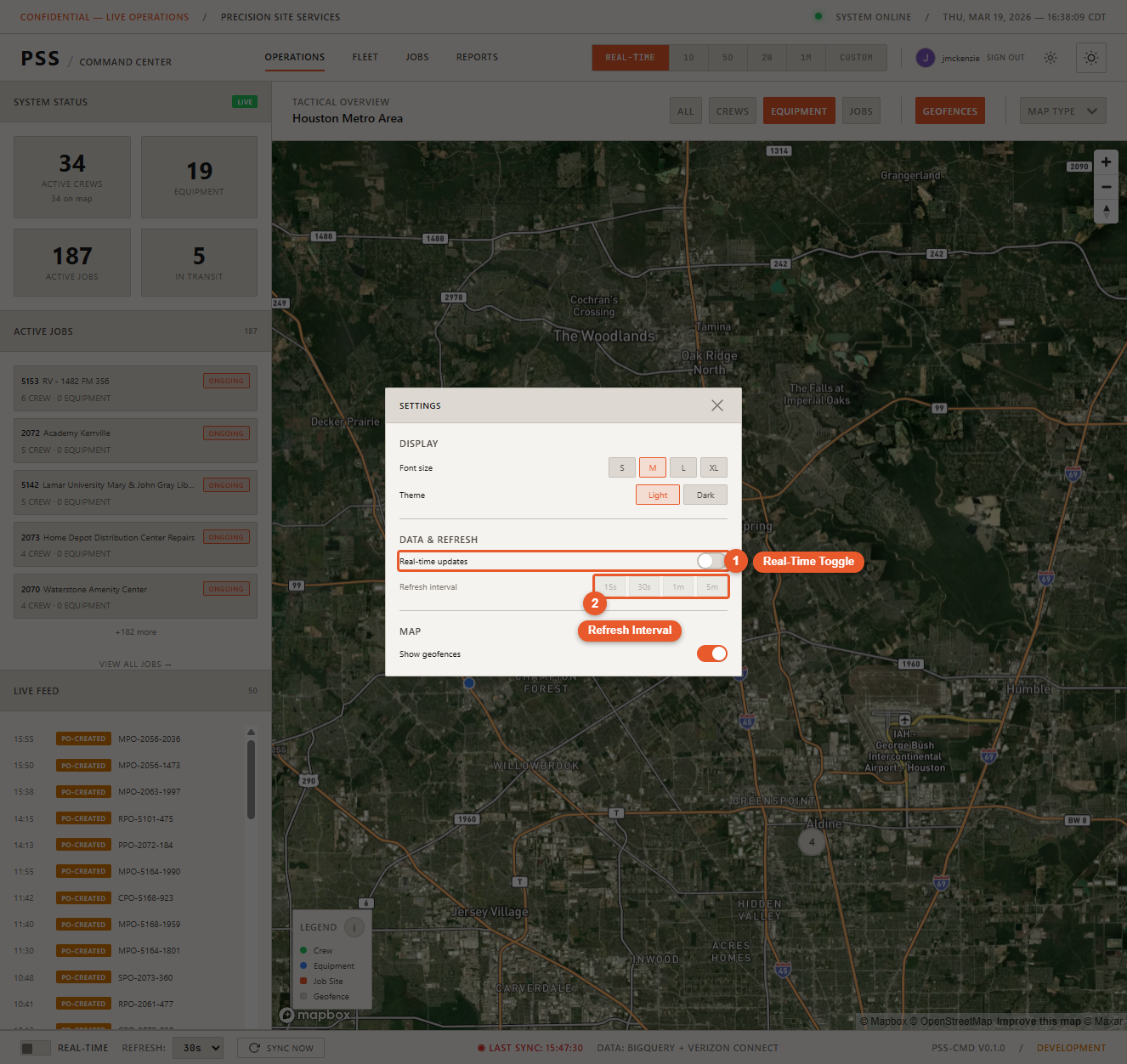
Real-time toggle Turn live data polling on or off. When off, the dashboard shows a static snapshot of the last fetched data and does not automatically update.
Refresh interval When real-time is on, choose how frequently the dashboard polls for new data:
- 15 seconds
- 30 seconds
- 1 minute
- 5 minutes
A shorter interval gives you more up-to-date data but generates more API calls. For wall display use, 1 minute is recommended.
Sync Now This button is also available in the status bar at the bottom of the screen. It immediately forces a refresh of all data sources regardless of the current interval setting.
Map
Map style Choose between Satellite, Streets, and B&W (black and white streets). See The Operations Map for details on each style.
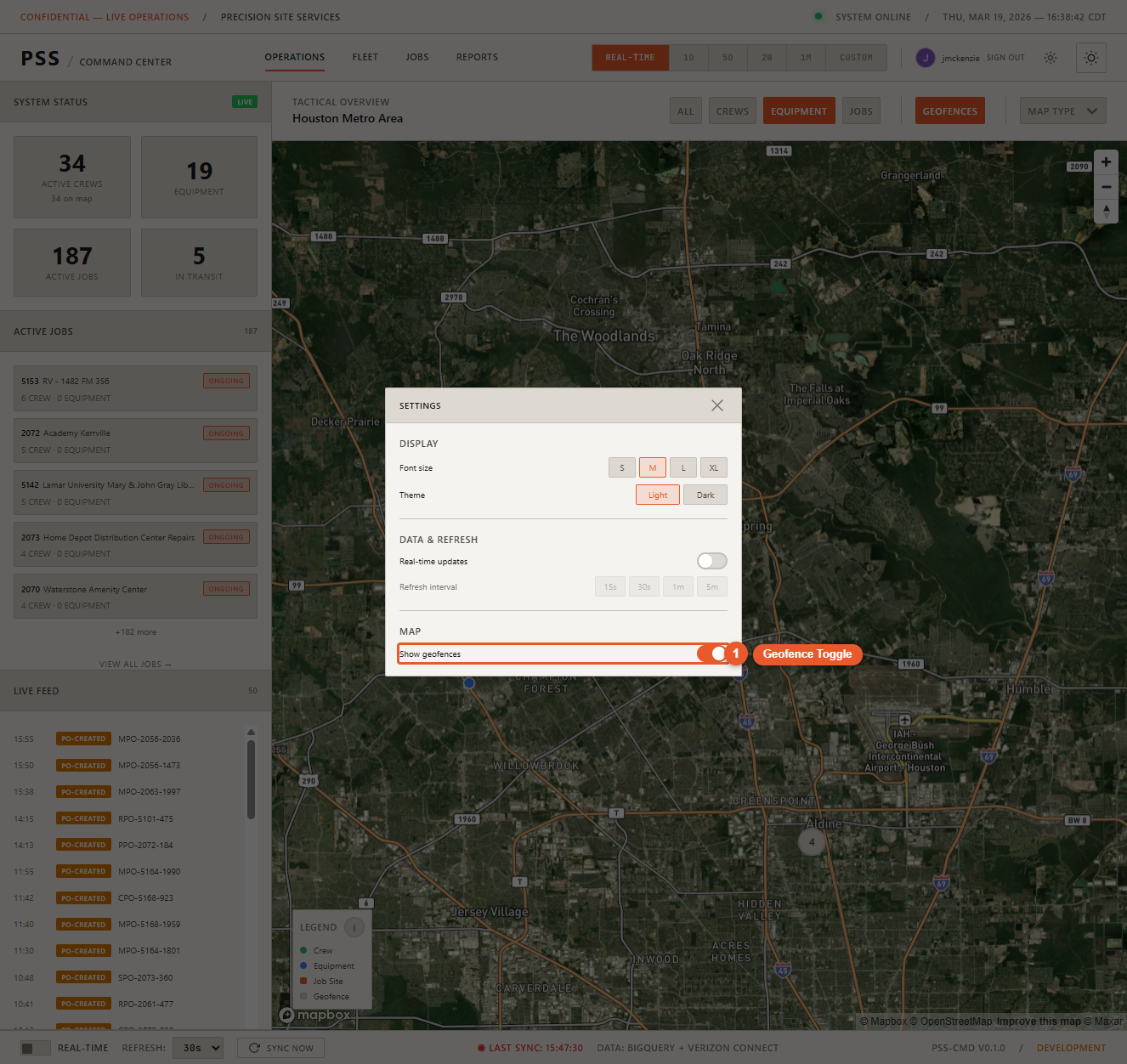
Show geofences Toggle geofence polygon overlays on the map on or off. See Geofences for details.