How Task Assignment Works
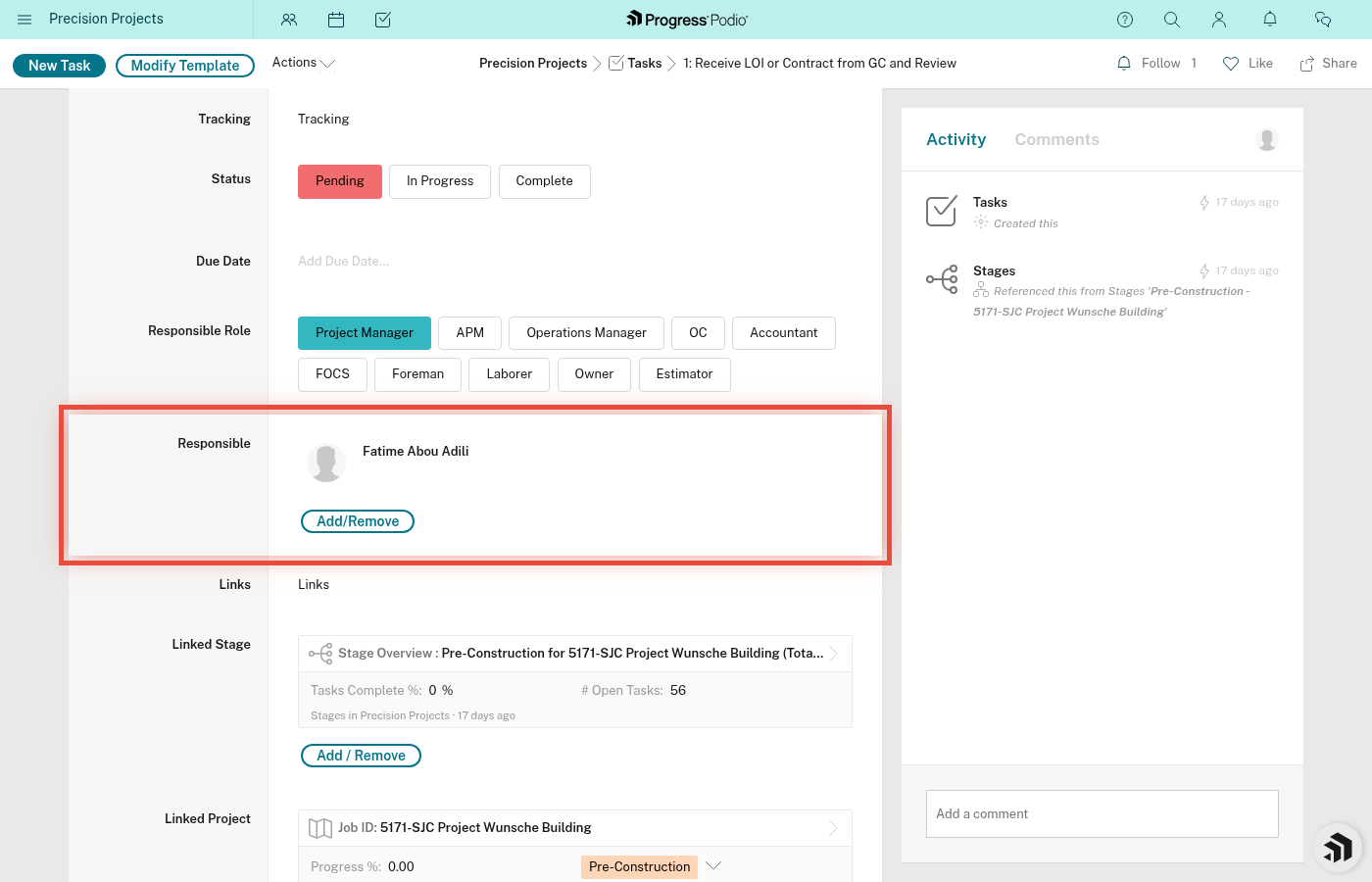
All tasks are auto-created when a project is created, and the Responsible field is auto-filled from the role fields on the Project (PM, OC, FOCS, Foreman). Do not manually edit task assignments. To change who's responsible, update the role on the Project page and use the Reassign Tasks button at the bottom of the project.
How Tasks Get Assigned
- You create a new Project and fill in the role fields: Project Manager, OC, FOCS, Foreman
- When tasks are created (automatically), each task's Responsible field is set based on the role it's templated for
- Example: a template task responsible-for = "PM" gets assigned to whoever you put in the Project Manager field
If any role field is blank at project creation, tasks for that role may end up unassigned or labeled with the role name instead of a person. Fix this by filling in the role at the Project level, then using Reassign Tasks (below).
Reassigning Tasks
The only supported way to reassign tasks is through the project page:
- Open the Project
- In the role fields at the top, change the person listed for the role you want to move tasks for (e.g., change the Foreman)
- Scroll to the bottom of the project page
- Click "Go" next to the Reassign Tasks field
- Podio reassigns every task owned by the previous person (for that role) to the new person
This is the path for workload shifts, someone out sick, role changes, and new hires taking over.
When to Reassign Tasks
Workload Balancing
If someone has too many tasks and another person has capacity:
- Look at Open Tasks Count per person
- Reassign lower-priority or less urgent tasks to balance
Skill Matching
If a task requires specific expertise:
- Reassign "Review structural drawings" to someone with engineering background
- Reassign "Coordinate concrete pour" to experienced foreman
Availability Changes
- Someone goes on vacation → reassign their tasks before they leave
- New hire joins → start assigning them tasks
- Someone is out sick → temporarily reassign urgent tasks
Task Dependencies Clarification
Sometimes a task is assigned to the wrong person in the workflow:
- "Receive permit approval" should go to PM who submitted it, not the person who prepared docs
- Reassign to match who actually does that step
Best Practices for Assigning Tasks
✅ Do:
- Communicate the reassignment - send a message, don't just silently move tasks
- Check availability - don't assign to someone who's out of office
- Consider dependencies - if Task B depends on Task A, assign them to people who coordinate well
- Add notes - explain context when assigning complex tasks
- Set realistic due dates - don't assign 10 tasks due tomorrow to one person
❌ Don't:
- Assign tasks to "TBD" or leave blank - every task needs an owner
- Reassign repeatedly - pick the right person and stick with it
- Assign tasks to someone without checking with them first on complex work
- Hoard tasks - if you're overloaded, ask for help and redistribute
If Tasks Show a Role Name Instead of a Person
Task templates reference roles (PM, OC, FOCS, Foreman). When tasks are created, the automation fills in the actual person based on the Project's role fields. If you see a task labeled with a role name instead of a person, one of the Project's role fields was blank when the tasks were created.
To fix:
- Open the Project
- Fill in the missing role field (e.g., set the Project Manager, OC, FOCS, or Foreman)
- Scroll to the bottom of the project and click "Go" next to Reassign Tasks
- All role-labeled tasks for that role are reassigned to the person you just set
Do not edit individual task Responsible fields.
Checking Who Has What
View Your Own Tasks
- Go to Tasks app
- Filter Responsible = You
- Sort by Status or Due Date
View Someone Else's Tasks
- Go to Tasks app
- Filter Responsible = [Their Name]
- See what they have on their plate
View All Tasks for a Stage
- Open the Project
- Click into the Stage
- Look at Task Overview
- You'll see all tasks with who's responsible for each
This helps PMs see workload distribution and identify bottlenecks.
Notifications
When you assign or reassign a task:
- The newly assigned person gets a Podio notification (bell icon or email, depending on their settings)
- They'll see: Task name, Project, Due Date, and that it was assigned to them
Make sure your team checks Podio notifications regularly - otherwise they might miss new assignments.
What If No One is Available?
If a role is overloaded:
- Talk to your PM or OC — they can redistribute scope (bring in a subcontractor, reprioritize work, shuffle roles)
- Update the role field on the Project if you're swapping a person for the whole role, then run Reassign Tasks
- Extend due dates on affected tasks if the schedule allows
Don't let tasks sit unassigned — every role field on the Project must be filled so the auto-population has someone to assign to.
Tips
- Check task dependencies before reassigning - if Task B depends on Task A, make sure the two people coordinate
- Reassign proactively - if you know you can't complete a task, reassign it ASAP, don't wait until it's late
- Use the Notes field - when you reassign, add a note: "Reassigned to Jake - has electrical experience needed for this task"
- Track recurring tasks - if a recurring task is always assigned to the same person, that's probably intentional (e.g., Foreman always does daily reports)
Related:
- creating-tasks.md - How to create tasks and assign them initially
- finding-your-tasks.md - How to see what's assigned to you
- dependencies.md - How task assignments affect dependency chains