How Everything Connects
This doc explains the relationships between PSS Podio apps—how they link together and why it matters.
The Hub-and-Spoke Model
Think of your Podio workspace like a wheel:
- Projects = The hub (center)
- Everything else = Spokes connecting to the hub
Every item eventually traces back to a project. This keeps information organized and findable.
The Relationship Hierarchy
Here's how things nest:
| Level | App | Belongs To |
|---|---|---|
| 1 | Projects | — (top level) |
| 2 | Stages | Project |
| 3 | Tasks | Stage AND Project |
| 4 | Subtasks | Task (which belongs to Stage/Project) |
A task knows its stage, its project, and (if it's a subtask) its parent task.
How Links Are Created
Automatic Links (You Don't Create These)
| When This Happens | These Links Are Made |
|---|---|
| New project created | 5 Stages → linked to project |
| New project created | Safety record → linked to project |
| Stage becomes "Active" | Tasks created → linked to stage AND project |
| Task has subtasks | Subtasks → linked to parent task |
Manual Links (You Create These)
| Link Type | When You Do It |
|---|---|
| Customer / GC → Contacts | When creating/editing a project |
| Related Tasks on Safety | When connecting safety items to specific tasks |
| Linked Projects on Contacts | When adding a contact to a project |
Following the Links
Links are bidirectional. If Project A links to Stage B, then Stage B links back to Project A.
This means you can navigate in either direction:
From Project:
- Click Linked Stages → see all 5 stages
- Click Linked Safety & Compliance → see safety records
- Click Customer / GC → jump to contact
From Task:
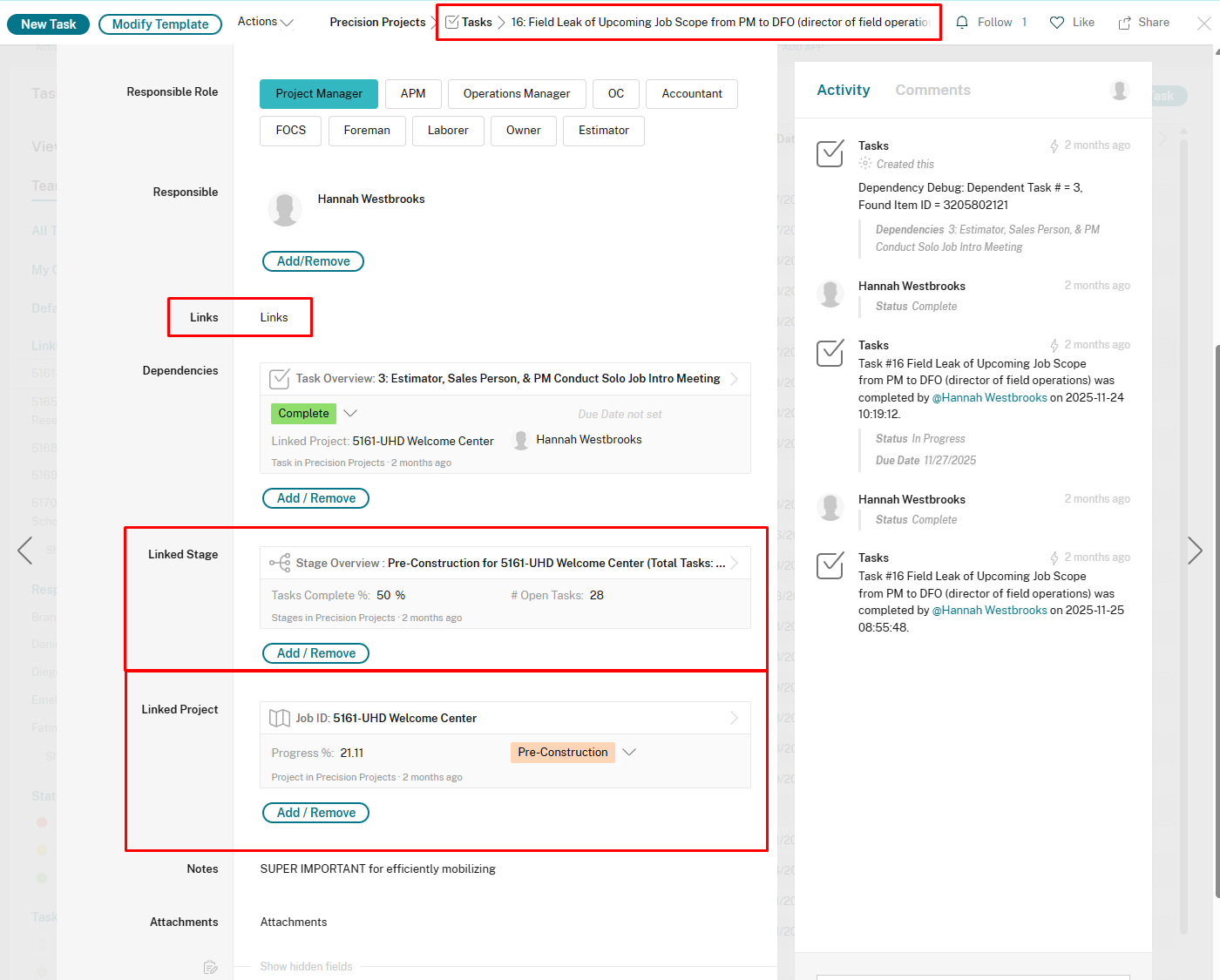
- Click Linked Stage → jump to that stage
- Click Linked Project → jump to the project
- Click Dependencies → see prerequisite tasks
Why This Matters
1. Everything Is Findable
Start at any point and navigate to related items. Looking at a task? One click to see the whole project.
2. Data Stays Connected
When you update a project's PM, every linked stage and task still knows who the PM is (through the relationship).
3. Filters Become Powerful
You can filter tasks by their project's fields:
- "Show tasks where project's Division = Concrete"
- "Show tasks where project's PM = Sarah"
4. Automations Know Where to Put Things
When the system creates tasks, it uses relationships to put them in the right place automatically.
The Task Dependency Chain
Tasks have a special relationship: Dependencies.
This isn't a parent-child link. It's a "this waits for that" link.
Task A (Independent)
    │
    └──► Task B (Depends on A)
              │
              └──► Task C (Depends on B)
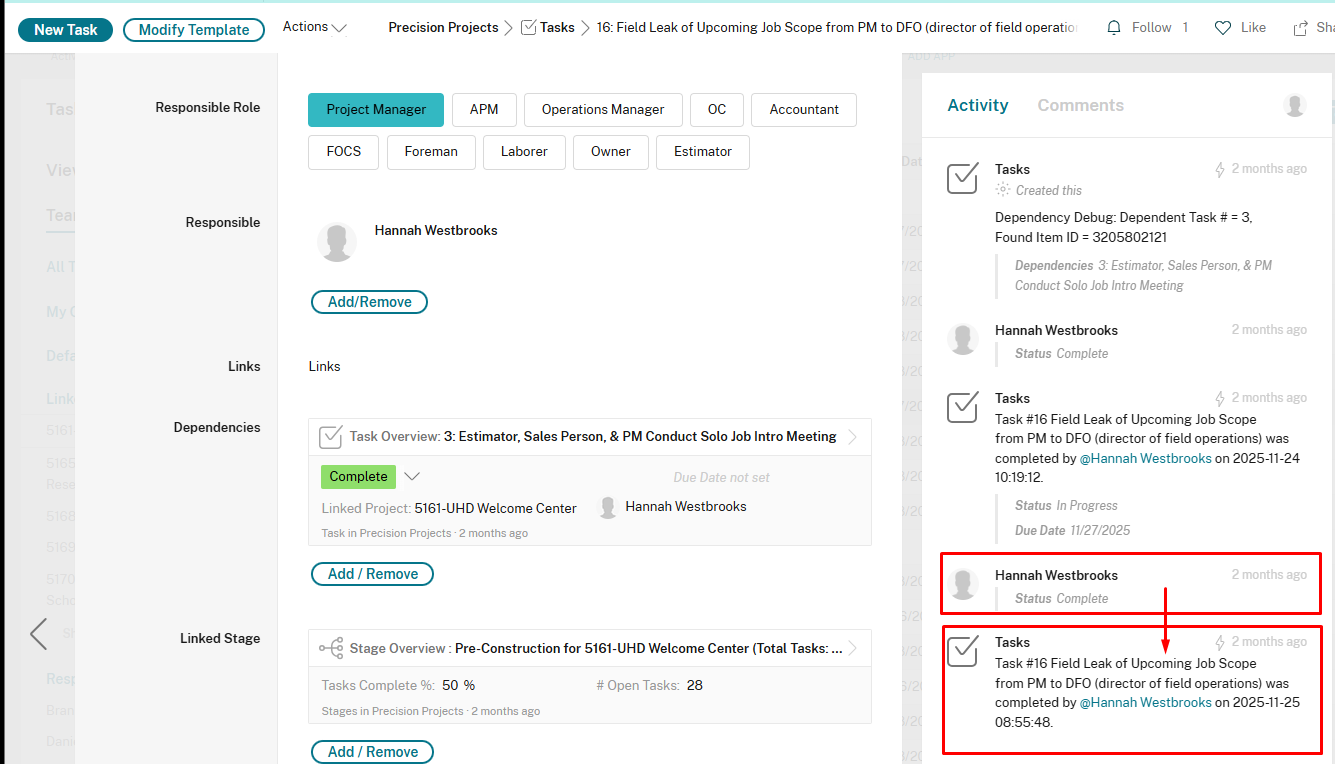
- Task B can't start until Task A is complete
- Task C can't start until Task B is complete
When you complete Task A, Task B automatically moves to "In Progress" and the responsible person gets notified.
Relationship Fields Reference
Projects App
| Relationship Field | Connects To | Type |
|---|---|---|
| Customer / GC | Contacts | Single (one contact) |
| Linked Stages | Stages | Multi (5 stages) |
| Linked Safety & Compliance | Safety | Multi |
Stages App
| Relationship Field | Connects To | Type |
|---|---|---|
| Linked Project | Projects | Single (one project) |
| Task Overview | Tasks | Multi (many tasks) |
Tasks App
| Relationship Field | Connects To | Type |
|---|---|---|
| Linked Project | Projects | Single |
| Linked Stage | Stages | Single |
| Linked Parent Task | Tasks | Single (for subtasks) |
| Dependencies | Tasks | Multi (prerequisite tasks) |
Safety & Compliance App
| Relationship Field | Connects To | Type |
|---|---|---|
| Linked Project | Projects | Single |
| Related Tasks | Tasks | Multi |
Contacts App
| Relationship Field | Connects To | Type |
|---|---|---|
| Linked Projects | Projects | Multi |
Template Relationships (Behind the Scenes)
The template apps also have relationships that the automation system uses:
| App | Relationship Field | Connects To |
|---|---|---|
| Task Templates | Linked Subtasks | Subtask Templates |
| Subtask Templates | Linked Main Task | Task Templates |
You won't interact with these directly. GlobiFlow uses them to know which subtasks to create for each main task.
Common Navigation Patterns
"I have a task, where does it belong?"
- Open the task
- Check Linked Stage → tells you the stage
- Check Linked Project → tells you the project
"I want to see all tasks for a project"
- Open the project
- Click any Linked Stage
- Look at Task Overview
Or use a view in the Tasks app filtered by Linked Project.
"I need to update contact info for a project"
- Open the project
- Click Customer / GC
- You're now in the Contacts app—edit there
- Changes reflect everywhere that contact is linked
"What's blocking this task?"
- Open the task
- Check Dependencies field
- Click through to see the prerequisite task(s)
- Check their Status—are they complete?
Mental Model Summary
| Concept | Analogy |
|---|---|
| Projects | A job folder |
| Stages | Tabs in the folder |
| Tasks | Sticky notes on each tab |
| Subtasks | Smaller sticky notes on a sticky note |
| Relationships | Staples holding things together |
| Dependencies | "Wait for this first" notes |
Everything connects. Nothing floats alone. That's how you keep hundreds of tasks organized across dozens of projects.
Related Docs:
- Apps and Items — What apps and items are
- Our Apps Explained — Details on each app
- Fields and Data — The data inside items
- Views and Filters — Using relationships to filter