How to Mark Tasks Complete
The Simple Version
- Open the task (click it from the Tasks app or from a Stage's Task Overview)
- Change Status from "In Progress" or "Pending" to "Complete"
- Click Save
That's it! ✅
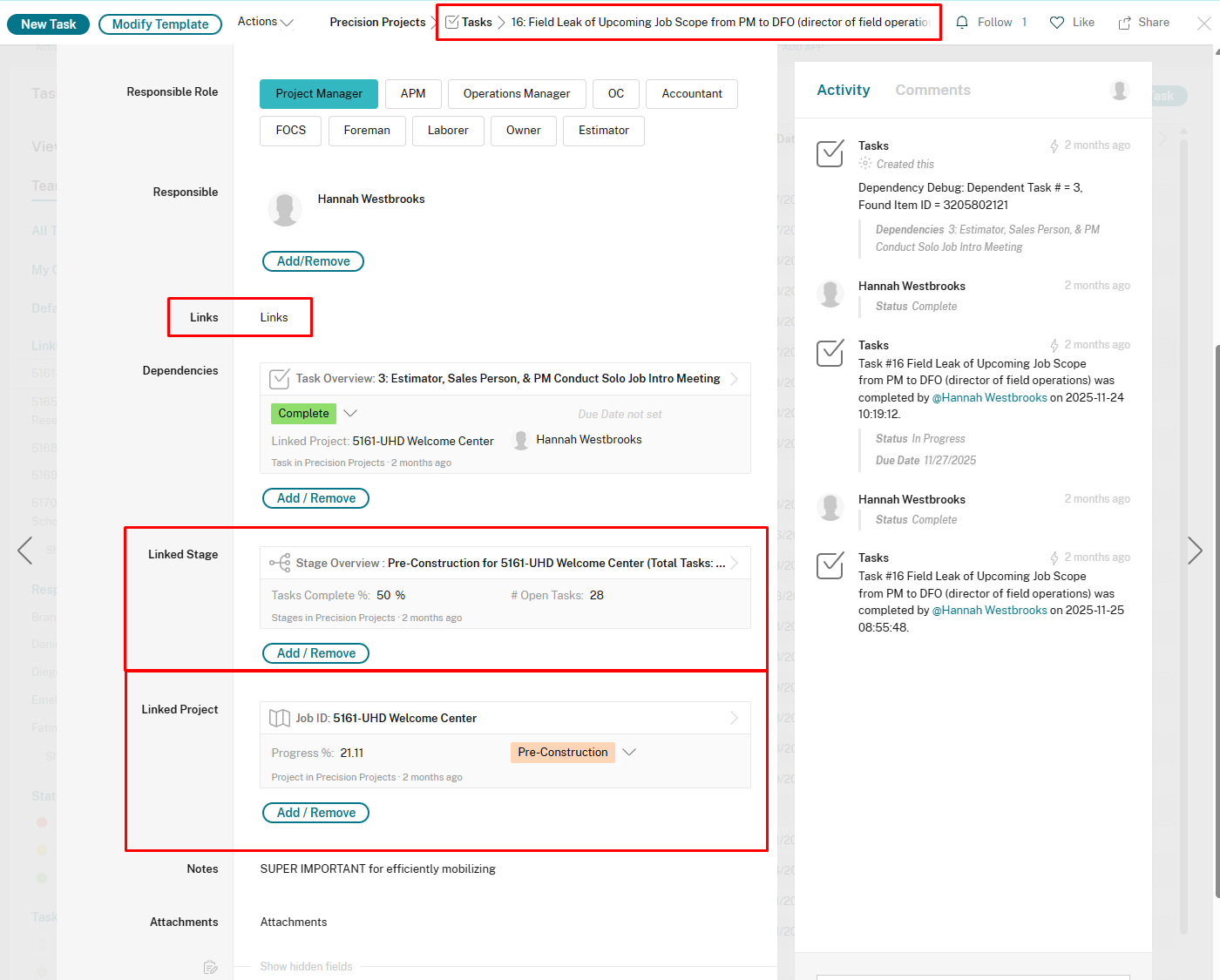
Why Completing Tasks Matters
When you mark a task complete, two important things happen:
1. Progress Tracking Updates
- The Tasks Complete % on your Stage goes up
- The Overall Progress on your Project updates
- The Open Tasks Count goes down
This helps everyone see how the job is moving forward.
2. Dependent Tasks Unlock (Automatic!)
If other tasks were waiting on yours to finish, they automatically change from Pending to In Progress and the responsible person gets notified.
Example:
- You complete "Submit SSSP to Safety Director"
- Automatically: "Receive SSSP Approval" changes to In Progress
- Automatically: The person assigned to that task gets a notification
This keeps the workflow moving without anyone having to manually update chains of tasks.
Before You Mark Complete: Checklist
✅ Is the work actually done?
- Don't mark complete if it's "almost done" or "waiting on feedback"
- If waiting, leave it In Progress and add a note in the Notes field
✅ Did you add any important info?
- Upload files to Attachments if needed (photos, signed forms, etc.)
- Add notes in the Notes field about what was done or any issues
✅ Are there dependencies?
- If this task is blocking others, completing it will unlock them
- Check the task to see if anything depends on it (you'll see references in the Dependencies field on other tasks)
What If I Completed It By Mistake?
No problem! Just:
- Re-open the task
- Change Status back to "In Progress" or "Pending"
- Save
If it was a dependent task that unlocked others, those will stay In Progress (they won't revert automatically). You might need to communicate with those people.
Recurring Tasks
Some tasks have Type = Recurring. These are things that happen regularly, like:
- Weekly safety meetings
- Daily field reports
- Weekly equipment checks
When you complete a recurring task:
- The completed task stays in the system (record keeping)
- A new copy automatically gets created for next time (usually weekly)
- You'll see it pop back up in your task list
Don't delete recurring tasks - just complete them and a fresh one will appear.
Tips for Staying Organized
- Complete tasks as soon as they're done - Don't wait until end of day
- Use the Notes field - Future you (or your PM) will appreciate the context
- Attach proof - Photos, signed docs, email confirmations make life easier later
- Check dependencies - If you're blocked, leave it Pending and note why in Notes field
Related: See dependencies.md for more about how tasks unlock each other.