How to Check Task Progress on a Project
Quick Project Health Check
Want to see how a job is progressing? Here's what to look at:
1. Open the Project
Go to Projects app → Click the job you want to check
2. Key Numbers to Check
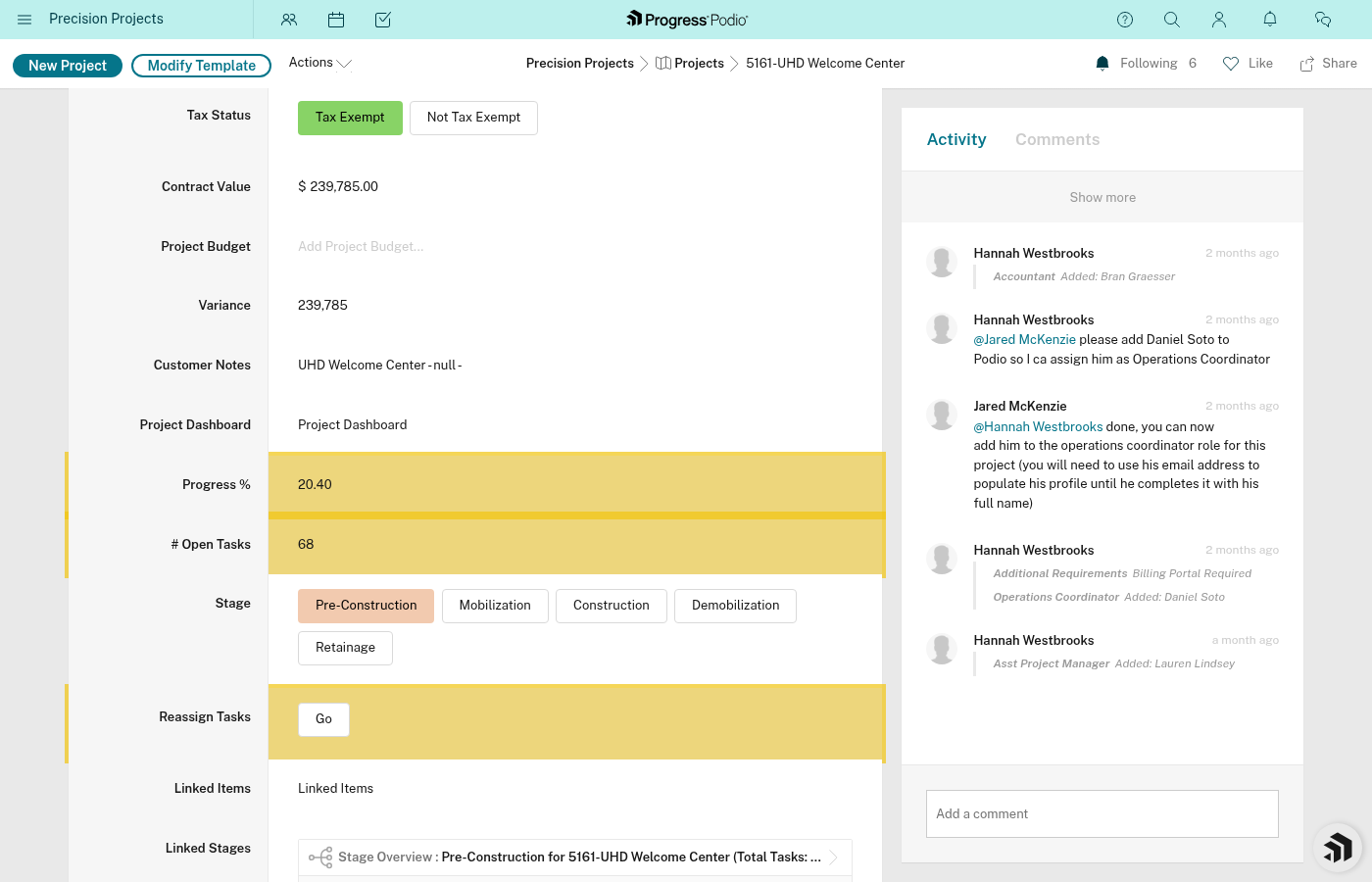
Overall Progress
- Shows average completion % across all stages
- If it's 75%, the job is 75% done overall
- This is calculated automatically based on stage completion
Open Tasks Count
- How many incomplete tasks are left
- High number = lots of work remaining
- Zero = either done or tasks are still populating
Current Stage Status
- Shows which phase is active (e.g., "Construction Active")
- Only one stage can be active at a time
3. Dive Into Stage Details
Scroll down to Linked Stages section. You'll see all 5 stages:
- Pre-Construction
- Mobilization
- Construction
- Demobilization
- Retainage
Click into a stage to see:
- Tasks Complete % - how much of that stage is done
- Open Issues - count of incomplete tasks in that stage
- Task Overview - list of all tasks for that stage
Stage detail page showing tasks complete percentage and open issues count would be helpful here.
Understanding Stage Progress
Each stage has its own Tasks Complete %:
- 0% = Haven't started (or tasks not created yet)
- 50% = Halfway through the stage
- 100% = Stage complete, ready to move to next
Important: All tasks for all stages are created when the project is created. You can filter by stage to see only the tasks relevant to your current phase.
Task Status Breakdown
Within each stage, tasks will be color-coded:
- 🔴 Pending (Red) - Not started, might be waiting on dependencies
- 🟡 In Progress (Yellow) - Being worked on now
- 🟢 Complete (Green) - Done!
To see the breakdown:
- Click into the Stage
- Look at Task Overview
- Sort or filter by Status
Checking Individual Task Details
Click any task to see:
- Responsible - who's assigned
- Due Date - when it's due
- Status - current state
- Dependencies - what it's waiting on or blocking
- Notes - context and updates
- Attachments - files, photos, documents
This is helpful if you see a task stuck in Pending and want to know why.
For Project Managers: Daily Checklist
- Check Open Tasks Count - is it growing or shrinking?
- Review Current Stage's Tasks Complete % - are we on track?
- Filter tasks by Status = Pending - are any stuck waiting too long?
- Check Dependencies - are chains moving or blocked?
- Review upcoming Due Dates - anything about to be late?
For Field Crew: What You Need to Know
"What am I supposed to be working on today?"
- Open Tasks app
- Filter Responsible = You + Status = In Progress
- Sort by Due Date
- Start at the top
"Is my task ready to start?"
- If Status = Pending and Ind or Dep = Dependent, check the Dependencies field
- If it lists another task, that task needs to be completed first
- If Ind or Dep = Independent, you can start right away
Tips
- Tasks Complete % updates automatically as tasks are completed
- If a stage shows 0% progress but should have tasks, wait 2-3 minutes after activating the stage (see task-population.md)
- Overall Progress is an average of all stages, not just the current one
- Completed stages still show in the Linked Stages list with 100% progress
Related:
- dependencies.md - Why some tasks wait
- task-population.md - How tasks appear