Movement History
Movement History shows the path a worker or piece of equipment has traveled, plotted as a line on the map with a timeline of stops and events.
Accessing movement history
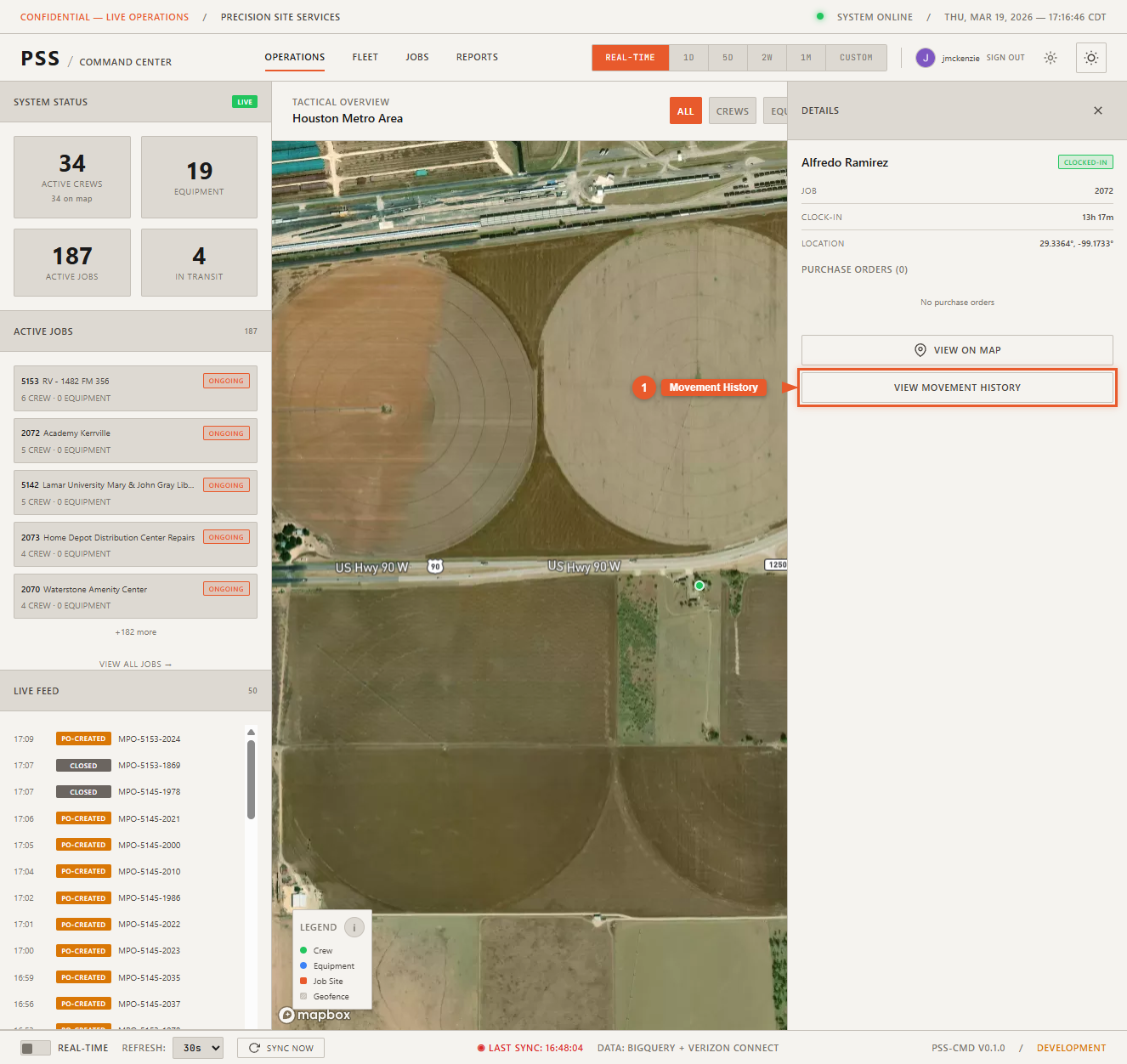
Open the detail panel for any worker or equipment (by clicking their map marker or selecting them from the Fleet/Jobs tables), then click the Movement History button in the panel.
This overlays the movement path on the Operations map and opens the movement timeline below the map.
Reading the path
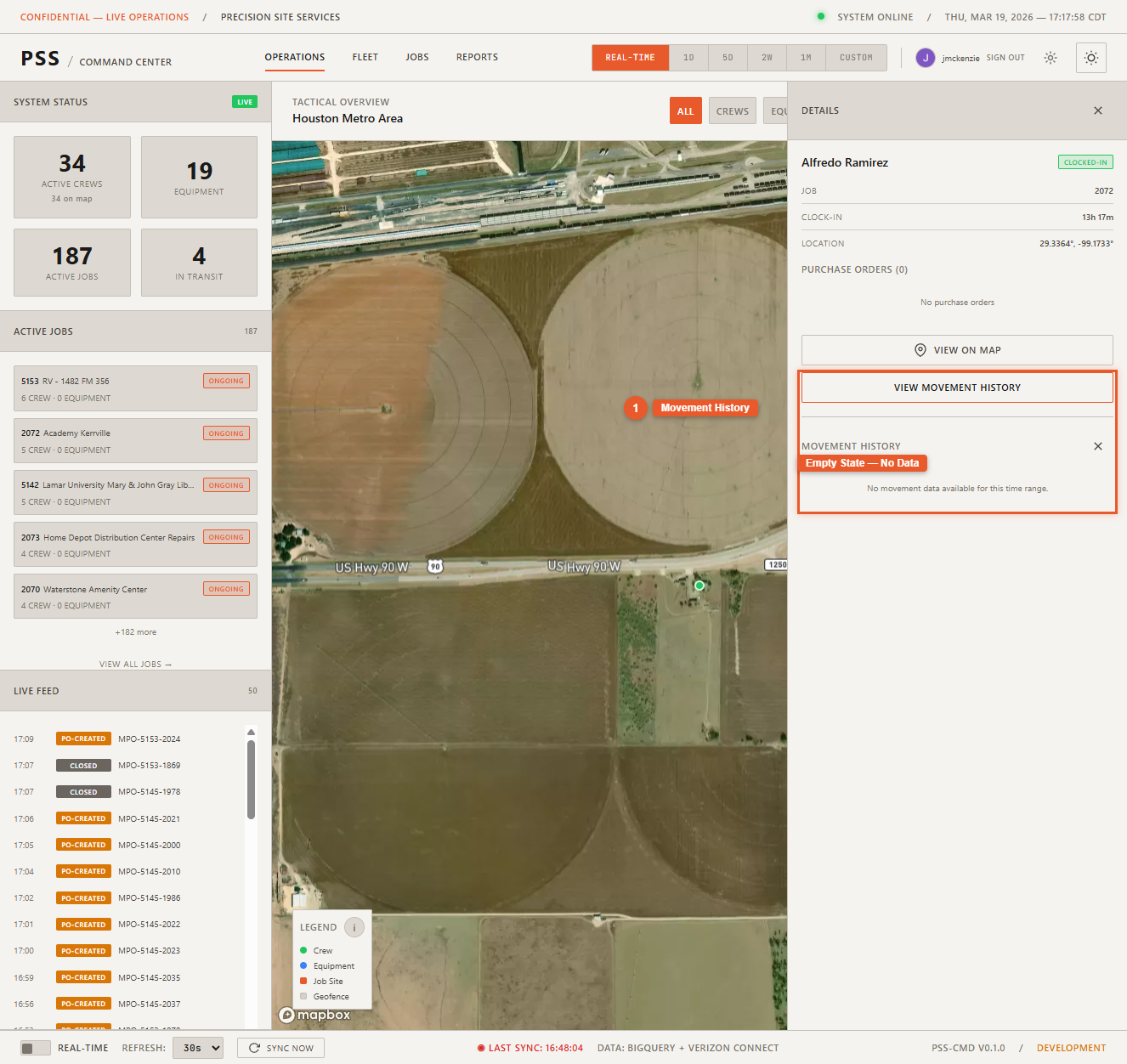
The movement path is drawn as a polyline — a connected line of GPS positions. Each point on the line represents a recorded location at a specific time. The line shows the sequence of movement from start to finish.
The movement timeline
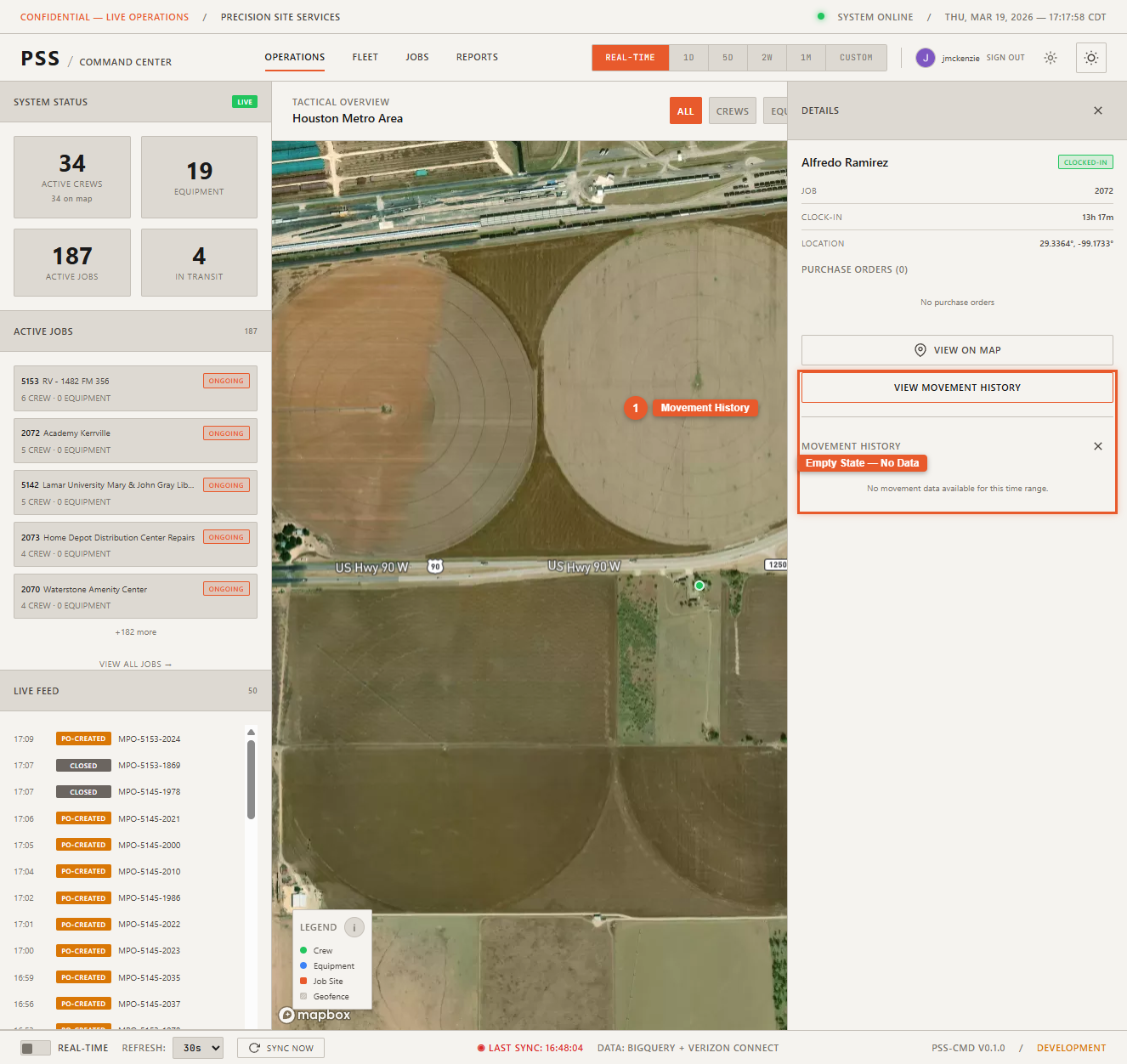
Below the map, a timeline shows individual recorded locations with timestamps. You can click a point in the timeline to highlight the corresponding position on the map.
Today vs. historical data
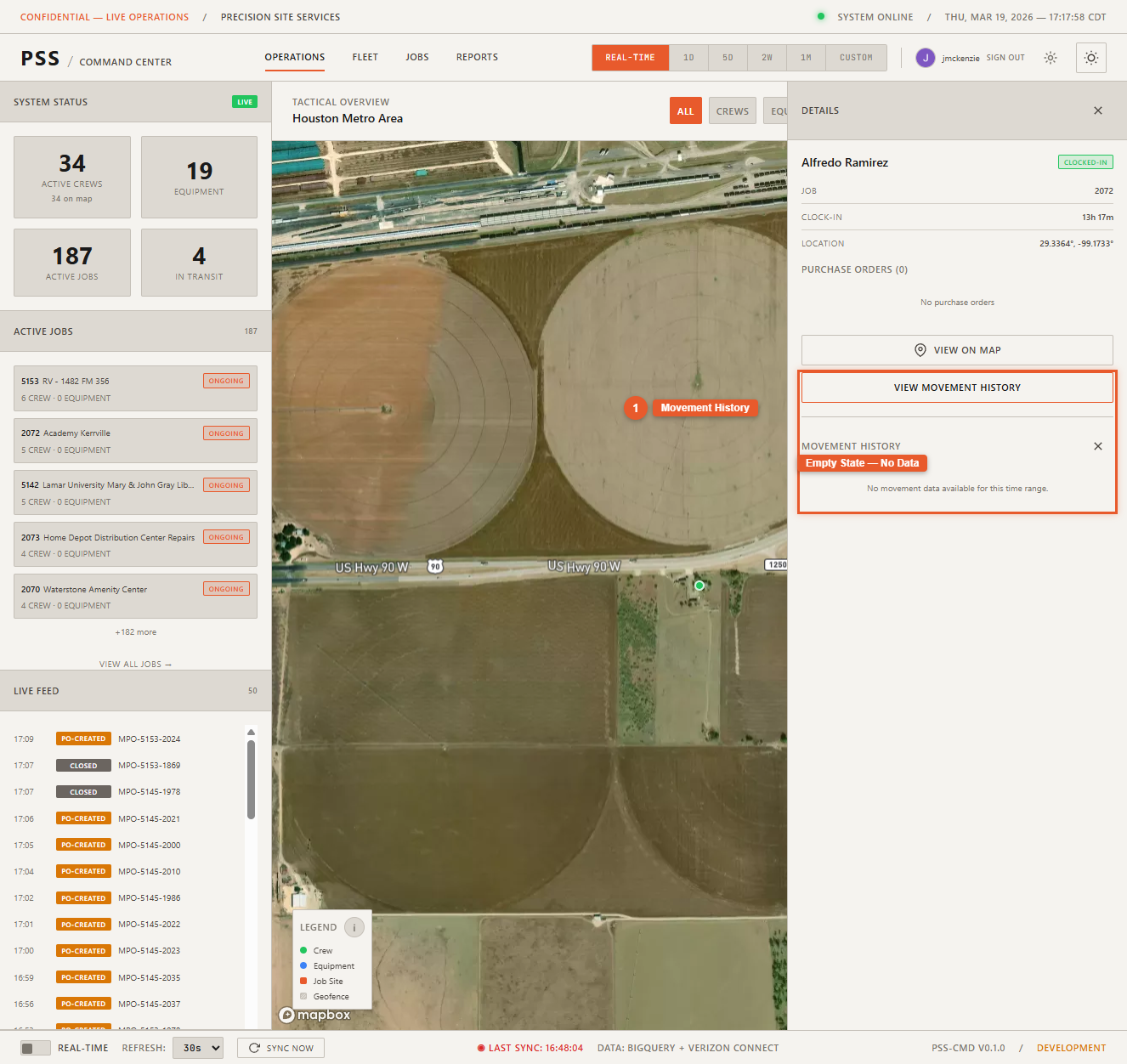
Movement history uses two separate data sources that are automatically merged:
Today's data comes from AppSheet and refreshes every 60 seconds. It reflects the current day's activity up to the last sync.
Past days data comes from Firestore (pre-cached from BigQuery), is immutable, and loads instantly without hitting any external API.
The system merges both sources seamlessly. If data from both overlaps, duplicates are removed automatically. If today's data is temporarily unavailable, a warning banner appears but historical data is still shown.
Notes
- Worker GPS points are captured at clock-in and clock-out only, so the path represents discrete location snapshots rather than continuous tracking.
- Equipment GPS paths are more granular since Verizon devices log positions throughout the day.