Welcome
What this is for
Precision Financial is the tool you use to keep track of the people, hours, jobs, and invoicing for Precision Site Services. If you work in accounting, admin, or operations, this is where you review what the field crews did this week, fix time entries, pull reports, and send invoices out the door. It pulls information from the field every few minutes so you are looking at fresh numbers, not last week's spreadsheet.
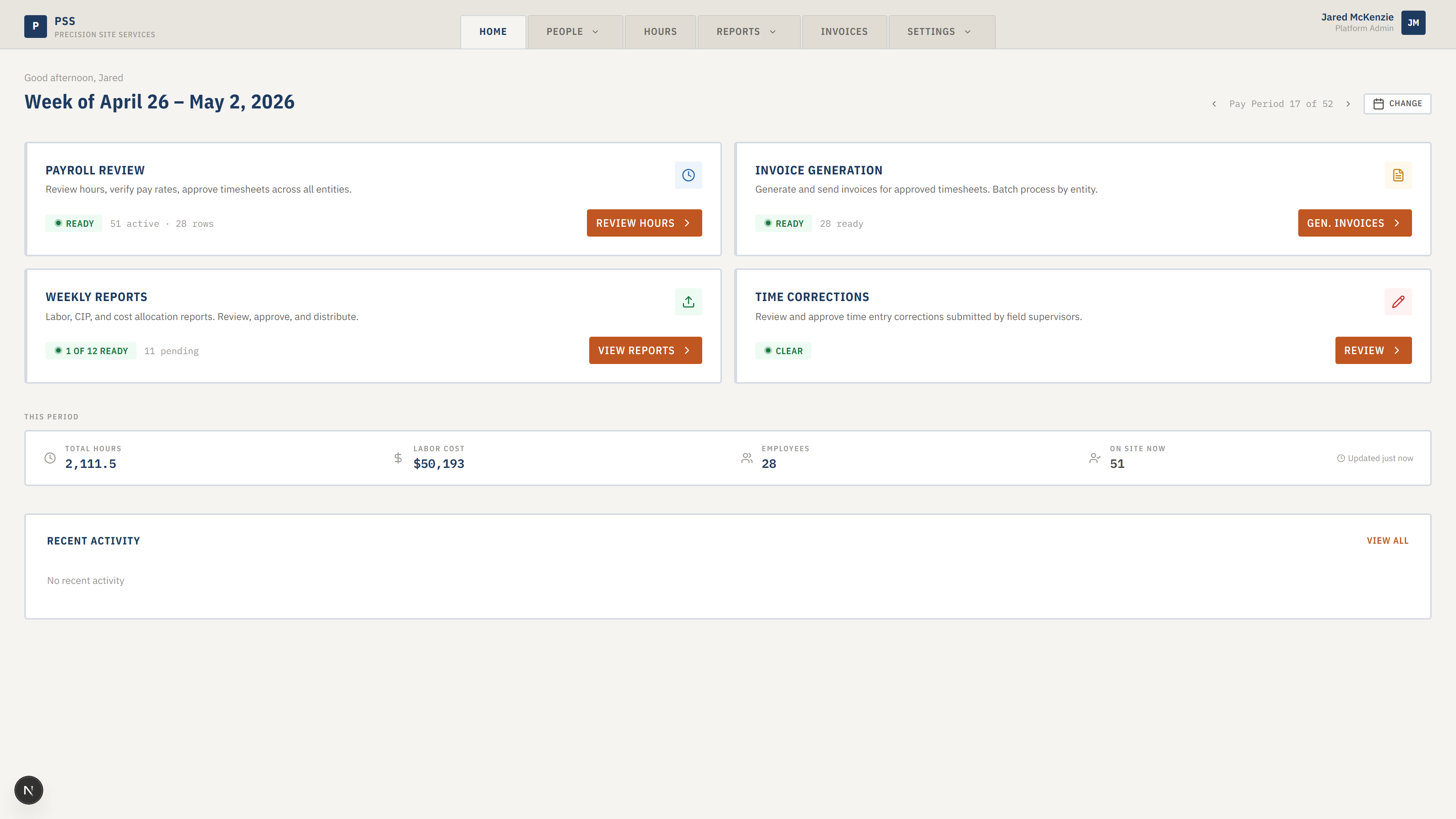
Across the top of every page you will see six manila folder tabs. That is your main menu.
- Home — your dashboard. A quick snapshot of where this week stands: hours, labor cost, open time corrections, invoice status.
- People — the field workers, who is clocked in right now, the list of jobs, and the time corrections queue.
- Hours — the full time record list for reviewing, approving, and cleaning up hours before payroll.
- Reports — the Weekly Report packet, the Contractor Insurance (CIP) Report, and Certified Payroll.
- Invoices — generate, review, and send invoices by Company.
- Settings — automations, access and permissions, business rules, and the audit log.
Steps
- If this is your first time here, open the Getting Started guide. It walks you through signing in and what you are most likely to do on day one.
- If you already know your way around, use the top tabs to jump to the area you need. Most tabs with a small arrow next to them open a dropdown with sub-pages.
- When you do not know where something lives, check the Related guides section at the bottom of every page, or open the Glossary for plain-English definitions of any word in the app you do not recognize.
Common mistakes
- Assuming the dashboard is live to the second. It refreshes every minute. If you just saw someone clock in out in the field, give it up to a minute to show up.
- Looking for a sidebar. There is no sidebar — everything is in the top tabs.
- Searching for "Entity" in the menu. The app calls them Companies in most places. Entity is only used on a few older screens.
What to do if it goes wrong
- If a page will not load or shows an error, refresh the browser once.
- If you get kicked to the Sign in page, see Signing in.
- If you see Access restricted, ask an administrator to grant you the permission you need. See Roles and access.
- For anything still broken after that, go to Troubleshooting.