About the Invoices Tab
What this is for
The Invoices tab is where you generate and manage invoices for each company we bill. For a given week or pay period, the app pulls every worker's approved hours, per diem, and overtime from the time records and turns them into invoice line items. You can generate one invoice at a time, or batch-generate invoices for every worker in a period.
You also come here to look up old invoices, download a PDF, or change an invoice's status.
Steps
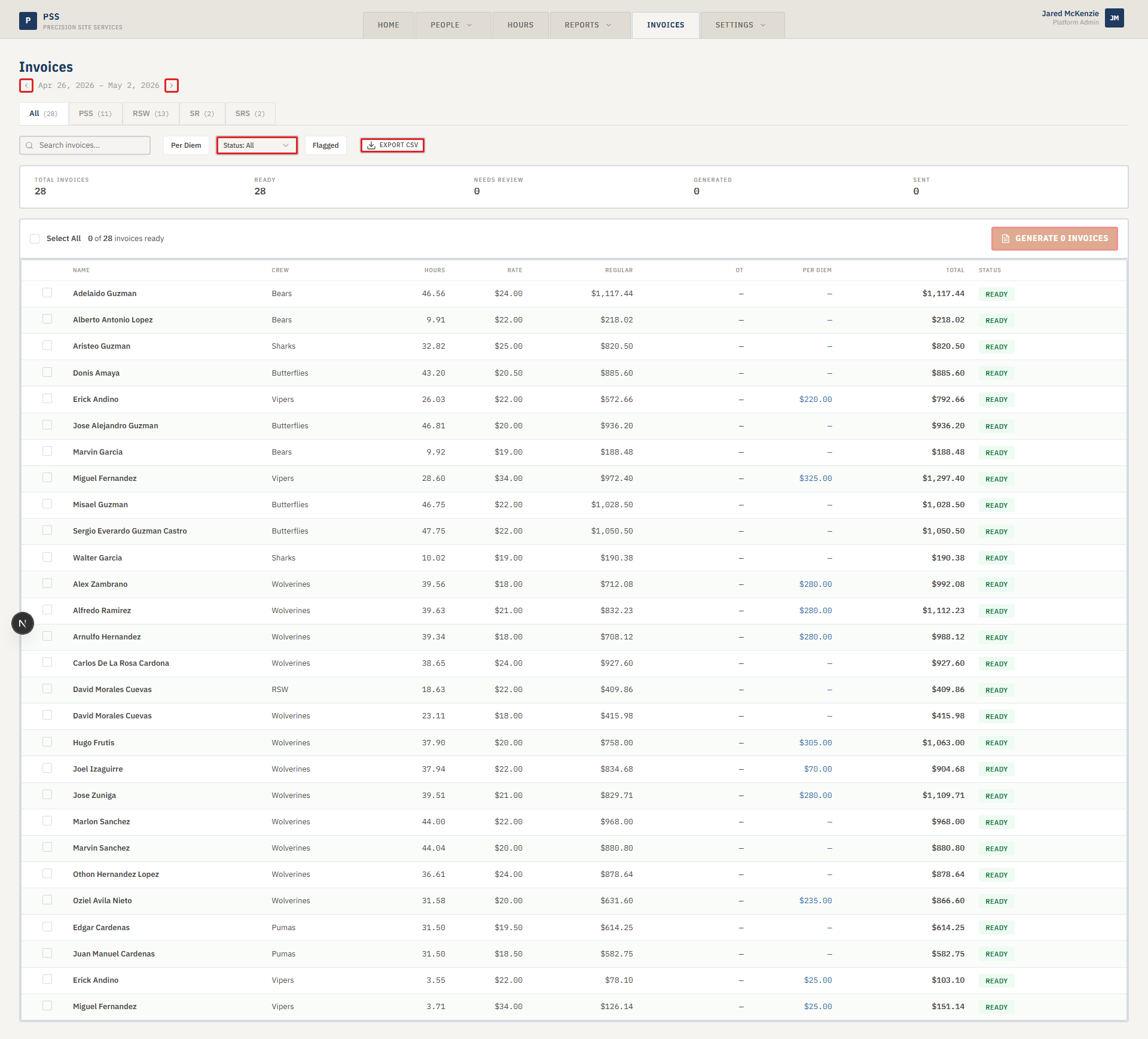
The Invoices tab has two views: a list view and a detail view.
Invoice list
The main page shows one row per worker / company combination for the selected period. Each row shows the hours, rate, regular pay, overtime, per diem, and total — plus a status badge.
Use the list to:
- Pick a period (week) using the arrows at the top.
- Filter by company, status, per diem only, or flagged rows.
- Select rows and generate invoices in a single click (one or many at a time).
- Click a row to preview an invoice before generating.
See Creating an Invoice.
Invoice detail
Click any generated invoice to open its full page. Here you see the bill-to info, the line items, totals, and action buttons to download the PDF or change the status.
See Invoice Detail & Line Items.
Common mistakes
- Generating invoices for the wrong period. Always check the week range at the top of the page before clicking Generate.
- Trying to generate an invoice for a row marked Needs Review. Fix the underlying issue first (missing rate, missing company, missing mapping) — the row won't generate until it says Ready.
- Running a batch when only some rows should be generated. Use the check boxes to pick exactly the rows you want.
What to do if it goes wrong
- If the list is empty, check the period selector. The wrong week will show no data.
- If a row says Needs Review, open the alert banner at the top of the list. It tells you what setup is missing (worker mapping, company mapping, or rate) and links to the page to fix it.
- If an invoice generates but the total looks wrong, open the invoice detail page and scan the line items. The most common causes are a bad rate, a missing cost code, or an uncorrected time record.