Dashboard Overview
What this is for
The dashboard (the Home tab) is your start-of-day snapshot. It tells you where this week stands at a glance: who is on site, how many hours have been logged, whether invoices are ready to send, and whether anything needs your attention before payroll. You open it, scan it for red or yellow, and click into whatever needs work.
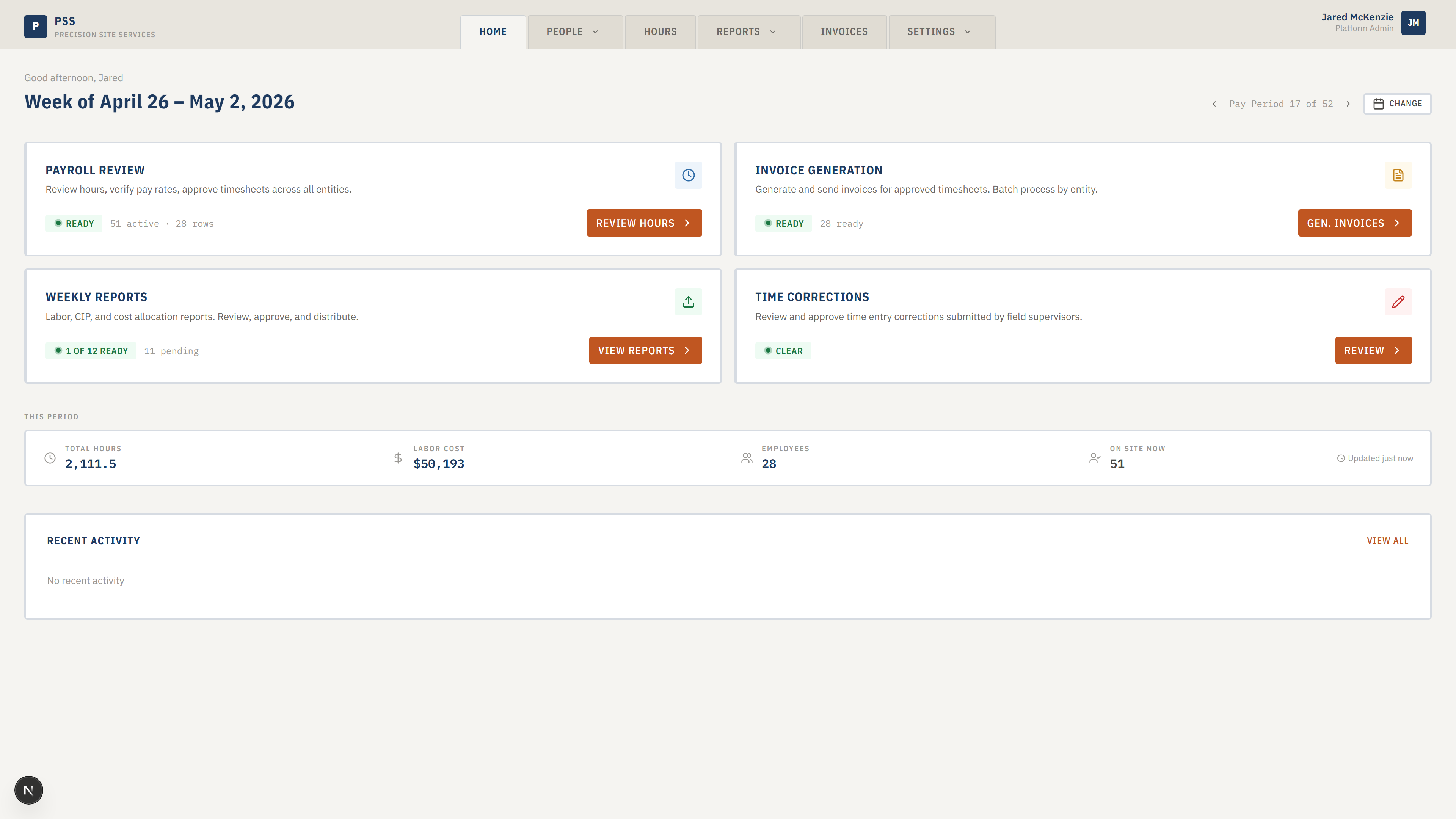
The page is laid out top to bottom in four sections. Read it in that order.
Steps
1. Read the week header at the top
The big dark-blue heading shows which week you are looking at — Sunday through Saturday. A small line above it greets you by first name.

- The arrows on the right step you one week at a time.
- The Change button opens a small calendar. Click any date and the dashboard jumps to the week containing that date.
- By default the dashboard loads the most recently completed Sunday-through-Saturday week. That is almost always what you want.
2. Check the four workflow cards
Under the week header are four large cards arranged in a 2 by 2 grid. Each card is one piece of your weekly routine. Each card has a colored status badge in the top right corner.

- Payroll Review — how many people are clocked in right now, and how many hour rows exist for this week. Click Review Hours to open the Hours tab.
- Invoice Generation — how many invoice rows are ready to send, and how many have problems. If the badge says "Need Attention" it is yellow and shows a number. Click Gen. Invoices to open Invoices.
- Weekly Reports — how many Weekly Report packets are ready out of how many total. Click View Reports to open the Weekly Report.
- Time Corrections — how many time corrections are waiting for approval. If anything is pending you will see a yellow badge with a count, and the name of the first worker with an open correction. Click Review to open the time corrections queue.
Green badge = nothing to do. Yellow badge = open this card.
3. Scan the summary strip
Under the cards is a thin horizontal strip labeled This Period. It shows four tiles: Total Hours, Labor Cost, Employees, and On Site Now.

These are this week's totals pulled from the hours database. On the right of the strip is a small "Updated X min ago" clock that tells you how fresh the numbers are. The strip ticks up as the week goes on.
4. Glance at the activity feed at the bottom
The last section is a short list of the most recent things that happened in the system — edits made, rates changed, write-backs run. You do not have to act on it. It is there so you can see what other office staff have done recently.
Common mistakes
- Trusting the labor cost number before the week is closed. It goes up as more hours come in. For final numbers, wait until Monday.
- Assuming "On Site Now" is frozen. It is live — someone who clocked out five minutes ago may still be counted for up to a minute or two until the next refresh.
- Clicking Change and expecting the invoice preview and the weekly report to jump too. They follow the same week range, but give the page a moment to reload the workflow cards after you change the date.
- Ignoring yellow badges. Yellow means something is blocking payroll, invoicing, or a report from being finished.
What to do if it goes wrong
- The page shows "The dashboard could not refresh." Click the Open time corrections button on the error card, or refresh your browser. If it keeps happening, see Troubleshooting.
- The Employees or Labor Cost tile shows a dash ("—"). Something couldn't load. Refresh the page. If it still shows a dash, message an administrator.
- The numbers look way off. Double-check the week range in the big heading at the top. It is easy to land on the wrong week after clicking the arrows.