About the Hours Tab
What this is for
The Hours tab is where you work with time worked by field employees. Use it to look up clock-in and clock-out records, request a correction when something is wrong on a record, and (if you are a supervisor) approve the corrections your team submits.
Think of the Hours tab as the front door to everything that ends up on a paycheck or an invoice.
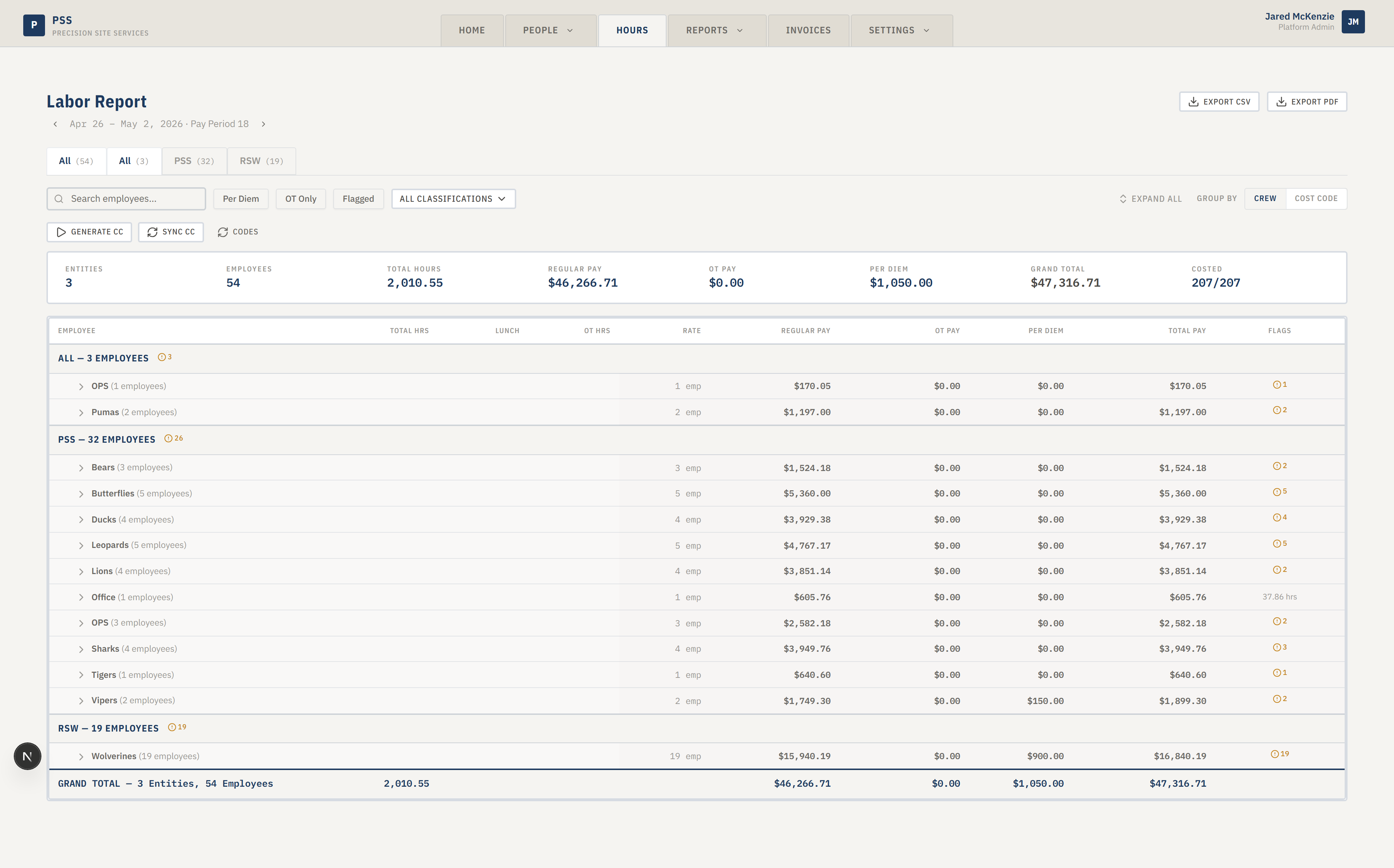
Steps
The Hours tab has two sub-tabs across the top. Click the one that matches what you need to do.
Time Records
Look up time records for a worker, a date range, or a specific job. Open a record to see who worked where and for how long. This is the starting point when you need to answer "what did this person work last Tuesday?"
See Time Records for details.
Time Corrections
When a record is wrong — the wrong clock-in time, the wrong job, the wrong team — request a correction. The correction goes to a short approval queue. Once a supervisor approves it, the change is sent back to the source spreadsheet automatically.
See Time Corrections to request one, or Approving a Correction if you are a supervisor.
Common mistakes
- Editing a time record directly in the spreadsheet. Always go through Time Corrections so there is a record of who changed what and why.
- Submitting a correction without a note. Always write a short reason so the approver understands the change.
- Confusing an open record (missing clock-out) with a record that needs correcting. An open record just needs the worker to finish clocking out.
What to do if it goes wrong
- If a page is slow to load, refresh the browser. The data is pulled from the spreadsheet on each visit.
- If a field is greyed out and you can't edit it, that field is not one the system can write back to the spreadsheet. Choose "Needs manual review" on the correction and add a note.
- If you don't see Time Corrections at all, you probably don't have permission. Ask your administrator.