Getting Started
What this is for
This guide gets you from "I have never opened this app before" to "I know where my work lives." It covers signing in, the six top tabs, and the first page you should open based on your role.
Steps
1. Sign in with your office email
Open the app in your web browser. You will land on the Sign In screen.
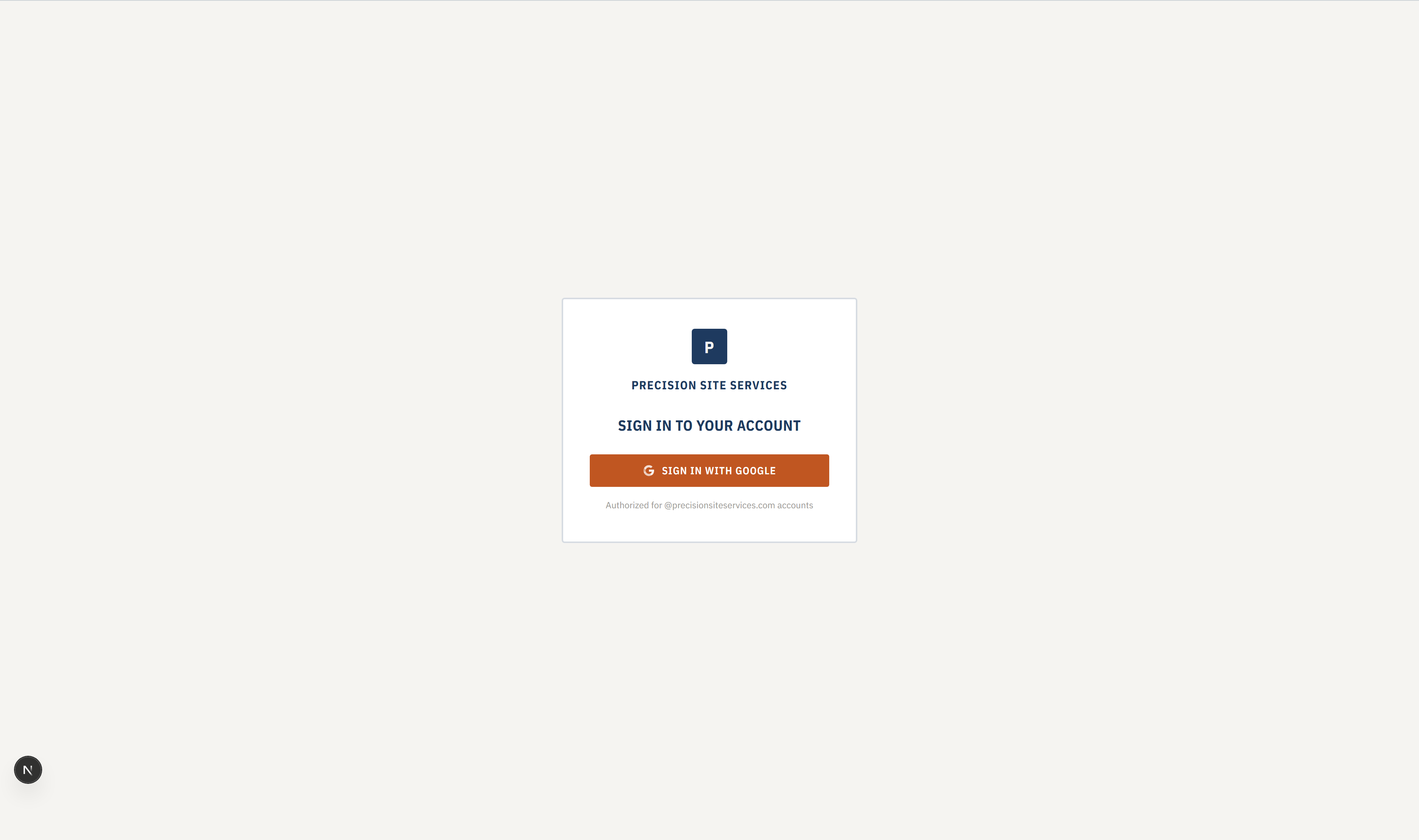
- Click Continue with Google.
- Pick your
@precisionsiteservices.comemail. - If you use another Google account on this browser, make sure you pick the work one.
You will not see a password box. The app uses your existing Google login. If you run into trouble, see the full Signing in walkthrough.
2. Look at the top tabs
Once you are signed in you will see six manila folder tabs across the top of every page. That is the whole menu.

Reading left to right:
- Home — your dashboard
- People — workers, live sign-ins, jobs, time corrections
- Hours — the full time record list
- Reports — Weekly Report, CIP (Contractor Insurance) Report, Certified Payroll
- Invoices — invoices list and detail
- Settings — automations, access, business rules, audit log
Tabs with a small arrow next to them open a dropdown. Hover the tab to see the sub-pages.
3. Go to the page your role uses most
Pick the role that describes your job. You can always come back to any other tab.
- Accounting / payroll staff — open Hours first, then Invoices. See the accounting role guide.
- Administrators — open Settings to check access and automations. See the admin role guide.
- Operations / field oversight — open People to see who is on site and review time corrections. See the operations role guide.
4. Bookmark the dashboard
The Home tab (the dashboard) is where most people start their day. Bookmark it in your browser so you can jump straight there next time.
Common mistakes
- Signing in with a personal Gmail account. The app only accepts
@precisionsiteservices.comaccounts. - Trying to click tabs before the page finishes loading. Wait a second or two after the first visit of the day.
- Looking for a sidebar or a hamburger menu. There isn't one — everything lives in the six top tabs.
What to do if it goes wrong
- "Access restricted" or you only see some tabs. Your Google account is signed in, but an administrator still needs to turn on the right permissions for you. Message your administrator and share what you are trying to do.
- Stuck on the Sign In screen in a loop. Sign out of Google on this browser, close the tab, and try again in a new tab.
- Everything else. See Troubleshooting.