Signing In
What this is for
Signing in is how you get into the Precision office platform. The app only recognizes you once you have signed in with your company Google account, so this is the very first thing you do each time you open it.
Before you start
- A Google Workspace account in the
precisionsiteservices.comdomain (your company email, not a personal Gmail). - Access to the browser on your office computer (Chrome, Edge, or Firefox).
- Pop-ups allowed for the app's sign-in page — Google opens a small window to confirm who you are.
- If you have never logged in before, IT must have added you to the Workspace first.
Steps
-
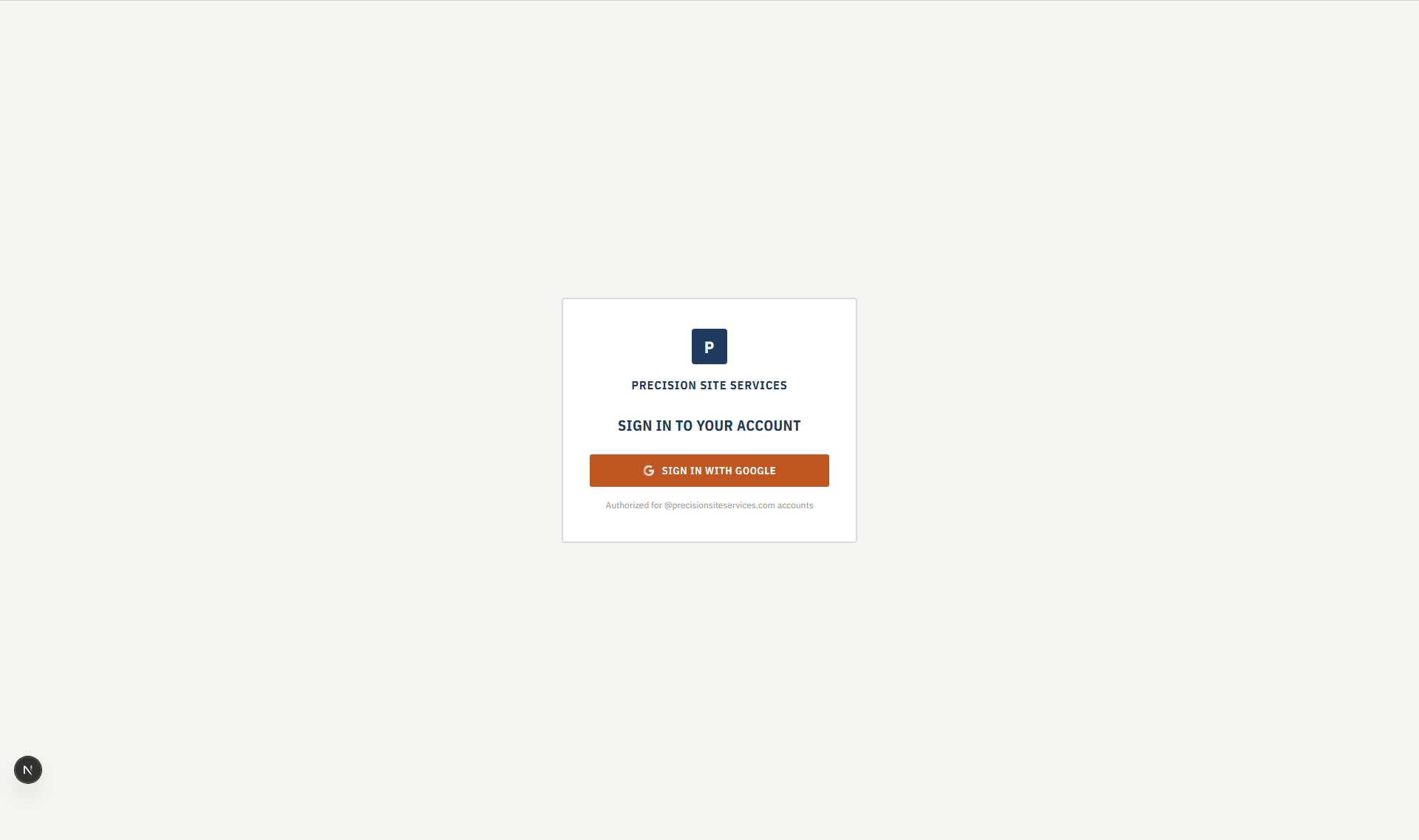
Open the app in your browser using the link your manager or IT sent you. You should land on the Sign In page (a small card with the Precision "P" logo).
-
Click "Sign in with Google." A Google window will pop up.

-
Pick your company Google account. If you are already signed in to Google in this browser, your accounts will be listed. Choose the one that ends in
@precisionsiteservices.com.Screenshot pendingGoogle account chooser showing a precisionsiteservices.com account.
This screenshot will be added in a future docs update once the underlying state is reproducible in dev.
-
Review any consent prompt the first time you sign in. Google may ask you to confirm that the app can see your name and email. Click Continue or Allow.
-
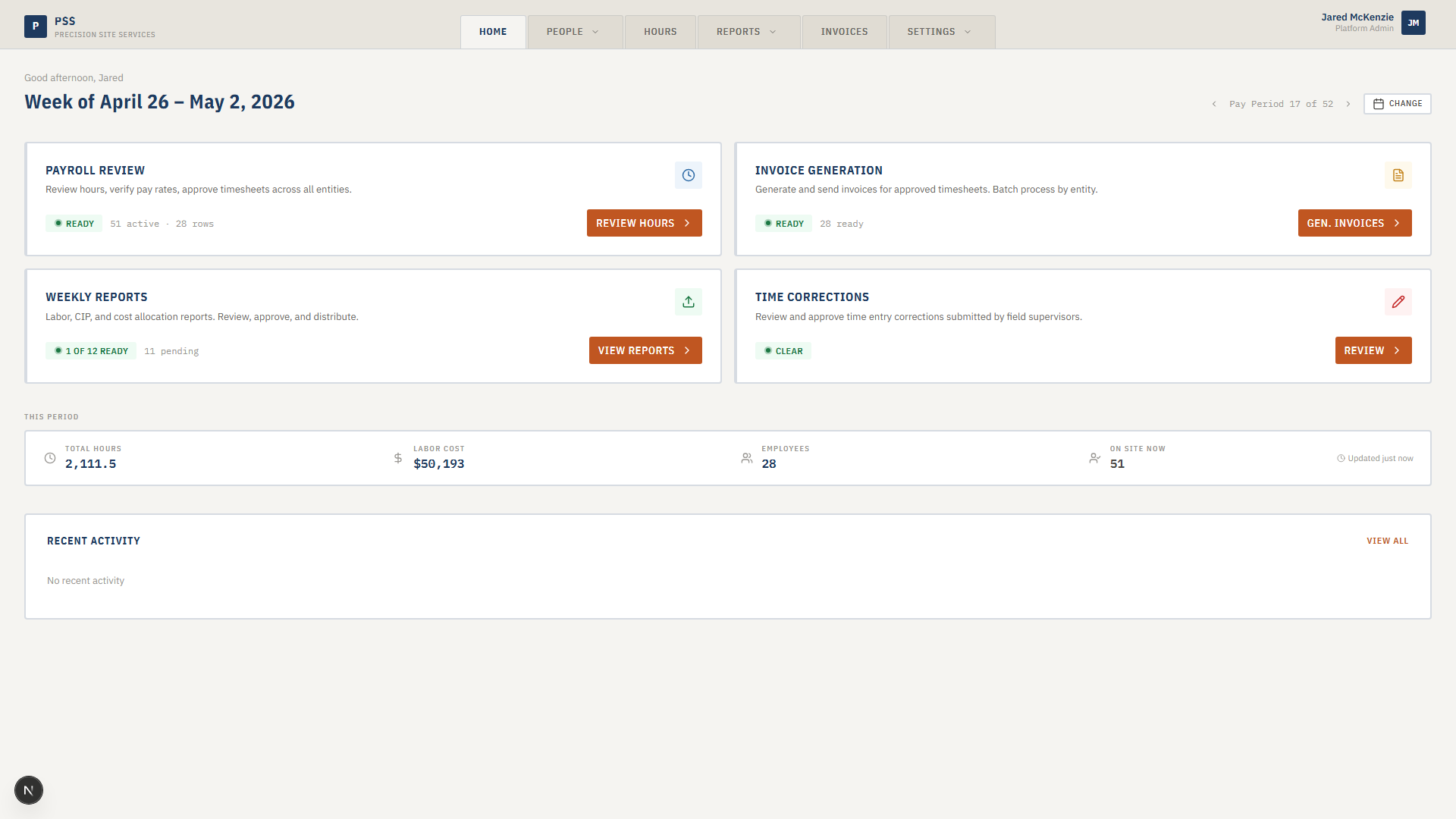
Land on the dashboard. The home screen (called "Home" in the top nav) loads with your stats and recent activity. You are now signed in.
Signing out
Use the menu in the top-right corner and choose Sign out. You will land back on the Sign In page with a "You have been signed out" notice.
Common mistakes
- Using a personal Gmail account. Only accounts on the
precisionsiteservices.comWorkspace can sign in. Personal@gmail.comaccounts will be rejected. - Picking the wrong Google account. If you have multiple Google accounts in one browser, double-check you picked the company one.
- Blocked pop-ups. If nothing happens when you click "Sign in with Google," your browser may be blocking the Google window. Allow pop-ups for the app and try again.
- Bookmarking the wrong URL. Always start from the official app URL — not a cached page from yesterday.
- Being on the wrong Wi-Fi or VPN. If the app is restricted to office networks, make sure you are on the right network before trying to sign in.
What to do if it goes wrong
- Red "Access Denied" banner. Your account exists in Google but is not provisioned in the app yet. Ask an office admin to add you under Settings → Access.
- "Use a Google Workspace account from the approved company domain." You signed in with a personal Gmail. Switch accounts and try again.
- "That Office user is inactive." Your account was disabled. Reach out to your manager or IT.
- "Google sign-in could not be completed." Usually a browser or cache issue. Try a different browser or an incognito/private window first.
- Nothing happens when you click the button. Pop-ups may be blocked. Check the small icon in your browser's address bar for a blocked pop-up message and allow it.
- Still stuck? Contact IT at your usual support address with a screenshot of the error — they can check your Workspace membership and permissions.