Approving a Correction
What this is for
Supervisors and operations staff review time corrections submitted by office staff or foremen. You approve a correction when the change looks right, or reject it when it doesn't. Approving a correction triggers the sync back to the source spreadsheet.
If you don't see the Time Corrections sub-tab, you don't have permission to approve. Ask your administrator.
Steps
Open the queue
- Open the Hours tab and click Time Corrections.
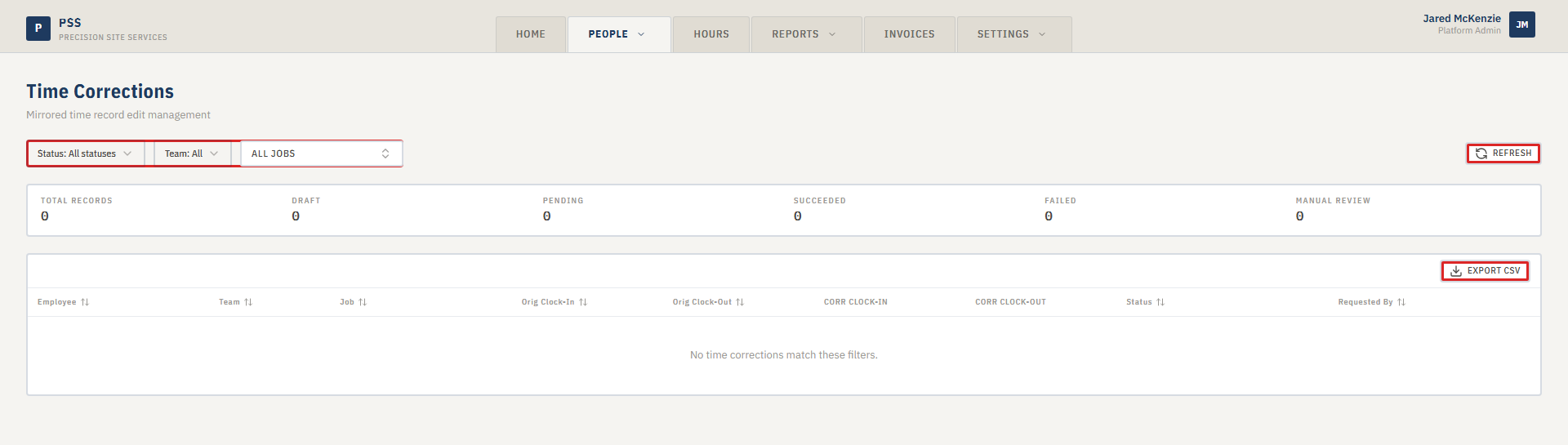
- You land on a queue view. The top of the page shows counts — Draft, Pending, Succeeded, Failed, Manual Review.
- By default the list shows the most urgent items first: failures, manual-review items, then pending.
- Use the Status drop-down to filter, or the Team drop-down to narrow to one team.
Open a single item
- Click any row to expand it. The detail appears inline below the row.
- You will see the worker, the job, the old values, and the new (proposed) values side by side.
- Read the submitter's note. It explains why the change is needed.
Single correction approval panel with old vs new values.
This screenshot will be added in a future docs update once the underlying state is reproducible in dev.
Approve or reject
- If the change looks right, click Approve. The status moves to Pending write-back while the system syncs the change back to the spreadsheet.
- If something is off, click Reject and add a short note so the submitter knows why.
- After approval, watch the status badge on the row. It should flip to Write-back succeeded (green) within a few seconds.
Write-back status badge on a row.
This screenshot will be added in a future docs update once the underlying state is reproducible in dev.
What the sync does
When you approve, the system updates four fields on the matching row in the source spreadsheet: clock-in, clock-out, job, and team. Any other field change is flagged as Needs Manual Review and an admin handles it by hand.
Common mistakes
- Approving without reading the note. The note usually explains the "why" — make sure it matches what you know about the day.
- Rejecting without giving a reason. The submitter needs to know what to fix.
- Approving a correction that overlaps another clock-in for the same worker on the same day. This will cause a write-back failure.
- Approving multiple corrections for the same record. If the first hasn't synced yet, the later ones can fight each other.
What to do if it goes wrong
- If a correction stays on Pending write-back for more than a few minutes, the sync is backed up. Refresh the page. If it still doesn't clear, ask an admin to re-run the sync.
- If a row shows Write-back failed, expand it and read the error message. Common causes: the source row was deleted, someone edited it by hand at the same time, or the time overlaps with another record. Tell an admin what the message says.
- If a row shows Needs Manual Review, you cannot approve it through this page — the change includes a field the system can't sync. An admin has to make the change in the source system.
- If you approve something by mistake, have the submitter create a new correction reversing it.