Time Records
What this is for
The Time Records list shows every clock-in and clock-out for every field worker. Use it to find one person's records, check who worked a particular job on a particular day, or spot workers who clocked in but never clocked out.
A record is open when it has a clock-in time but no clock-out time. Usually that means the worker is still on the clock. It can also mean they forgot to clock out.
Steps
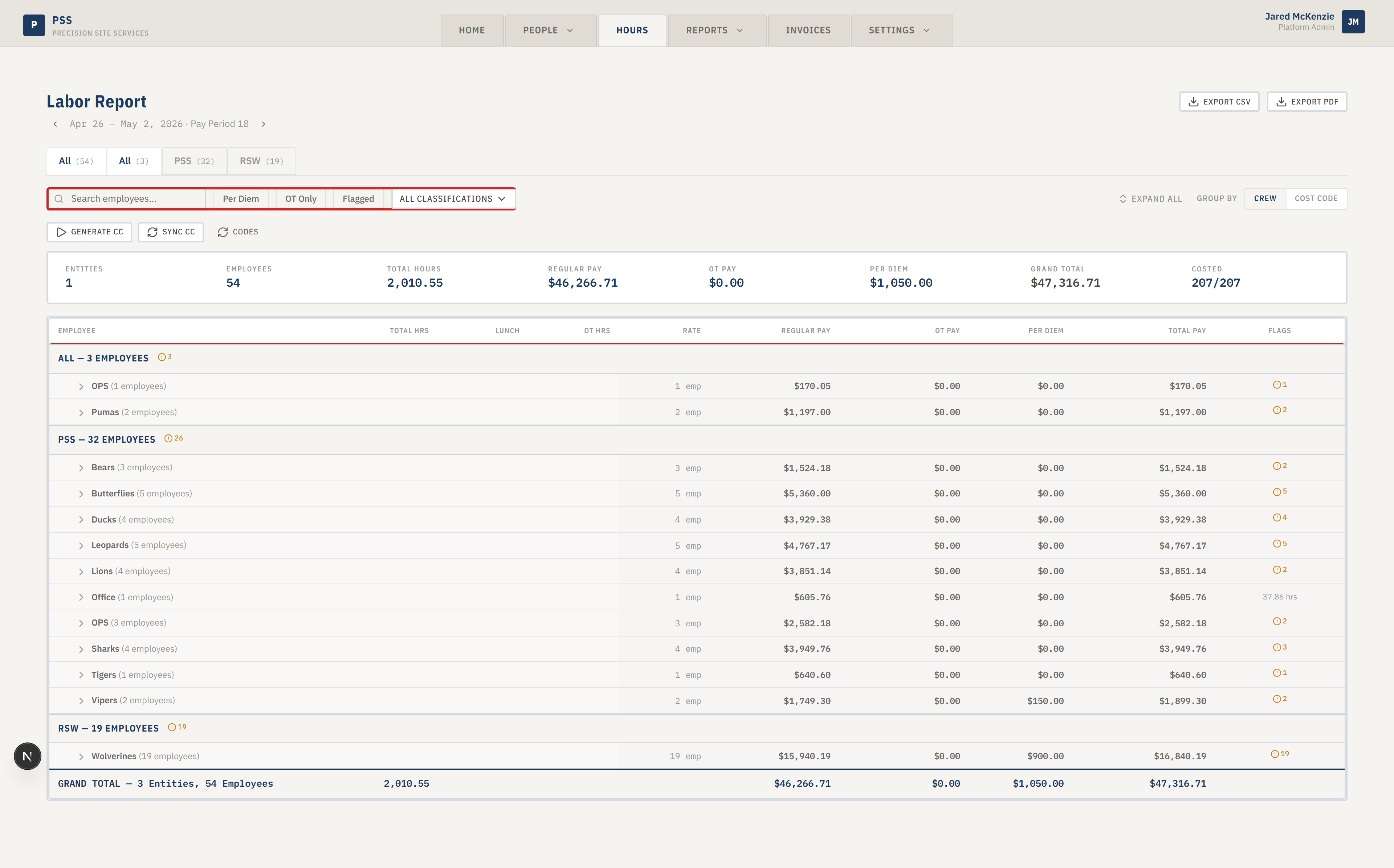
Filter the list
- At the top of the list you will see a filter panel with a search box and a few drop-downs.
- Type a worker's name into the search box to narrow the list to just that person.
- Use the date range selector to pick the days you want to see. Leave it empty to see everything.
- Choose a job from the job drop-down to see only records for that job.
- Check the Open only box to show only records that are missing a clock-out time.
The list updates as you change filters. You don't need to click a separate "Apply" button.

Open a single record
- Click any row in the list to open its detail panel.
- The panel shows the worker's name, the job, the team, the clock-in and clock-out times, and the total hours.
- If something looks wrong, click Request Correction (see Time Corrections).
Read the columns
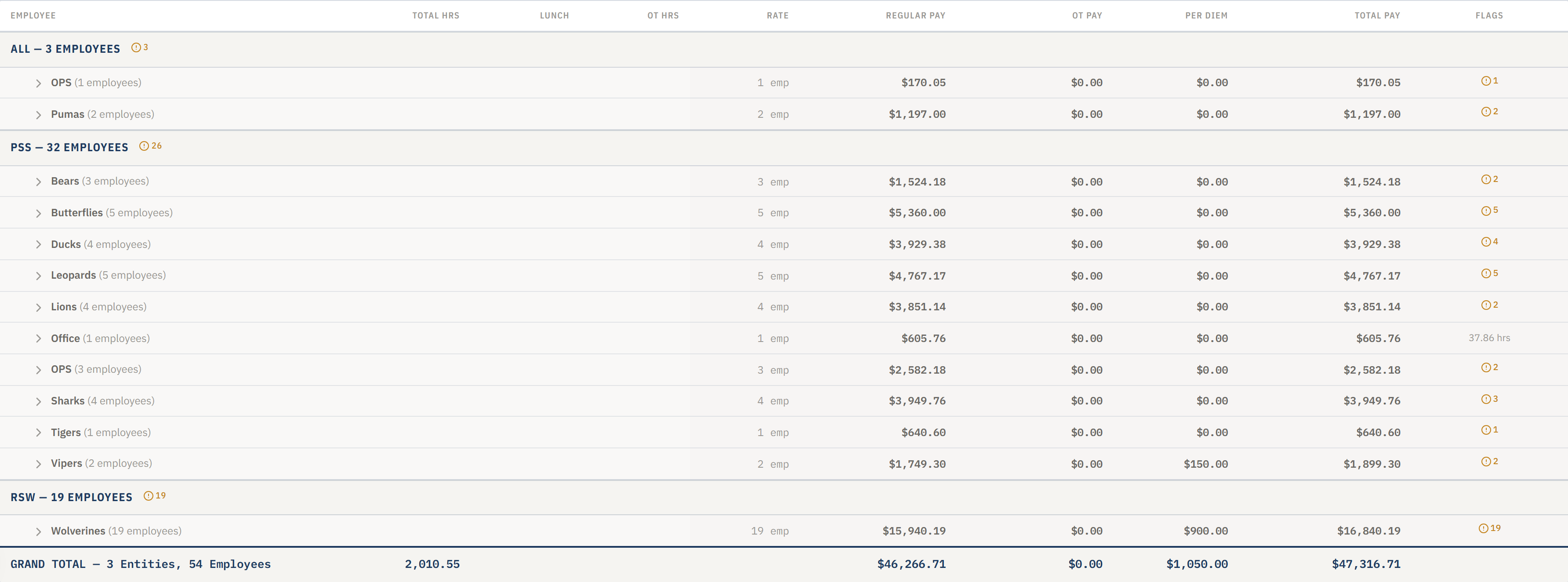
- Date — the work day.
- Worker — who clocked in.
- Job — the job number and name.
- Team — the shift team, if one is assigned.
- Clock-In / Clock-Out — the time stamps.
- Hours — calculated from clock-in and clock-out. Empty for open records.
- Status — "Open" means no clock-out yet; "Closed" means the record is complete.

Common mistakes
- Typing a full sentence into the search box. Search works best with just a name (first name, last name, or part of one).
- Forgetting to clear the date range from a previous session. If you see "no records" and expect some, widen the dates.
- Assuming an open record is a bug. Check the clock-in date first — if it's today, the worker is probably still on site.
What to do if it goes wrong
- If the list is empty and you expect records, check that your filters are not too narrow. Clear them and try again.
- If a worker's name won't show up in search, they may be marked inactive. Ask your administrator.
- If the data looks stale, refresh the page. The list pulls fresh data from the database every time.
- If you spot a wrong time or wrong job, don't fix it in the spreadsheet — submit a correction instead (see Time Corrections).