Labor Report
What this is for
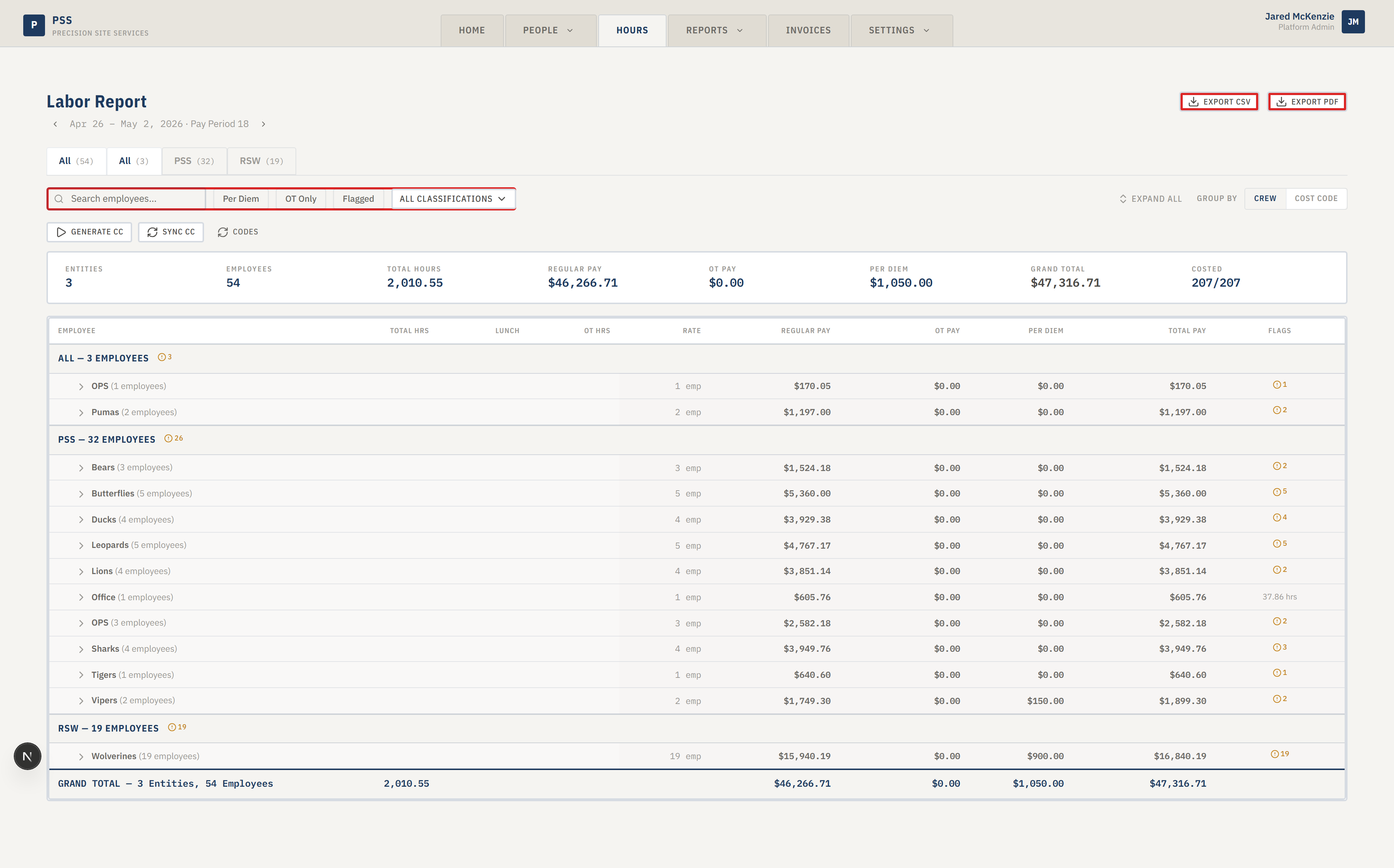
The Labor Report shows how much labor cost was spent on each job for a pay period. You can see the totals by company, by team, by cost code, or by individual worker. Accounting uses it to bill clients accurately; project managers use it to see if a job is running over on labor hours.
The math is straightforward: for every shift a worker clocks in, the system takes the hours worked times the worker's hourly rate, and that is the labor cost for that shift. Overtime hours are calculated at 1.5× the rate. Per-diem (the flat daily amount some workers get for meals or travel) is added on top.
Steps
- Click the Hours tab at the top of the screen. The Labor Report opens by default.
- Set the filters at the top of the page:
- Date range — defaults to the current pay period. Click the date chip to change it.
- Company — start with "All" to see everything; pick one company to narrow down.
- Classification — filter to just Foremen, Journeymen, or Apprentices.
- Per Diem / OT Only / Flagged toggles — flip these on to see only rows that match.
- Choose how to group the rows using the Group by toggle on the right:
- Crew — groups workers by the team they are assigned to.
- Cost Code — groups workers by the task code on the time record (e.g., concrete, framing).
- Click the arrow on the left of any group to expand it and see the individual workers.
- Use Expand All / Collapse All at the top right to open or close every group at once.
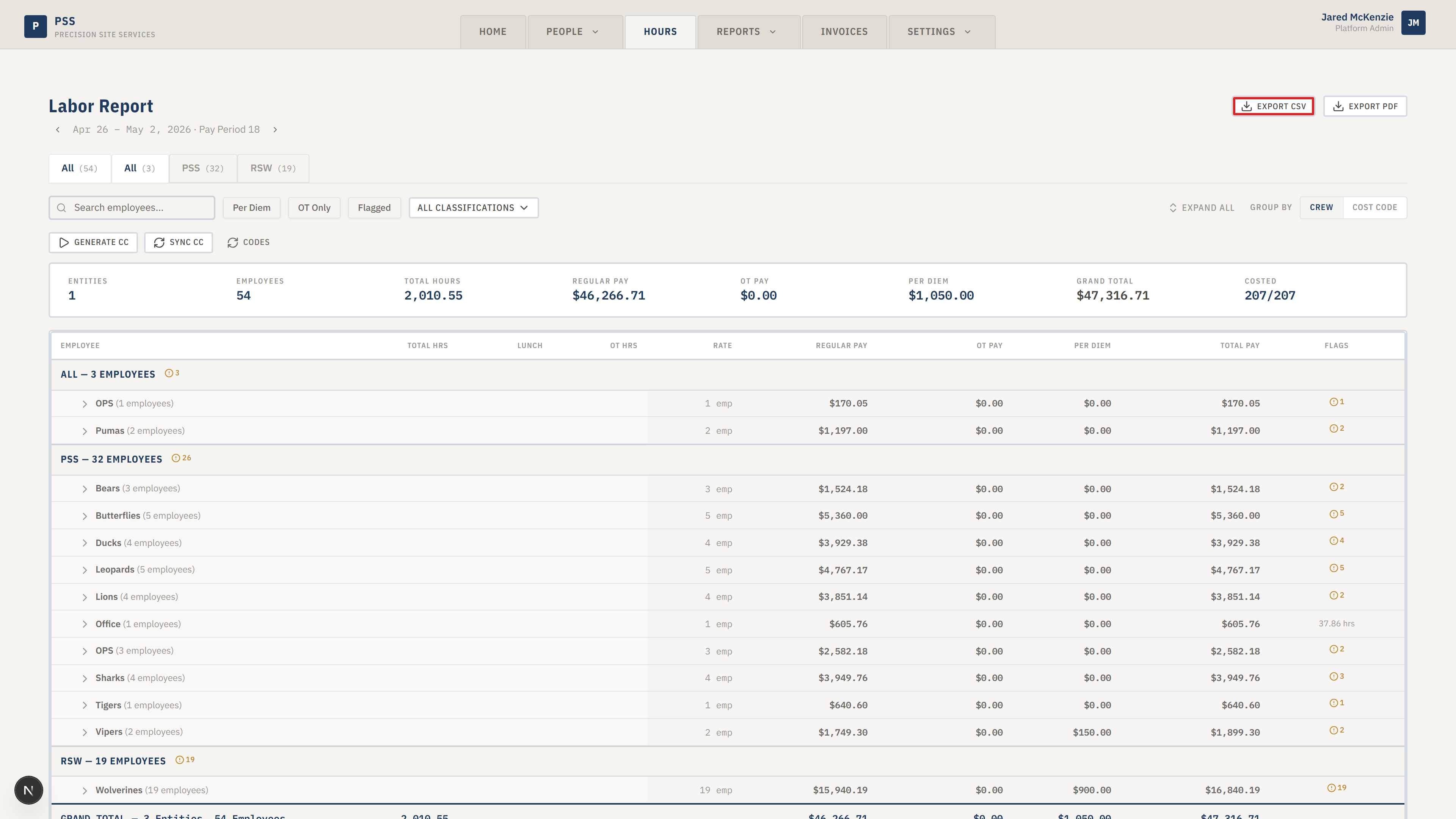
- To export the report, click the download button in the top right. PDF and CSV exports are available.

Screenshot pending
Expanded grouped row showing workers (element).
This screenshot will be added in a future docs update once the underlying state is reproducible in dev.
Common mistakes
- Leaving the filter set to a prior week when you want this week — the report always defaults to the current pay period, but if you change it once, it stays changed until you reload.
- Reading the Regular Pay number and forgetting that Total Pay (the right-most column) includes overtime and per-diem.
- Grouping by Cost Code when the cost codes have not synced yet from the field — any row where the cost code has not arrived will show in an "Unassigned" group.
What to do if it goes wrong
- Totals look too low. Some clock-outs are probably missing. Open People → Active Sign-Ins and look for anyone who is still clocked in from a past day.
- A worker is missing. Check that they are marked Active in People → Field Workers, and that they have an hourly rate on file.
- A cost code shows as "Unassigned." The field worker did not pick a cost code at clock-in. Accounting can fix this later through Time Corrections.
- A cost code looks stale even after Sync CC ran. As of 2026-04-22 the Labor Report reads cost codes straight from the Master Sign-In Log, so a fresh Sync CC click should reflect within seconds (no 30-minute IMPORTRANGE lag). If a code still looks stale, refresh the page once — the in-process cache is invalidated on every Sync CC, but a long-open browser tab can still hold a snapshot from before the sync.
- The report will not export. The PDF build can time out on very large date ranges. Try a one-week range first.
Related guides
- Weekly Report — payroll packet for supervisors
- CIP Report — insurance deadline tracking
- Reports overview