Weekly Report
What this is for
The Weekly Report is the Monday-morning payroll packet for a team. It shows every worker's hours, pay, and per-diem for the week, and it walks you through getting the field supervisor to confirm those hours before payroll is run.
The verification workflow is the core of this page. Each worker's row moves through these states as the week closes out:
- Unverified — hours have been pulled in from the field, but no one has checked them yet.
- Verified — an office person reviewed the numbers and confirmed they look right.
- Delivered — the report packet was sent out by email and/or text to the supervisor.
- Approved — the supervisor replied "approve" on the text message. These hours are ready for payroll.
- Rejected — the supervisor replied "reject." Something is wrong; payroll should not run for this worker until it is sorted out.
Steps
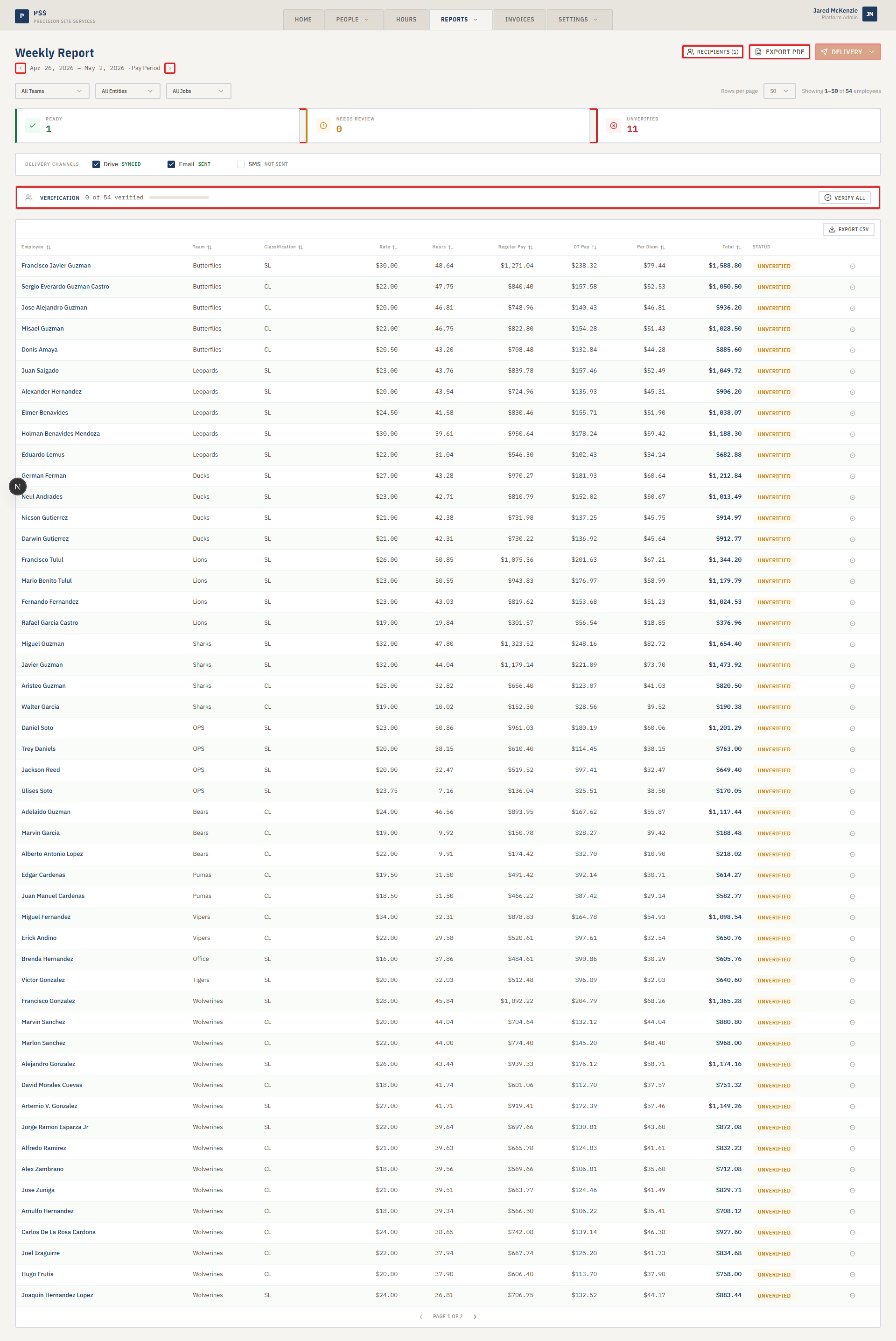
- Click the Reports tab at the top, then choose Weekly Report from the dropdown.
- Pick the pay period using the period picker at the top. The page defaults to the current week.
- Pick the team in the team selector directly below. You work one team at a time.
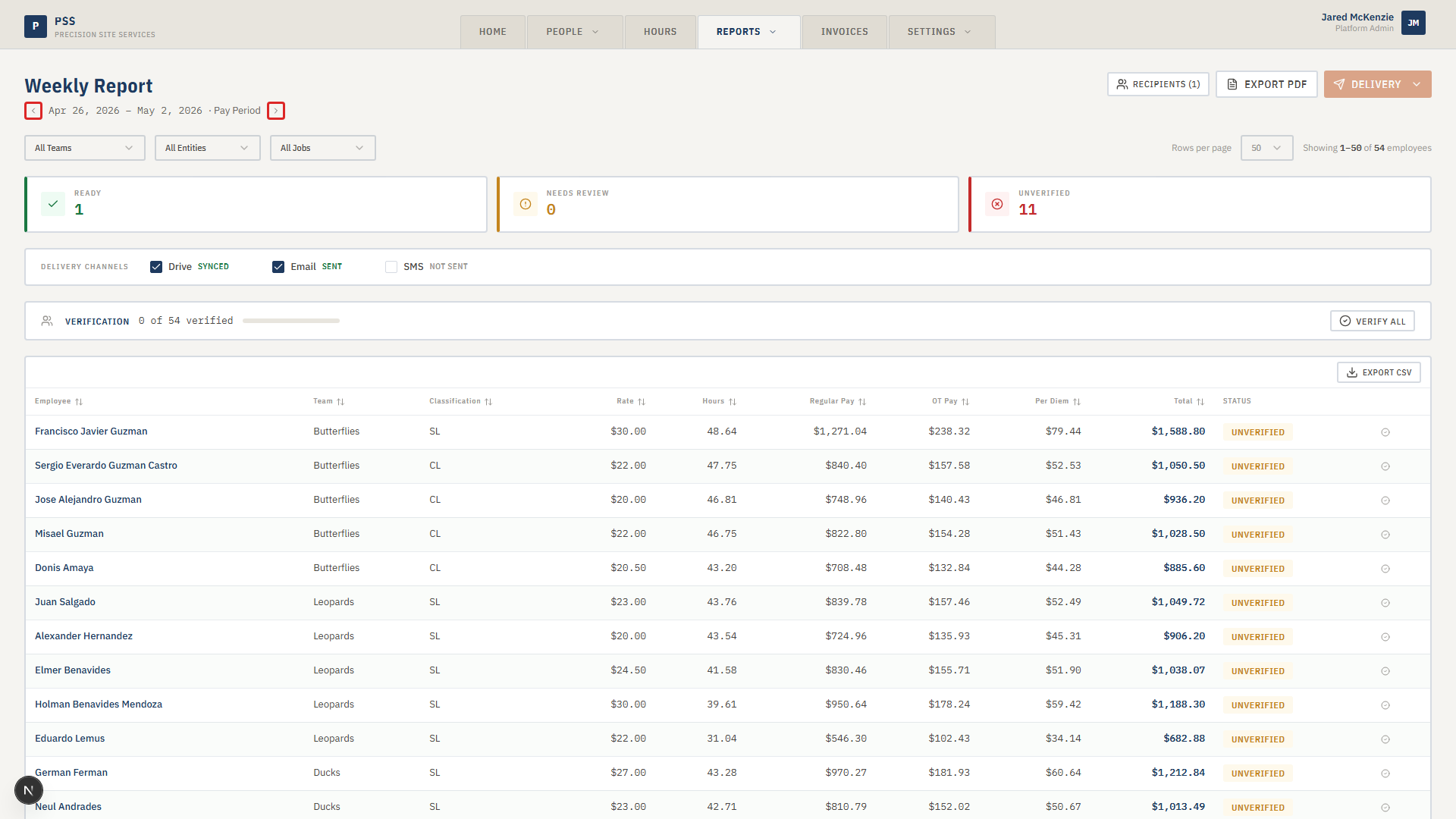
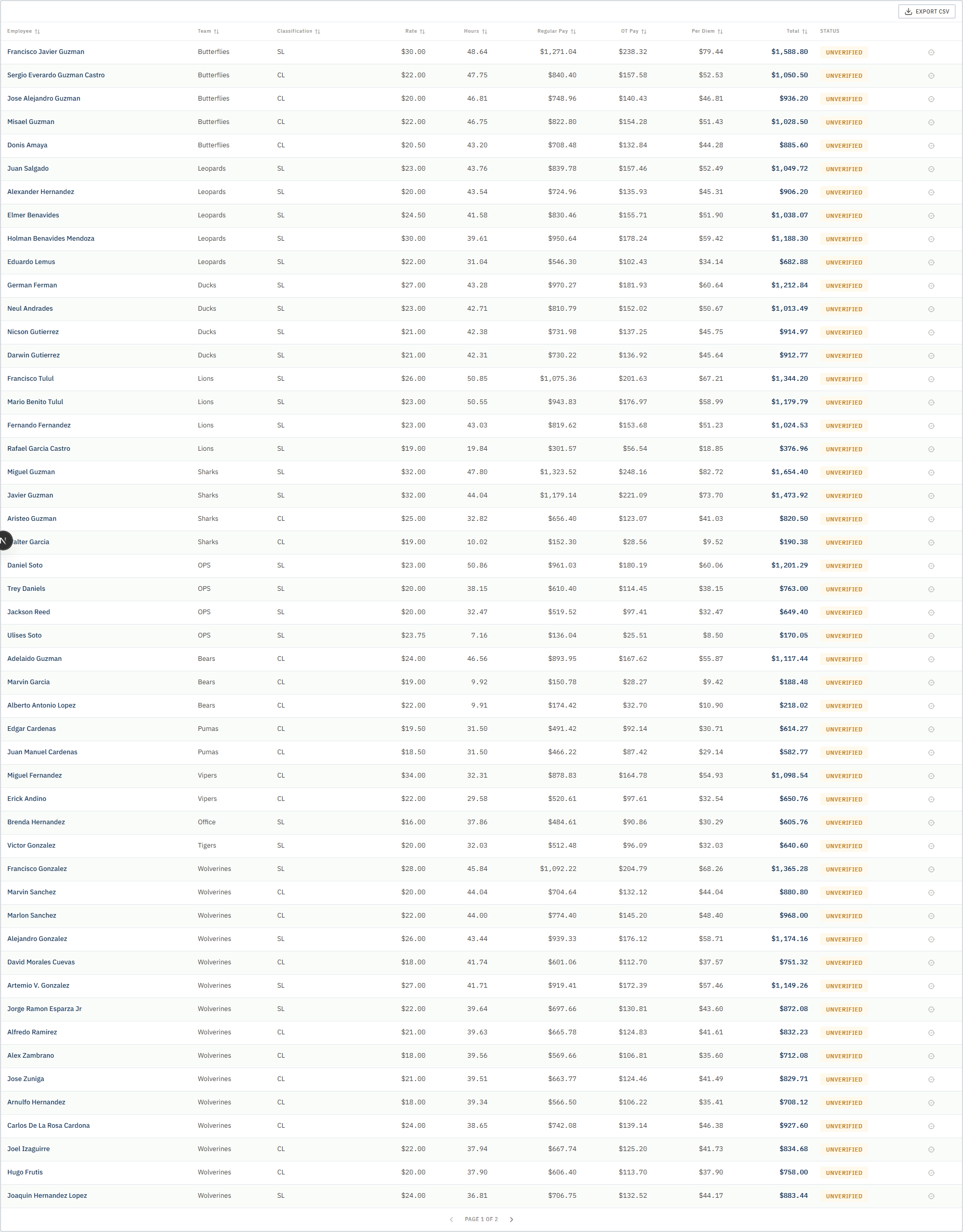
- Review the hours table. Each row is a worker. Check the Hours, Rate, Regular Pay, OT Pay, Per Diem, and Total.
- If everything looks right, tick Verified on the row (or verify the whole table with the bar at the top). This marks your office-side review complete.
- Choose which delivery channels to use: Drive archive, Email, SMS (text message). Most weeks, Email and SMS are both on.
- Click Run Delivery at the top right. The system emails the packet and texts the supervisor a short summary asking them to approve or reject.
- Watch the Packet Status column update. As supervisors reply by text, rows flip from Delivered to Approved or Rejected.
- Check back through the day. Once every row is Approved, the week is ready for payroll. The Delivery History table at the bottom logs every send.


Common mistakes
- Running delivery before verifying the numbers. If there is a correction to make, do it before the packet goes out — otherwise you have to pull it back.
- Forgetting to pick the right team. If you send a packet for the wrong team, the supervisor will text back rejections and you will have to resend.
- Leaving a Rejected row in the report and running payroll anyway. Always resolve rejections first.
- Turning SMS off and then wondering why the supervisor did not confirm. The text is what triggers their reply — email alone will not collect an approval.
What to do if it goes wrong
- The supervisor's reply did not register. They may have replied with unusual wording. Open the row and check the Foreman Response field. If their message is there but the status did not flip, someone with Automation Settings permission can flip it manually.
- Email or SMS failed to send. Check Delivery History at the bottom of the page — the status column will show the failure. Most failures are a missing phone number or email on the supervisor's profile; fix that and resend.
- Hours are missing for a worker. The sync from the sheet may not have finished. Wait a few minutes, then refresh. If they are still missing, check that the worker has a clock-out for every clock-in in People → Active Sign-Ins.
- Wrong rate showing. Rates come from the worker's profile. Fix the rate in People → Field Workers → (worker) → Rates and sync it to the spreadsheet, then rebuild the report.
Related guides
- Automations — schedule the weekly packet to send automatically
- Labor Report
- CIP Report
- Business Rules — lunch and per-diem policy settings that affect these numbers