CIP Report
What this is for
The CIP Report tracks Contractor Insurance deadlines for every active job. Use it to see which jobs have insurance paperwork coming due, which are already clear, and which are blocked or need attention before the window closes.
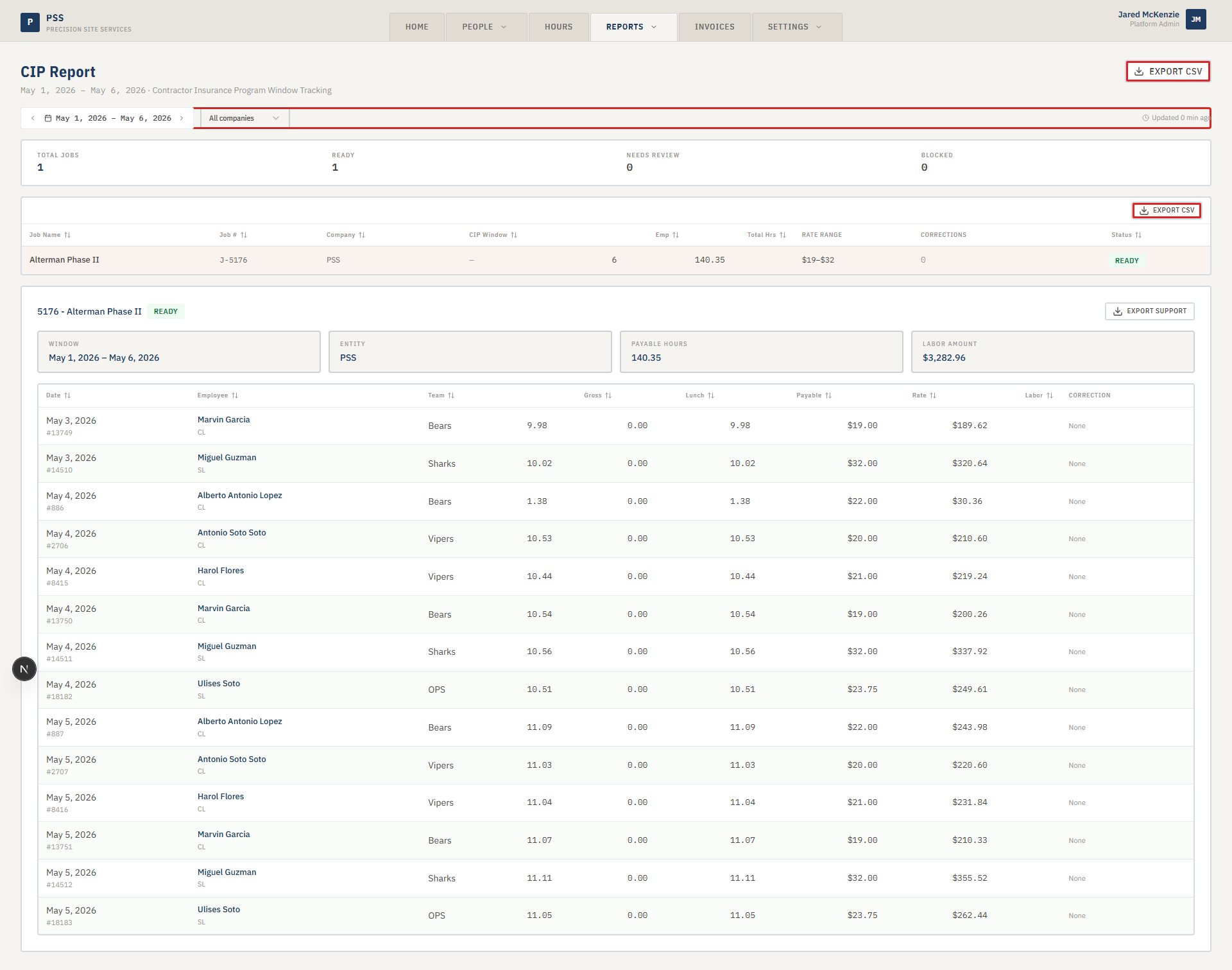
The report shows one row per job. Each row tells you the job name, the company it belongs to, the insurance deadline date, how many workers are on the job, total payable hours, and the current status. Click any row to expand the full detail panel for that job.
Steps
-
Click the Reports tab at the top of the screen.
-
Choose CIP Report from the dropdown.
-
Use the month navigation arrows on the left of the filter bar to move back or forward one month. The date chip shows which insurance window you are viewing.

-
To narrow down by company, open the Company dropdown in the filter bar and pick one. Leave it on All companies to see every job.
-
Read the table. The Status column shows a badge for each job:
- Ready — the job is in good shape for the insurance window.
- Needs Review — something needs attention before the window closes. Look at the CIP Window date column — an amber date means fewer than 30 days remain; a red date means fewer than 7 days.
- Blocked — a correction or missing data is preventing this job from clearing. Resolve it before the deadline.
-
Click any row to open the detail panel at the bottom of the page. The panel shows all individual time records for that job, including gross hours, lunch deduction, payable hours, and any correction status.
Screenshot pendingCIP Report detail panel showing worker time records for a selected job.
This screenshot will be added in a future docs update once the underlying state is reproducible in dev.
-
To export the summary table, click Export CSV in the top right. To export the detail records for the selected job, click Export support inside the detail panel.
Common mistakes
- Missing the deadline date color. Red dates in the CIP Window column mean fewer than 7 days left. Check the table daily during the last week of a window.
- Looking at the wrong month. The report defaults to the current month. If you are chasing a past deadline, use the back arrow to navigate to the correct month.
- Ignoring the Corrections column. A number greater than zero in the Corrections column means at least one time record on that job has an open correction. Corrections must be resolved before the job can clear.
- Exporting before selecting a job. The Export support button only appears after you click a row to open the detail panel.
What to do if it goes wrong
- A job is missing from the list. The job may not have a Contractor Insurance status set. Ask operations to confirm the job has
ccipStatusrecorded in the system. - Status shows Blocked but you cannot find the issue. Open the detail panel and look at the Correction column for each row. Any row marked Pending or Rejected is holding the job back.
- The deadline date looks wrong. The deadline comes from the job record. Contact operations to update the job's insurance window dates.
- Export CSV is empty. Make sure the table has loaded (the "Updated X min ago" timestamp is visible). If the table is still spinning, wait and try again.