Field Workers List
What this is for
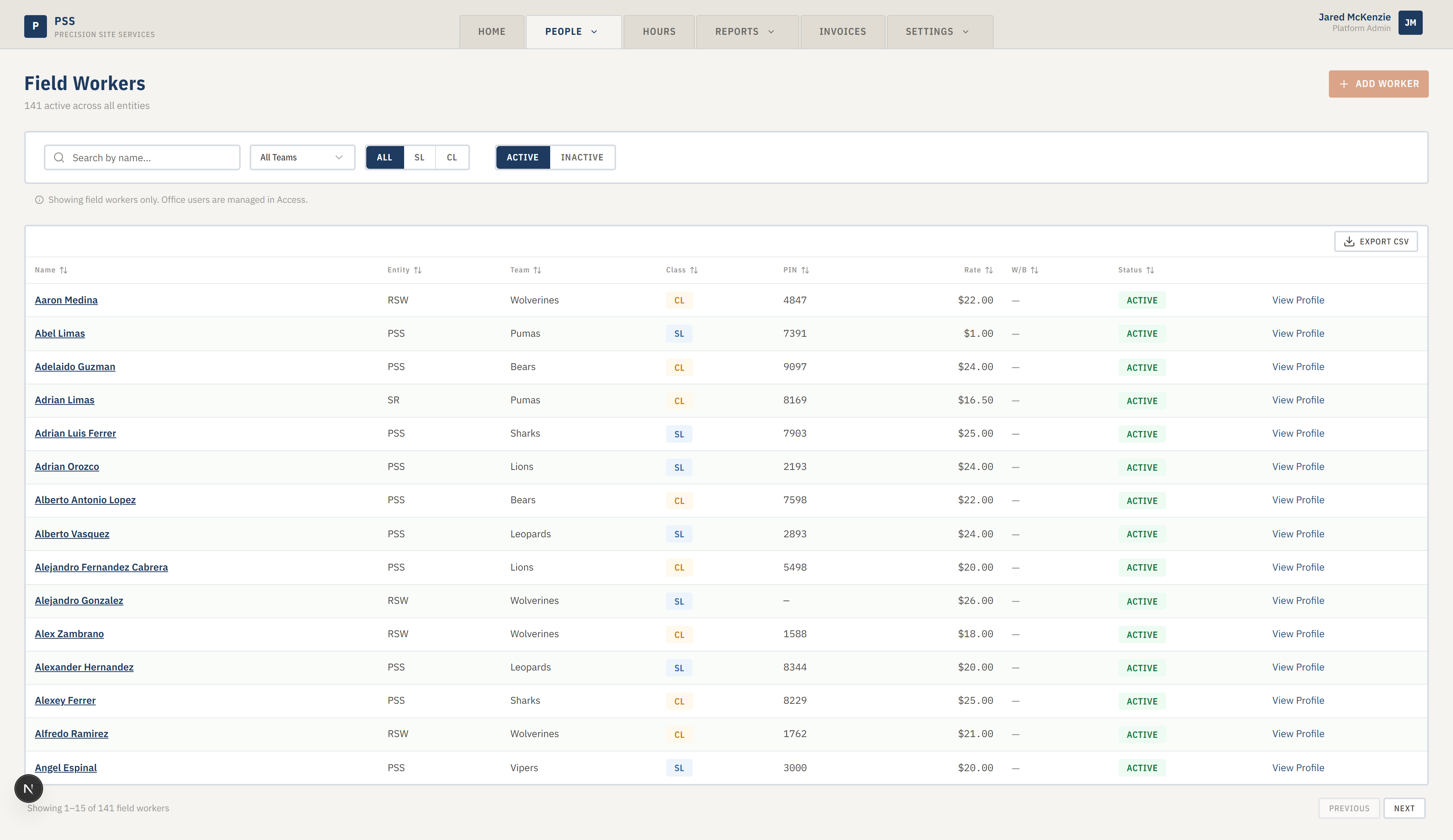
The Field Workers page is the master roster of everyone who works in the field. Use it to find a worker, see who is on which shift team, filter by active or inactive, or open a specific worker to review their pay rate, per-diem, and recent hours. It only shows field crew — office staff (accounting, admin) are managed under Settings > Access.
Steps
1. Open the list
Hover People in the top tab bar, then click Field Workers. You will see the worker count under the page title and a filter bar across the top.
2. Filter the list to find someone
The filter bar has a search box and several toggle buttons. Use one or combine several.

- Search by name — type any part of a first or last name. The list narrows as you type.
- Teams dropdown — the dropdown labeled "All Teams" shows every shift team. Pick one to only see workers on that team.
- SL / CL toggle — Salary (SL) or Contract Labor (CL). Leave on All to see both.
- Active / Inactive toggle — by default the page shows both. Click Active to hide workers who have been turned off. Click Inactive to see only the turned-off ones.
- Clear — once any filter is on, a Clear button appears on the right of the bar. Click it to reset everything.
3. Open a worker
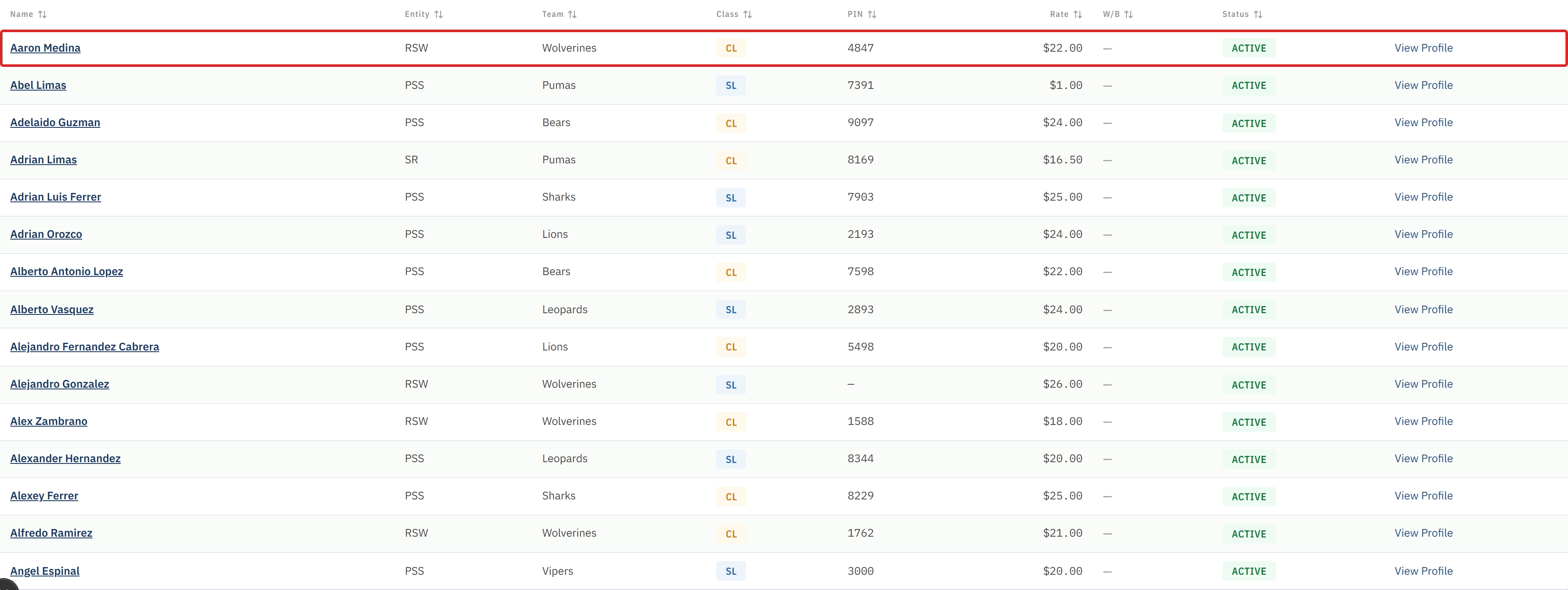
Click any row in the table. You go to that worker's detail page, where you can review rates, per-diem, recent hours, and run a sync to the spreadsheet. When you click Back to Field Workers on the detail page, your filters are kept for you.
4. Export the list
At the bottom of the table there is a pagination bar showing "Showing 1–N of total." If you need the filtered list in a spreadsheet, use the export option the table provides — it exports whatever is currently filtered, not the full list.
Common mistakes
- Forgetting a filter is on. If the list looks short, check the filter bar and hit Clear.
- Looking for office users. This page is field crew only. Go to Settings > Access for office accounts.
- Clicking Add Worker expecting it to open a form. That button is present but not yet turned on. For now, new workers are added in the spreadsheet and synced in.
- Confusing Inactive with deleted. Inactive workers are kept in the system so their history is preserved. They just do not show up in the default view.
What to do if it goes wrong
- The list is empty and you cleared all filters. Refresh the page. If still empty, message an administrator — the spreadsheet sync may have failed.
- You can't find someone who definitely works here. They may be marked Inactive. Click the Inactive toggle and search again.
- You land on "Access restricted." You need the "manage field workers" permission. Ask an administrator.