Live Sign-Ins
What this is for
Live Sign-Ins shows you every field worker who is clocked in at this very moment. It is the page you open to answer the question "who is on site right now?" It refreshes on its own every 60 seconds, so you do not have to reload the page to see new sign-ins come in.
Steps
1. Open the page
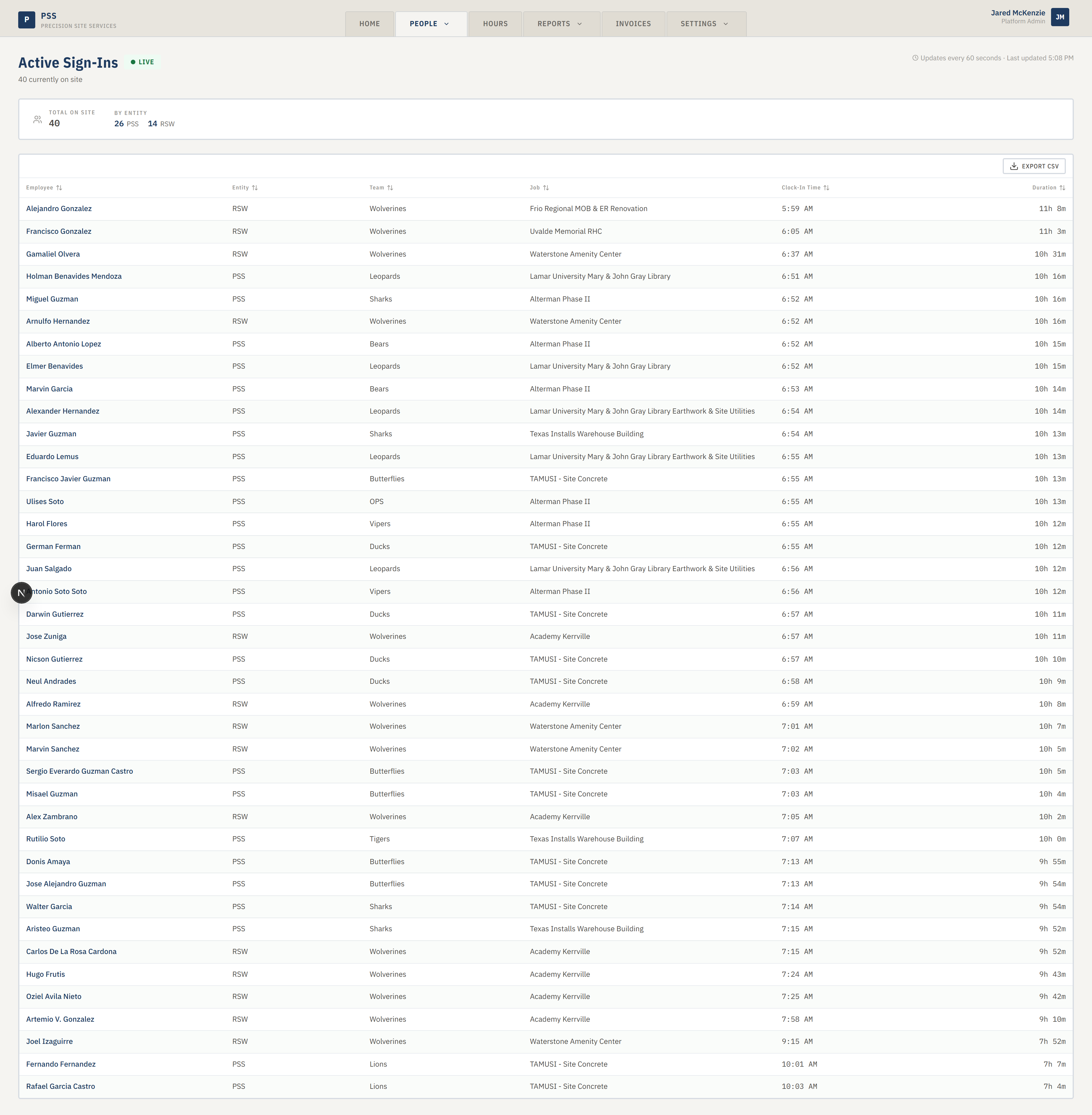
Hover People in the top tab bar, then click Active Sign-Ins. You will see:
- A heading with a green Live pill next to it (a small pulsing dot).
- A line under the heading saying "N currently on site."
- On the top right, an "Updates every 60 seconds · Last updated HH:MM" note so you know how fresh the data is.
2. Read the summary strip
Under the heading is a horizontal summary strip with two tiles:

- Total On Site — a single green number — everyone currently signed in.
- By Entity — a small breakdown showing how many people are on site per Company (entity abbreviations like PSS, PSI, etc.).
The Company breakdown is useful when you are trying to split headcount between different businesses.
3. Scan the table
The table below the summary strip lists every clocked-in worker with:
- Employee — the worker's name.
- Entity — which Company (entity) they are on.
- Team — their shift team.
- Job — the specific job site they are clocked into.
- Clock-In Time — the time they signed in today.
- Duration — how long they have been on site (ticks up every minute).
Rows are sorted by clock-in time (oldest first). If you need to read by team or by Company, click any column header to sort by that column.
4. Drill into a worker
If you need more detail on a specific person, go to People > Field Workers, search their name, and click their row. See Field Worker Details. This page itself is read-only.
5. Export the list
The table has an export option. Use it when a supervisor asks for "everyone on site right now" in a spreadsheet.
Common mistakes
- Thinking the page is stale. It refreshes silently every 60 seconds. Check the "Last updated" time in the top right — if it hasn't moved in several minutes, refresh the browser.
- Expecting to edit hours here. This page is view-only. To fix hours, use Hours or Time Corrections.
- Confusing Duration with a shift total. Duration is live time since clock-in, not paid hours. Lunch breaks and other rules are applied on the Hours screens later.
- Reading "On Site Now" on the dashboard and this page at the same time and wondering why the numbers differ by one or two. Both pull on slightly different refresh schedules. Give it a minute and they will match.
What to do if it goes wrong
- The page shows "Failed to load active sign-ins." Refresh the browser. If it keeps failing, the spreadsheet sync may be down. Message an administrator.
- "No one is currently clocked in" but you know someone is. It may take up to a minute for a new sign-in to show. Wait one auto-refresh cycle. If it still does not show, the worker may be signed into the wrong sheet or their record may not be linked — ask an administrator to check.
- "Access restricted." You need the "view active sign-ins" permission. Ask an administrator.