Teams
What this is for
A Team (sometimes called a crew) is a group of field workers who normally work the same shift together under the same lead. Teams are how you narrow a long list of workers down to a manageable view — "show me just the night team" or "how many of Crew A are on site right now?"
There is no dedicated Teams page in the top menu. Instead, teams show up in two places inside the app:
- As a filter on the Field Workers list.
- As a grouping / column on the Live Sign-Ins page.
This guide explains where to find teams and how to read them.
Steps
1. Filter the Field Workers list by team
Hover People in the top tab bar and click Field Workers. In the filter bar at the top of the page you will see a dropdown labeled All Teams.

- Click the All Teams dropdown.
- Pick a team name from the list. The worker list narrows to only that team.
- Click Clear on the right side of the filter bar to go back to all teams.
This is the closest thing to a "team roster" — filter by the team you want, and the table below is your roster for that team.
2. Read the team column on Live Sign-Ins
Hover People and click Active Sign-Ins. The table has a Team column that shows each clocked-in worker's team.
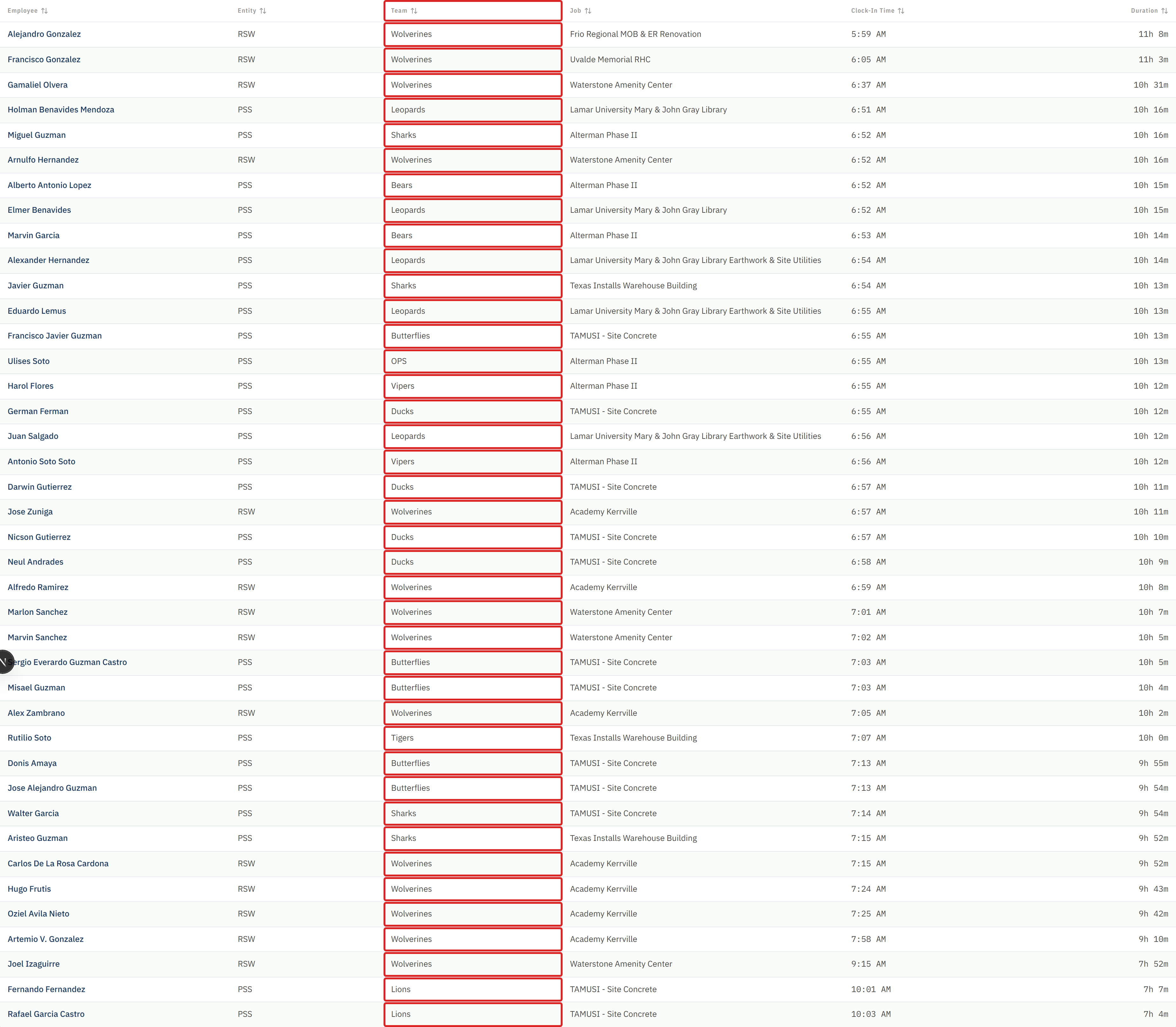
- Click the Team column header to sort the table by team. Everyone on the same team will group together.
- Scan down the column to see how many of each team are on site right now.
If you need a cleaner "who from each team is here," sort by Team and then look at the count in each group.
3. Confirm which team a specific worker is on
Open People > Field Workers, click a worker's row. On their detail page, the team name shows as a badge right under their name, next to their classification.
Common mistakes
- Looking for a Teams tab in the top menu. There isn't one. Use the All Teams filter on Field Workers, or the Team column on Live Sign-Ins.
- Assuming a team filter works on every page. Today it only works on the Field Workers list. Other pages (like Hours and Reports) filter by Company, job, or worker instead.
- Confusing Team with Company (entity). A team is a shift group of workers. A Company is the business the work is billed under. A worker belongs to one team but may do work across several Companies depending on the job.
- Creating or renaming a team inside the app. Teams are maintained in the source spreadsheet — not editable from the app UI.
What to do if it goes wrong
- The All Teams dropdown is empty. No teams have been loaded from the source spreadsheet. Ask an administrator to run a sync.
- A worker is on the wrong team. Team assignments live in the spreadsheet. Ask an administrator or the person who maintains the roster to change it in the master sheet and then sync.
- You need to create a new team. The app cannot create teams. Request one from whoever maintains the master spreadsheet.