Field Worker Details
What this is for
The Field Worker Details page is the single place you edit everything about one worker — their pay rate, their per-diem for specific jobs, and syncing their record back to the spreadsheet. You also see a recent history of their hours and past rate changes so you can check your work.
Steps
1. Open a worker's detail page
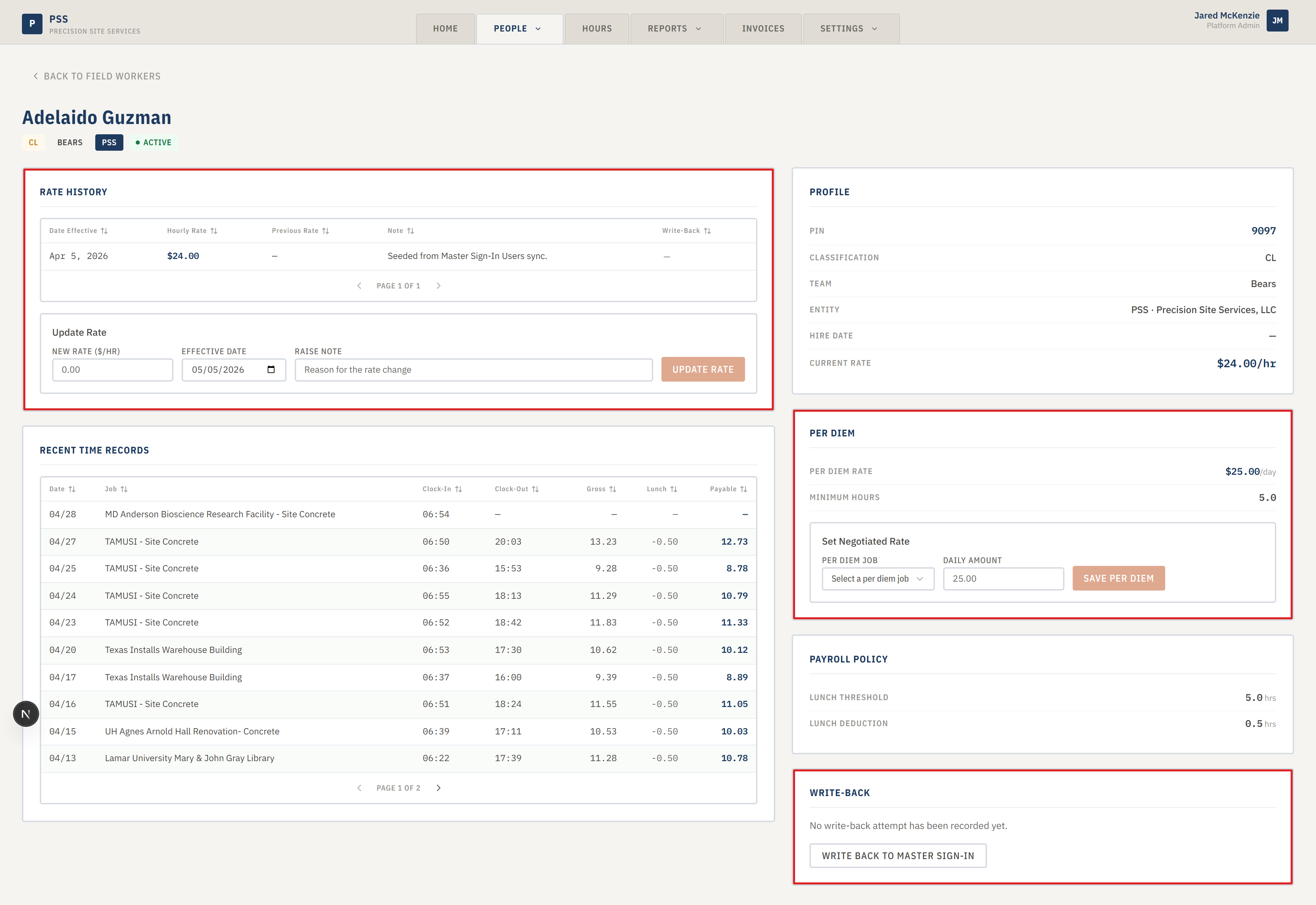
From People > Field Workers, click any row. The page opens with the worker's name in a large blue heading. Below the name are small colored badges:
- SL or CL — Salary or Contract Labor
- The shift team they belong to
- The Company (entity) their primary job is under
- A green Active badge if they are currently active
2. Update an hourly rate
On the left side, the first card is Rate History. It shows every rate this worker has ever had and when each one took effect.
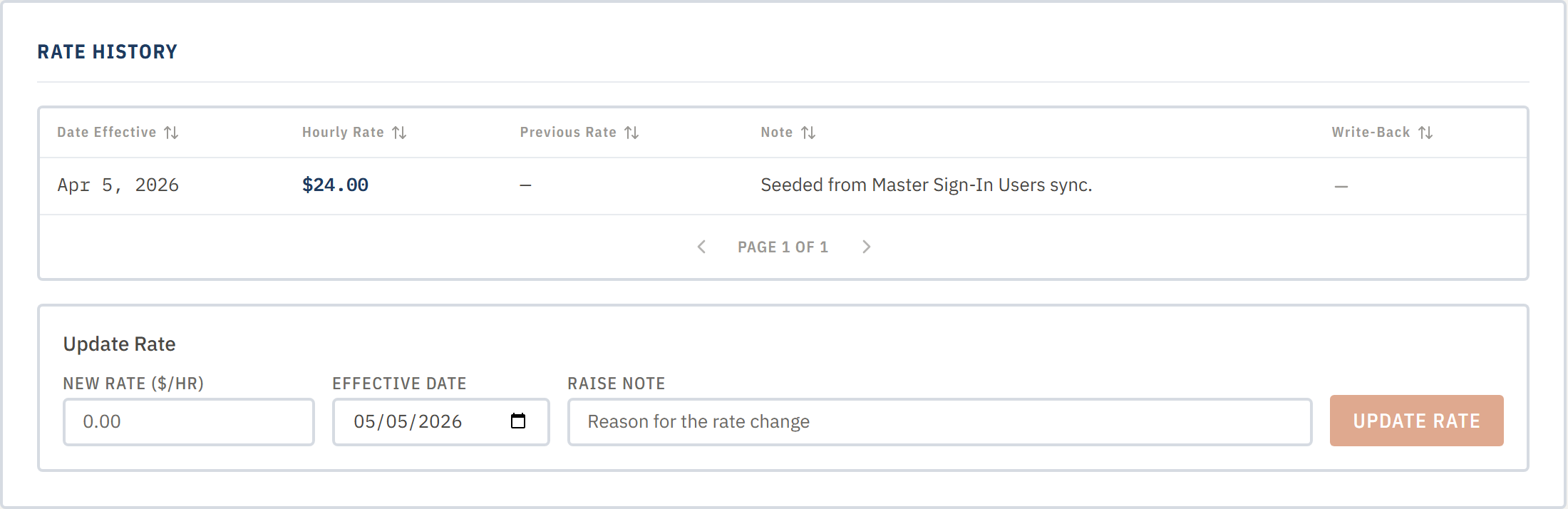
- Type the new hourly rate in the New rate box (for example,
32.50). - Pick the Effective date — the first day the new rate applies. Defaults to today.
- Optionally type a short note (for example, "promotion").
- Click Save. The page saves the rate and tries to sync it back to the spreadsheet automatically. You should see a green success banner at the top of the page.
3. Add a per-diem rate for a specific job
On the right side is the Per Diem card. Per-diem is the daily allowance paid when a worker is on a specific job. Per-diem is set per worker, per job, not one number for everyone.
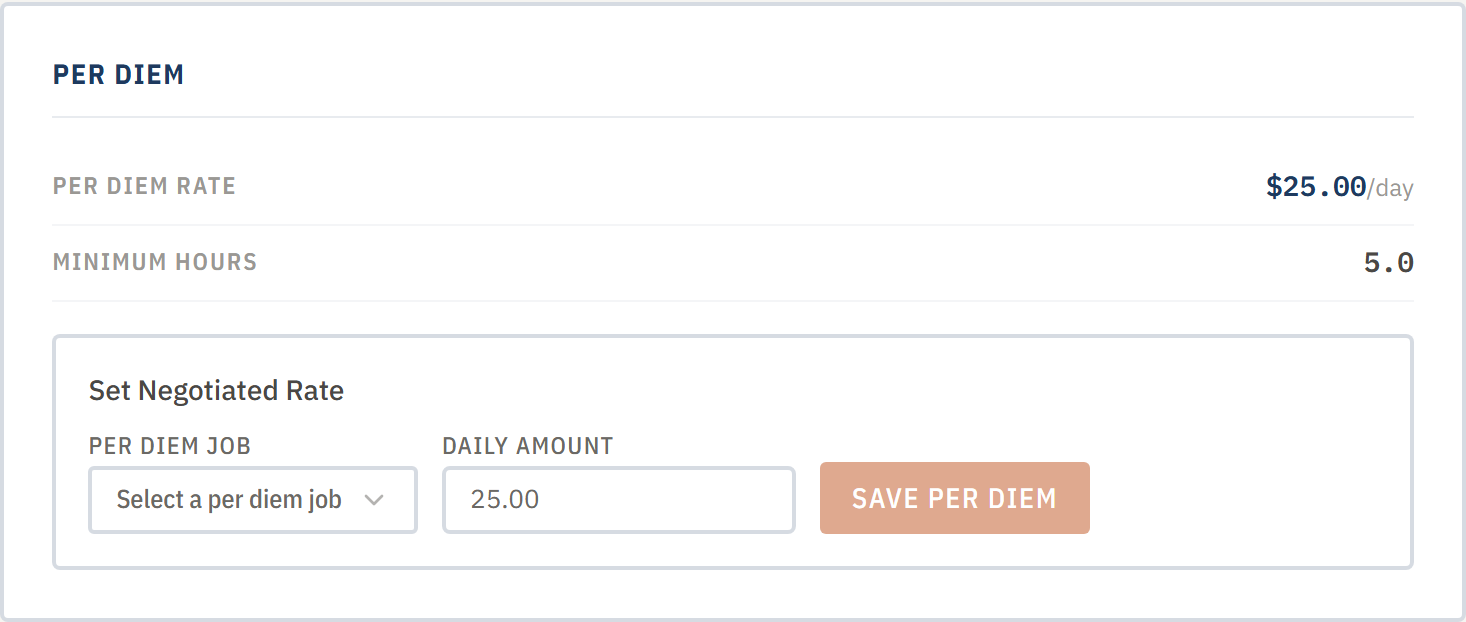
- Pick a job from the Job dropdown. Only jobs that have per-diem turned on appear in the list.
- Type the Daily amount in dollars (for example,
75). - Click Save. The new per-diem appears in the list below.
- To change an existing per-diem, click the edit icon on its row, adjust the amount, and save. To remove one, click the delete icon.
4. Sync the worker to the spreadsheet
On the right side, further down, is the Write-Back card. "Write-Back" means syncing this worker's current info back to the Google Sheets master. The app does this automatically when you save a rate, but you can run it manually if something got out of sync.
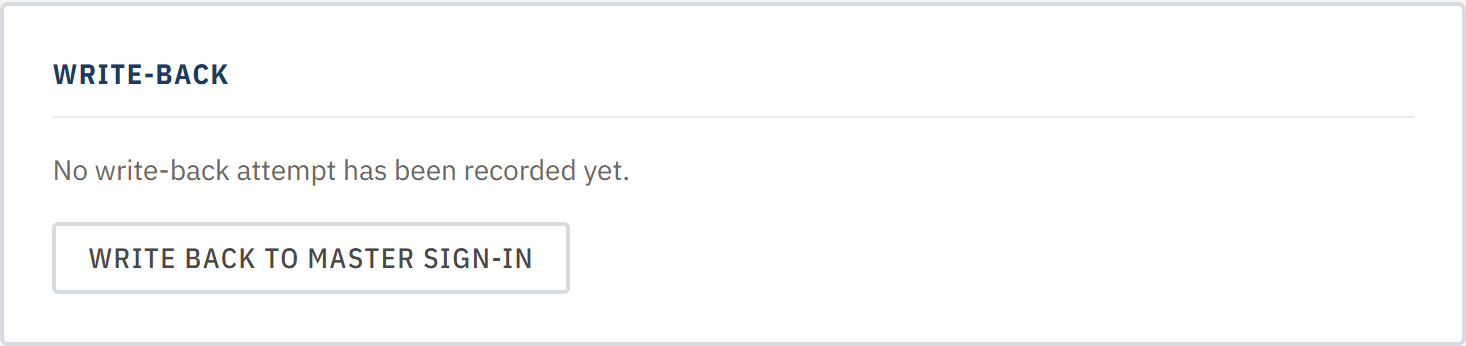
Click Sync Now (or the card's equivalent button). You will see a status badge update — green if it worked, red if something went wrong. If it failed, check the error message and try again. If it still fails, see Data syncing explained.
5. Review recent hours
The Time Records card on the left shows the worker's most recent sign-ins. It is read-only on this page — to edit someone's hours, go to the Hours tab or submit a Time Correction.
Common mistakes
- Setting the effective date to today when the new rate was supposed to start last Sunday. Double-check the date before you click Save — old time records are not re-priced automatically.
- Adding a per-diem to the wrong job. Per-diem is per job; confirm the job name before saving.
- Expecting per-diem to appear for every job in the dropdown. Only jobs that have per-diem turned on at the job level show up. If the job is missing, open the job and turn on per-diem there first.
- Running a manual sync repeatedly when the first one is still working. Wait until the status badge updates before clicking again.
What to do if it goes wrong
- "Failed to update rate." The spreadsheet sync may be down. The rate is still saved in the app — just try the sync again in a few minutes.
- "Failed to save per diem rate." Double-check that the amount is a positive number and the job is selected. If it keeps failing, message an administrator.
- The page shows "Employee not found." The URL may be wrong, or the worker was deleted. Go back to the Field Workers List and open them again from there.
- You do not see the Sync Now button. You do not have the permission. Ask an administrator for "manage field workers."