Checking Live Sign-Ins
What this is for
The Live Sign-Ins page shows every worker who is currently clocked in — right now, this minute. Use it when you need a quick headcount on a job, want to spot someone who never clocked out, or need to see where a specific team is working today.
Before you start
Nothing to prepare. This page shows real-time data and needs no setup. You just need the "View active sign-ins" permission — if the People tab does not show a "Live Sign-Ins" option, ask an admin.
Steps
-
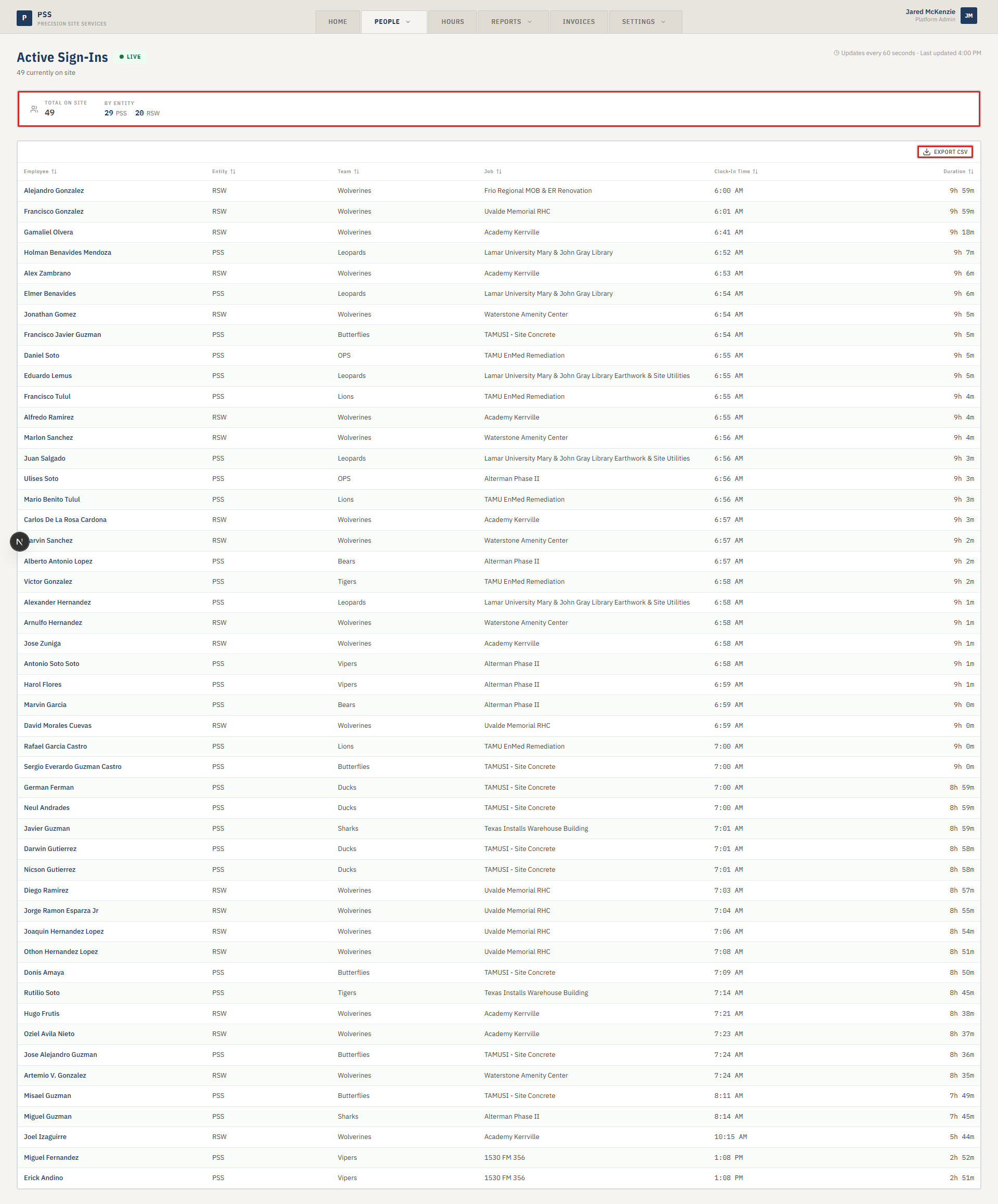
Click the People tab at the top, then choose Live Sign-Ins. The page loads with every worker who is currently clocked in — you'll see their name, team, the job they're on, and the time they clocked in.
-
The list refreshes automatically every minute. You don't need to reload the page to see the latest picture — just leave it open. A small indicator at the top shows when it last updated.
Screenshot pendingAuto-refresh indicator showing last update time.
This screenshot will be added in a future docs update once the underlying state is reproducible in dev.
-
(Optional) Use the filters at the top to narrow the list — pick a specific team to only see that team's workers, or filter by job to see who's on a particular site.
Screenshot pendingTeam filter dropdown on the Live Sign-Ins page.
This screenshot will be added in a future docs update once the underlying state is reproducible in dev.
-
(Optional) If you need more info on a specific worker (their rate, recent corrections, contact info), click their row to open their worker detail page.
Screenshot pendingClicking a worker row to drill into their detail page.
This screenshot will be added in a future docs update once the underlying state is reproducible in dev.
Common mistakes
- Mistaking an old session for a current one. If a worker forgot to clock out yesterday, they'll still appear as "active" with a very long elapsed time. A clock-in from 18 hours ago almost always means someone forgot to clock out — not that they're still working.
- Not waiting for the auto-refresh. If you just asked someone to clock in, give it up to a minute before the page updates. It's not instant.
- Assuming the filter sticks across pages. If you filter by team then navigate away, the filter may reset when you come back.
- Forgetting that "active" means "currently clocked in." Workers who are scheduled but have not clocked in yet do not appear here.
What to do if it goes wrong
- The list is empty but you know people are working. Refresh your browser. If it's still empty, the sync from the field devices may be stuck — contact your admin.
- Someone you expect is not on the list. Either they haven't clocked in yet, their device failed to sync, or they're clocked into a job that got reassigned. Check with their foreman first.
- A worker shows as active but they went home hours ago. They forgot to clock out. Create a time correction — see Correcting a Time Entry — and supervisors can follow up about the habit.
- The team filter shows no results. Confirm there actually is someone on that team clocked in. If the filter dropdown is empty, team assignments may not be set up yet.