Adding a Field Worker
What this is for
Getting a new field worker into the system so their hours, pay rate, and per-diem rules are correct from day one. Workers are added to the app through the office Google Sheet — once HR or operations updates the sheet, the next sync brings the worker into the roster automatically. After that, you open their detail page to set their starting hourly rate and any per-job per-diem amounts.
Before you start
- The worker has been added to the office Google Sheet by HR or operations. This is the required first step — the app does not yet have an in-app Add Worker form.
- The worker's shift team (for example, Team A, Team B) is assigned in the sheet.
- You have the worker's starting hourly pay rate.
- Any per-job per-diem amounts if the office has agreed to them (optional — you can add these later).
- Sign-in access with the Manage master data permission. If you cannot see the Field Workers page under People, ask an admin to grant access.
Steps
1. Add the worker to the Google Sheet first
New field workers must be added to the office Google Sheet by HR or operations before they can appear in the app. The app mirrors the sheet — it does not create workers independently.
If the sheet has not been updated yet, wait for HR to add the entry before continuing.
2. Open the Field Workers page
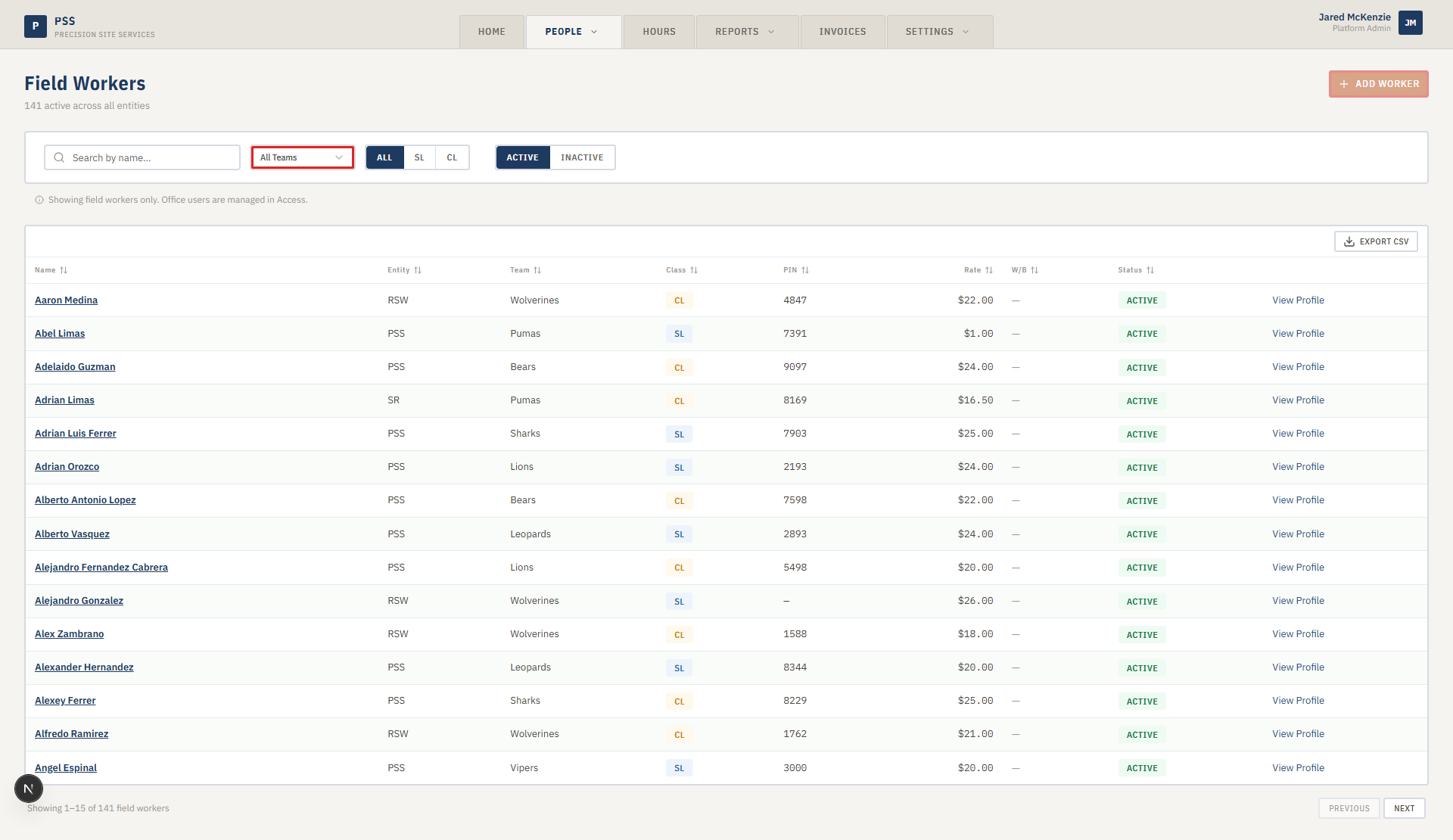
From the top navigation, go to People → Field Workers. You will see the full roster of active workers with columns for team, classification, and status.
3. Confirm the worker has synced
After the next scheduled sync, the new worker will appear in the list. If they are not showing yet:
- Check whether a sync has run recently — the sync runs on a schedule, so there may be a short wait.
- Ask an admin to trigger a manual sync if you need the worker available right away.
- If the worker still doesn't appear after a sync, confirm their entry in the Google Sheet is saved correctly.
Use the search box or team filter at the top of the page to find them quickly once they are in.
4. Open the worker's detail page
Click the worker's name in the roster to open their detail page. This is where you manage pay rates, per-diem amounts, and see their recent clock-in records.
5. Add the starting hourly rate
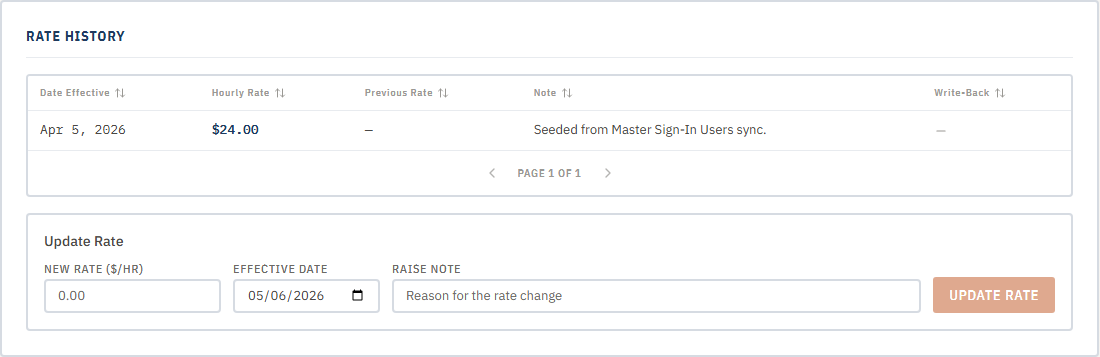
In the Pay rates card, click Add rate. Enter:
- The hourly amount (for example,
32.50) - The effective date — the first day this rate should apply
Save it. The rate appears in the rate history.
Without a rate on file, weekly reports and invoices will show $0.00 for this worker's labor, so this step is not optional.
6. (Optional) Add per-diem rates by job
If this worker gets a per-diem (a per-day stipend) on specific jobs, open the Per-diem rates card and click Add per-diem. Pick the job and enter the daily dollar amount. Repeat for each job that has a per-diem.
Per-diem rates can always be added later — skip this step if you do not have the amounts yet.
7. Sync to the spreadsheet
Once rates are in, click Sync on the worker's detail page. This sends the rate data back to the office Google Sheet so supervisors, payroll, and anyone else reading the sheet see the same thing.

You will see a green confirmation once the sync finishes.
Common mistakes
- Forgetting to add a starting rate. Without a rate, every hour this worker logs shows as
$0in all reports and invoices. Always set the rate before walking away. - Picking the wrong team in the sheet. The team drives who appears on which supervisor's weekly report. If the worker shows up under the wrong supervisor, check their team assignment in the Google Sheet.
- Skipping the sync after setting rates. If you do not click Sync, the rate data stays in the app but does not write back to the spreadsheet. Supervisors reading the sheet will not see the updated information.
- Using a personal email in the sheet. The worker's email needs to match the company email on record — personal Gmails cause reporting mismatches.
- Waiting for an in-app Add Worker form. That feature is not yet available. The spreadsheet is the only way to add new workers right now.
What to do if it goes wrong
- The worker doesn't show up after a sync. Check the Active filter on the roster — they may be hidden because their status was set to inactive in the sheet. Also verify the sync completed without errors.
- Sync fails with an error. Open the worker's detail page and look at the Sync status message. "Sheet not found" usually means the target sheet or tab was renamed — contact IT. "Row locked" means someone is editing the sheet — wait a minute and try again.
- Duplicate worker appears. The worker probably existed in the sheet already under a slightly different name. Ask an admin to deactivate the duplicate. Do not delete — work history is kept for audit reasons.
- Rate saved but labor still shows
$0. Double-check the effective date on the rate. If it is set in the future, past hours will not use it.