Business Rules
What this is for
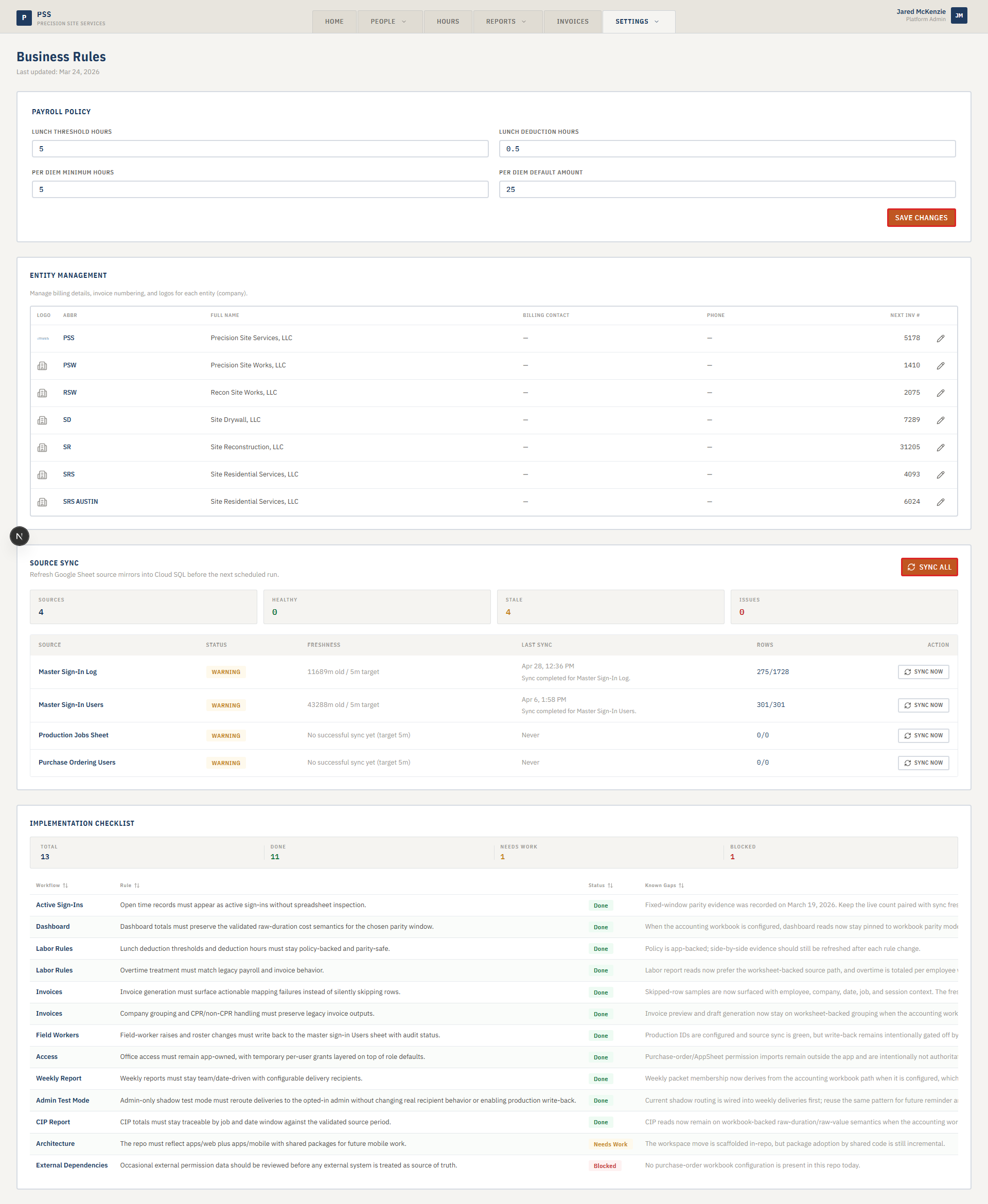
The Business Rules page is where accounting sets the payroll policy numbers that the system uses to calculate every worker's pay. Changes here take effect immediately on all new time calculations.
There are two main sections on this page. The Payroll Policy section holds the four numbers that control how time records are calculated. The Company Management section lets you update billing details, the next invoice number, and the logo for each company (entity) in the system.
There is also a read-only Implementation Checklist table at the bottom that shows the status of validation rules built into the system. Normal office staff use the top two sections; the checklist is mainly for the app administrator.
Steps
Updating payroll policy numbers
-
Click the Settings tab at the top of the screen.
-
Choose Validation Rules from the dropdown.
-
Find the Payroll Policy card.
-
Update the four fields as needed:
- Lunch Threshold Hours — the minimum number of hours a worker must be clocked in before a lunch deduction applies. For example, if this is set to 6, anyone working fewer than 6 hours does not get lunch deducted.
- Lunch Deduction Hours — how many hours to deduct for lunch once the threshold is met. Typically 0.5 (30 minutes) or 1.
- Per Diem Minimum Hours — the minimum hours worked in a day before the worker qualifies for per-diem pay.
- Per Diem Default Amount — the flat dollar amount added to a worker's daily pay when they qualify for per-diem.
-
Click Save Changes. A confirmation message appears at the top of the page.

Updating a company's billing details
-
Find the Company Management card below the Payroll Policy card.
-
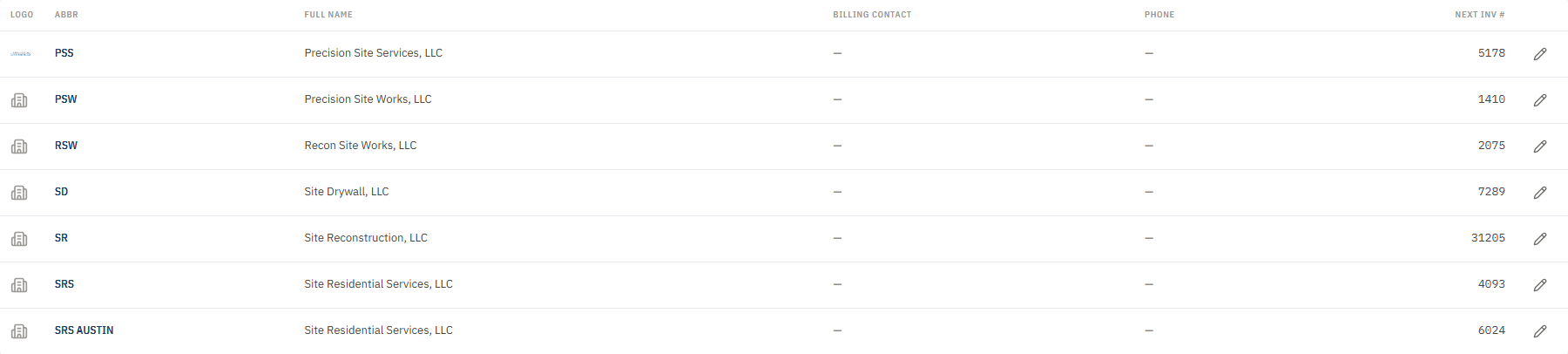
The table shows all companies in the system with their abbreviation, full name, billing contact, phone, and next invoice number.
-
Click the pencil icon on the row for the company you want to edit.
-
In the dialog that opens, update any of these fields:
- Logo — click Upload to add or replace the company logo (PNG or JPEG).
- Billing Contact — the name of the person to list on invoices.
- Billing Address — the billing address for that company.
- Phone — the main contact phone number.
- Next Invoice Number — the number the system will use for the next invoice generated for this company. Change this only if you are correcting a numbering gap.
-
Click Save Changes. The table updates immediately.
Common mistakes
- Changing the lunch threshold mid-week. The new threshold applies to any time record calculated after the save. Records already processed are not recalculated. Make payroll policy changes at the start of a new pay period whenever possible.
- Setting Per Diem Minimum Hours too low. If the minimum is set to 0 or 1, nearly every worker qualifies for per-diem on every shift. Double-check with your payroll policy before lowering this number.
- Editing the Next Invoice Number by mistake. If you accidentally change the next invoice number and save, the next invoice generated will use the wrong number. Go back and correct it before generating any new invoices.
- Expecting the Implementation Checklist to be editable. That table is read-only. It is a status display for the app administrator, not a form.
What to do if it goes wrong
- Payroll Policy card shows an error and will not load. Refresh the page. If it still fails, contact your app administrator — the API connection may be down.
- Save Changes shows an error. Check that all four fields contain valid numbers. Decimal values are allowed (for example, 0.5), but the fields cannot be blank or contain text.
- A company is missing from the Company Management table. Companies are added at the database level by the app administrator. Contact IT to add a new company.
- You cannot see the Business Rules page. Your account needs the Manage Master Data permission. Ask an administrator to update your role in Settings → User Access.