Automations
What this is for
Automations are scheduled rules that run on a timer and automatically deliver the weekly report packet to field supervisors. Instead of someone clicking Run Delivery manually every Monday morning, an automation does it at the exact day and time you configure.
Each automation rule targets one shift team (or all active teams), fires on a specific day of the week at a time you set, and sends the packet through whichever delivery channels you choose — email, text message, or both. The rule also looks back a set number of weeks to include the right pay period.
Automations are not triggered by user actions. They run on a schedule, like a recurring alarm clock.
Important: The automation scheduler runs on server time. There is no way to configure a timezone — the hour and minute you enter are interpreted in the server's local time zone. If your office is in a different time zone from the server, you will need to account for the offset when setting the run hour.
Steps
Creating a new automation rule
-
Click the Settings tab at the top of the screen.
-
Choose Automations from the dropdown.
-
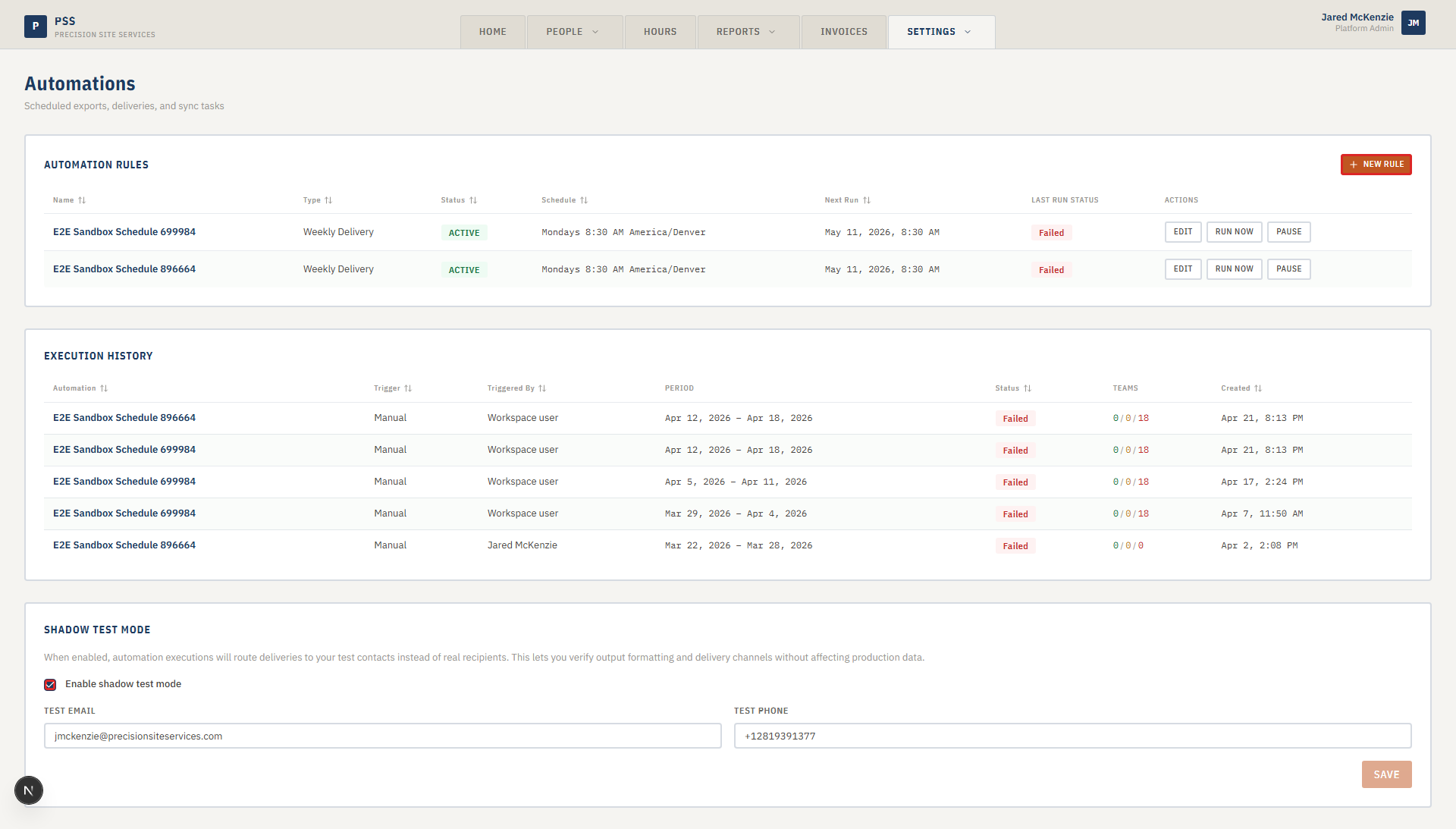
Click New Rule in the top right of the Automation Rules card.

-
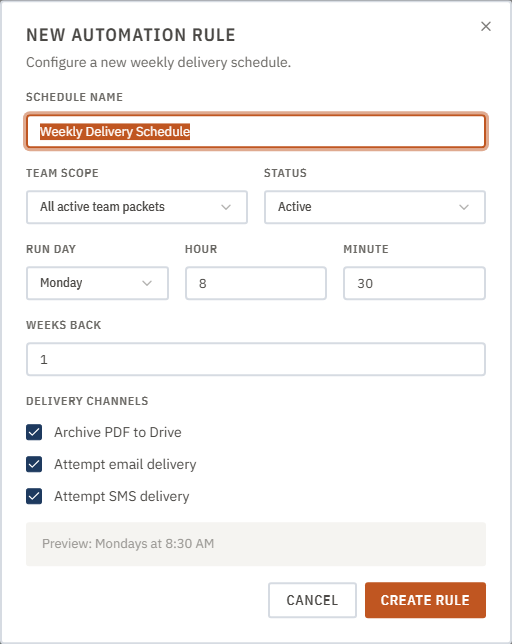
Fill in the rule form:
- Schedule Name — type a short name so you can identify this rule later (for example, "Monday AM — All Teams").
- Team Scope — choose a specific team or leave it on All active team packets to cover every team at once.
- Status — leave on Active to have the rule run immediately on its next scheduled time. Set to Paused to save the rule without activating it yet.
- Run Day — choose which day of the week the rule fires (Monday through Sunday).
- Hour and Minute — enter the time in 24-hour format (for example, Hour 7, Minute 30 means 7:30 AM server time).
- Weeks Back — enter how many weeks back to look when building the report packet. Set to 1 for last week's data, 2 for two weeks back, and so on. Most payroll rules use 1.
- Delivery Channels — tick the channels to use:
- Archive PDF to Drive — saves a PDF copy to the connected Google Drive folder.
- Attempt email delivery — sends the packet by email to the team's recipients.
- Attempt SMS delivery — texts a short summary to the supervisor asking for approval.
-
Review the Preview line at the bottom of the form — it shows the schedule in plain English before you save.
-
Click Create Rule. The rule appears in the Automation Rules table.
Editing or pausing a rule
- Find the rule in the Automation Rules table.
- Click the edit (pencil) icon on that row.
- Change any fields, then click Save Changes.
- To pause a rule without deleting it, click the toggle on that row to flip the status from Active to Paused.
Running a rule manually
- Find the rule in the Automation Rules table.
- Click the Run button on that row. The system fires the rule immediately, regardless of its schedule.
- Check the Execution History table below for the result. A success message will appear with a summary of what was sent.
Shadow test mode
Shadow test mode lets you test automations without sending real emails or texts to supervisors. When enabled, all deliveries go to a test email and test phone number instead.
- Find the Shadow Test Mode card at the bottom of the Automations page.
- Tick Enable shadow test mode.
- Enter a Test Email and Test Phone to receive the test deliveries.
- Click Save. All automation runs will now route to your test contacts until you disable it.
Common mistakes
- Setting the wrong hour because of time zone offset. The system uses server time, not your local time. If you want deliveries at 7:00 AM local time and the server is two hours ahead, enter Hour 9.
- Leaving Weeks Back at 1 when you need the current week. A value of 1 means last week. If you want this week's data, you would need 0 — but that is unusual for payroll. Confirm with your payroll process before changing this.
- Not ticking SMS when supervisors reply by text. If SMS is off, supervisors will not receive the text message that asks them to approve or reject. Email alone does not collect supervisor responses.
- Running a rule manually while shadow test mode is on. Test mode affects all runs, including manual ones. Turn it off before running a live delivery.
What to do if it goes wrong
- Rule fired but nothing was sent. Check the Execution History table. If the status shows a failure, look at the summary message for the error reason. Missing phone numbers or email addresses on the team's recipients are the most common cause.
- Rule did not fire at the scheduled time. Confirm the rule status is Active, not Paused. Also verify the day and hour are set correctly in server time.
- Execution History shows a delivery attempt but the supervisor did not receive it. Check that the supervisor has a phone number and email on file in People → Field Workers. Then look for a send failure in the execution summary.
- You cannot see the Automations page. Your account needs the Manage Automation Settings permission. Ask an administrator to update your role in Settings → User Access.