Aging and Priority
Every age number, color, and chart on the Action Queue is computed from one thing: how long ago each PO was created. This page is the legend.
Where age comes from
Age on the Action Queue is days between today and the PO's creation date. It is not "days since this PO entered Pending PM." A PO that sat in Confirmed for 18 days, then dropped into Pending PM yesterday, will still show its full creation-date age.
This catches almost every PM at least once. Use the age as a starting signal — but cross-check whether an old, recently-Pending item is actually overdue from your perspective, or just looks that way because the order is old.
Row-level age color
The age cell in each row of Pending My Action changes color as the item ages. Three tiers — that's it.
| Age | Color | What it means |
|---|---|---|
| Less than 7 days | Gray | Recent — no urgency yet. |
| 7 to 13 days | Amber | Aging — start watching. |
| 14 days or more | Red | Overdue — clear these first. |
The cutoff is a rolling two weeks. Anything in red has been waiting at least that long.
There is no dark-red tier on row text. A row aged 45 days will show in plain red. The dark-red tier you'll see on the chart (next section) does not appear on rows.
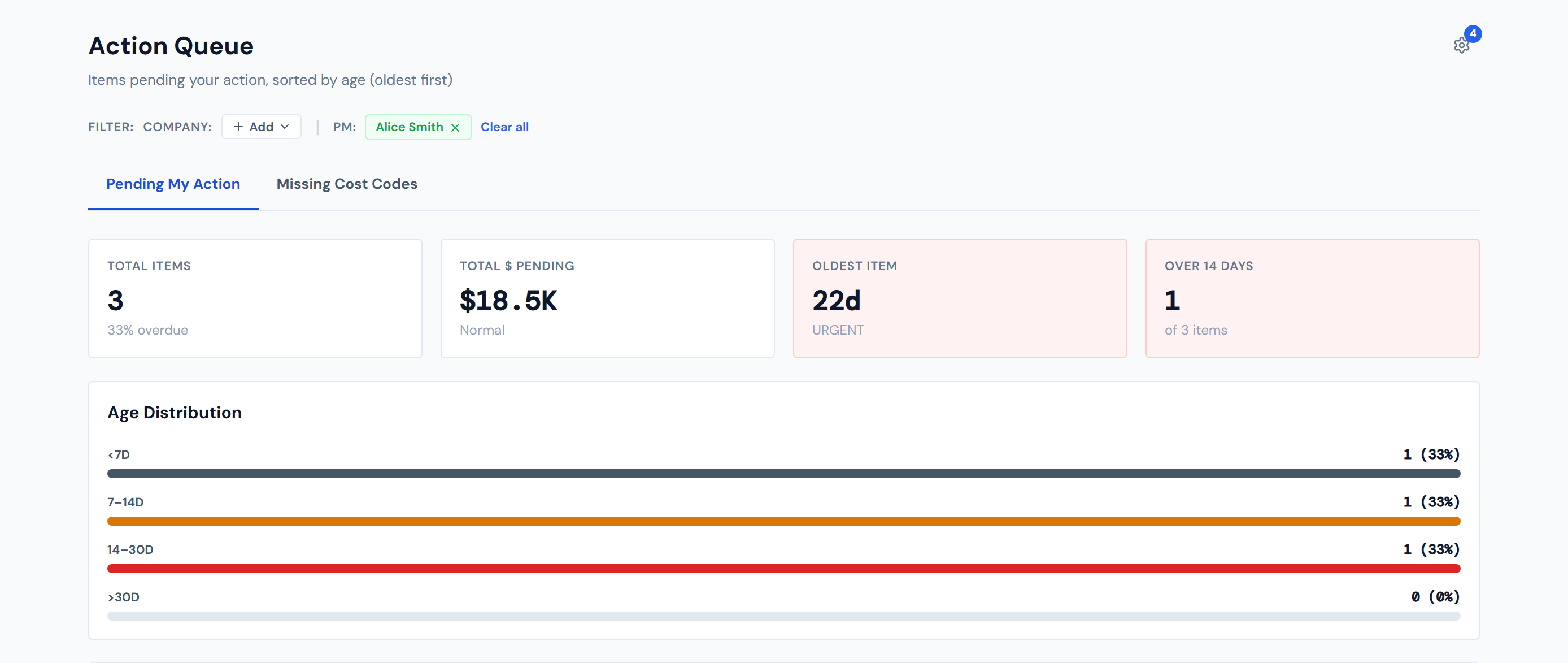
Age distribution chart — four buckets
The chart on the Pending tab has four buckets, not three. The extra resolution sits on top of the row colors so you can see severity in the aggregate.
| Bucket | Color | Meaning |
|---|---|---|
| Less than 7 days | Slate gray | Recent — most likely to be cleared this week. |
| 7 to 14 days | Amber | Aging — start watching. |
| 14 to 30 days | Red | Overdue — this is what the "Over 14 Days" card counts. |
| Greater than 30 days | Dark red | Severely overdue — investigate why these are stuck. |
A 32-day-old item shows in plain red on its row but contributes to the dark red bar on the chart. This is intentional — the chart needed extra resolution for severity, and rows already use red as the loudest text color available.
Click a bar to narrow the card grid below to just that bucket — a "Showing: …" chip appears above the grid with the filtered item count. Click the bar again (or the chip's ✕) to clear it. The four summary cards keep their full, unfiltered numbers while the filter is on.

Summary card thresholds
The four cards across the top of the page each have their own threshold logic.
| Card | Threshold | Subtitle / behavior |
|---|---|---|
| Total Items | Items 14 days or older as a share of the total. | Subtitle reads "X% overdue." |
| Total $ Pending | $50K and $100K. | "Normal" below $50K, "High" above $50K, "Critical" above $100K. |
| Oldest Item | 7 and 14 days. | "OK" below 7 days, "Watch" at 7 days, "URGENT" at 14 days or more. The card turns red-tinted at 14 days and over. |
| Over 14 Days | Count greater than zero. | The card turns red-tinted whenever any item is 14 days or older. |
A few details that catch people:
- The "Over 14 Days" threshold is 14 days or more, not "more than 14." A PO that just clicked over to exactly 14 days is counted.
- The cost subtitle thresholds ($50K / $100K) are not configurable. They're set globally; readers asking "can we tune these for our company?" — the answer is no.
- The chart's percentage labels are rounded. A single item out of a queue of 200 will round to 0% but still show a visible bar, because each bar's width is proportional to the largest bucket, not to the total. So a small bucket can look more visually prominent than its label suggests.

Why Pending and Missing Cost Codes sort in opposite directions
This is the most counterintuitive thing on the page, so it gets its own section.
Pending My Action — oldest first
For the confirmation workflow, aging is priority. The longer a PO sits in Pending PM, the more likely accounting can't close the period and the more likely you've lost the context to confirm the line confidently. Putting the oldest item at the top puts the most-blocking work at the top.
Missing Cost Codes — newest first
For uncoded labor, newer is more fixable. Recent entries are still in someone's memory — "yeah, that was the demo crew last Tuesday." Old uncoded labor gets harder to attribute correctly the further back you go. Putting the newest items at the top puts the most-fixable work at the top.
These two tabs are designed to surface different things. Don't describe the Action Queue as "sorted oldest first" generically — only the Pending tab is. The Missing Cost Codes tab does the opposite for a real reason, and the third tab (PO Detail) sorts by whichever column you click.
Reading the chart at a glance
A healthy queue is dominated by the gray bar. A bit of amber is normal. Red and dark red should be small or zero.
If your dark-red bar is the longest one, you have a workflow problem — something is consistently not getting confirmed. Time to dig into a few of those items, find what they have in common, and either chase the missing piece or escalate.
Long gray bar, thin amber, almost-empty red and dark red — clean. Anything else, look closer.
What to do with old items
- For Pending PM items 14 days or older: confirm them, or escalate to find out what's blocking the ticket. The action path is in Confirming a PO.
- For missing cost codes regardless of age: still worth coding. Note the order ID and route to whoever owns the timeclock data in your org. See Missing Cost Codes for the full picture.
A note on freshness
An "age in days" of "12d" may have ticked over to "13d" in reality. Generally not a problem — but if a card or color seems off by a day, refresh in a few hours rather than refresh on the spot. See Data Refresh Rates.
A separate kind of color
Don't confuse age color (the row text and chart bar shade — gray / amber / red / dark red) with lifecycle color (the colored badge that marks each PO's status — Confirmed blue, Pending PM red, and so on). They're two different visual systems.
For the lifecycle palette and what each badge color means, see PO Lifecycle Colors.
Related reads
- Action Queue Overview — where each visual lives.
- Pending My Action — where the row colors apply.
- Missing Cost Codes — the tab that sorts in the opposite direction.
- Daily Workflow — practical "what to do at each color" routine.
- PO Lifecycle Colors — the badge palette, which is unrelated to age color.
- Confirming a PO — the action you take on red items.
- Data Refresh Rates — why ages can be off by a few hours.