Widgets — Overview
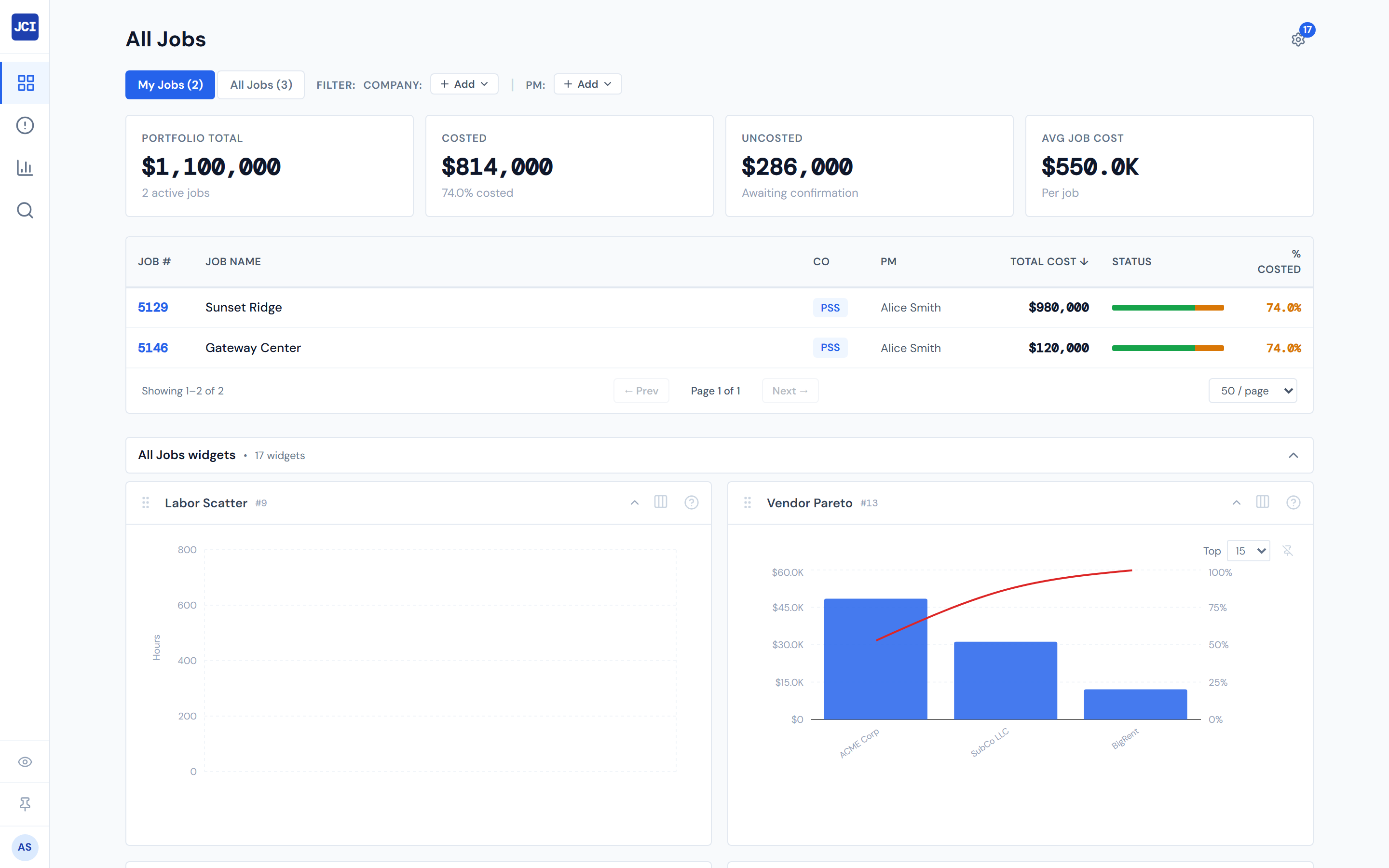
A widget is a card on a dashboard page that shows one focused chart, table, or KPI strip. You decide which widgets appear, in what order, and how wide each one is.
Customizing widgets only changes what you see. Other PMs, Ops Managers, and Executives keep their own layouts. You can rearrange these. Try it.
Where widgets live
Six surfaces in the dashboard host widgets. Each surface keeps its own layout — what you do on All Jobs has no effect on what shows up on Analytics.
- All Jobs
- Analytics
- Action Queue
- Job Detail
- Job Detail › Field Data
- Job Detail › Budget
The dashboard ships 35 widgets in total. Not every widget fits every surface — a job-specific widget like Cost Waterfall only makes sense on Job Detail. The customize panel on each page tells you which widgets fit that surface, and which ones live somewhere else. See Widget Settings Panel for the full panel walkthrough.
What you can do with widgets
Six abilities. Each links to its full page.
- Show or hide widgets one by one, or hide every widget at once from the sidebar.
- Reorder widgets by dragging them to a new spot on the grid.
- Resize widgets to one of five widths — quarter, third, half, two-thirds, or full. The width control lives on each widget card and inside the settings panel.
- Collapse a single widget down to just its header. (For folding an entire row of widgets at once, see collapsing widget sections.)
- Drill down by clicking a chart in one widget to filter the others on the same page.
- Pick a different preset to switch your starting layout across every surface at once.
The default widget row
Every page that hosts widgets starts with a section of cards laid out in a 12-column grid. Cards can sit at quarter, third, half, two-thirds, or full width. The grid wraps to the next row when a card doesn't fit.
Presets
Your starting layout is based on your role: PM, Ops Manager, or Executive. The dashboard checks your role in the PM directory the first time you sign in and seeds every surface with that role's preset. As soon as you change anything — toggle a widget off, drag one into a new spot, pick a different preset — your layout label flips to "Custom."
There is no "Save my preset" feature. You can't name and share a layout. Customizations are personal and they persist; the label simply reads "Custom" once you've moved off the role default.
See Presets for the per-surface contents of each preset and what happens when you switch.
The customize gear
Every page that hosts widgets shows a single gear icon in its header row. Click it to open the settings panel for that page.

The number on the gear's badge is how many widgets are enabled on the page you're looking at. The badge updates live as you toggle.
On Job Detail, the gear is tab-aware. The same icon scopes to whichever main tab you're on:
- On the main tab, it edits Job Detail widgets.
- On Field Data, it edits Field Data widgets.
- On Budget, it edits Budget widgets.
Switch tabs and the badge count changes with you. See Widget Settings Panel for the full panel walkthrough.
Widget sections
The widget area on every page sits inside a section header with a title and a widget count. Click the header once and the entire grid folds away; the page body underneath jumps up to fill the space. Click again to bring the widgets back.
Job Detail can stack up to three section headers above the main tab bar — one for the main Job Detail widgets, one for Field Data widgets when that tab is active, and one for Budget widgets when that tab is active. Each section folds independently. See collapsing widget sections for the full behavior.
How settings carry across pages
Some widget settings travel with the widget across every page where it appears. Others stay tied to the specific page you set them on.
A widget's width and per-widget collapse state travel with the widget itself. Changing them on All Jobs also changes them on Analytics, if the widget appears there too. Show/hide and order are per-page — turning the Vendor Pareto off on All Jobs leaves it on Analytics. The full breakdown is on Widget Settings Panel.
Live data, with a small lag
Widgets read from the same live data the rest of the dashboard does — but the numbers can be a little behind reality.
Cost and PO numbers can be up to two hours behind. Job, labor, and vendor data can be up to a day behind. See Data Refresh Rates for the full schedule.
Where to next
- Showing and Hiding Widgets — turning widgets on or off, plus the global Hide All toggle.
- Reordering and Pinning — dragging cards into a new order and pinning a control inside a widget.
- Widget Settings Panel — the gear, the panel, the toggles, the width picker.
- Presets — what's in each preset and how to switch.
- Cross-Widget Drill-Down — clicking a chart to filter the rest of the page.
- Collapsing Widget Sections — folding the entire widget row away when you want a clean view of the table below.
- Widget Catalog — what each widget does, one entry per widget.
- Companies and Access — how the PM, Ops, and Exec roles are set.