Missing Cost Codes
This tab shows labor entries on your jobs where no cost code was selected at clock-in. Cost codes drive job costing accuracy — these entries are spending dollars but not telling us where.
This tab only shows labor entries from the timeclock. Concrete, materials, subcontractor, rental, and pump POs missing a cost code do not appear here. If you're hunting for an uncoded material PO, you won't find it on this page.
Why this matters
A labor entry without a cost code still hits the job's total cost — accounting sees the dollars. What's missing is which scope of work the dollars belong to. Over time, uncoded labor distorts every per-cost-code variance report and budget tracking number downstream. The fix is small if you catch it early; it gets harder to attribute the older the entry gets.
The two summary cards
Two small cards sit above the list.
| Card | What it shows |
|---|---|
| Total Missing | Count of labor entries on your jobs without a cost code. |
| Total Cost | Sum of resolved cost across those entries. |
A Company selection in the page's filter bar carries into this tab — the job groups and both cards recount for the selected companies only. If the selection leaves nothing here while other companies still have uncoded entries, the tab says so ("No missing cost codes for the selected companies") instead of showing the green all-clear.
There's no age distribution chart and no urgency tinting on this tab — just the two totals.
Anatomy of a job group
Each card on the page represents one of your jobs that has at least one uncoded labor entry. The card has a red-tinted header to draw your eye and a stack of entry rows beneath.
Job header
The header is a red-tinted strip with:
- Job number as an underlined link — clicking opens that job's detail page.
- Job name and company.
- Total cost across the missing items on this job.
- Item count for that group.
Item rows
Rows on this tab are intentionally minimal — there's nothing to click on a row, no thumbnail, and no age coloring.
| Cell | What it shows |
|---|---|
| Order ID | The labor entry's identifier. |
| Vendor and description | Typically a worker name or a labor account, plus the line description. |
| Date | The order creation date, with "(N d ago)" in parentheses. |
| Cost | The line's resolved dollar amount. |
That's the whole row. No category icon. No ticket thumbnail. No color shift as the entry ages. The "N d ago" is information only — the rows don't change appearance based on it.
What clicking does
Only the job number in the header is clickable — it navigates to that job's detail page. The item rows themselves are not interactive. Clicking on a row's text does nothing.
This is a deliberate difference from the Pending My Action tab, where the entire row is a navigation target.
Sort order — newest first, on purpose
The Pending My Action tab sorts oldest-first because aging is the priority signal there: the longer a PO sits in Pending PM, the more blocking it is.
This tab sorts the other way. Newest-first surfaces the freshest uncoded entries at the top, because fresh entries are the easiest to fix from memory. "Oh yeah, that crew was on the demo scope last Tuesday" is a recoverable thought; six weeks later it isn't.
Pending My Action: oldest first (aging is priority). Missing Cost Codes: newest first (fresh is fixable). Don't expect them to behave the same way. See Aging and Priority. (The third tab, PO Detail, sorts however you click.)
What "missing" actually means
The tab catches three forms of missing: a cost code with no value, a cost code stored as an empty string, and a few legacy entries where the value was recorded as a non-recognized placeholder. All three look the same to you — the row just shows up here. You don't need to think about which form it is.
How to actually fix one
The JCI dashboard surfaces these for visibility — it does not let you edit them. Cost codes on labor are entered at clock-in or clock-out time in the timeclock app. Fixing a historical entry happens upstream, in that source system.
To correct an uncoded labor entry, escalate to whoever owns the timeclock data in your org. Note the order ID and the worker, and follow your usual process. The dashboard will reflect the correction once the source data updates and the next refresh runs.
The newest-first sort is doing you a favor. A row from this week is much easier to attribute correctly than one from a month ago. Make this tab a quick scan, not a deep audit.
A note on who shows up here
Like the Pending tab, this tab is scoped to your jobs by user ID. A job whose PM field is a plain first name (rather than a user account) won't surface its missing-codes entries here, even if you're the de facto PM. The same caveat is documented in My Jobs vs. All Jobs.
The empty state
When every labor entry on your jobs has a cost code, the tab shows "All labor entries have cost codes assigned." in green. This is genuinely good news, not a "no data" warning.
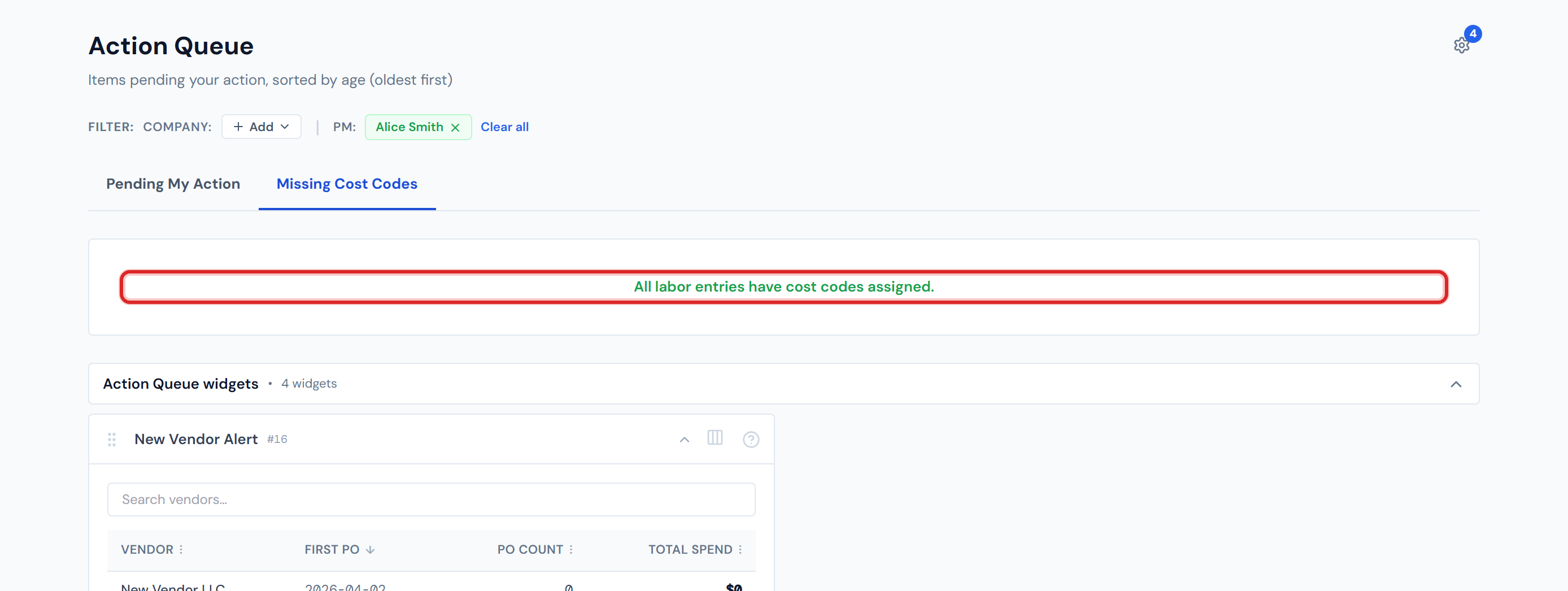
A typical view
Here's what the tab looks like when there are a handful of items to chase down.
Refresh expectation
If a cost code was just added at the timeclock source, expect a wait before the row leaves this tab. The data refreshes every four hours. See Data Refresh Rates.
Related reads
- Action Queue Overview — the chapter intro and the boundary of what the queue does not include.
- Pending My Action — the first tab; it sorts in the opposite direction for a reason.
- Aging and Priority — why these two tabs use different sort orders.
- Daily Workflow — where this tab fits in the morning routine.
- Glossary — entries for cost code, labor, and category.
- PO Lifecycle Colors — for context on why "Pending PM" and "missing cost code" are two separate problems.
- Data Refresh Rates — the four-hour delay between source updates and the dashboard.
- My Jobs vs. All Jobs — the first-name PM caveat that also affects this tab.