All Jobs — Overview
All Jobs is the portfolio view: every job you have access to, with quick scorecards on top and a row per job below. By default it's scoped to your jobs (My Jobs), so on first load you see your own portfolio rather than the whole company list.
PMs land here on sign-in with My Jobs already on. To see every job in the system, click All Jobs in the toggle next to the filter bar.
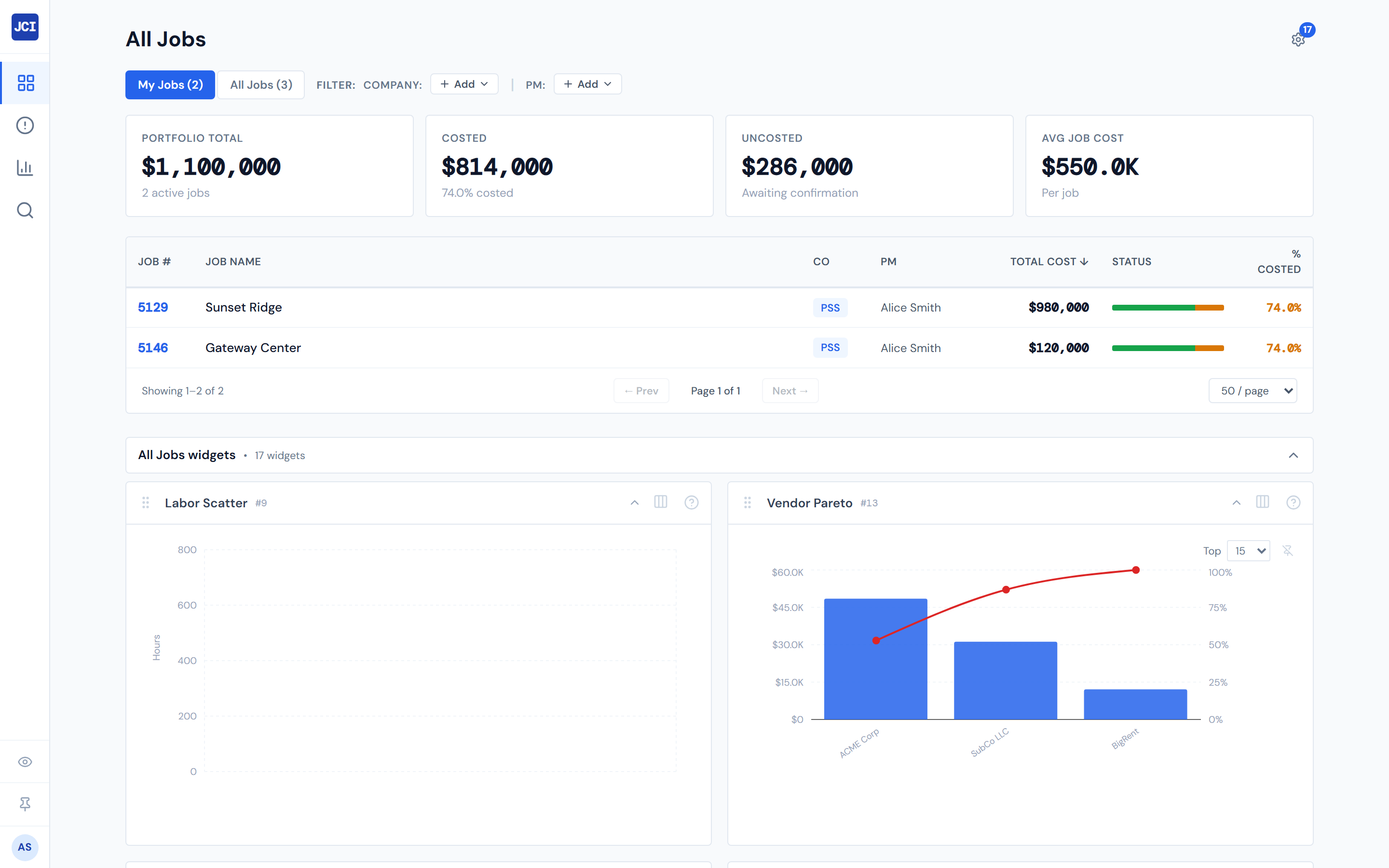
Page anatomy
The page has five regions stacked top to bottom. Most of the rest of this chapter goes deep on one of them — this section is the map.
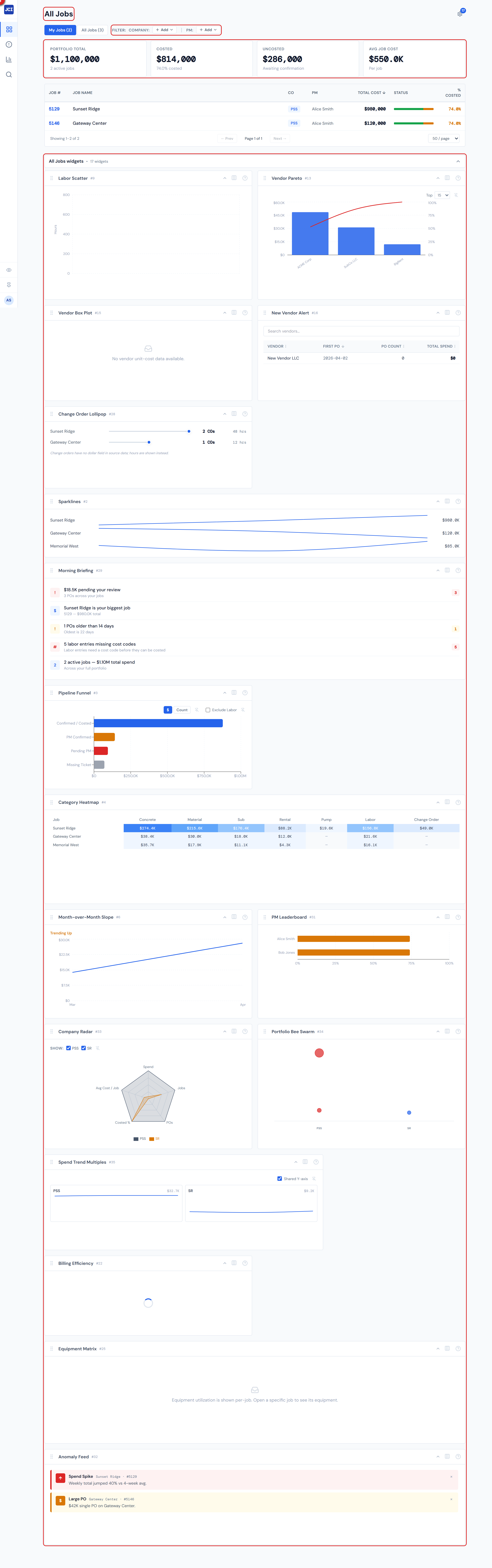
1. Page header
The page title — All Jobs — sits at the top left. On the right is a gear-shaped control for showing and hiding the widgets that appear below the table. See Showing and hiding widgets for what the gear does.
2. Filter row
Just under the header is a single row that combines two controls:
- The My Jobs / All Jobs toggle on the left — visible only to PMs, hidden for viewers (see My Jobs vs. All Jobs).
- The Company and PM filter chips next to it — see Filter Bar for the full breakdown.
3. Four scorecards
A row of four summary tiles. Each shows a single number aggregated across the jobs currently visible after your toggle and filter choices.
4. The jobs table
Seven columns, one job per row. Total Cost descending by default. See The Jobs Table for what each column means and Sorting and Columns for how the headers behave.
5. Widget region
A customizable widget area below the table, scoped to All Jobs. Toggle individual widgets on or off from the gear icon in the page header. See Widgets overview and Showing and hiding widgets.
What the four scorecards mean
The scorecards summarize the jobs currently showing in the table — so they update live as you change the toggle or add filter chips.
Portfolio Total
The sum of total cost across the jobs currently in your view. The subtitle reads "N active jobs", where N is the number of rows you can see right now.
"Active jobs" in the subtitle means the jobs in your current view — not jobs whose internal status is "active." If you filter to one company, the count drops accordingly. It's a count of what you're looking at, not a status filter.
Costed
The sum of resolved cost across the visible jobs. The subtitle shows what percentage of Portfolio Total has been costed.
Uncosted
Portfolio Total minus Costed — the dollar amount that hasn't been resolved yet across the visible jobs.
Avg Job Cost
Portfolio Total divided by the number of visible jobs. Useful as a sanity check ("does my portfolio average look right?") rather than as a meaningful KPI on its own.
Default scoping
What you see on first load depends on whether you're a PM or a viewer.
If you're a PM, the page loads with My Jobs on and the filter bar empty. The four scorecards aggregate just your portfolio. To see every job in the system, click All Jobs in the toggle.
If you're a viewer, the My Jobs / All Jobs toggle is hidden — there's no PM identity to scope by. The page loads showing every job, and the scorecards aggregate across the full portfolio.
For the full rules, including the case where a job's PM field has a first name instead of a user ID and won't show under My Jobs, see My Jobs vs. All Jobs.
Filters and the toggle are remembered while you stay on this page, but reset when you switch pages or refresh. There's no saved-view feature on All Jobs today.
Data freshness
Numbers on this page can be up to four hours old. The scorecards, Total Cost, and % Costed all read from data that refreshes every four hours. If you just confirmed a PO and don't see the totals shift yet, that's why. See Data refresh rates for the full schedule.
The widget region
Below the table is a customizable widget area scoped to All Jobs. Toggle which widgets appear from the gear icon at the top of the page. Widgets here aggregate across the same jobs your filters and toggle have narrowed the table to — they don't have a separate scope.
For a tour of what widgets are and how to manage them, see Widgets overview and Showing and hiding widgets.
What All Jobs is not
This page is for browsing the portfolio. Two related tasks live elsewhere:
- Confirming POs isn't done from this page. Open the Action Queue for that.
- Drilling into a single job — its budget, billing, daily reports, equipment, change orders, and PO detail — happens on the Job Detail page. From here, click any row in the table to get there. See Opening a Job for the three fastest ways in.
Related pages
- Filter Bar — Company and PM filter chips
- The Jobs Table — column-by-column reference
- Sorting and Columns — sort behavior and accessibility
- Opening a Job — three ways to drill into a job
- My Jobs vs. All Jobs — the toggle and the first-name caveat
- The interface — page chrome and navigation
- Job status — what active and closed mean
- Data refresh rates — the four-hour caveat